A label can be used for many different purposes, such as embedding content, creating links to a website, or separating items within the course content box.
To add a label, first click on Add Label.

You will be brought to the following page:
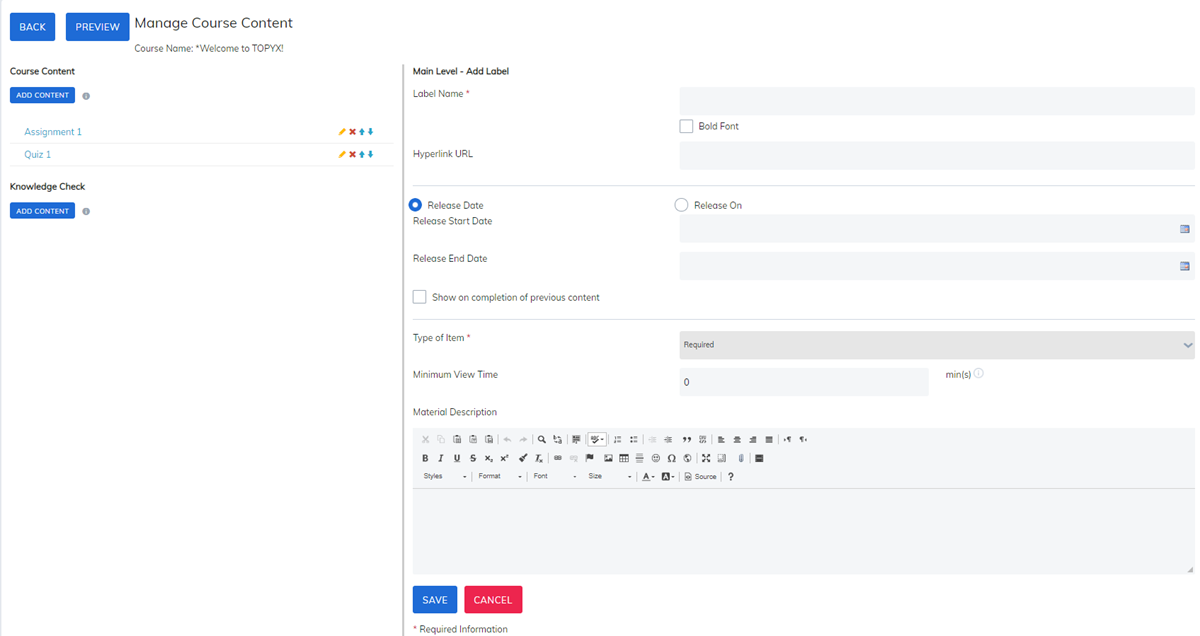
- Label Name: Enter the name of the label.
- Bold Font: Check Bold Font if you want the label text to appear bold.
- Hyperlink URL: If you want the label name to link to a webpage, enter the URL in the Hyperlink URL field.
- Release Date: If you would like this content to only be available during specific dates, please select Release Date and enter a release start date and release end date.
- Released On: If you would like the content to be released on a specific day or week after registering to the course, select Release On radio and configure the timing.

- Show on completion of previous content: Check this box if you would like this label to be available to learners after they complete the previous content. This option forces learners to move through the content in order. They are not able to skip around.
- Number of Items to Complete Course: This setting allows you to designate course items as required or optional as you add them. Enter the number of required items learners must complete if your course includes optional content.
- Note: If this value is set to 0, all items in the course will be treated as required. This is the most common configuration.

Minimum View Time: Use this setting to require learners to keep the item open for a specified amount of time before it is marked complete. Enter the required duration in the Minimum View Time field.
Example: If you add a 10-minute video, you may require learners to view it for at least 9 minutes before the item is marked complete.
Notes:
- Videos uploaded directly into the editor must be 500 MB or smaller, regardless of whether Minimum View Time is used.
- Videos hosted externally (linked by URL) do not have the 500 MB limit.
- Both embedded and externally linked videos are supported.
- Videos display in a 4:3 aspect ratio (640 × 320). Full-screen viewing is available when supported by the external video source.

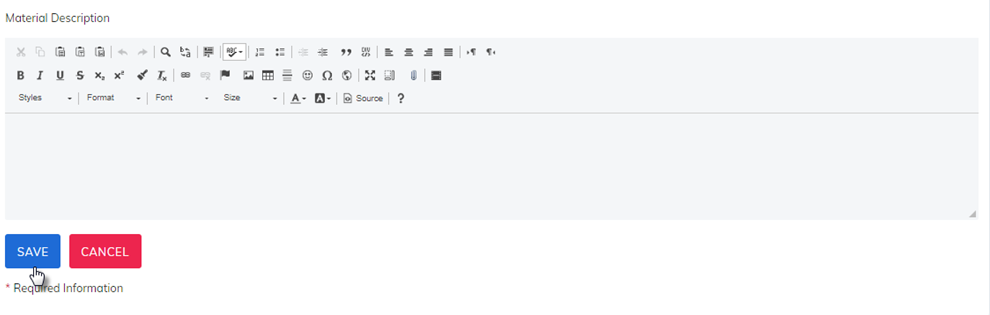
Once everything has been set up, add any information to the Material Description editor, then click Save.
Was this article helpful?
That’s Great!
Thank you for your feedback
Sorry! We couldn't be helpful
Thank you for your feedback
Feedback sent
We appreciate your effort and will try to fix the article