TOPYX allows you to add subtitles for multiple languages to MP4 files added to your site. You may add one language or multiple languages which a learner may choose to view while watching.
To begin either load an MP4 file to your site via Manage Materials using Upload Files or using Create Streaming Video . If your site already has MP4 files, you can add subtitles to those as well.
Once the MP4 has been uploaded, please go to Manage Material and view the MP4 file. There is an option to Manage Subtitles allowing administrators and instructors to add and edit subtitles for MP4s.
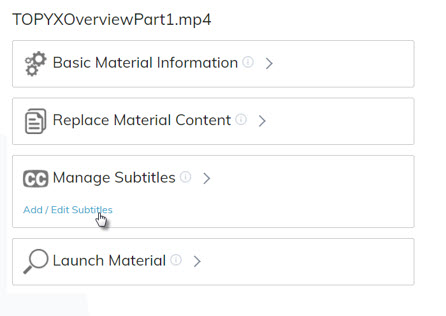
The administrator or instructor will be required to upload a .VTT file for each language they would like to add subtitles. To upload the .VTT file, click Browse Files. To find out more about creating .VTT files please click here.
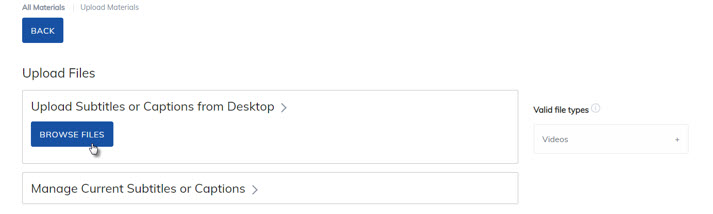
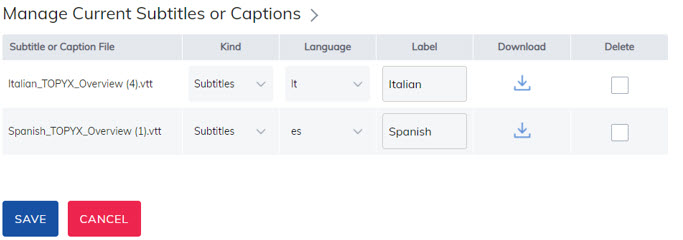
Once loaded, the file will appear under Manage Current Subtitles or Captions.
For the subtitle to appear on the MP4 file, the administrator or instructor must complete the following:
- Kind: Is this a subtitle or a caption?
- Language: Please select from the language drop down.
- Label: Anything typed in this box will display to the learner when they are choosing the subtitles.
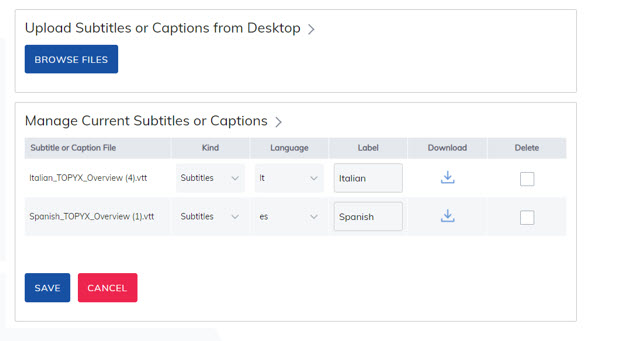
Once finished, please save. A new option will appear when viewing the videos.

By default, the captions will be off. To turn them on, the learner should click on the new option and select Captions.
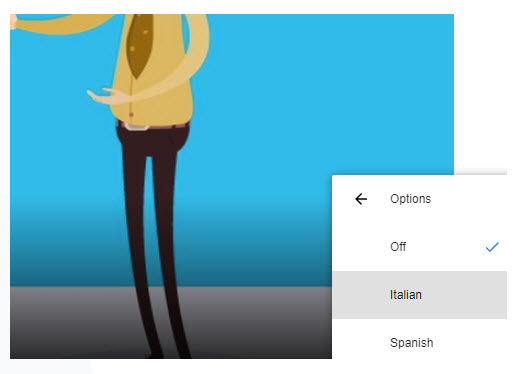
The learner may select the language to view those subtitles, which will appear at the bottom of the screen.

A download option allows administrators and instructors to download .VTT files and update them at any time.
To update the language .VTT file:
- Download the file
- Update it outside of TOPYX
- Delete the original file
- Upload the new .VTT file to the MP4 file.
Was this article helpful?
That’s Great!
Thank you for your feedback
Sorry! We couldn't be helpful
Thank you for your feedback
Feedback sent
We appreciate your effort and will try to fix the article