Admins and instructors can manage learner course grades from this area.
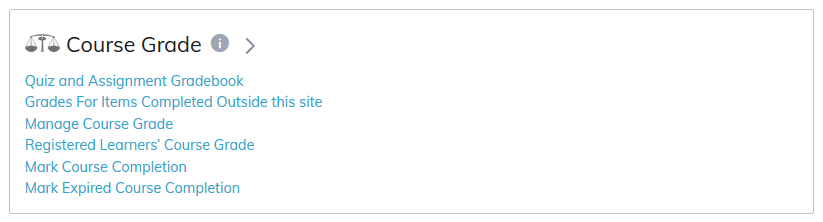
Quiz and Assignment Gradebook
To add a minimum passing score for a quiz, first, click on the Quiz and Assignment Gradebook link under the Manage Course Grade section.
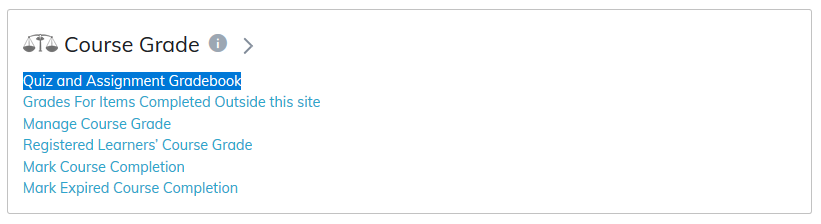
Select the quiz or assignment you would like to view from the gradebook and you will see reporting options available including:
- Question Name
- Question Type
- Learners Response
- Grade
Next, click on the Edit icon for the quiz you'd like to modify. Overall grades for the user or single view (pencil).
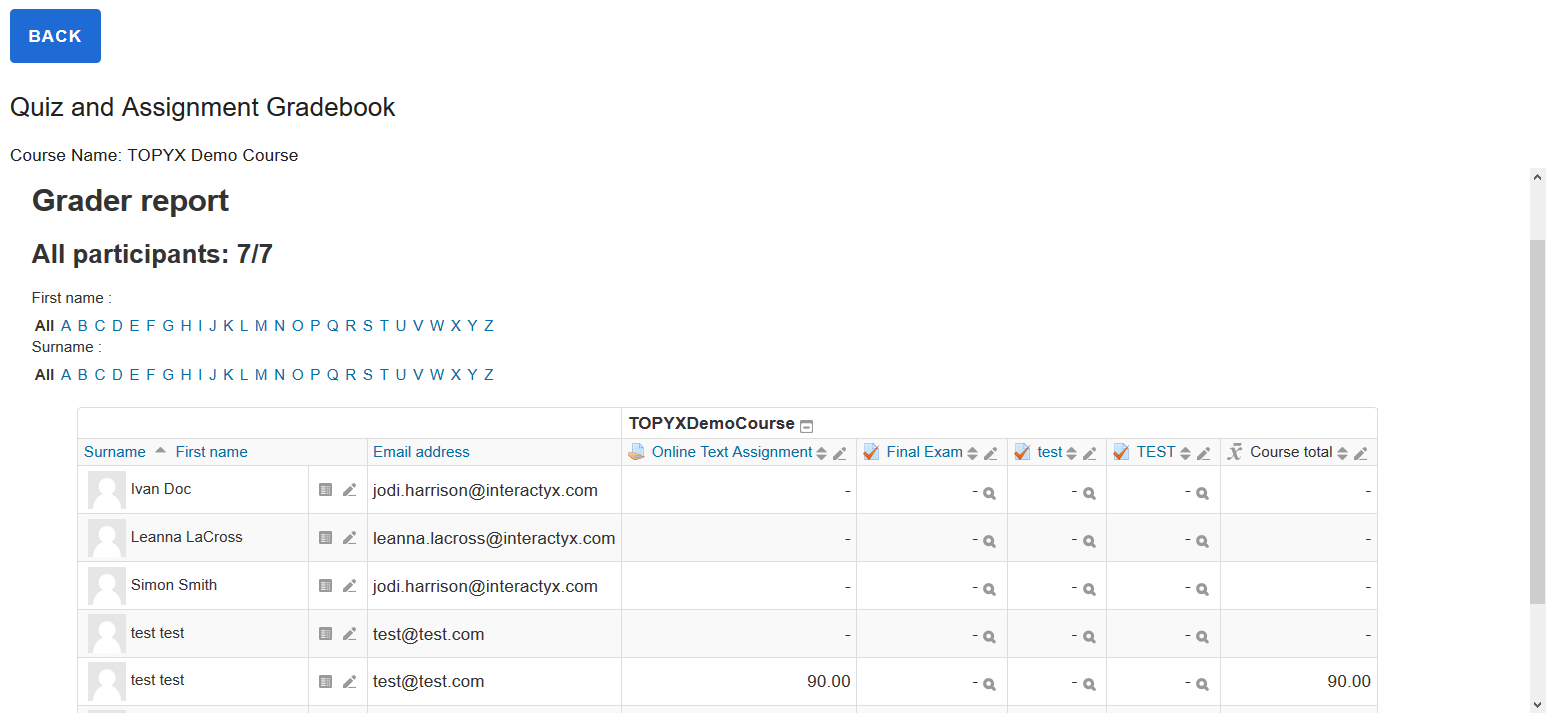
Overall View
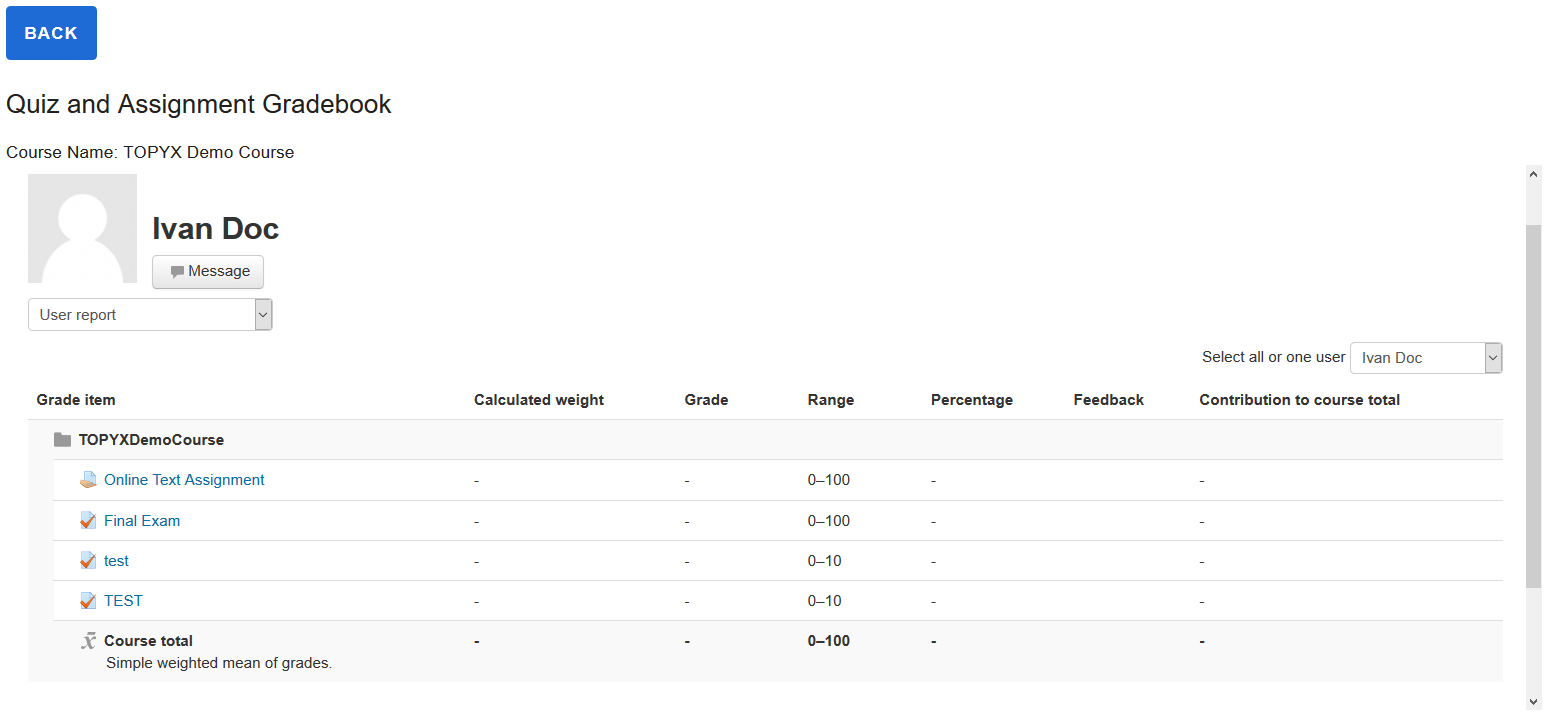
Single View
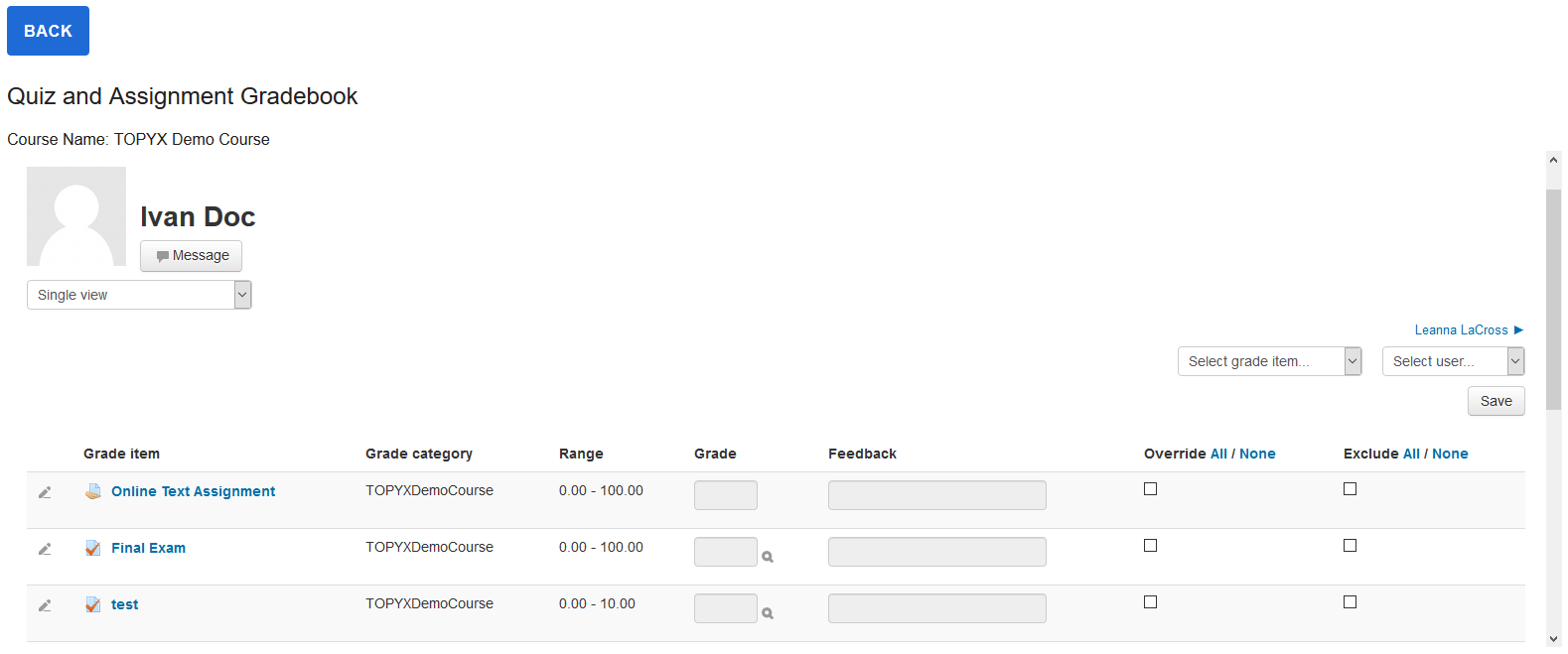
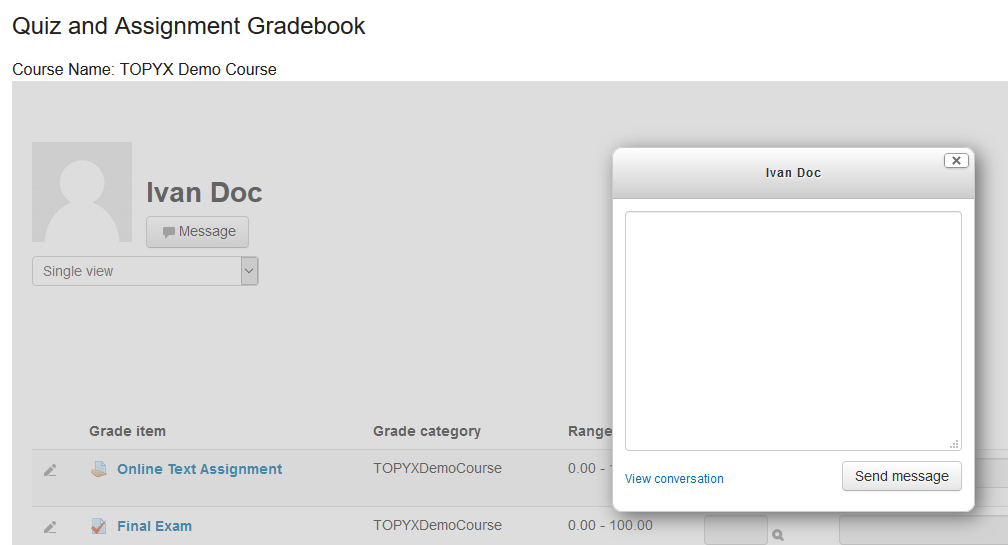
In Single View, you can also message the learner.
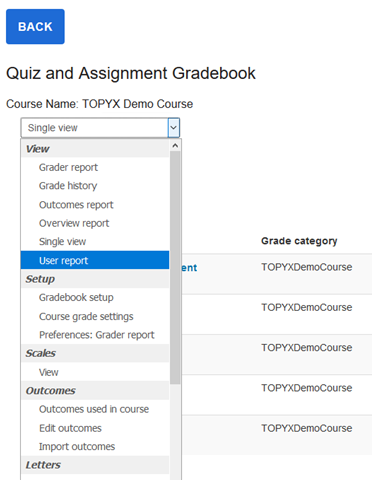
Other features in Single View include other views, set-up, scales, outcomes, and letters.
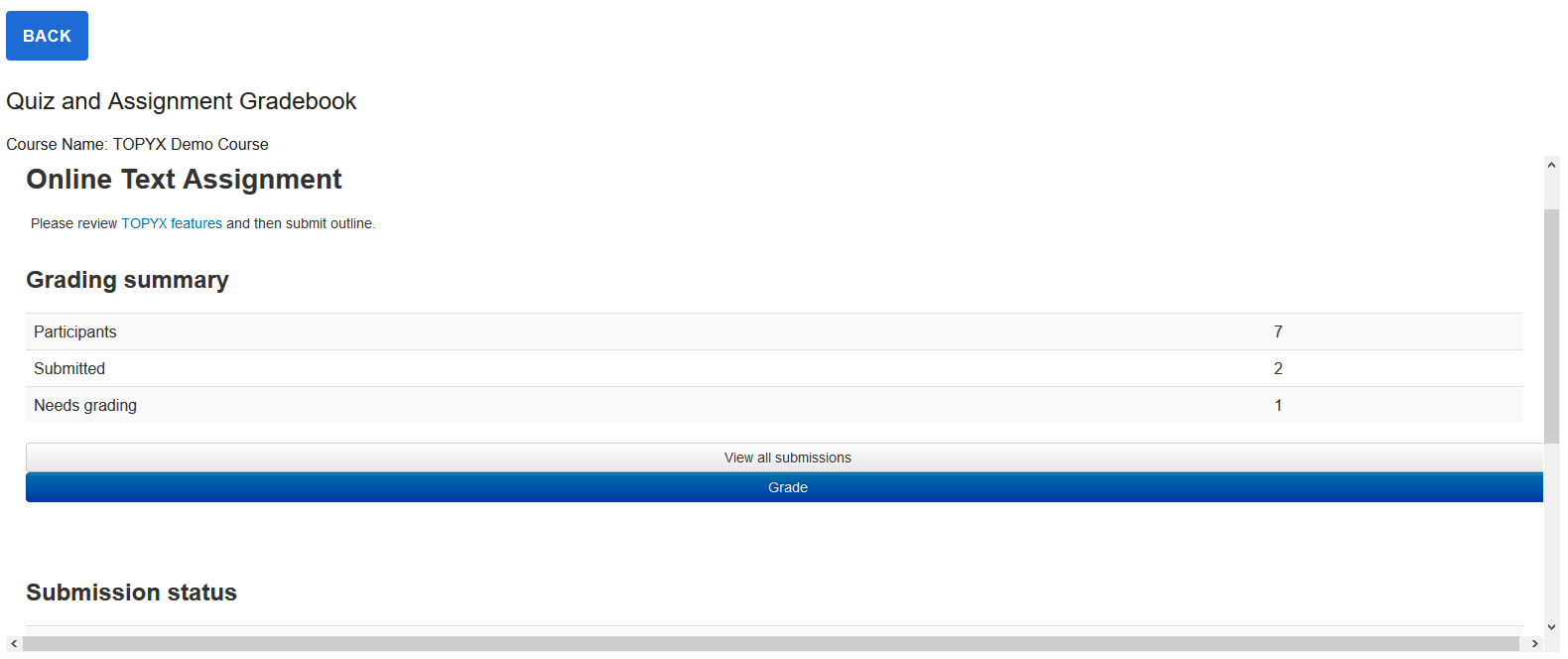
Clicking on each quiz or assignment column header takes you to a summary page.
Grades for items completed outside this site
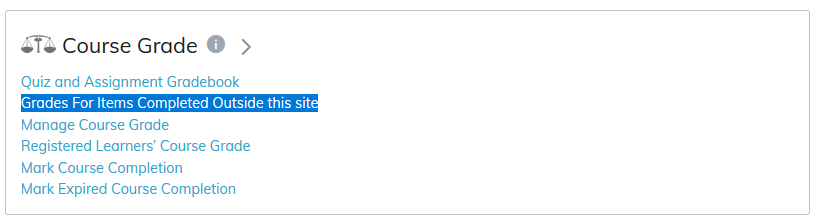
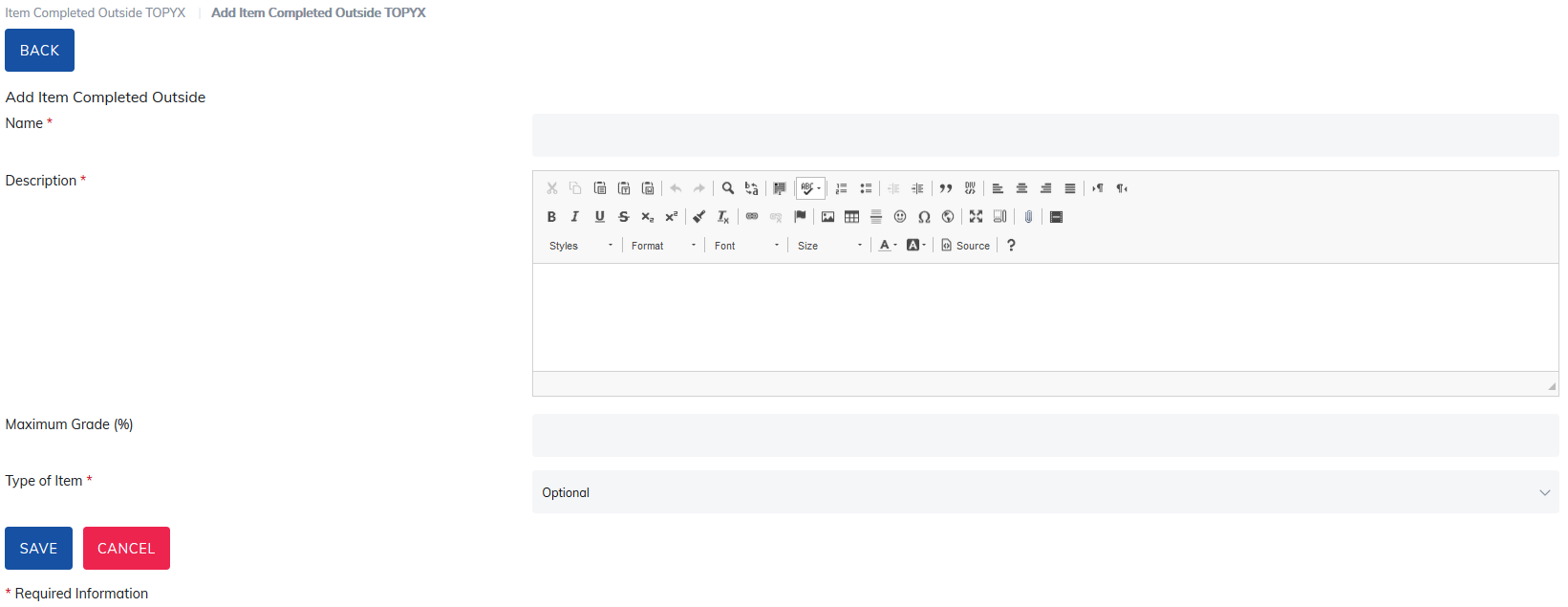
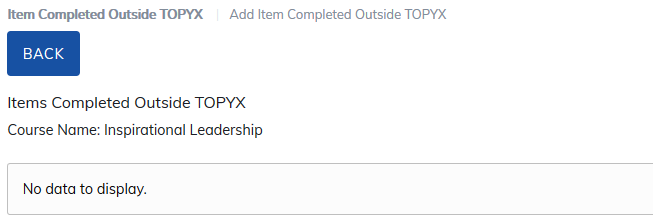
Once items are added you will be able to view the list on the main screen for outside items.
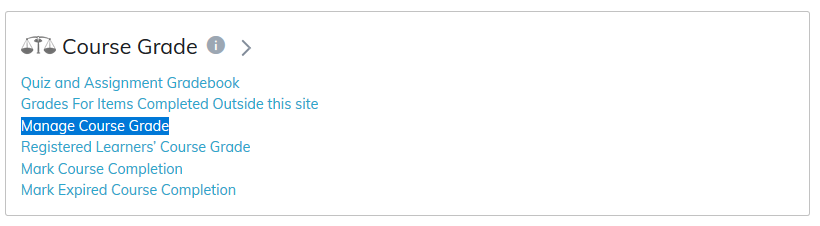
Manage Course Grade
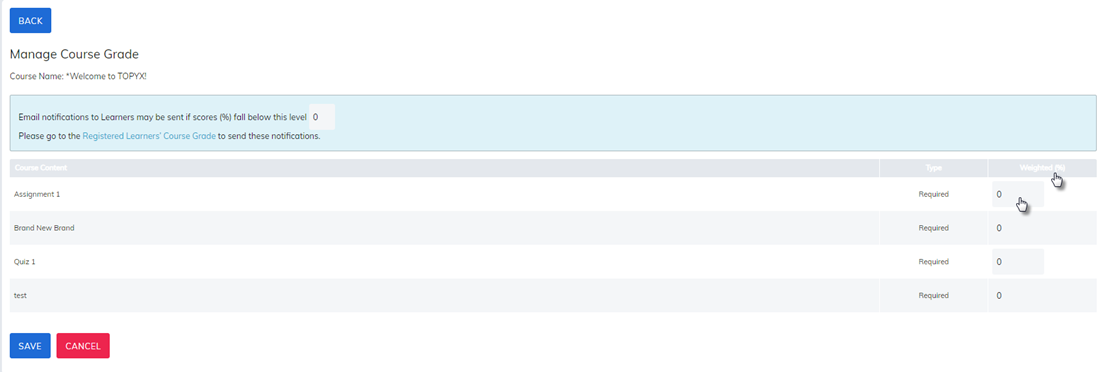
To set up how course contents are weighed, please access the Manage Course Grade link.
The next page will list the content added to the course. If you would like to weight this content, you may do so by applying changes to any items marked required.
Note: Weightage cannot exceed 100% for all required content.
You can also set the minimum percentage that Learners would need to achieve for this course. Please see Registered Learners' Course Grade listed below for more information.
When you are finished making changes to this page, click the Save button.
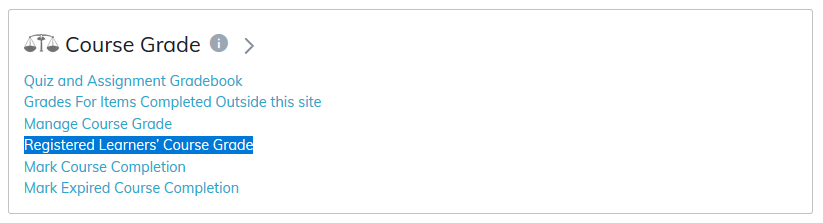
Registered Learners' Course Grade
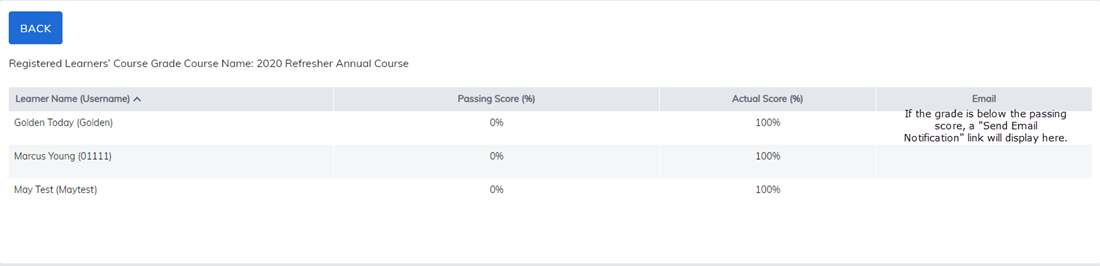
The Registered Learners' Course Grade page indicates a passing percentage of learners enrolled in the course would need to receive in order to pass a course.
If the learner has not received the percent indicated, an email can be generated to go to the learner. Please see the Learner Grade Below Level Notification email template for additional details, located in the Manage Email Settings option.
Mark Course Completion
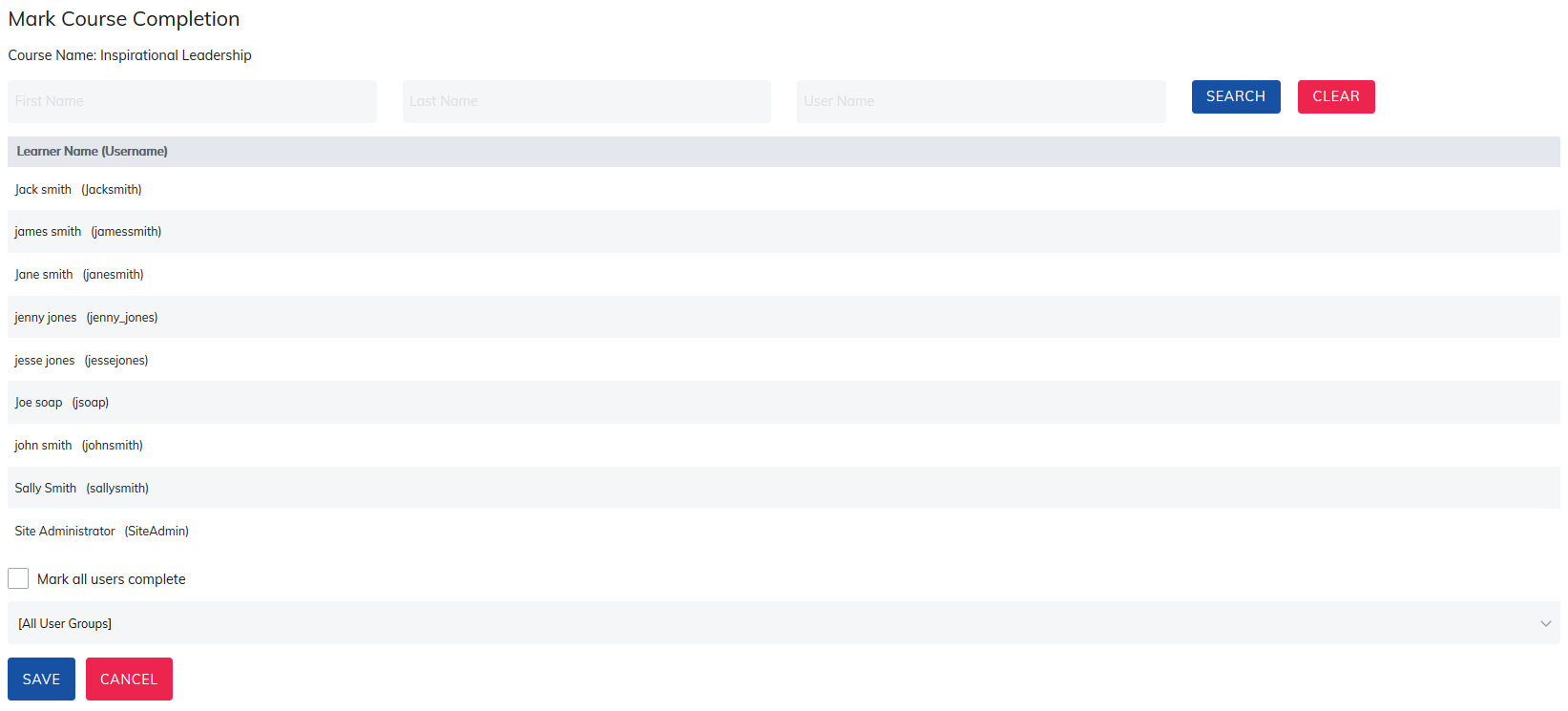
To mark items in a course complete, click on the Mark Course Completion link.
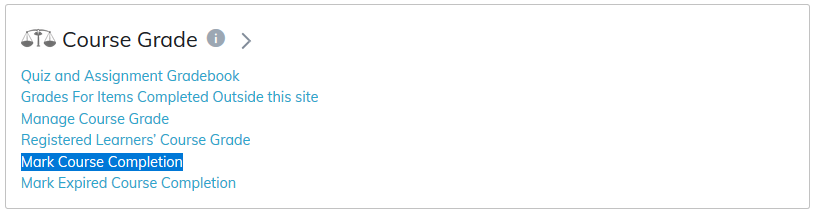
On the next page, open the Learner record you'd like to mark complete, or click the Mark All Users Complete box to complete records for everyone enrolled in the course at once. You can also search by users or filter by user groups to find the appropriate records.
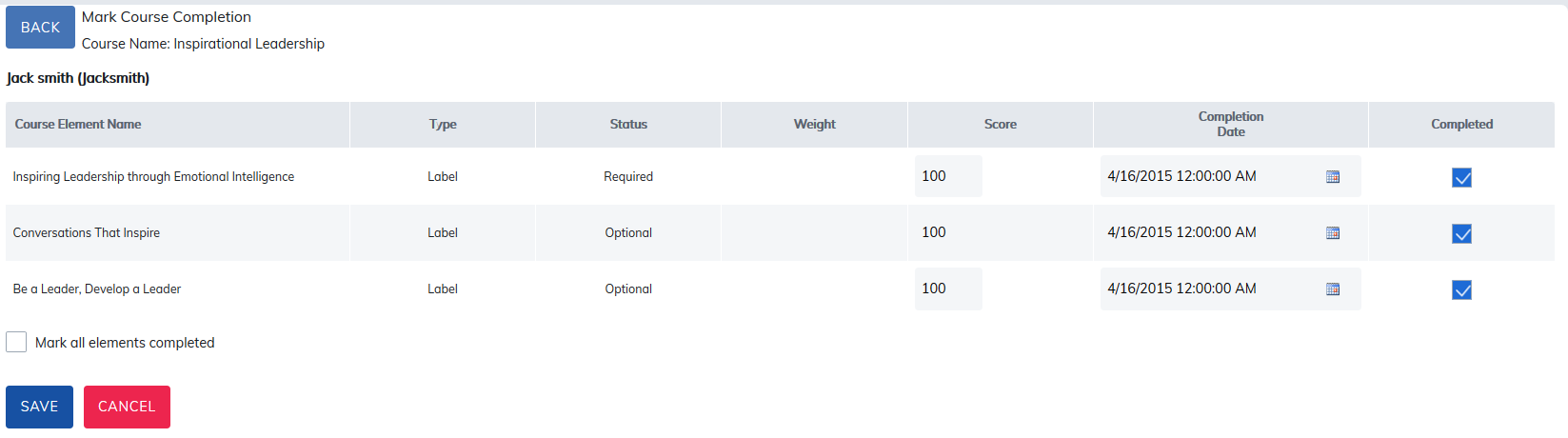
On the next page, fill in the score, completed date, and check the completed box for any items you'd like to mark complete. All three are required to mark the item complete. If you would like to mark all items complete with one click, check the Mark All Elements Complete box. When finished marking items complete, click the Save button.
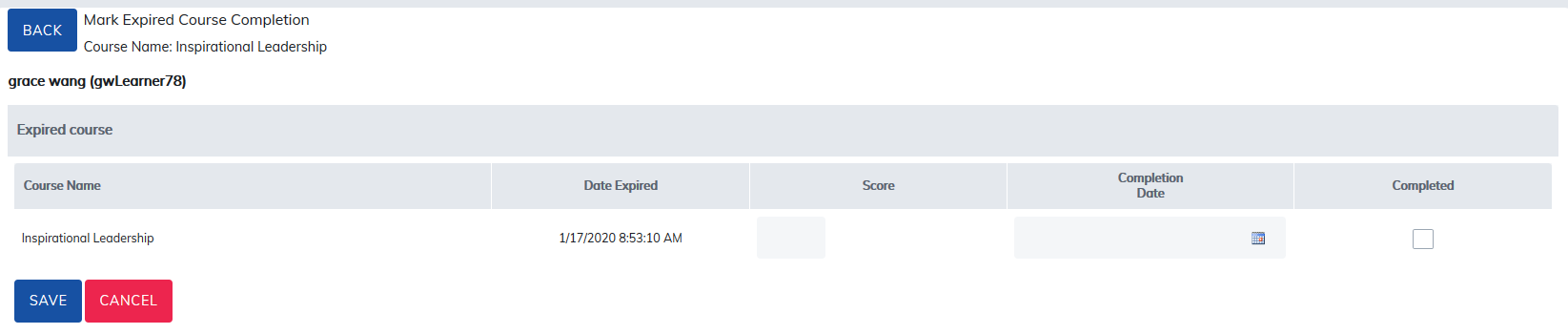
Marked Expired Course Completion
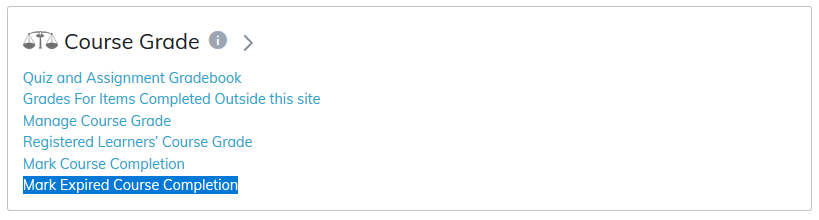
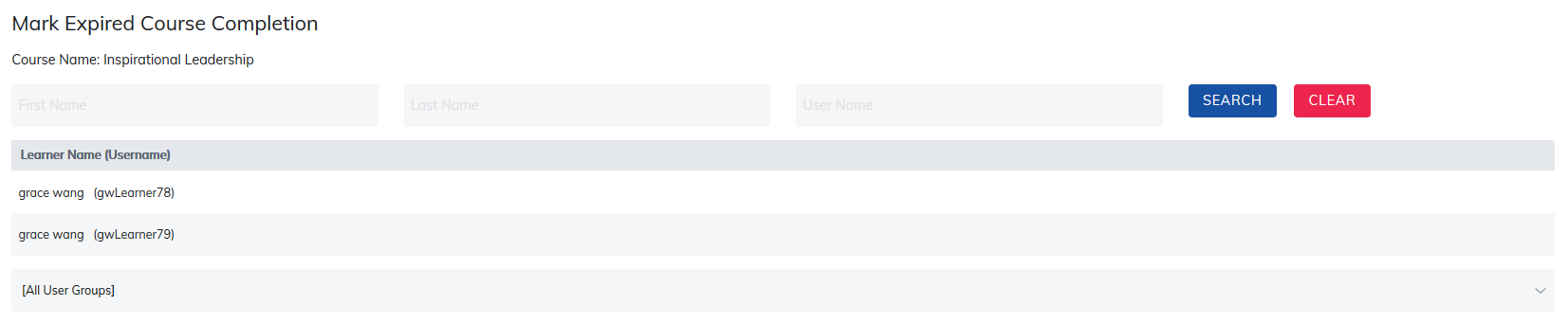
To mark items in an expired Course complete, click on the Mark Expired Course Completion link.
Was this article helpful?
That’s Great!
Thank you for your feedback
Sorry! We couldn't be helpful
Thank you for your feedback
Feedback sent
We appreciate your effort and will try to fix the article