The assignment activity provides a space where learners can submit work for instructors (and marking managers) to grade and give feedback on.
From the Manage Courses menu item on administrator home, administrators can do two things:
- Manage existing assignments
- Create new Assignments.

Manage Course Assignment

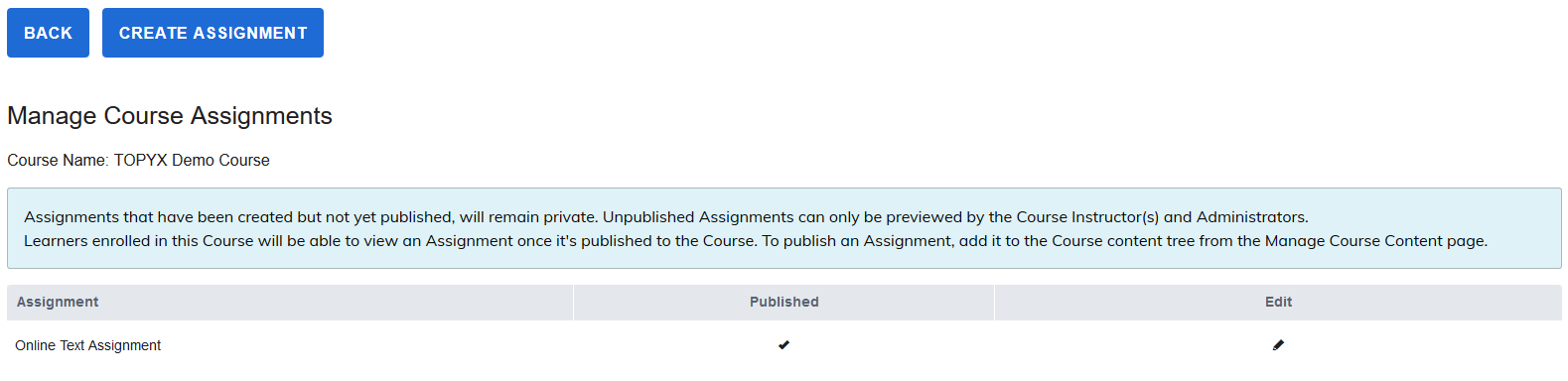
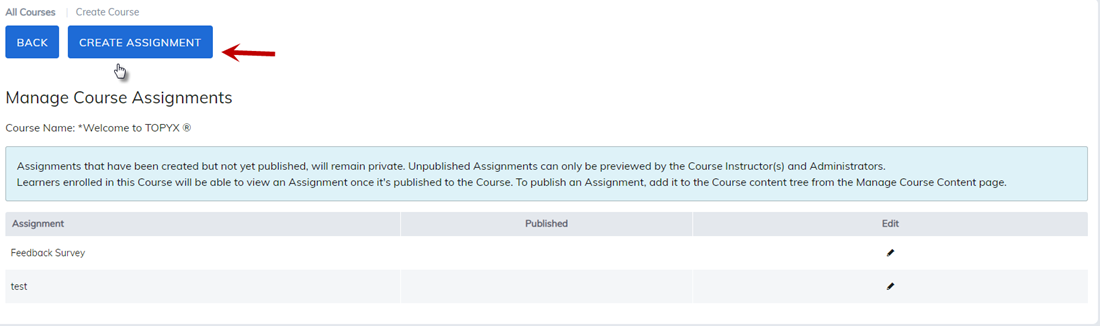
When clicking on Manage Course Assignments, instructors and admins will be able to manage or modify existing assignments by clicking on the pencil edit icon.
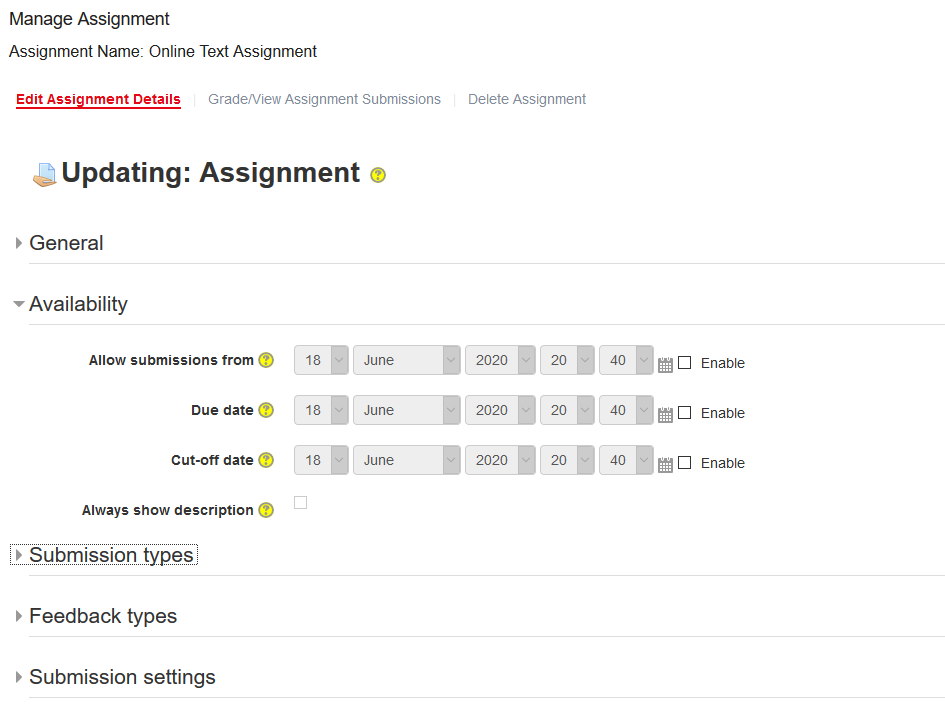
Edit options include assignment details, grade/view assignment submissions, and delete the assignment.

Assignment Details
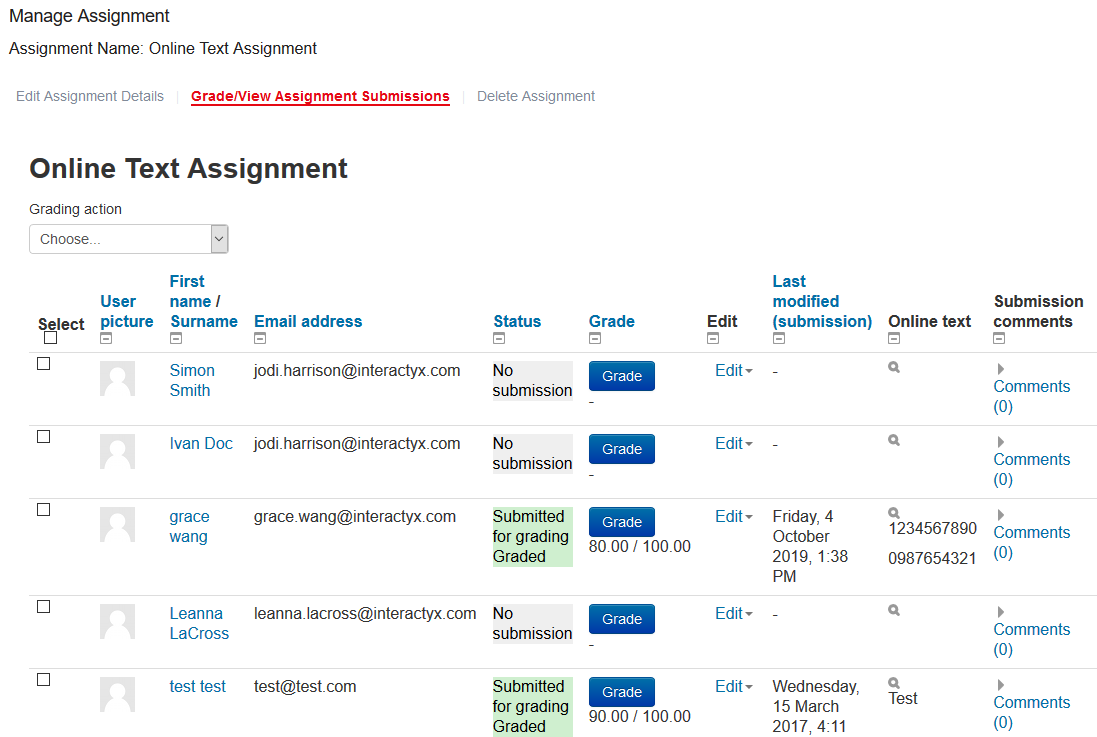
Grade/Wiew Assignment Submissions
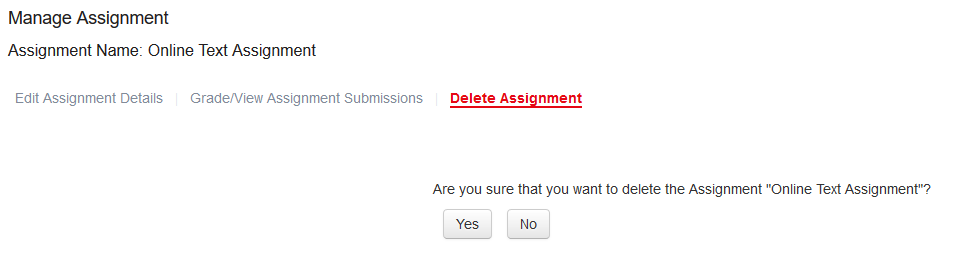
Delete the Assignment
Create Assignment

When clicking Create Assignment, you will be able to create four types of assignments.
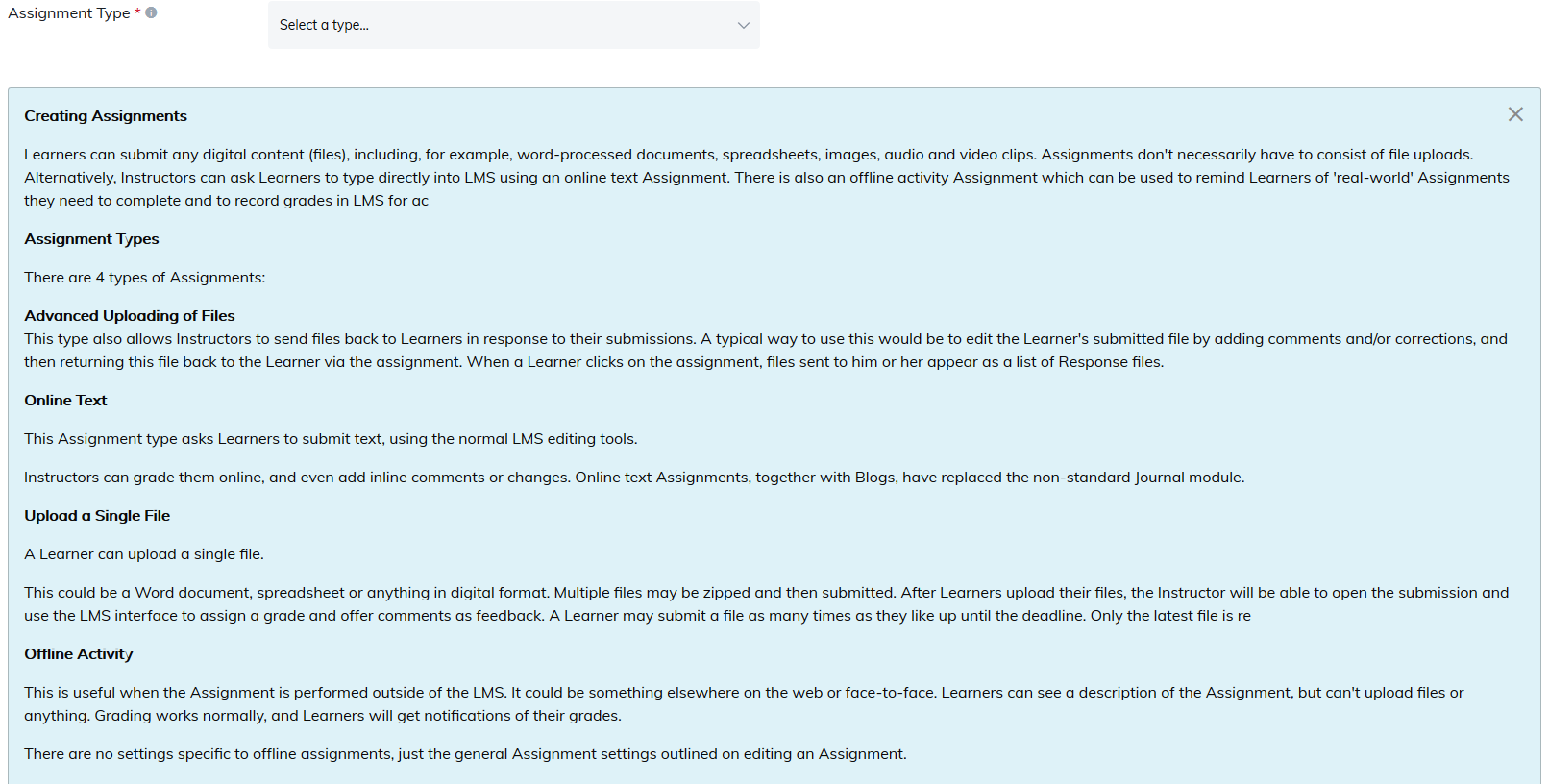
Learners can submit any digital content (files), including for example, word-processed documents, spreadsheets images, audio and video clips. Assignments don't necessarily have to consist of file uploads.
Another option for instructors is to ask learners to type directly using an online text assignment. There is also an offline activity assignment available which can be used to remind learners of the assignments that they need to complete and to record grades in LMS for activities that don't have an online component.
There are four types of assignments:
- Advanced Uploading of Files - 5MB is the max file size
- Online Text
- Upload a Single File - 5MB is the max file size
- Offline Activity
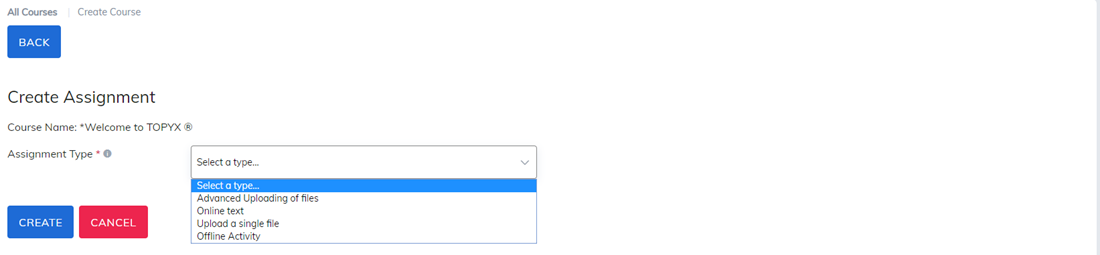
Adding a new Assignment options
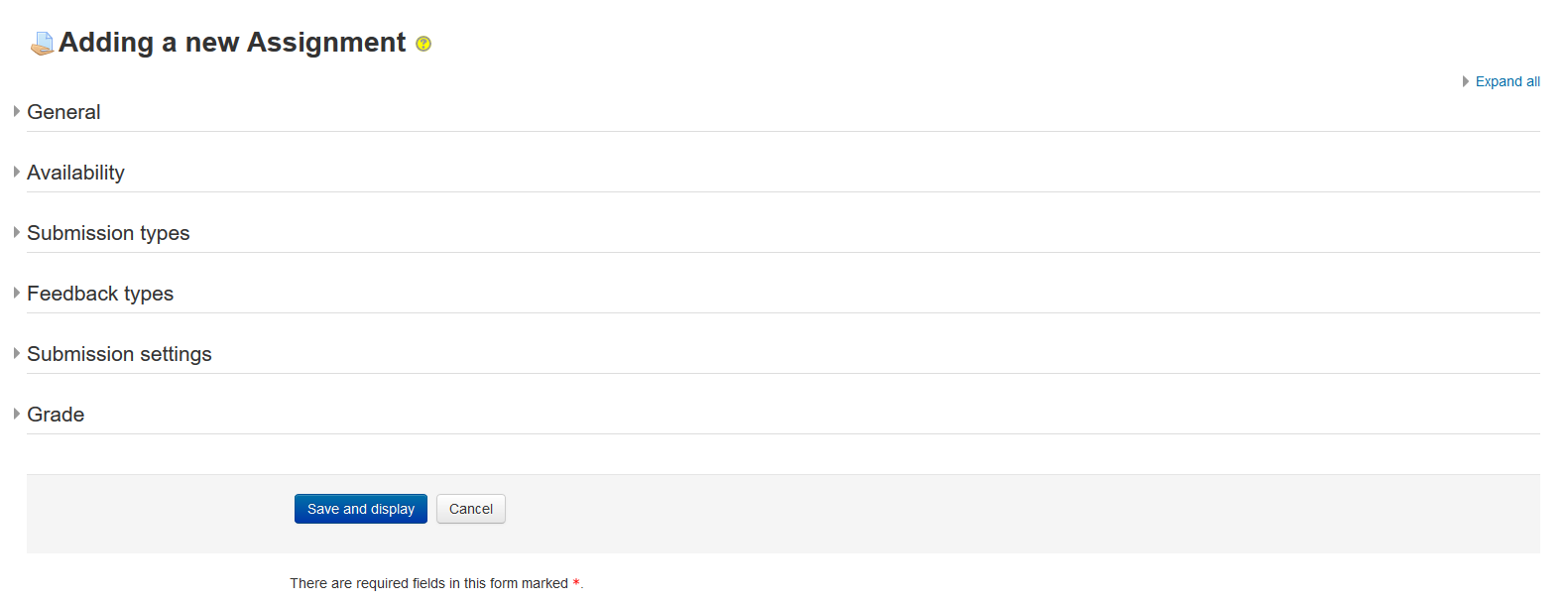
General: Assignment name and description. You may add files as well for learners to work from if needed.
Availability: Timeline and windows the assignment is visible for to the learners.
- Allow submissions from: This stops learners from submitting before the start date but it doesn't hide the assignment and any included instructions or materials.
- Due date: Submissions are still allowed after this date but will be marked as late. Disable it by unchecking the checkbox. Assignments without a due date will appear on the dashboard with 'No Due Date' displayed.
- Cut-off date: After this date, learners will not be able to submit and the submit button will disappear. If you want to grant an extension, go to the assignment grading screen by clicking 'view submissions', click 'Edit' alongside the relevant learner, and choose 'Grant extension'.
- Always show description: If disabled, the assignment description above will only become visible to Learners at the "Allow submissions from" date.
Submission types: Here you can decide how you wish learners to submit their work. Set parameters, including word limits, file sizes, number of submissions, and more.
Feedback Types: Instructor (or marking manager) comments, files offline grading, inline comments, and more.
Submission settings: Options for what the learner can do for submitting, including attempts.
Require learners to click submit button
- If this is set to 'No,' learners can make changes to their submission at any time. (If you want to stop them changing work once you are ready to grade, click 'View/Grade all submissions'; locate the Learner and from the Edit column, click the action icon and select 'Prevent submission changes.'
- If set to 'Yes', learners can upload draft versions of the assignment until such time as they are ready to submit. Clicking the submit button tells the instructor (or marking manager) they have finished drafting and want the work to be graded. They can no longer edit it and must ask the instructor (or marking manager) to revert to draft status if they need to change it again. To do that, click 'View/Grade all submissions; locate the Learner and from the Edit column, click the action icon and select 'Revert the submission to draft'.
Require that learners accept the submission statement
- An administrator can define a "Submission statement", i.e.., a statement where Learners promise the work is their own and which they must agree to before submitting their work. If the administrator has given Instructors the option of using a submission statement or not, then it will be available in the assignment settings screen. If the administrator has forced the statement throughout the site, an Instructor will not have this option in the settings but a learner will see the statement when accessing their assignment.
Attempts reopened
If 'require learners to click submit' is enabled, then learners may only submit once. You can change this here to 'Manually' and reopen it for learners to resubmit, or you can change it to 'Automatically until pass', for the learners to keep resubmitting until they get a pass grade.
Maximum attempts
Here you can decide how many attempts to allow if learners can resubmit. If a learner has to keep trying until they get a pass grade, you might decide to limit the attempts even though they have not yet passed, or they might be trying forever.
Grade: How are you grading this assignment? Points, grade to pass, etc.
When grading an activity, it is possible to use a grading scale, a grade point (numerical scale) or none. Grade Point is the most common set-up. Scales are a way of evaluating or rating a Learners' performance. Administrators create standard scales which are available across the site, and Instructors can create custom scales just for their own course.
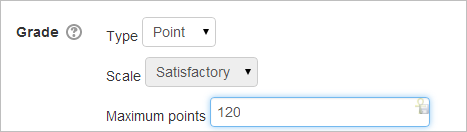
Grading Method: Simple Direct Grading is the most common set-up.
Blind Marking: (Rarely used) Blind marking prevents assessors from seeing learners' names on submissions. Instead, they will see randomly generated participant numbers. (The learner view of the assignment does not change.) This is also the case if learner comments have been enabled. Because of the nature of blind marking, the learners cannot see the final grade until all of the learner names have been revealed.
Use Marking (grading) Workflow: (Rarely used) - Enable Marking Workflow if you need to:
- Keep grades and feedback hidden until you are ready to release them (otherwise by default they display to each Learner as you save them).
- State where you are up to in your grading.
- Coordinate multiple markers.
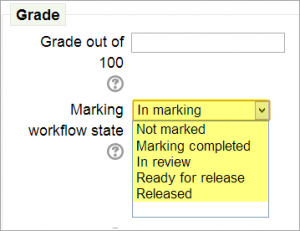
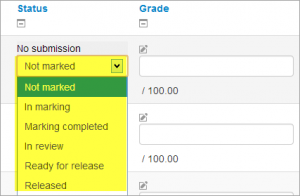
One advantage of using marking workflow is that the grades can be hidden from Learners until they are set to 'Released'. The list of steps is:
- Not marked (the marker has not yet started)
- In marking (the marker has started but not yet finished)
- Marking completed (the marker has finished but might need to go back for checking/corrections)
- In review (the marking is now with the Instructor in charge for quality checking)
- Ready for release (the Instructor in charge is satisfied with the marking but wait before giving Learners access to the marking)
- Released (the Learner can access the grades/feedback)
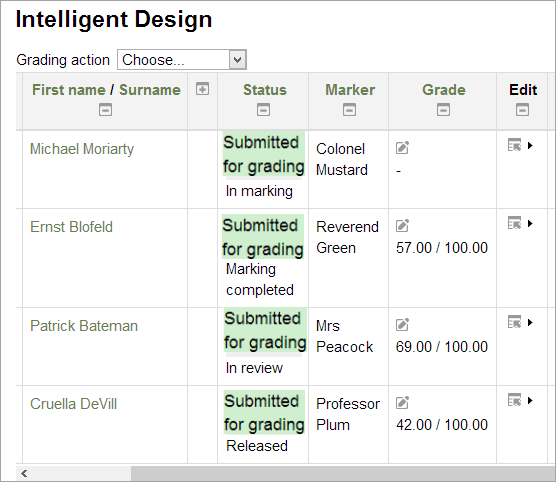
Use marking allocation: If Marking Workflow (see above) is set to Yes, it is possible to enable marking allocation. This means that instructors can be selected to grade or review the submitted work of specific learners. Colleagues can monitor progress through the displayed marking workflow states:
Publishing your Assignment: To publish your assignment, add it to the course content tree on the Course Content page.
Was this article helpful?
That’s Great!
Thank you for your feedback
Sorry! We couldn't be helpful
Thank you for your feedback
Feedback sent
We appreciate your effort and will try to fix the article