This option is used to add a certificate to a course which a learner may receive upon the course's completion.

Once certificates have been created and uploaded through the Import Certificate Template section, they can be attached to courses.
Learners that complete the course are then able to download their certificate of completion in PDF format.
Note: Course certificates of completion can be accessed under the report tabs for learners.
Select Certificate

To attach a certificate, click on Select Certificate, check the box to left of the certificate, and then click Save.
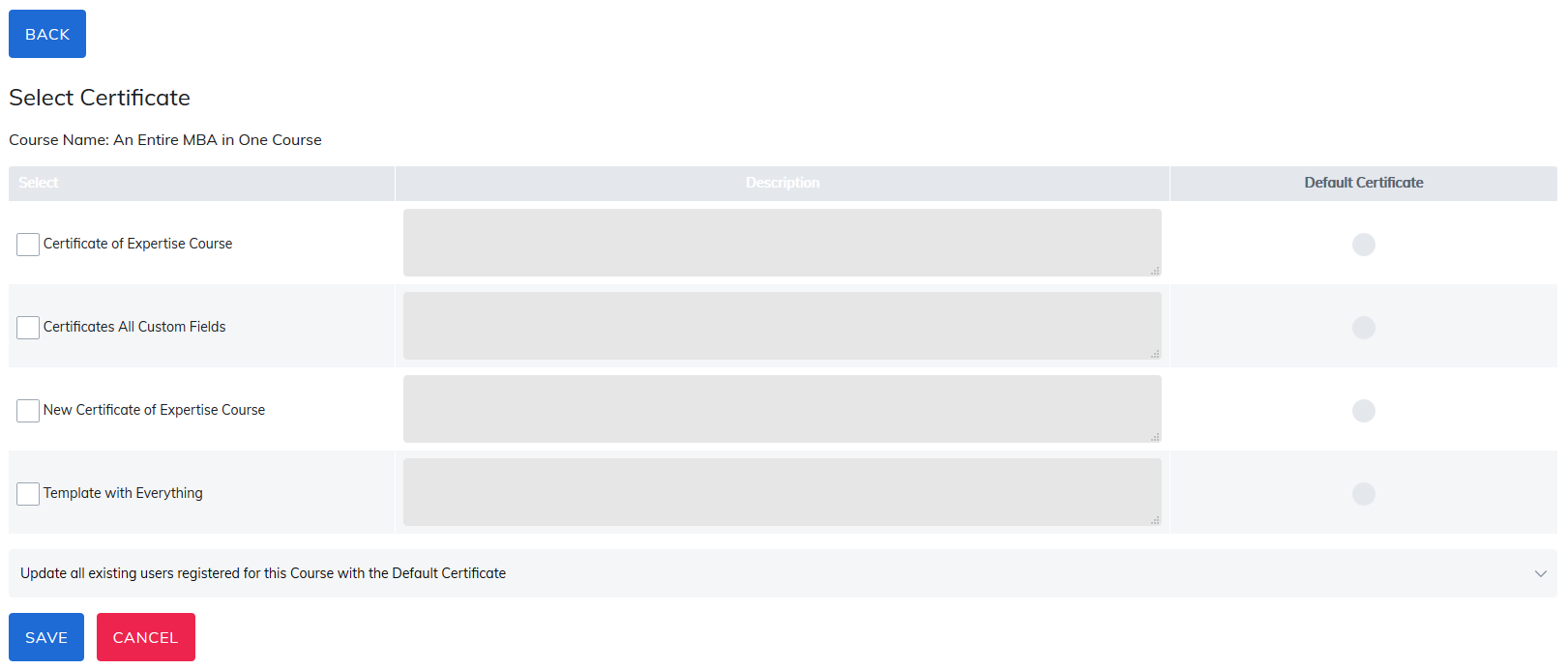
At any time, you can attach new certificates and when doing so, will need to define which learners receive them from the dropdown list.
- Update all existing users registered for the roster with the Default Certificate: This will update all users (all users completed, registered and in process) in the roster with the new certificate.
- Update existing learners yet to complete with the certificate: This will update all learners registered and in process but not yet completed with the new certificate. Any learner with a completed status will still download the previous certificate.
- Updated Certificate available only to Learners registering, Learners currently registered/completed will not receive the new Certificate: This will award any new learners registering for the item after the new certificate has been added with the new certificate. Any learners currently in the item roster will achieve and download the previous certificate associated with this item.

Multiple certificates can be used as well and when learners view courses from the catalog, they will see a Select Certificate button.
To attach multiple certificates, use the same steps as defined above. Add a description and choose which certificate will be the default. By adding a description, this will help guide learners in selecting their certificate. If they do not choose one, they will receive the default certificate.
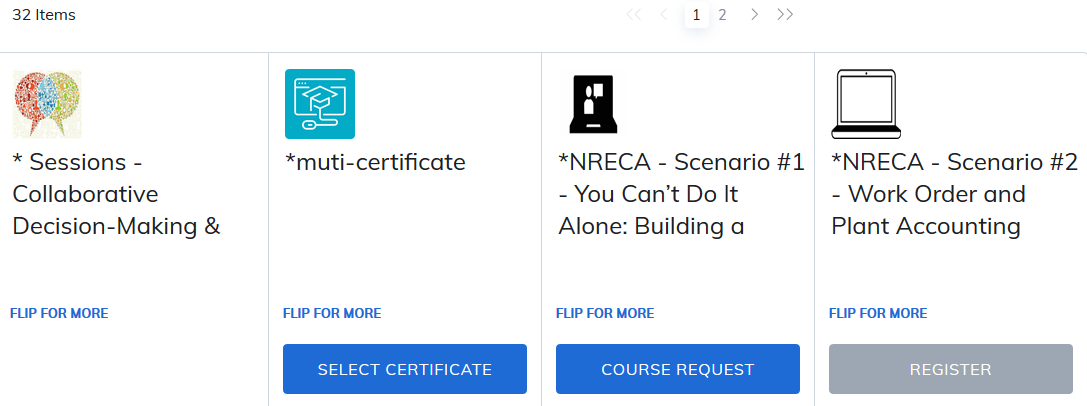
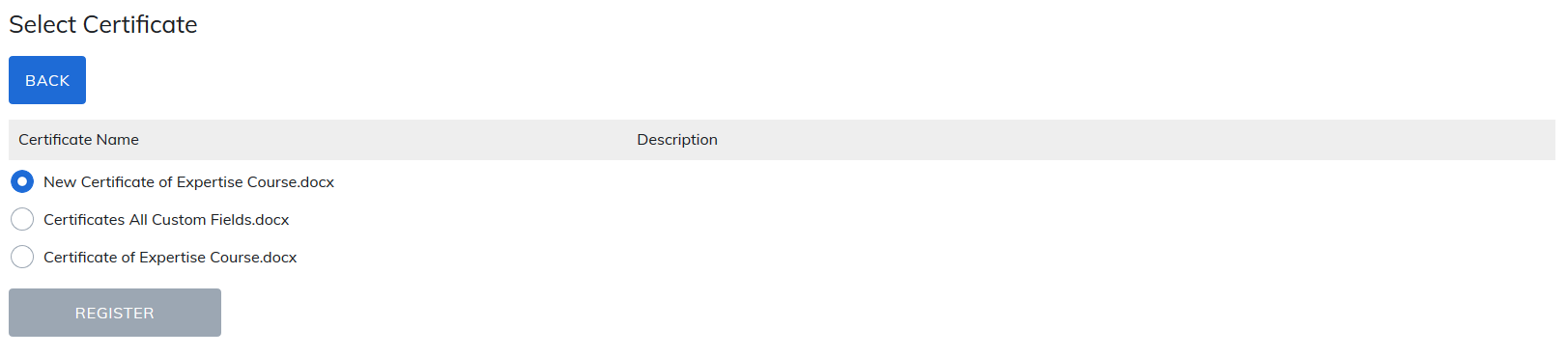
After clicking the Select Certificate button, learners see the certificate options.
Print/View Certificate
Once a certificate is added to a course, a new link will appear on the course home page: Print/View Certificate.
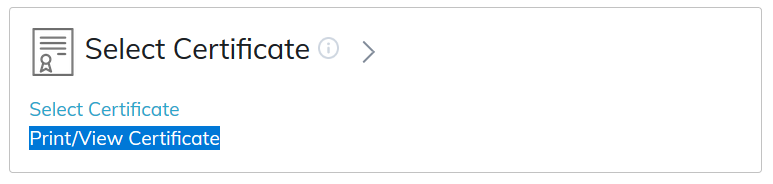
This option allows for changing out certificates when there are multiple certificate options for learners.
All Learners registered to the courses are listed here, the certificate they are to receive, the number of times the learner has downloaded it, and their status in the course.
This will be used to change the selection of the certificate for a learner who may have selected the wrong certificate. From the instructor, manager or admin consoles, go to Print/View Certificate.
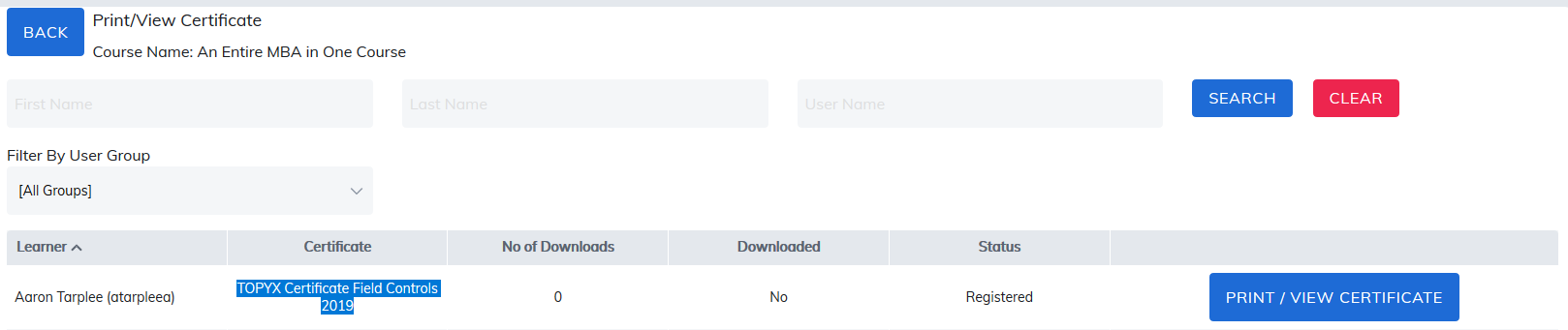
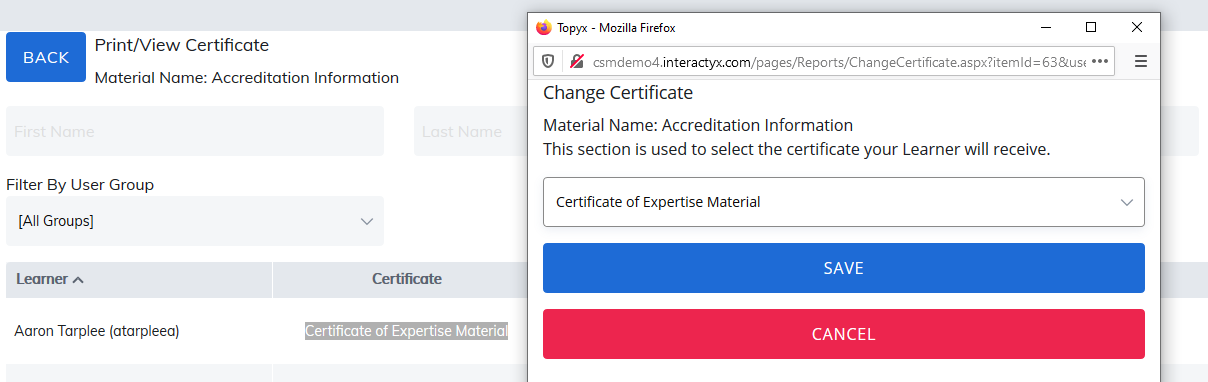
Select the learner and click on the certificate name. The option will appear to change the certificate. Select the certificate you would like to use for this learner.
The instructor, manager, or admin can also print copies of certificates from this page.
Was this article helpful?
That’s Great!
Thank you for your feedback
Sorry! We couldn't be helpful
Thank you for your feedback
Feedback sent
We appreciate your effort and will try to fix the article