Each site includes a Localization Manager that allows you to edit system text across all supported languages within your site.
This feature is available for TOPYX sites using the Updated Quiz Tool. If your site is not yet using the Updated Quiz Tool, please contact your Client Service Manager to schedule the update.
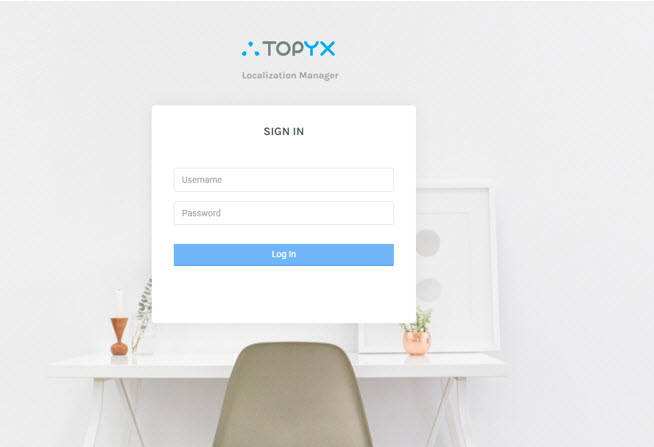
First, login with the username and password.
Once logged in, you can search for a specific word you want to change on your site.
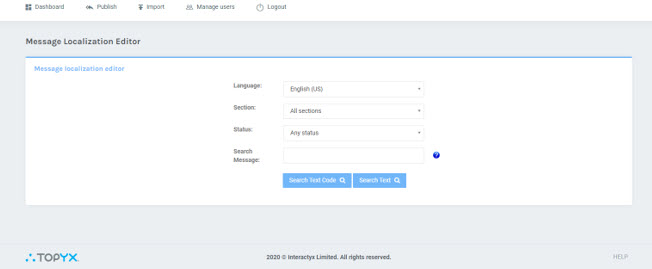
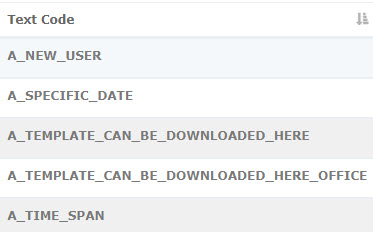
You will see two search options available. Searching Text Code looks for how the text is stored in the database.
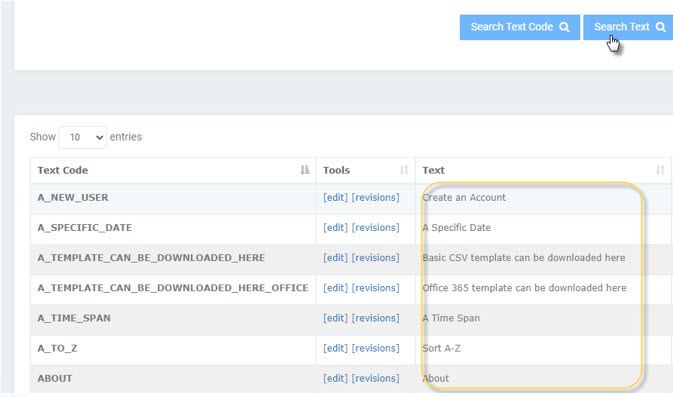
Searching Text shows how the text appears on your site. This view is often easier to use.
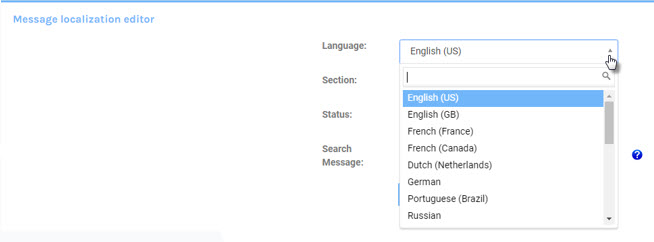
For sites with multiple languages, select your language from the drop-down menu.
If you want to change the same word in multiple places, use the Find and Replace feature.
This feature allows you to update all instances of a word across your site at once.

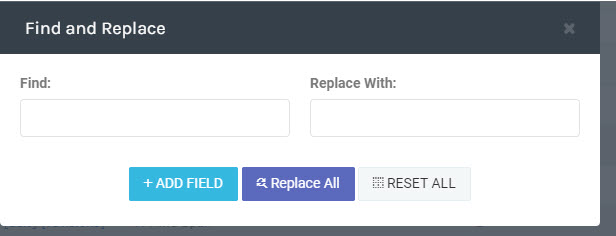
For example, to change the word ‘Launch’ to ‘Start,’ enter Launch in the Find field and Start in the Replace With field.
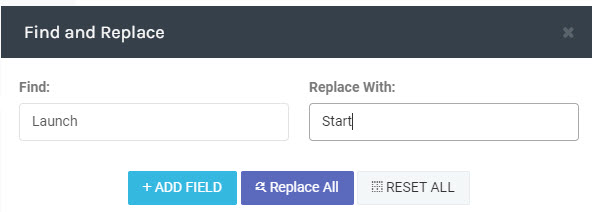
Then click Replace All. The system will replace every instance of ‘Launch’ with ‘Start’ throughout your site.
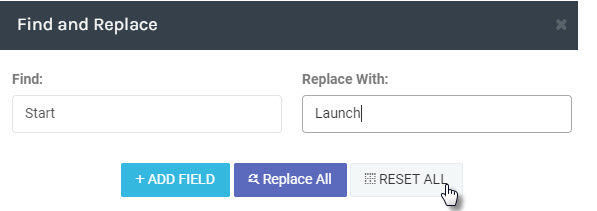
To undo this change and restore the original word, enter Launch in the Find box, Start in the Replace box, and click Reset All.
The system will then replace all instances of the word ‘Start’ which was replaced by the word ‘Launch’.
Was this article helpful?
That’s Great!
Thank you for your feedback
Sorry! We couldn't be helpful
Thank you for your feedback
Feedback sent
We appreciate your effort and will try to fix the article