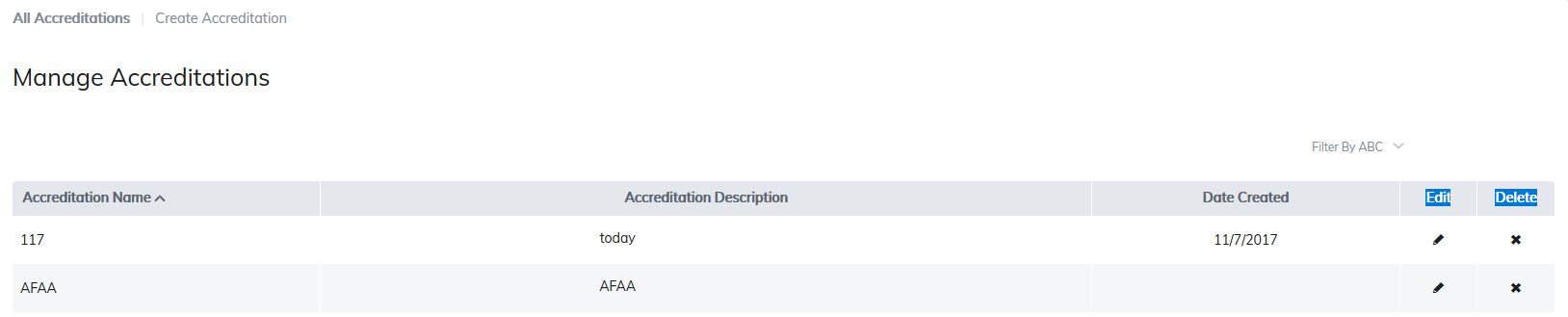
The manage accreditations section allows Administrators to create CEU information and apply them to your content. To begin, select Manage Accreditations.

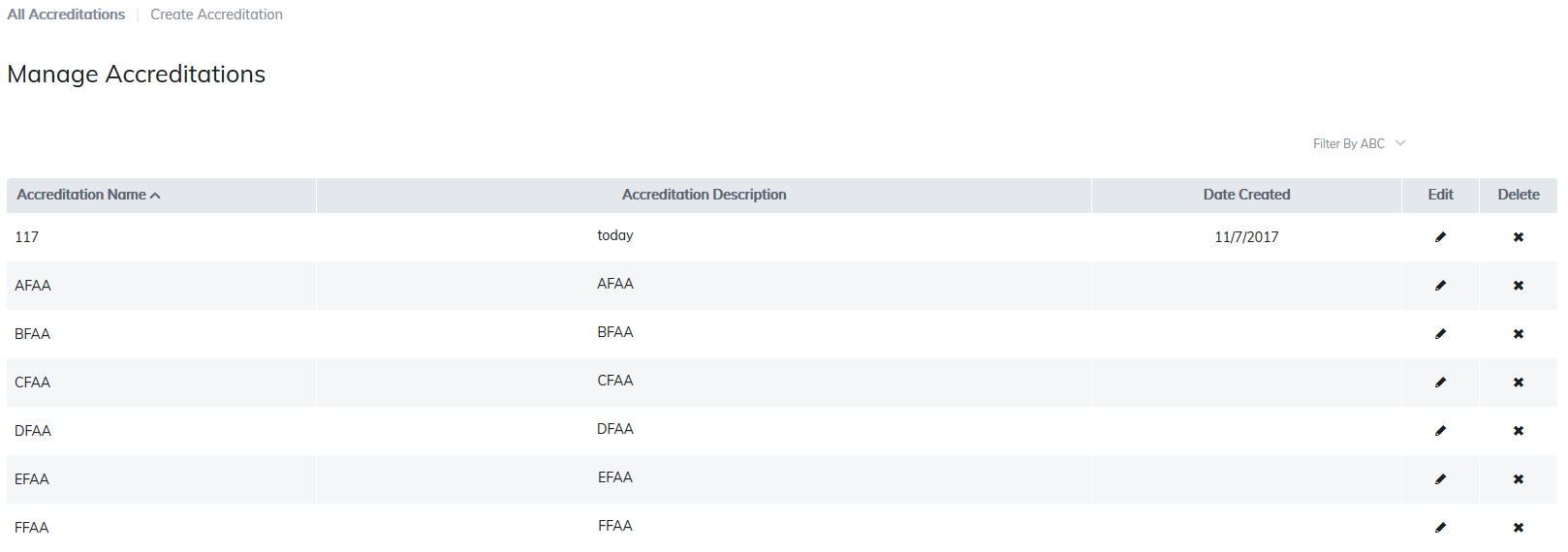
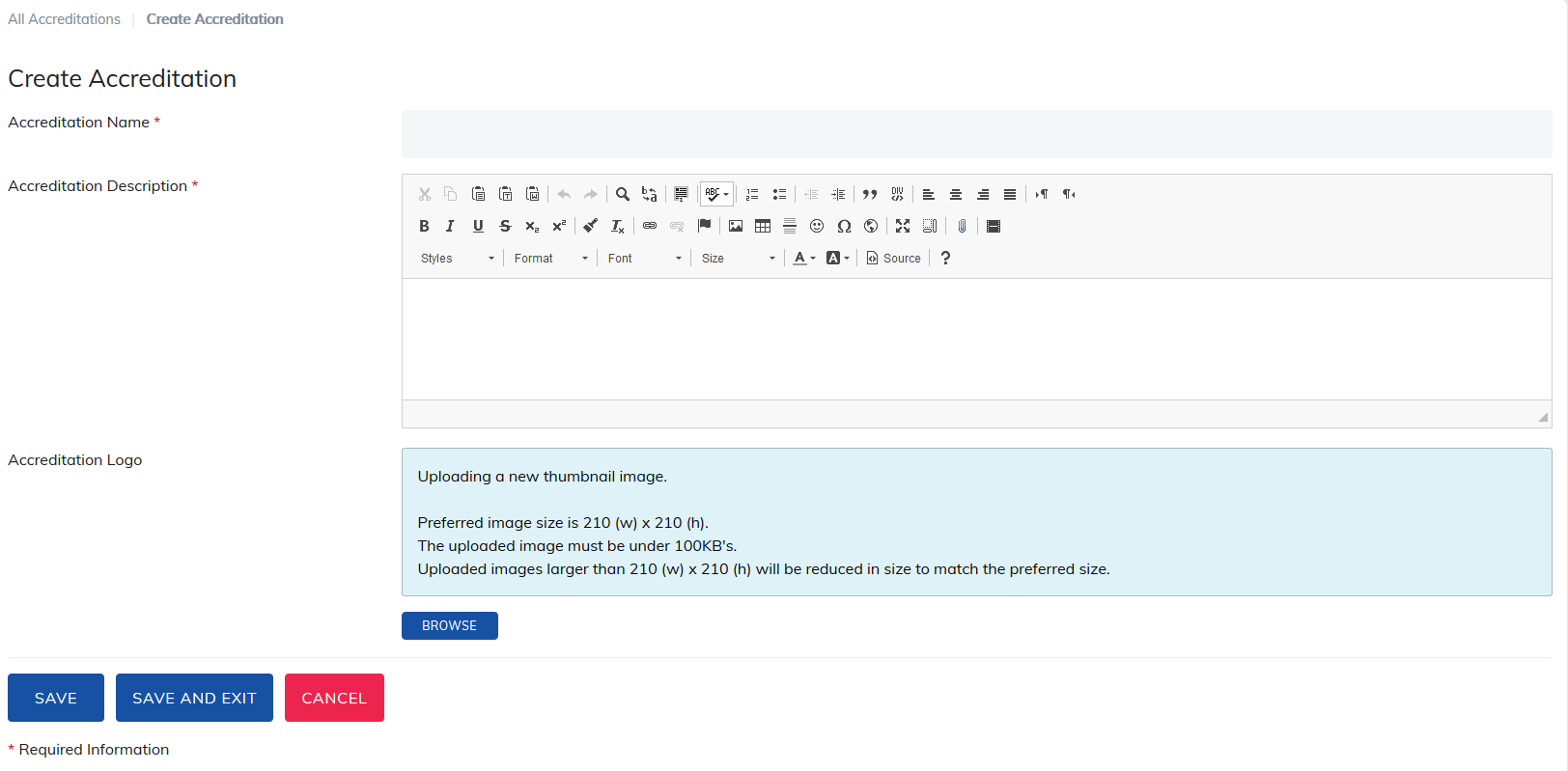
Click on Create Accreditation link, give the accreditation a name, description, and upload an image, if desired.
Select Save if you wish to create another accreditation, or Save and Exit if you are finished.
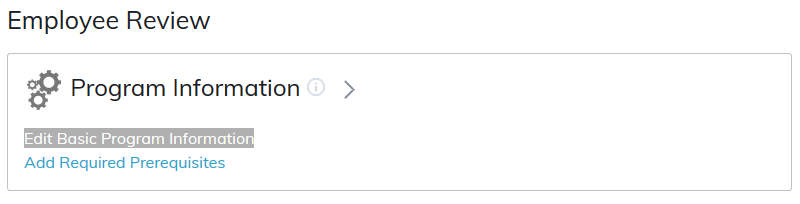
To add an accreditation to a program, course, or material, go to the item and select Edit Basic Information for that item.
Scroll down to Associate Accreditations and select the accreditation you wish to add along with an accreditation value.
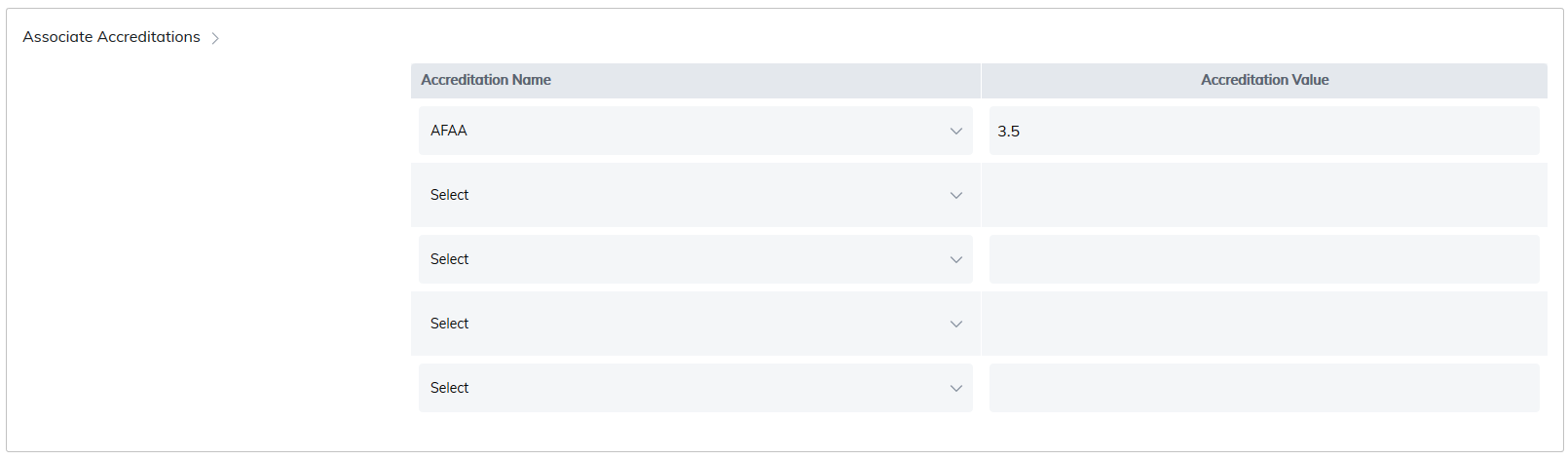
If more than one accreditation is added, the user can receive both accreditation values in their reports and on their certificates, providing provisions are made for multiple credit units appearing on certificates.
Editing or deleting accreditations is possible on the Manage Accreditations page at any time. Simply select the pencil (to edit it) or X (to delete it).
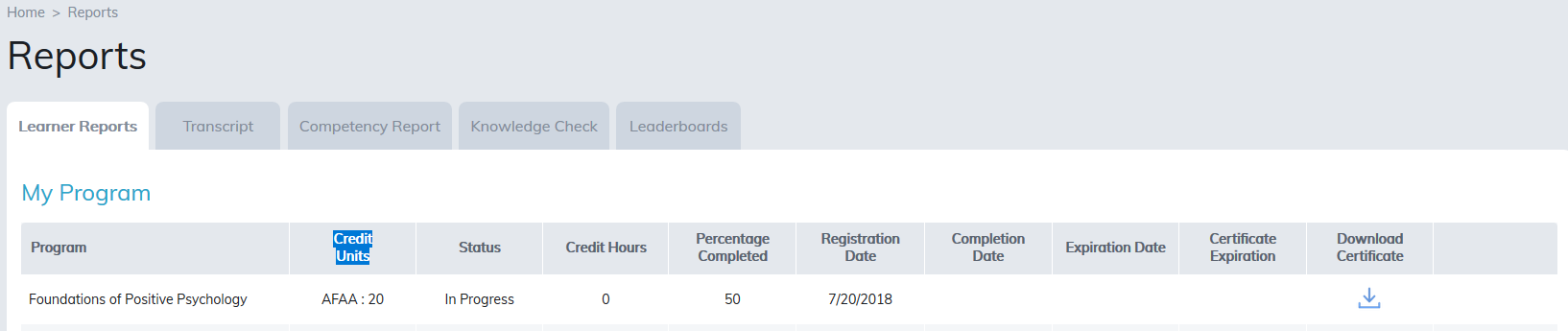
Accreditations appear on learner reports and transcript under the Credit Units in both if being used.
On admin reports you can add a column for accrediting body and value. You can also filter by accrediting body.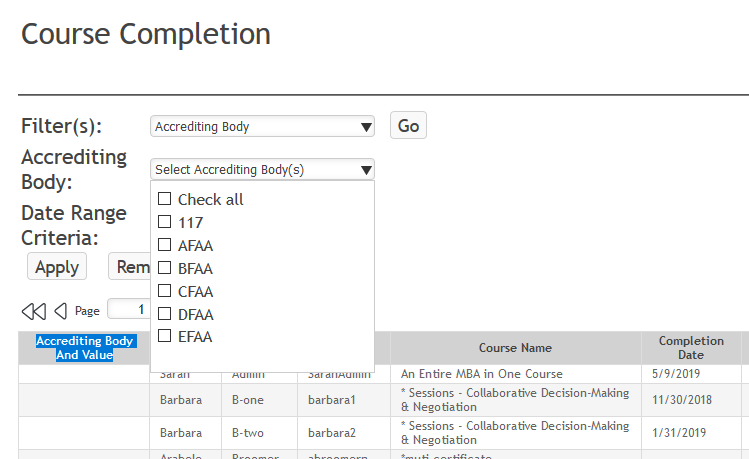
Was this article helpful?
That’s Great!
Thank you for your feedback
Sorry! We couldn't be helpful
Thank you for your feedback
Feedback sent
We appreciate your effort and will try to fix the article