To create a Competency, click on Manage Competencies and then select Create Competency.

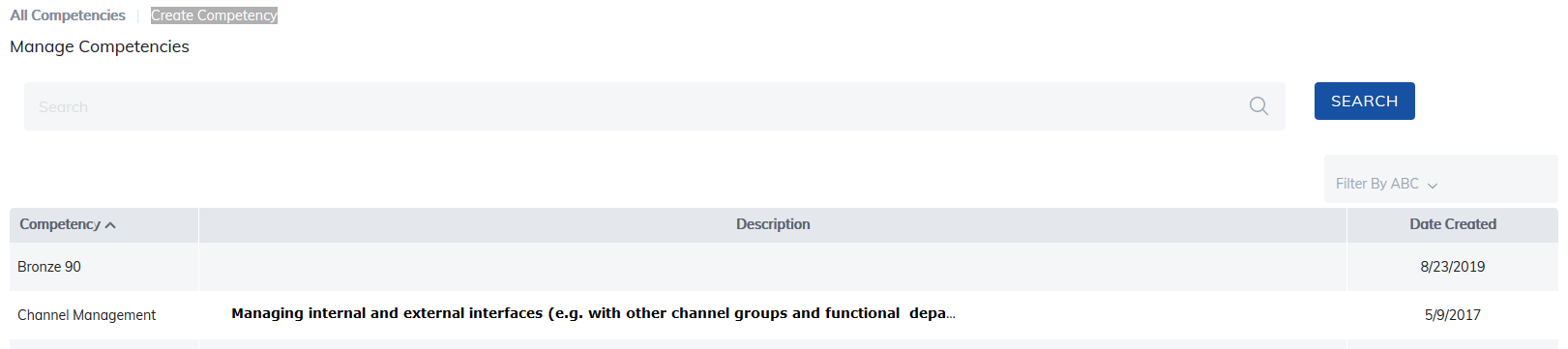
There are two primary steps for a creating a competency:
- Edit Basic Competency Information
- Associate Competency Items
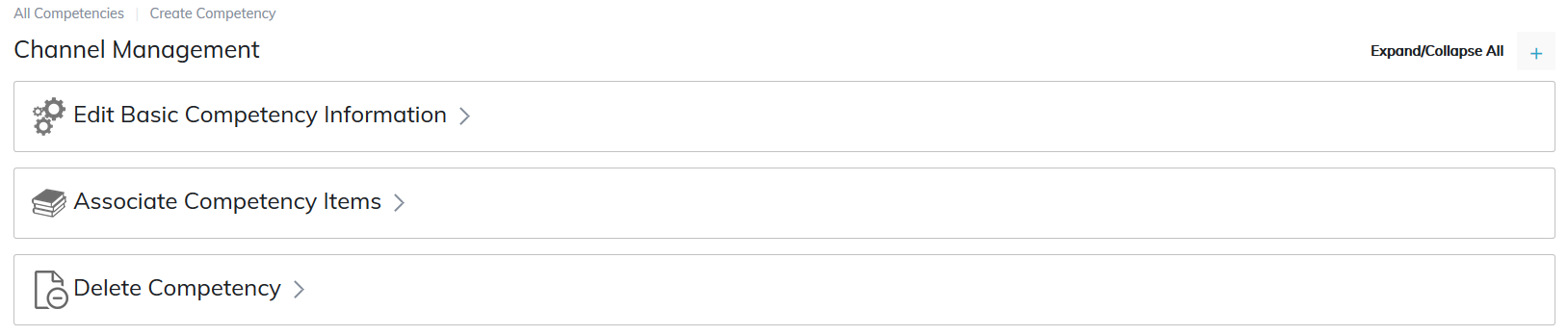
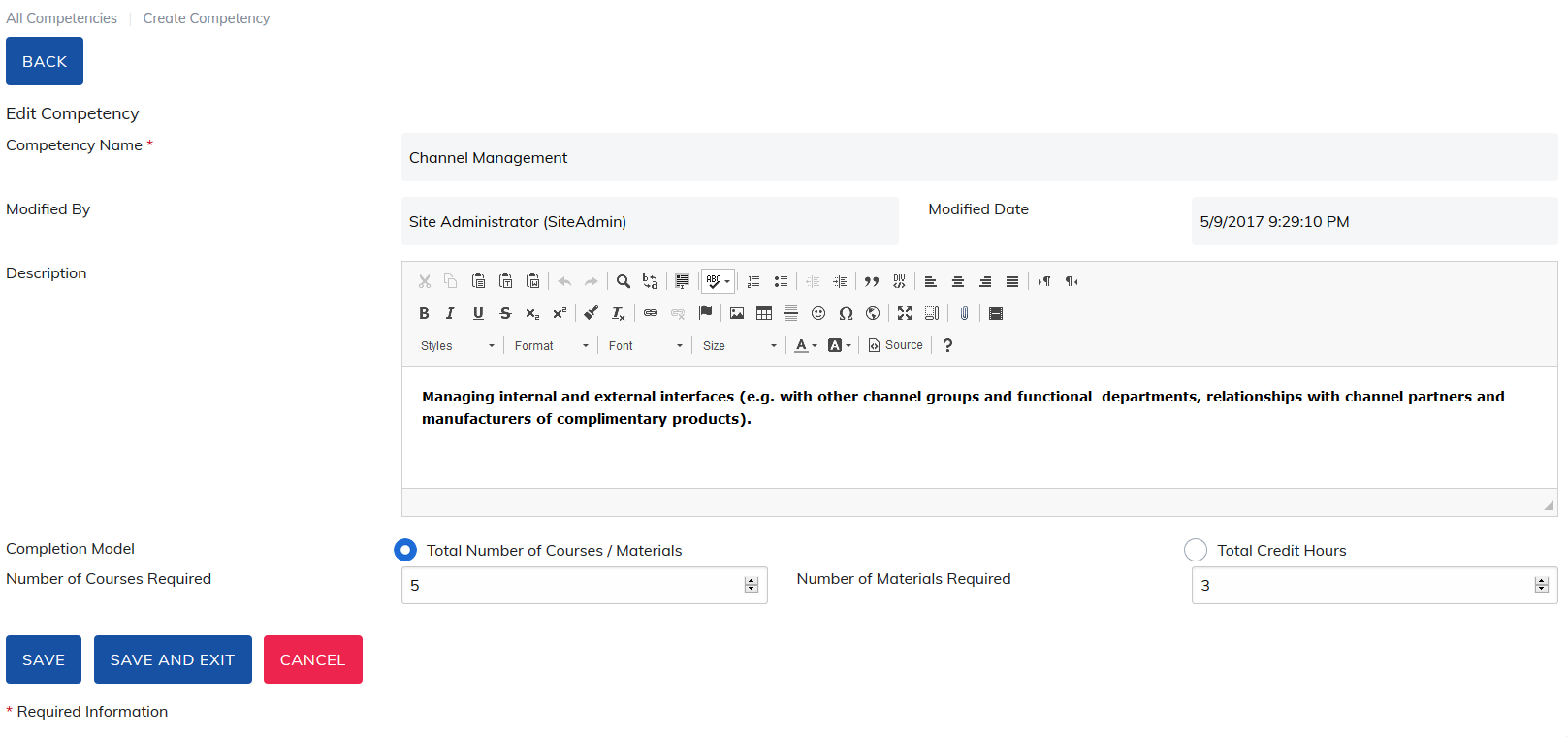
1. Edit Basic Competency Information
- Competency Name is required
- Short Description of the competency
- Number of required courses and/or materials required to achieve the competency.
- Total Credit Hours allows you to add a numeric value. This is optional.
Note: With competencies, learners have options and some control of their training direction.
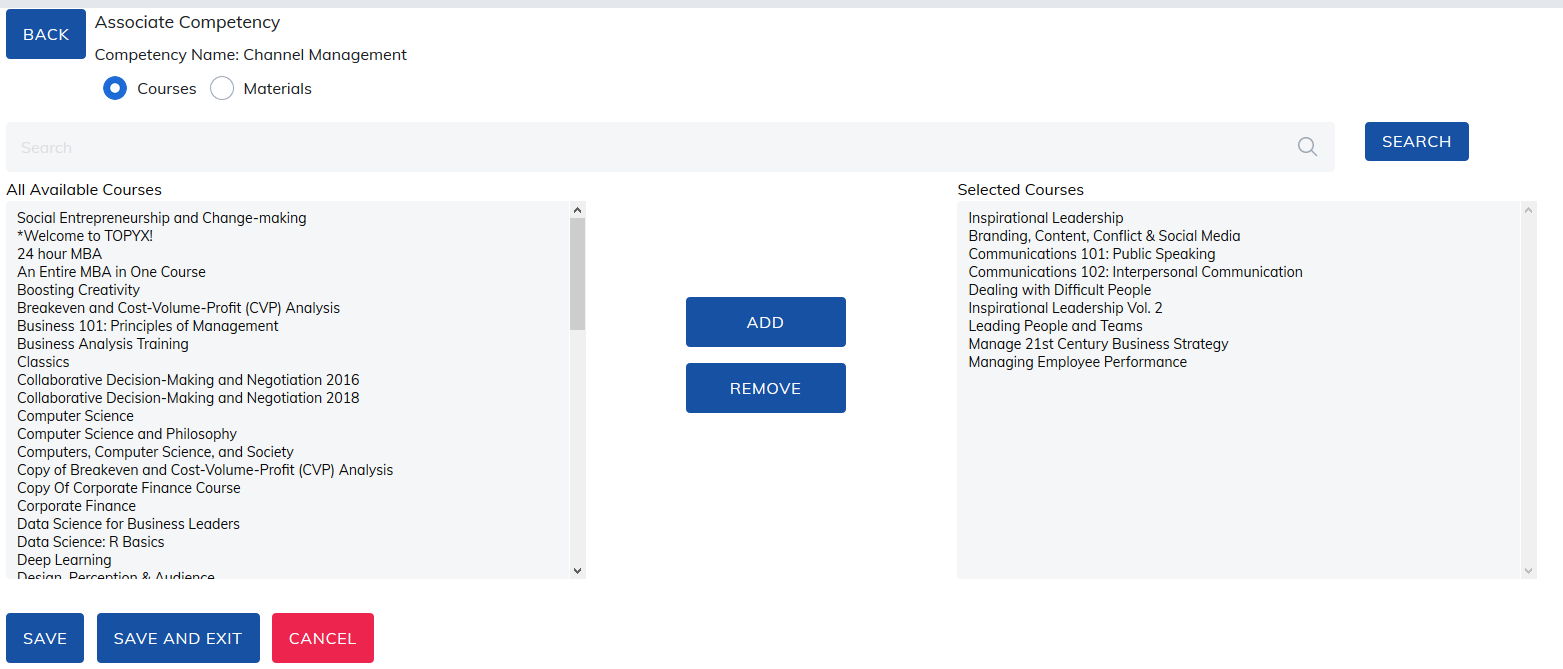
2. Associate Competency Items
Once competency details have been defined, the administrator can then associate courses, materials and user groups through Associate Competency Items.

Choose appropriate link for the type of content you wish to add. Available content will be listed on the left, simply select item(s), click on Add, and then Save.
Press and hold the 'Ctrl' key to select multiple items.
A course or material may belong to multiple competencies. Should a learner complete that item, the learner will receive credit in all competencies for its completion.
For example, higher-level courses in a competency can open high level competencies by this overlapping to keep your learners moving on their training journey.
- If five courses are required to complete a competency, at least five courses should be added to allow learners to achieve this competency. If at least five courses are not added, the competency will be unachievable.
- Should more than five courses by added, learners may select which five courses they wish to complete. This is a fundamental principle behind competencies, that learner have some control.
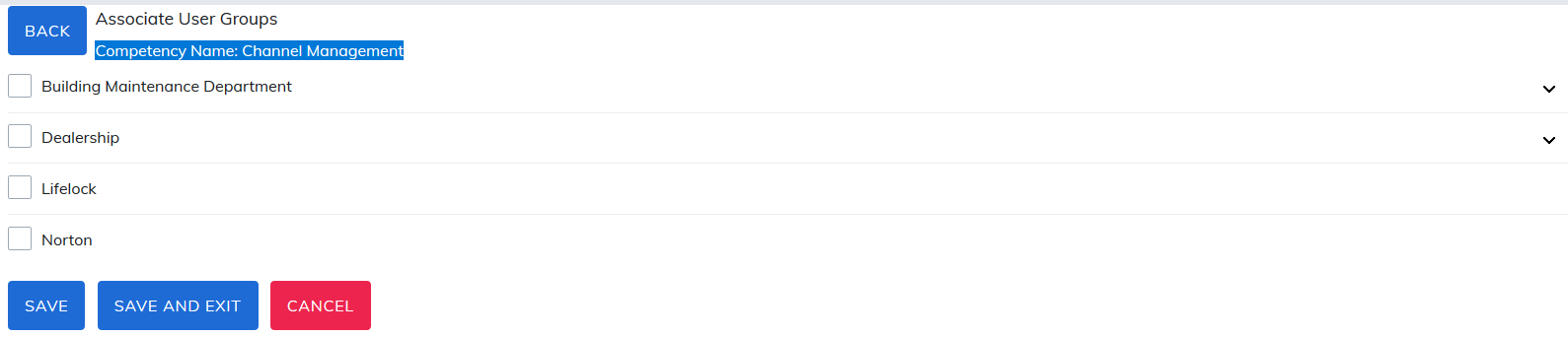
Once content has been associated, you can then assign the competency to user groups.
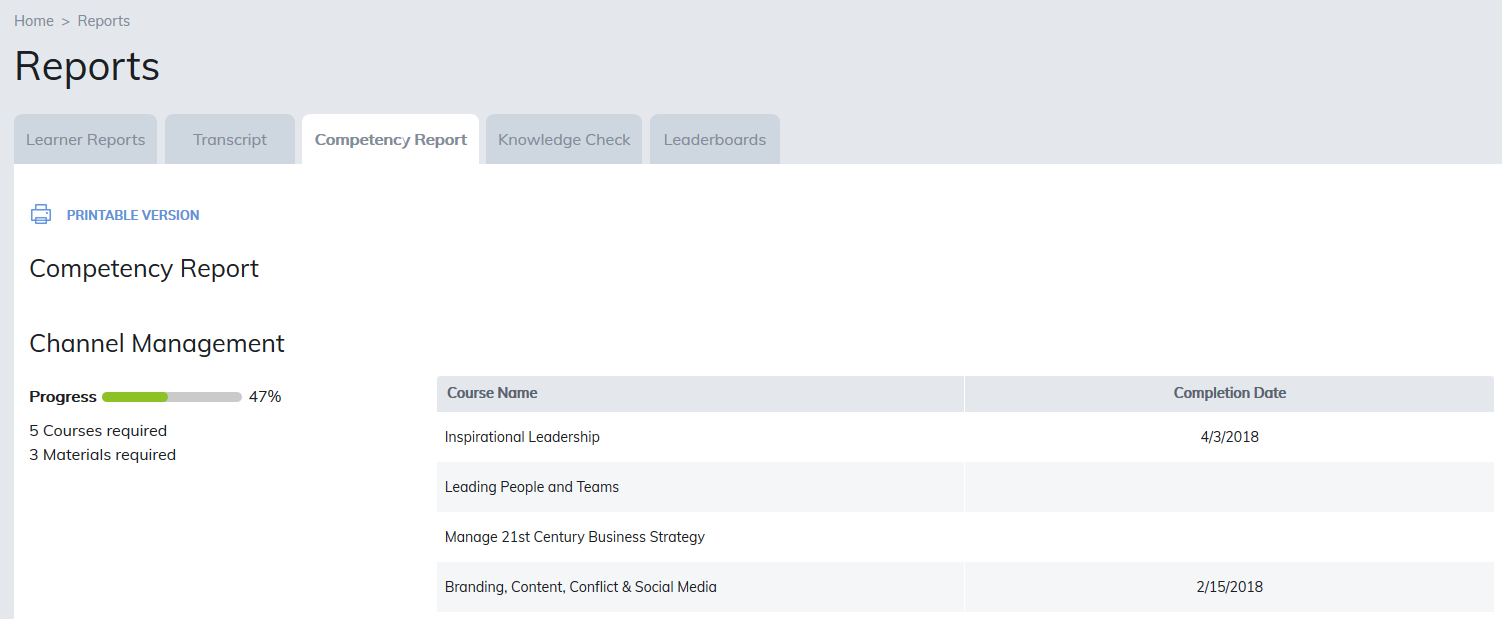
Learners will be able to view their status in all competencies in their reports tab under the Competency Report.
- On the left, the learner can view their progress within the competency and the required number of courses and/or materials to achieve the competency.
- On the right, the courses and materials available to the learner to achieve the competency are listed.
- Clicking on a course or material name will take the learner to the item and allow the learner to register for it.
- Once the learner has completed an item, its completion date will also appear.
There are two admin and manager reports:
- The Competency Report presents the status of each competency. It displays the number of courses and materials associated with each competency and the registration and completion information for these items.
- The Learner Competency Report will display each learner's progress in the created competencies.
Was this article helpful?
That’s Great!
Thank you for your feedback
Sorry! We couldn't be helpful
Thank you for your feedback
Feedback sent
We appreciate your effort and will try to fix the article