The Subscription feature allows users to purchase a subscription to a variety of courses and materials for a specified period of time instead of purchasing the courses and materials directly. The subscription feature is only available on expanded eCommerce sites.
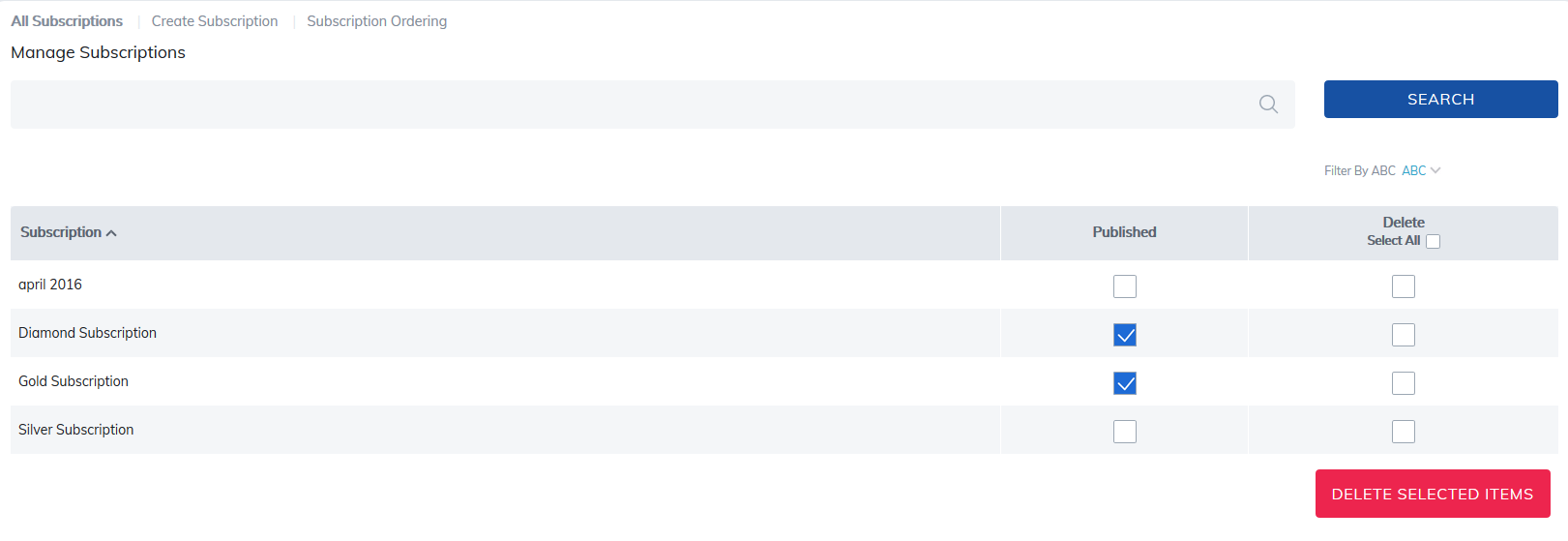
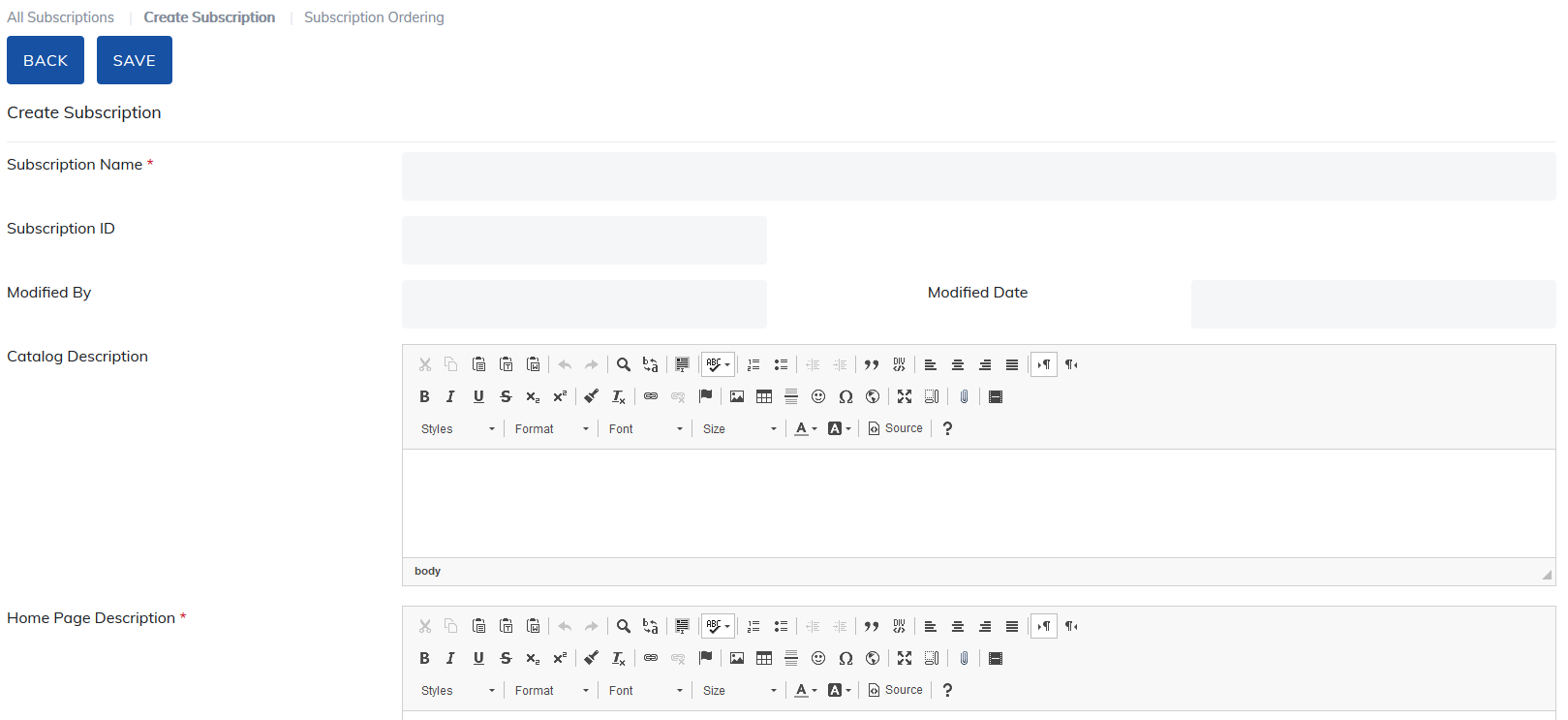
To create a subscription, please click Create Subscription. Add subscription details, upload a display image, and define the pricing information.
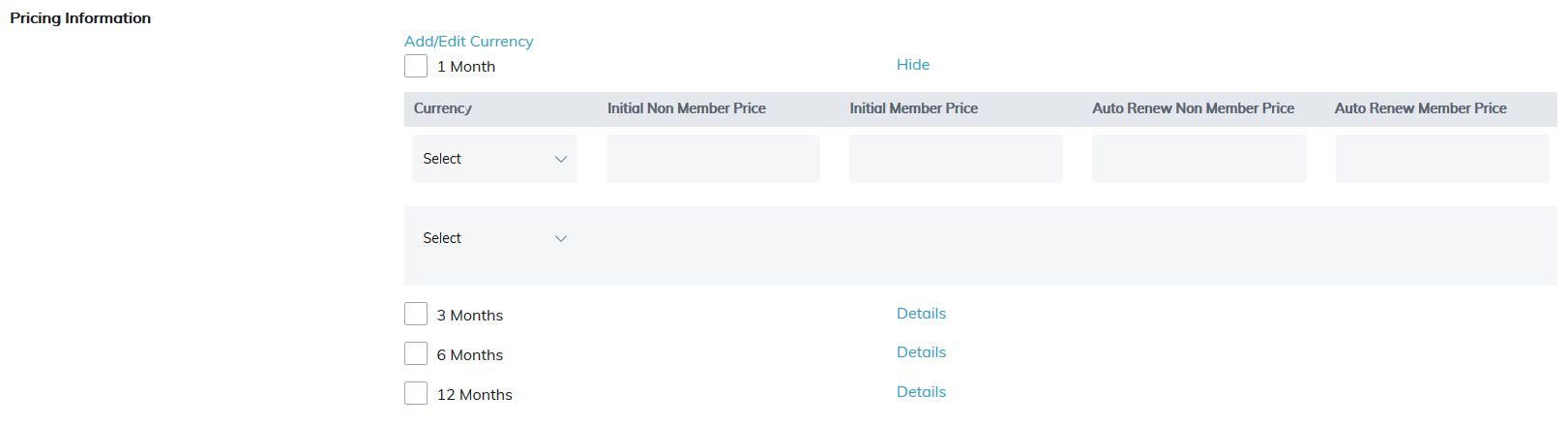
Our subscription plans allow users to choose from 1 month, 3 months, 6 months and 12 months. Users may choose to auto renew and you may change the price of this renewal.
Multiple currencies can be used within each subscription plan.
By associating a subscription with a category, and linking that same category to a user group, you determine which users will see member and non-member pricing.
Subscriptions are not directly associated to user groups. You must assign subscriptions through categories to user groups.
If your site has some non-eCommerce groups (for example employees) to prevent everyone from seeing a subscription, you need to associate it to a category, then associate the category to your eCommerce user groups.
Note: In order for users to see member and non-member pricing, the functionality must be enabled in Site Settings > Catalog and in User Group details.
Manage Subscription Courses and Materials
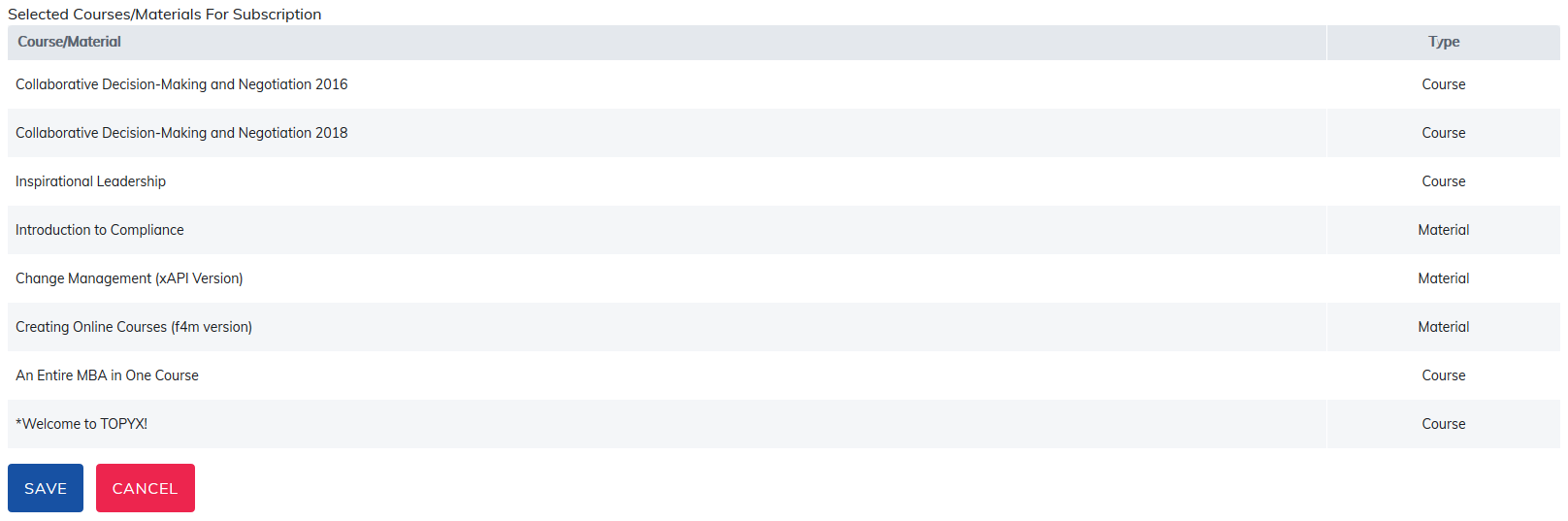
Once subscriptions details have been saved, you may add courses and materials to the subscription. When a user purchases this subscription, they will be able to launch these courses and materials for the length of their subscription.
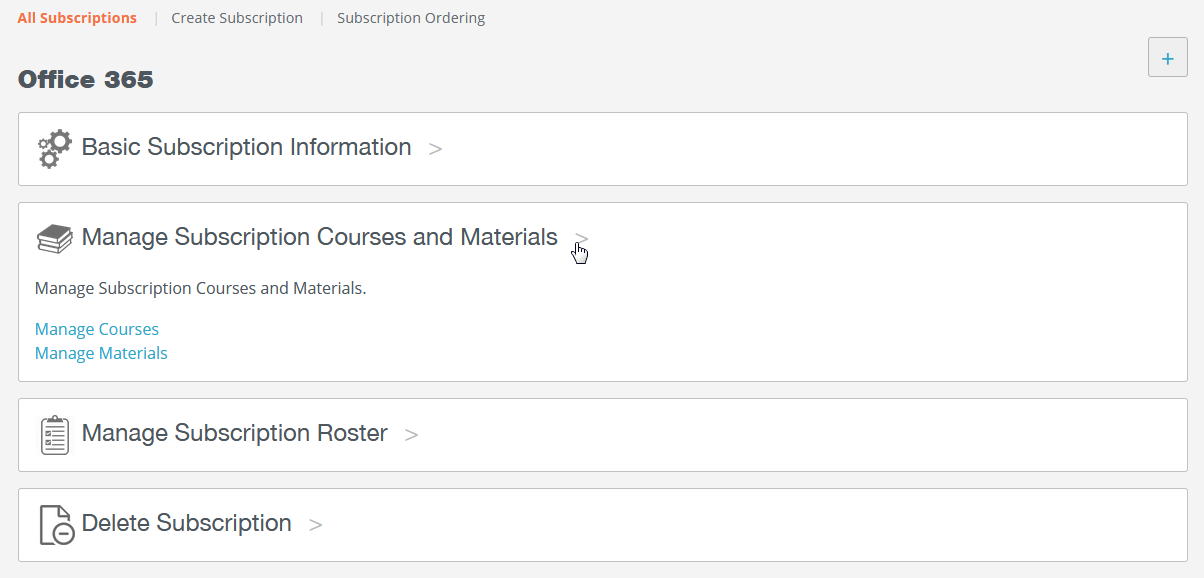
Select courses and/or materials from the list, click on Save and these items will be added to the subscription.
Manage Subscription Roster
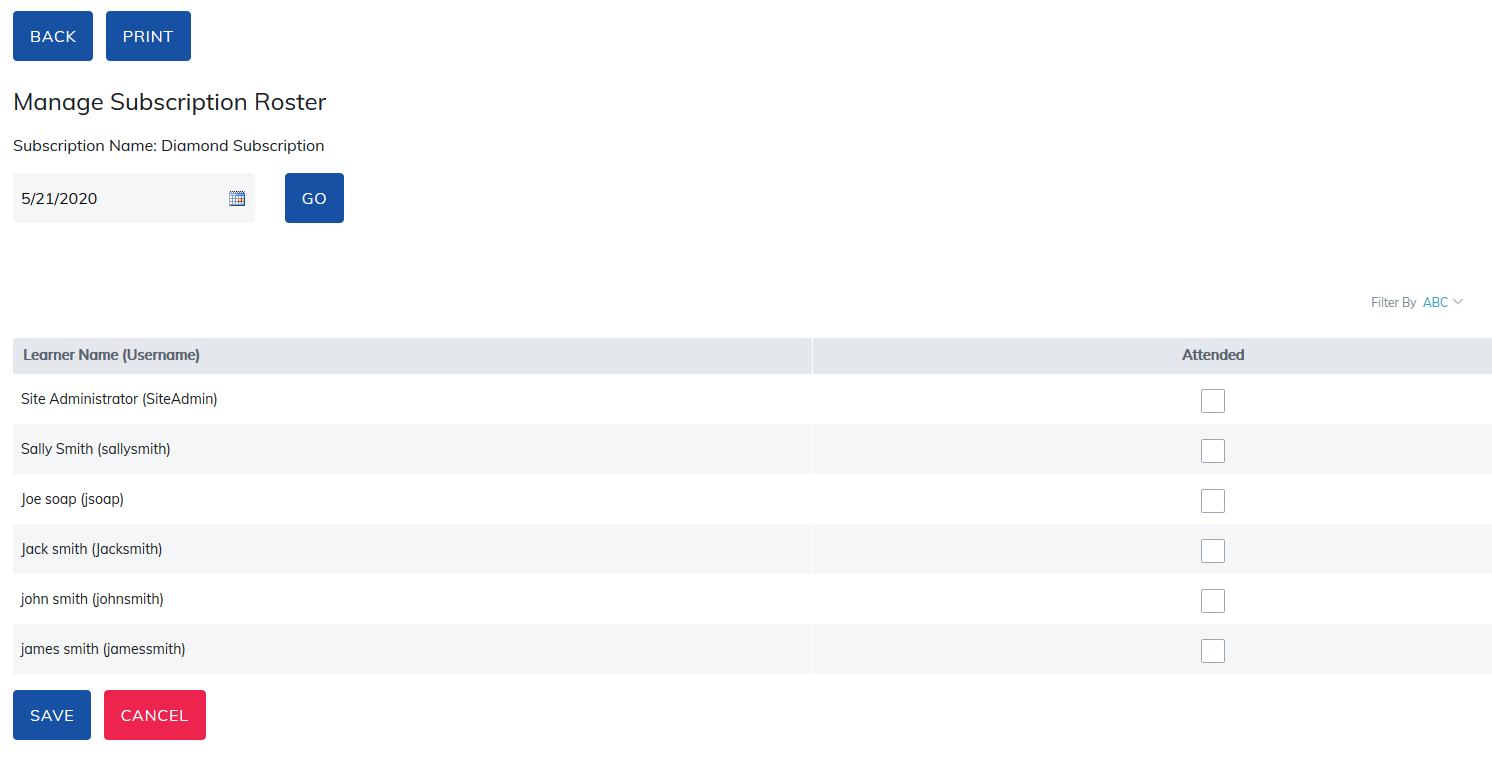
Under the Manage Subscription Roster section, you can create an attendance list and manage the subscription roster by choosing a date, selecting learners, and then clicking Save.

Select Manage Subscription Roster. In this section, you can create an attendance record and print the subscription roster.
To create an attendance record, choose a date, select your learners, and click Save. The attendance record will then appear in the roster report.
Click the Print button to print the subscription roster.
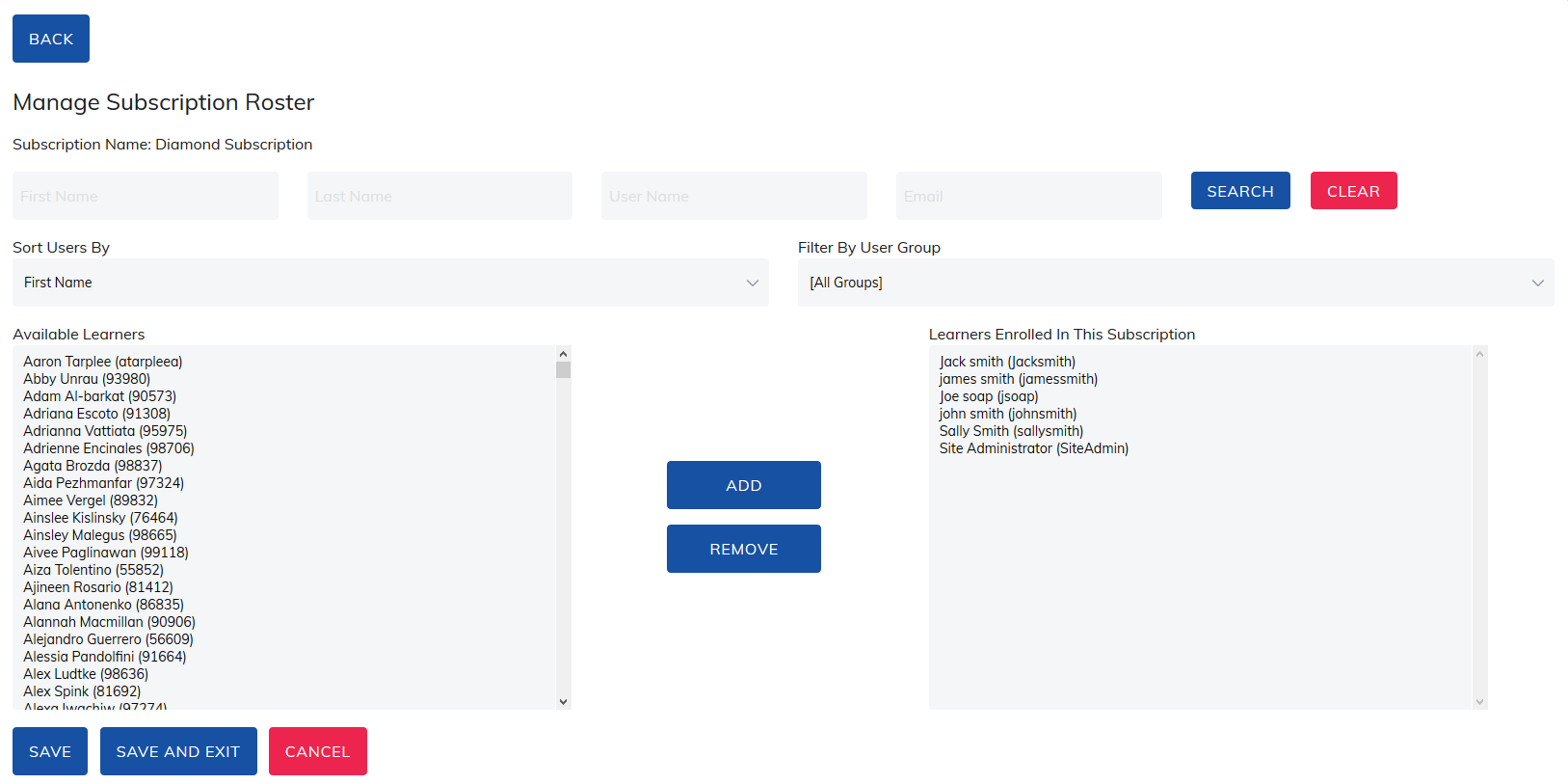
Select Manage Roster link, to manually Add or Remove Learner's from the Subscription Roster.
Search for a specific Learner, update list of Learner's by using our Sort Users By and Filter By User Group features.
To Add, click on any name in Available Learners section. (Use 'Ctrl' key to select multiple Learner's)
To Remove, click on any name in Learners Enrolled In This Subscription section. (Use 'Ctrl' key to select multiple Learner's)
Be sure to Save changes.
Delete Subscription
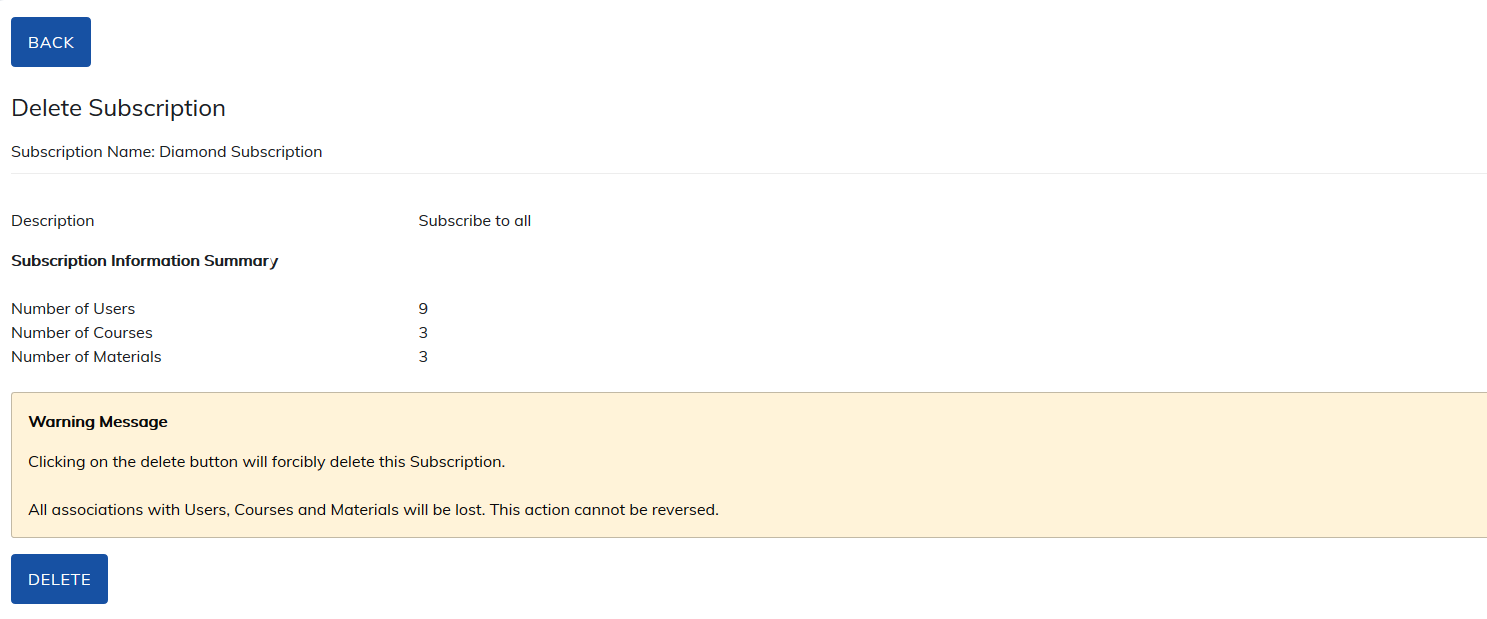
In this section you can delete Subscriptions. Before you take this action please review the associated Users, Courses and Materials because once a subscription is deleted it cannot be reversed.
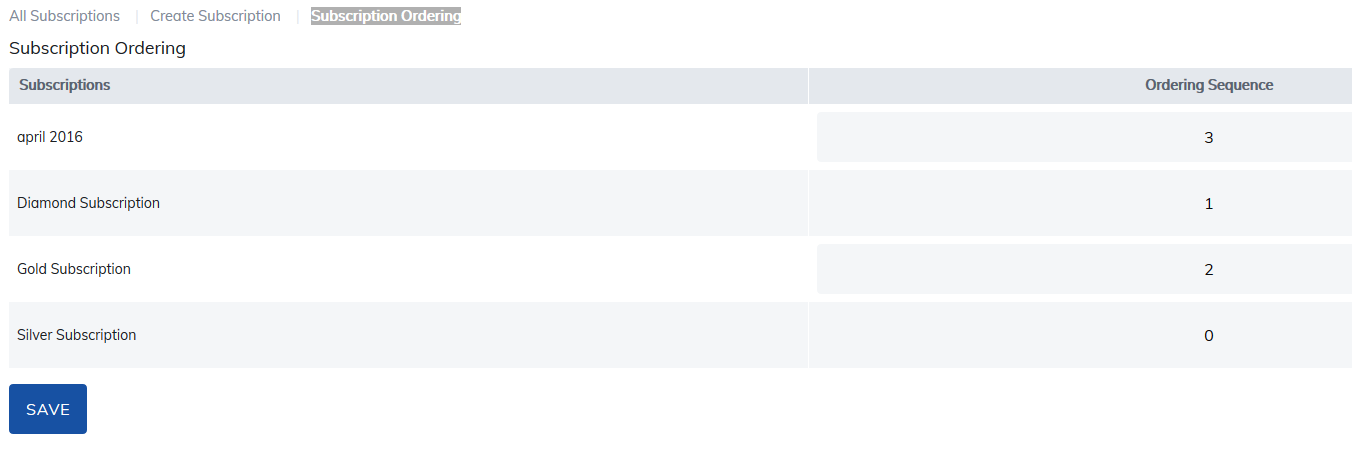
Subscription Ordering
By default, subscriptions are listed in alphabetical order in the catalog. In this section you can define the order in which subscriptions are listed in the catalog.
Simply select subscription ordering, update order sequence, and save your changes.
Note: In order to use this feature, you must first enable subscription manual ordering located in Site Settings > Catalog.
Was this article helpful?
That’s Great!
Thank you for your feedback
Sorry! We couldn't be helpful
Thank you for your feedback
Feedback sent
We appreciate your effort and will try to fix the article