This article explains how to connect your LMS site to your Google Analytics account so you can track website traffic, learner activity, and page performance.
If you are using an interactyx.com URL
If your site uses an interactyx.com domain:
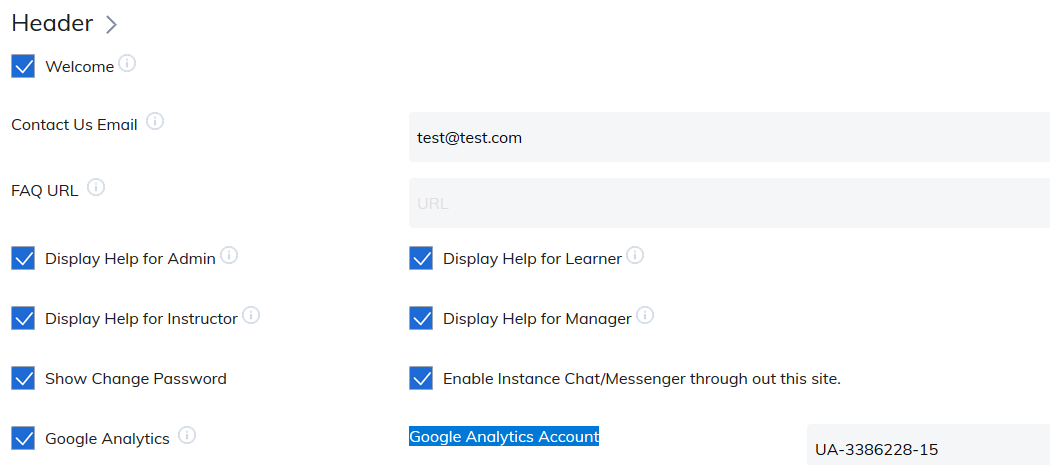
- Log in to your LMS Admin account.
- Navigate to Site Settings > Header.
- Add your Google Analytics UA Account Number.
- The format should like similar to UA-XXXXXXX-YY.
- Post the email address associated with your Google Analytics account in Basecamp so our team can confirm the connection.
If You Are Using a Custom URL (Branded Domain)
If your LMS uses a custom domain and you would like Google Analytics connected, please provide the following information in Basecamp:
- Email address associated with your Google account
- Google Analytics Account Number. Example: UA-30192345-1
- Your Google Analytics tracking code
Example tracking code:
<script type="text/javascript">
var _gaq = _gaq || [];
_gaq.push(['_setAccount', 'UA-30192345-1']);
_gaq.push(['_trackPageview']);
(function() {
  var ga = document.createElement('script');
  ga.type = 'text/javascript';
  ga.async = true;
  ga.src = ('https:' == document.location.protocol ? 'https://ssl' : 'http://www') + '.google-analytics.com/ga.js';
  var s = document.getElementsByTagName('script')[0];
  s.parentNode.insertBefore(ga, s);
})();
</script>
Was this article helpful?
That’s Great!
Thank you for your feedback
Sorry! We couldn't be helpful
Thank you for your feedback
Feedback sent
We appreciate your effort and will try to fix the article