The Catalog provides learners with easy access to all published training available on the site.
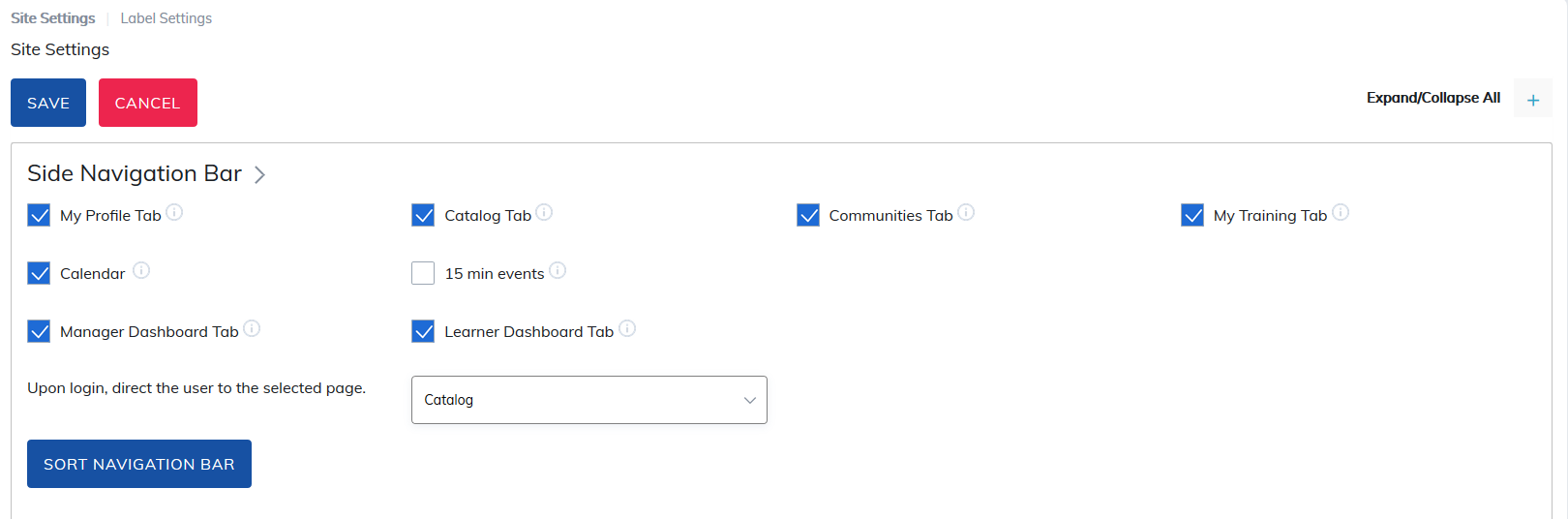
By default, learners land on the Catalog page when they log in. However, this can be changed in Site Settings (under the Administrator Home Page) to direct learners to:
- My Profile
- Communities
- Materials
- Or another selected landing page
Managing the Catalog
From Site Settings, Administrators can:
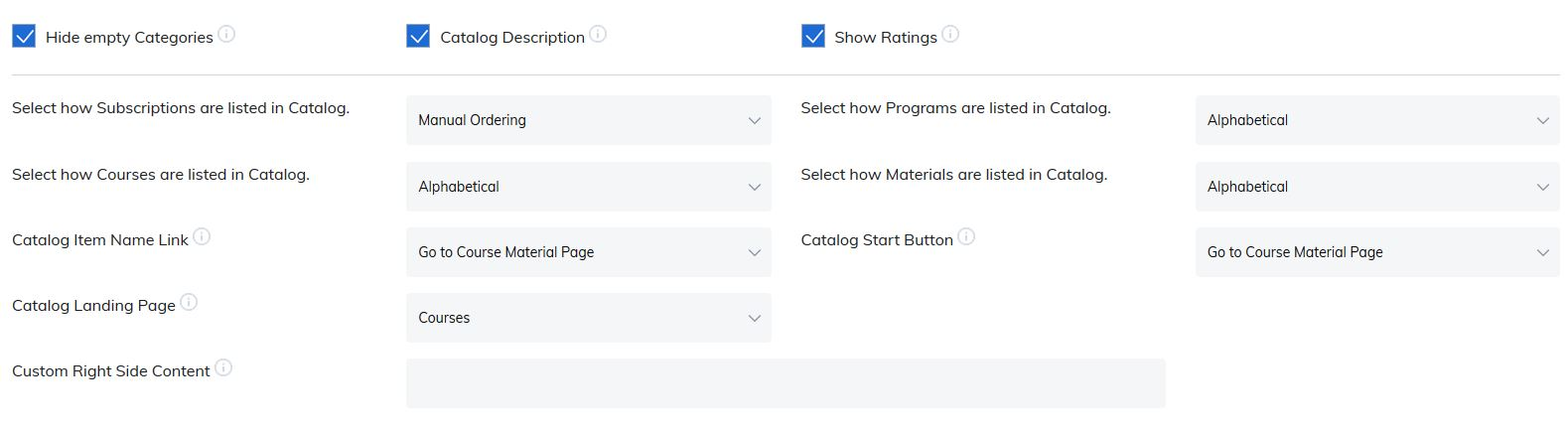
- Add custom content to the right side of the Catalog page (under Categories)
- Choose which course details are displayed
- Select how content is sorted, such as:
- Alphabetically
- By Published Date
- By Date Last Updated
Below is a list of what can be shown or hidden on the Catalog.
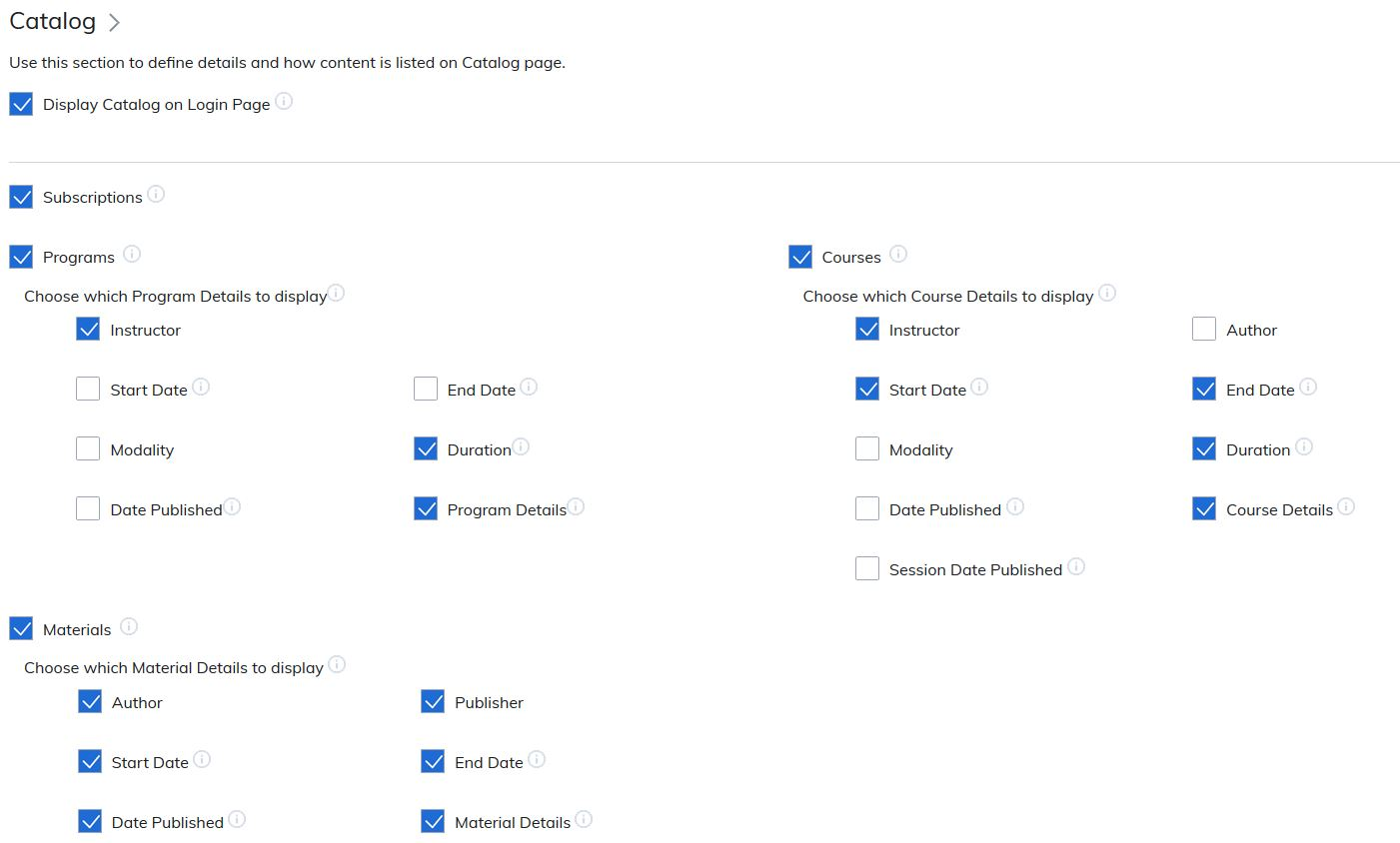
From Site Settings, the Administrator can choose to add content to the right side of the Catalog page (under Categories) and also choose what detail will display for courses as well as select how content is listed on the Catalog - Example: Alphabetically, Published Date or Date Last Updated.
Learners are able to register for content from the Catalog and can launch/start the course as well from this page. The details displayed on the Catalog about the available content is managed through Edit Basic Course/Material/Program information on the Administrator home page.
Searching for Content
Search is available on every tab of the Catalog. Once you are in Search you can search the whole Catalog or just specific areas. The ABC filters are also good for quick searching.

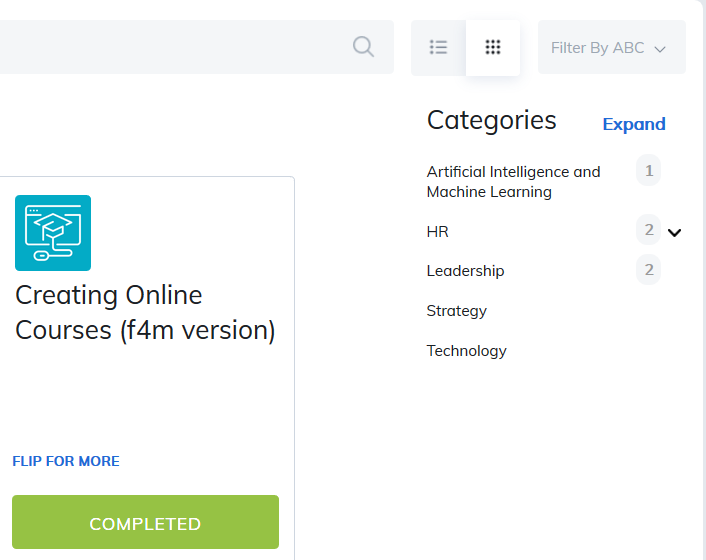
The Categories panel on the right section of the screen is used to more efficiently find courses. Categories (subjects, topics) are created by the Administrator on the Administrator home page.
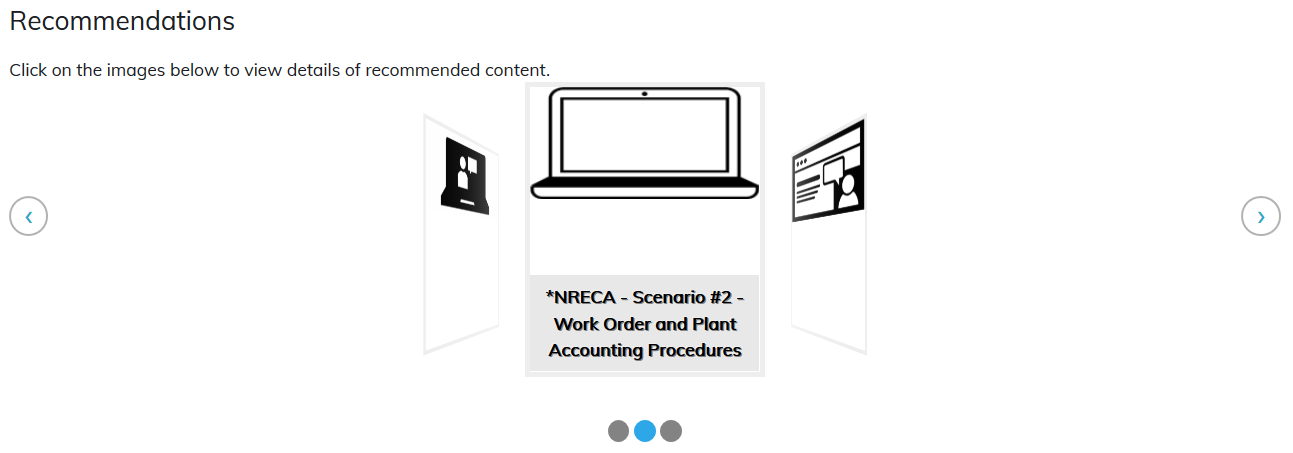
Recommendations will display as thumbnail images so learners have an option to select the Material/Course/Program in an easy accessible way. Recommendations appear as learners complete Material/Course/Program. When your content is created you have the ability to set "Recommendations" for additional training based on completions of specific content.
Note: The Catalog tab name can be re-named depending on how you want to configure your site. For example: it could be called Resource Library.
Learner View of Catalog
Status Button
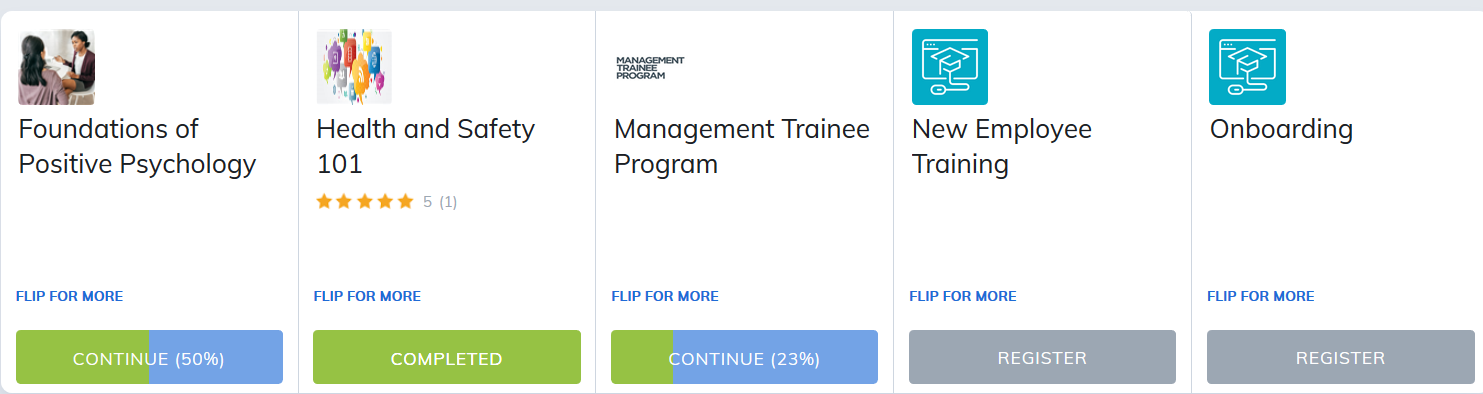
The Learner will always be able to see their status of any content available on the Catalog. The available buttons will show if a Learner has Registered, needs to Start or has completed content.
Was this article helpful?
That’s Great!
Thank you for your feedback
Sorry! We couldn't be helpful
Thank you for your feedback
Feedback sent
We appreciate your effort and will try to fix the article