Badges are digital credentials that recognize learner achievements in your site. Administrators can link their Credly Acclaim badge account to TOPYX to award badges.
To get started, administrators need an Acclaim account. To create one, please visit Credly Acclaim.
Linking Your Acclaim Account
1. Once you have an Acclaim account and have created badges in Acclaim, log in to TOPYX.
2. Select Manage Badge Settings.

3. Enter your Organization ID and Authorization Token from your Acclaim account. Click Save.
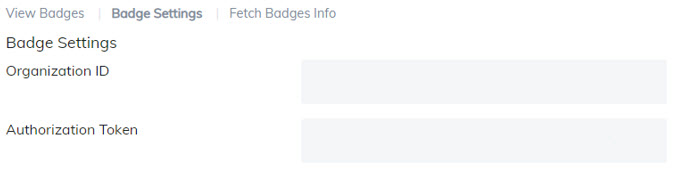
4. Click Fetch Badge Info and then Fetch Info.
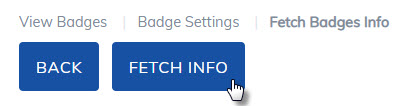
This will imports badges created under the Acclaim account into Badge Settings to your TOPYX site.
Viewing and Adding Badges
- To see the available badges, select View Badges.
- Badges can now be added to Programs, Courses, Materials, or Learning Paths.
Important: Badges are only awarded to learners completing an item after the badge has been added. Learners who completed the item beforehand will not receive the badge.
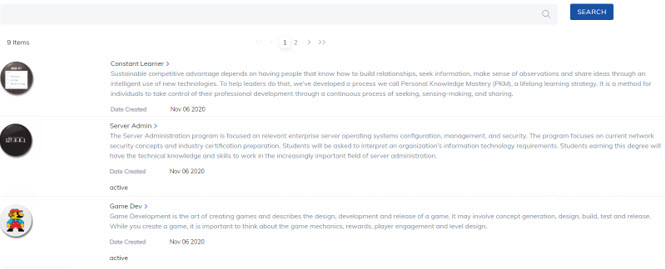
Adding a Badge
1. Go to the Program, Course, Material, or Learning Path you want to add a badge to. Choose Select Badge.
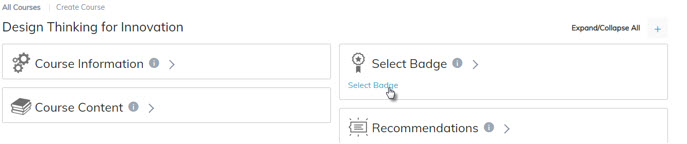
2. Choose an active badge from your Acclaim account. Draft badges will not be available. Click Save.
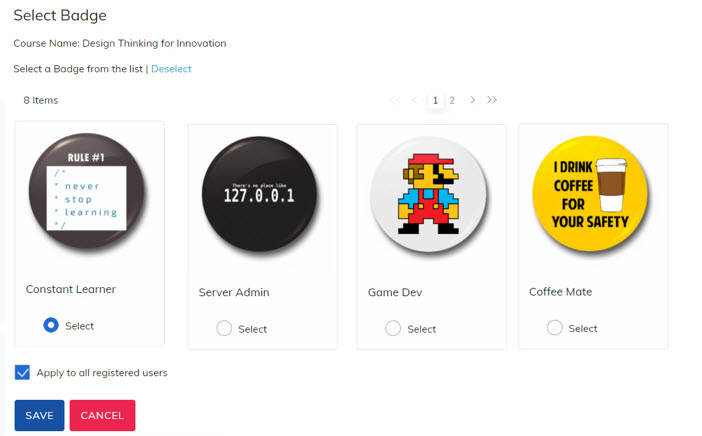
Optional: Check Apply to all registered users to award the badge to all current and future learners who complete the item. Learners who already completed the item will not receive it.
Removing a Badge
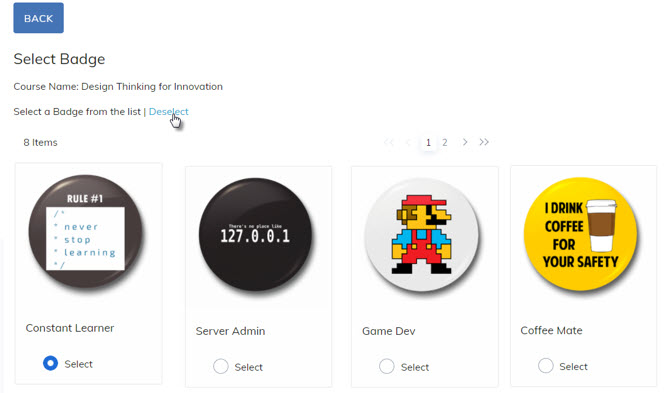
To remove a badge, select Deselect and click Save. This removes the badge from the item, and learners will no longer receive it for future completions.
Badge Visibility and Reporting
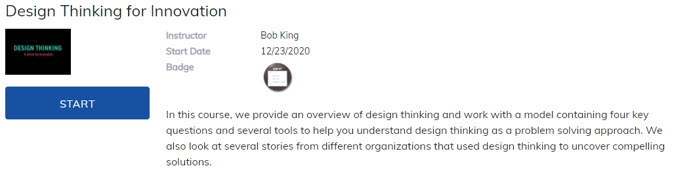
Added badges will appear in the Catalog and on the item’s Home Page.
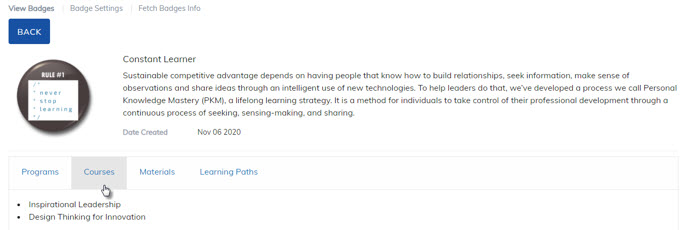
To view the Programs, Courses, Materials and Learning Paths a badge is associated with, select View Badges and click on the name of the Badge to view
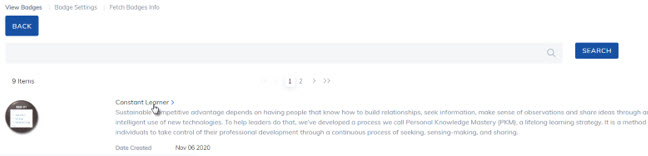
Select the type of content to see the items the Badge is associated with in your TOPYX site.
Learner Requirements
- Learners must have an Acclaim account with an email that matches their TOPYX account.
- Each email address must be unique. Users sharing an email address will not receive badges.
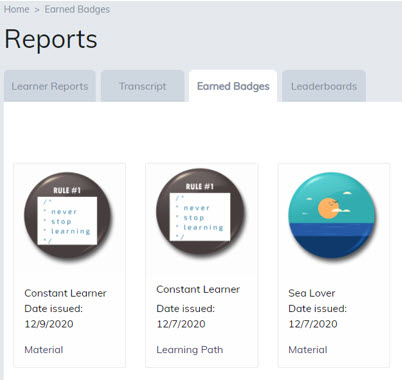
Once a badge is awarded, a new tab called Earned Badges appears in Learner Reports.
- Clicking the badge icon takes the learner to their Acclaim account to view all badges.
- Clicking the item type (e.g., Learning Path) takes the learner to the TOPYX item where the badge was earned.
Was this article helpful?
That’s Great!
Thank you for your feedback
Sorry! We couldn't be helpful
Thank you for your feedback
Feedback sent
We appreciate your effort and will try to fix the article