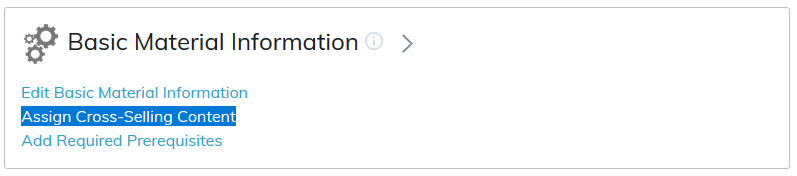
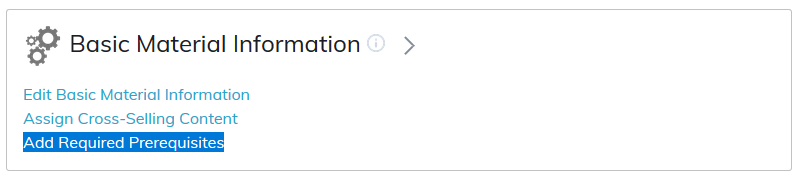
In this section, you can edit basic material information, assign cross-selling content, and add required prerequisites.
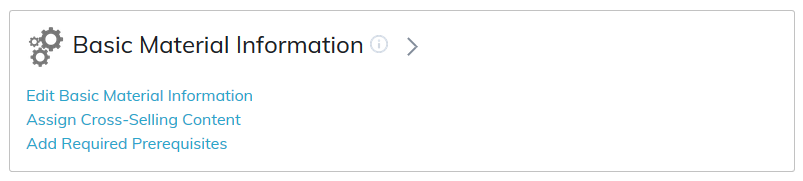
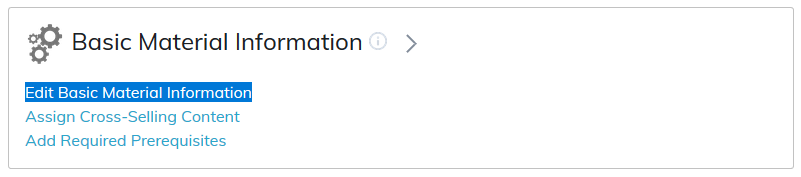
Edit Basic Material Information
This section offers a number of features and unless noted otherwise, apply only to materials that are published to the catalog.
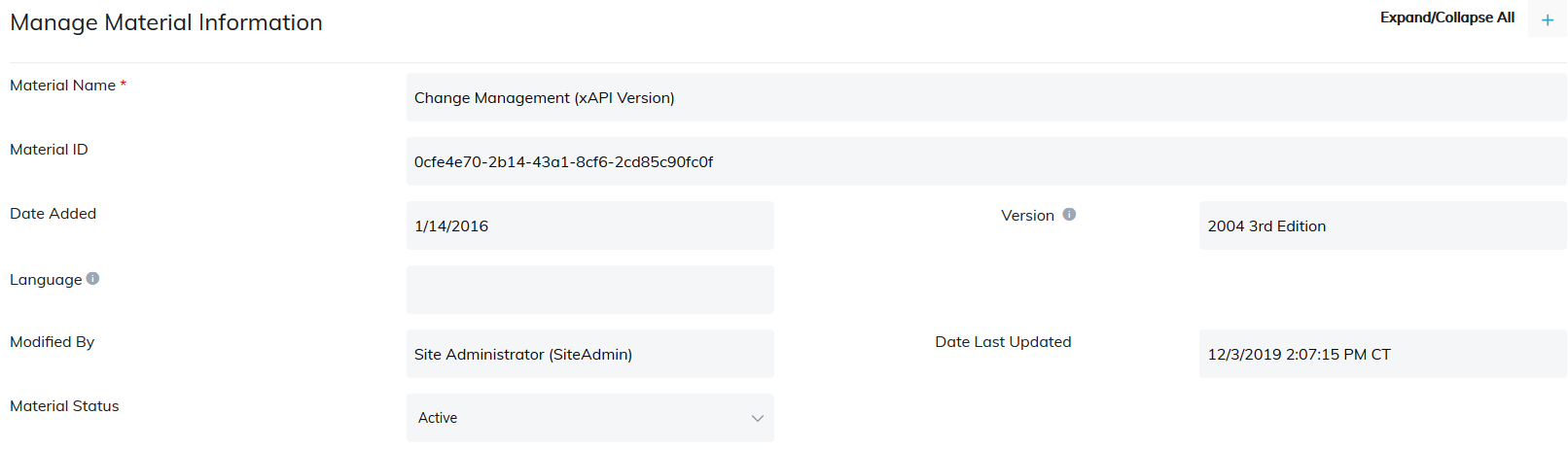
Manage Material Information
- Material Name: This is required field and is the material display name that will be seen by learners where ever the material is used. The character limit is 254.
- Some fields are logs and are auto-populated. These fields are:
- Material ID
- Date Added
- Version: This field will populate the version of your SCORM Material.
- Language: This field will only appear for SCORM content and will prepopulate language defined within the SCO.
- Modified By
- Date Last Updated
- Material Status: Drop-down option for tagging material as active (currently in use), dormant (not being used yet), or archived (no longer being used). This is for admin reference only.
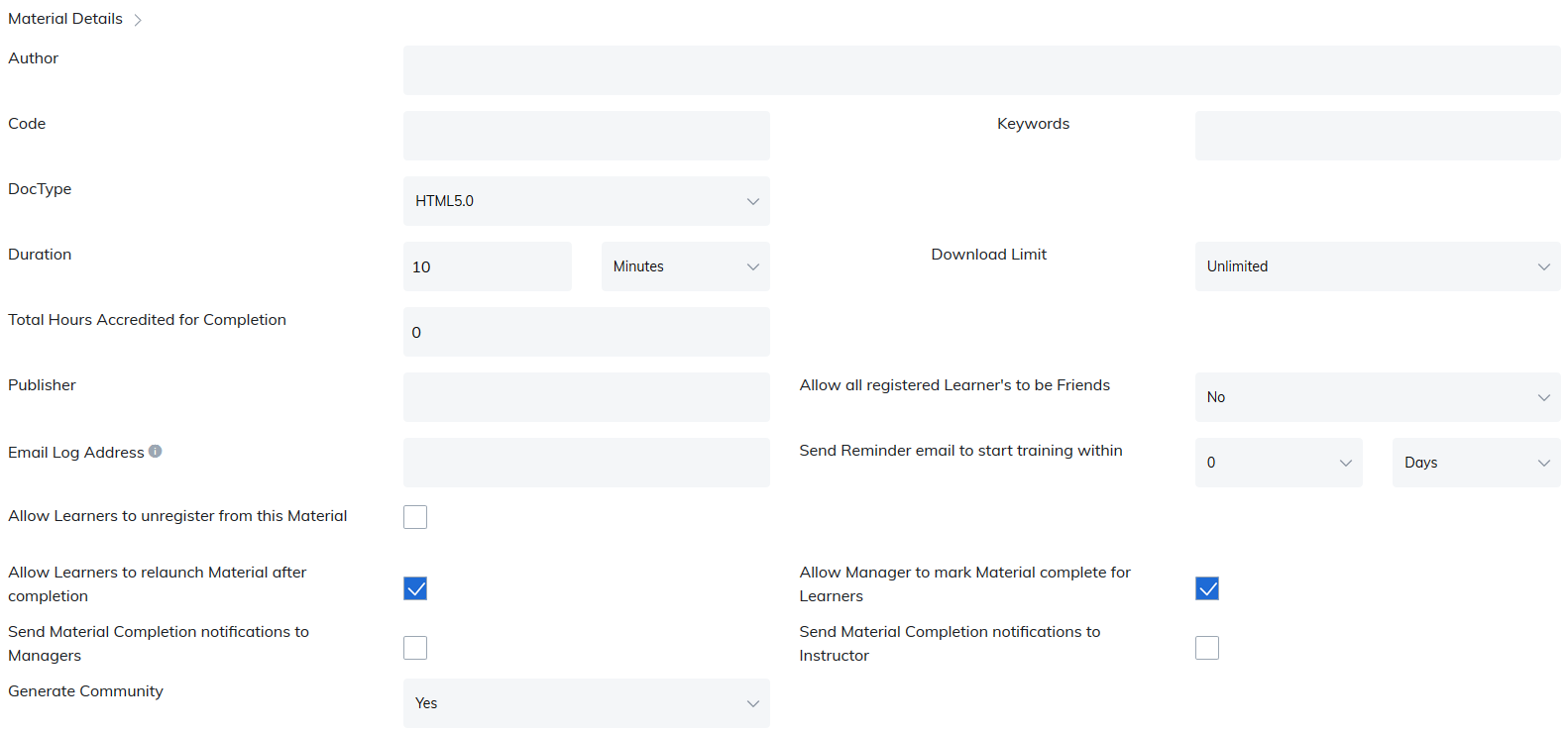
Material Detail
| Field | Description |
|---|---|
| Author | The author's name will display on the material home page. |
| Code | Assign a code to your material. It is for internal reference only and will not be seen by learners. |
| Keywords | Add keywords for searching purposes. |
| DocType | For internal reference only, choose between either HTML 5.0 or HTML 4.0.1. |
| Duration | Define approximate time spent in completing the material by specifying in minutes, hours, or days. Duration will display in the material details on the material home pages. |
| Download Limit | This applies to standard file types such as Word, Excel, and PowerPoint documents. This will limit the number of times a learner can download it. It does not apply to SCOs. The limit for the number of times a SCO can be played will be taken directly from the SCO itself. |
| Total Hours Accredited for Completion | Credit Hours that are awarded after completion. |
| Approved By | When you assign an admin or manager, learners must then request to register for this material. After they submit their material request, their registration request will appear in the View Material Approval Requests section, where the admin or manager can accept or reject the learner's request to register. Email notifications in the Email Settings section work in parallel with this feature. Note: This feature is not available on eCommerce sites. |
| Publisher | Person or entity that created the material which will display on the material home page. |
| All Users to be Friends | If your site is using material communities, you can use this feature so that all Learners enrolled in this material will be Friends. This eliminates the Send Friend Request step. |
| Email Log Address | Two email addresses separated by semicolon can be added in this field. The addresses will receive a copy of registration and purchases (only for eCommerce sites) notifications. |
| Send Reminder email to start training within | Specify the number of days, weeks, or months. When the learner registers for the material through the catalog or an administrator, instructor, manager registers a learner via the material roster, if the learner does not attempt the material, they will receive this email after the time specified. Note: Reminder to attempt the program, course, or material notification must be turned on in Email Settings. |
| Allow Learners to unregister from this Material | Check this box and specify number of days or weeks. Learners will see a Drop button under the My Training page and when selected, will remove them from this material roster. |
| Allow Learners to relaunch Material | Check this box and it will allow learners to relaunch the material after it has been completed. |
| Allow Manager to mark Material complete for Learners | By default, this box is checked and will allow the manager to mark completions for their learners. Completions can be implemented in the material roster section. Note: This material must be associated to the user group the manager manages. |
| Email to Manager | Check the box and managers will receive completion notification each time a learner completes the material. Note: Material must be associated to the user group the manager oversees and material completion notification must be turned on in Email Settings. |
| Email to Instructor | Check the box and instructors will receive completion notification each time a learner completes the material. Note: Material completion notification must be turned on in Email Settings. |
| Generate Community | Do you want a community associated to this Material? Yes or no option. |
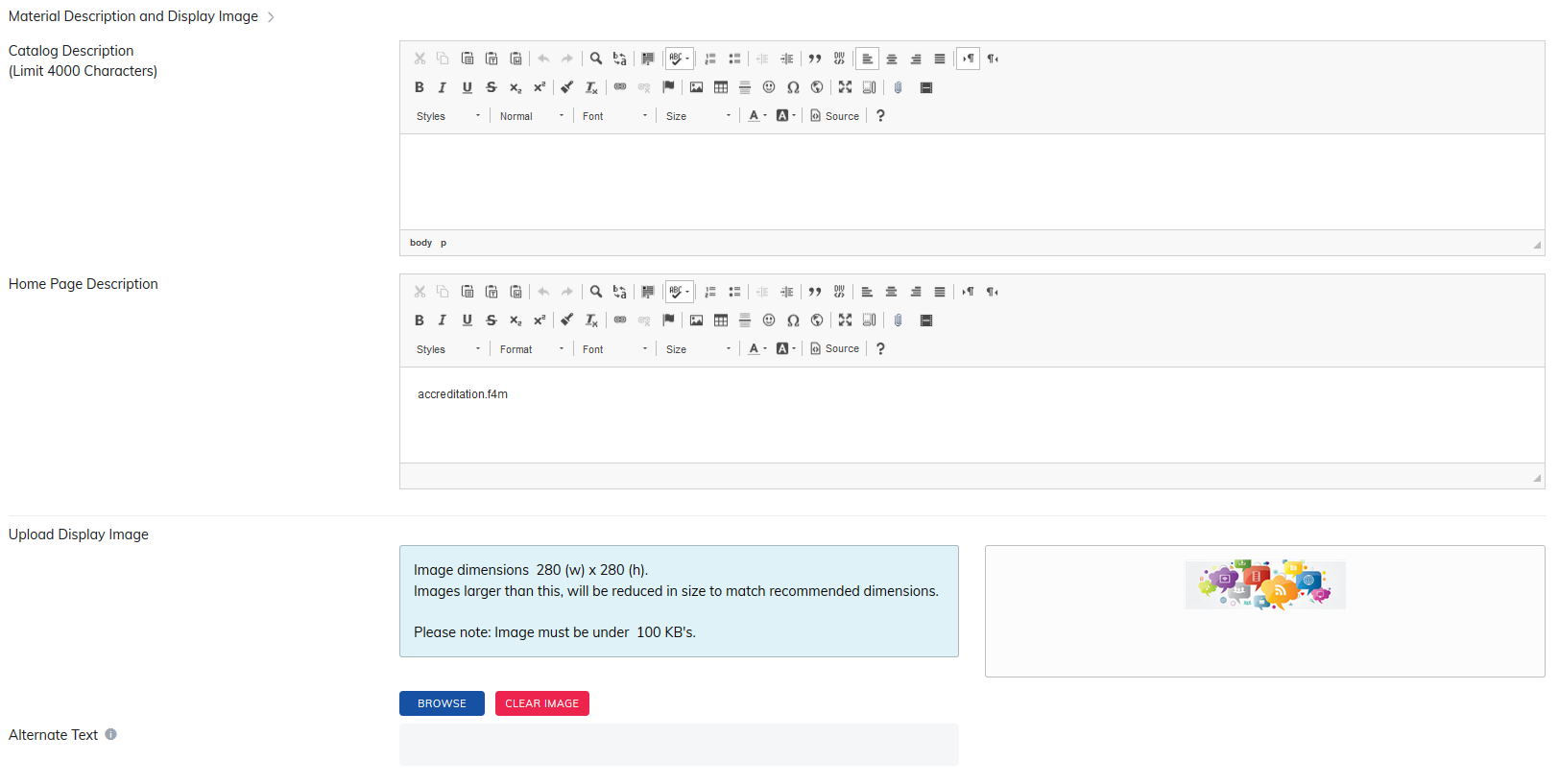
Material Description and Display Image
- Catalog Description: Will display on the catalog page.
- Home Page Description: Will display on the material home page.
- Display Image: Upload a display image for your material and it will appear next to the material name on the catalog and material home page. Preferred image size is 280px (width) x 280px (height). The uploaded image must be under 100KBs.
Pricing Information
This applies to eCommerce sites only.
- Pricing Information: Define pricing model purchase or subscription.
- Purchase: Be sure to include the currency, non-member price, and member price.
- Note: Allow Member Pricing must be enabled in the Site Settings > Catalog section.
- Subscription: Be sure to include currency and subscription plan(s).
- The Select dropdown allows you to select your preferred currency for the material.

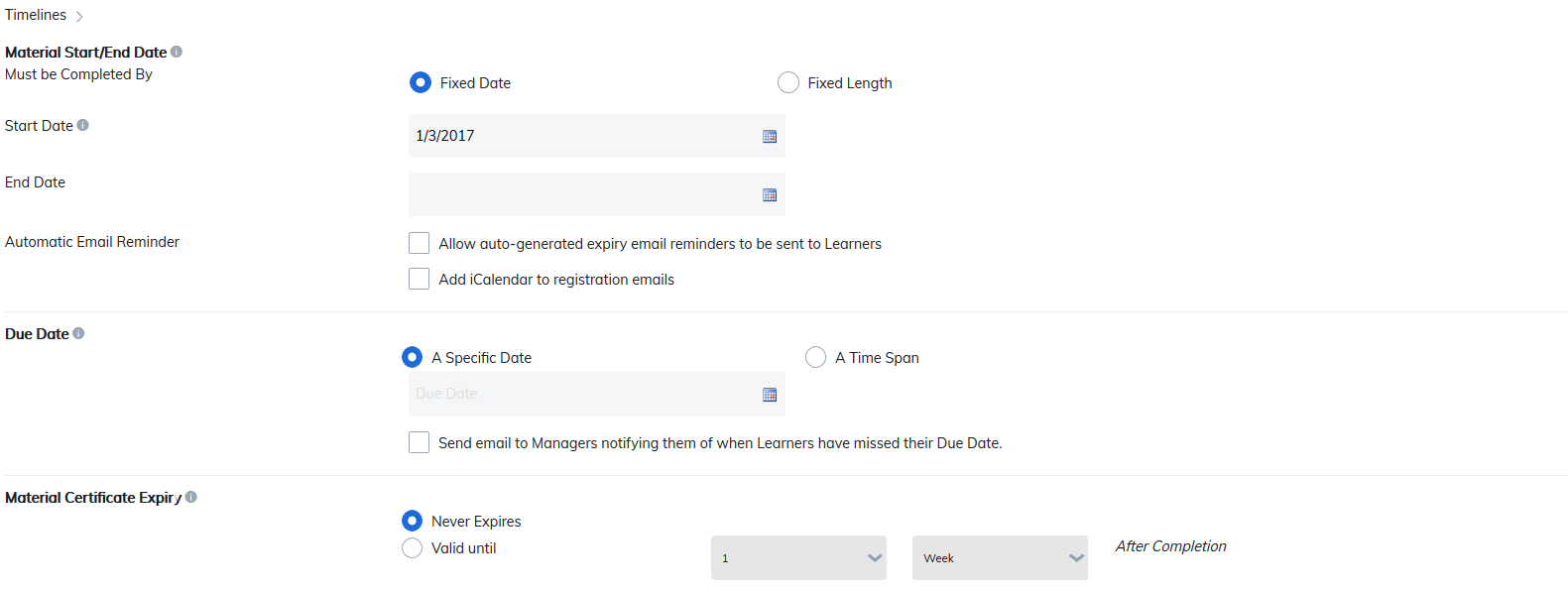
Timelines
| Field | Description |
|---|---|
| Material Start/End Date | This section allows you to specify if access to this material will expire on a fixed date or after a fixed length of time.
|
| Automatic Email Reminder | If the material is set to expire, then use this feature to alert learners before it is about to expire. Note: Expiry Course/Material Notification must be turned on in Email Settings. |
| Add iCalendar to Registration emails | Check this box and an iCalendar link will be available in the registration notification, allowing learners to add it to their calendar. |
| Due Date | Allows administrators and instructors to designate a date or time frame the material must be completed by.
There are a few options:
|
| Material Certificate Expiry | Choose whether material certificate of completion will expire or never expire. Note: Certificate expiration pulls from the date the learner completed the material. |
| Never Expires | Once a learner completes the material, their certificate of completion will never expire. |
| Valid Until | Once a learner completes the material, choose how long it will be valid for. |
| Send Email Notification Before Material Expires | Check box to enable reminder notification, which can be sent 1 Year, 6 Months, 3 Months, or 2 Weeks before the certificate expires. Note: Program/Course/Material Certificate Expiration Notification must be turned on in Email Settings. |
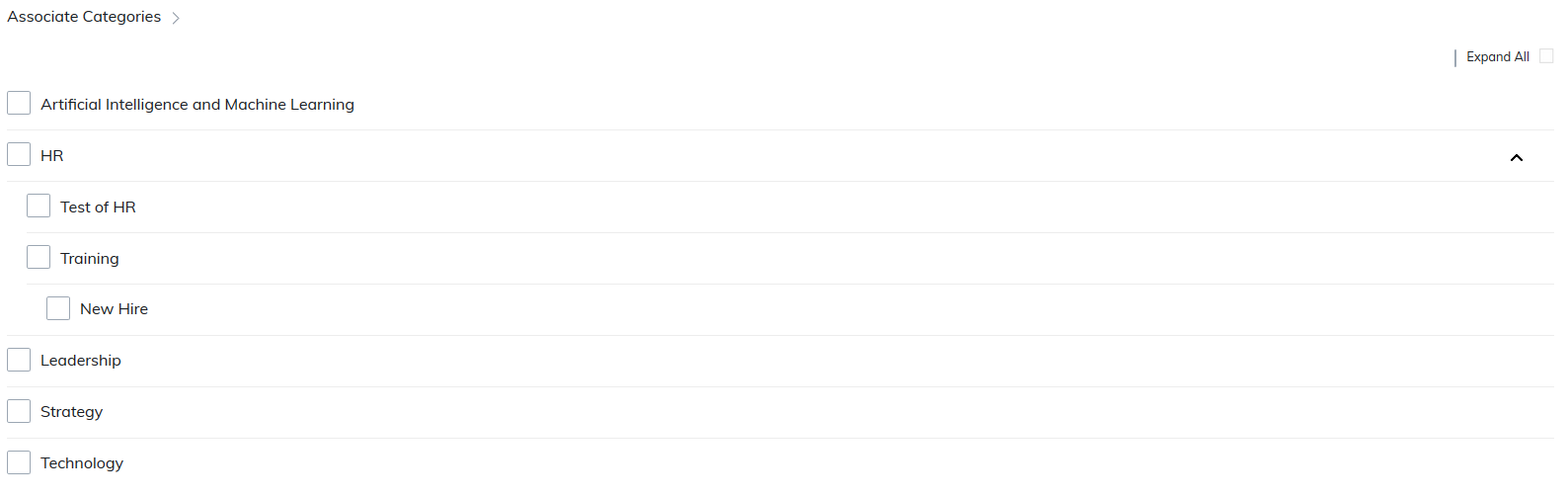
Associated Categories
Associate Categories: Categories appear like a table of contents under the catalog tab. By associating your material to a category, this will help Learners find the type of training much quicker.
Note: Categories must be created first before the information will appear in this section. Please visit the Manage Categories section for more information on how to create them.
Associated Accreditations
Select accreditation(s) and accreditation value(s) for this material.
Note: Accreditations must be created first before the information will appear in this section. Please visit the Manage Accreditations section for more information on how to create them.

Material Competencies
Select one or more competencies that you want to associate with this material.
Note: Competencies must be created first before the information will appear in this section. Please visit the Manage Competencies section for more information on how to create them.
Associate Sponsor
By associating a sponsor, their logo will appear when users visit the material home page. This is a great way to promote organizations that are affiliated with your company.
Note: Sponsors must be created first before the information will appear in this section. Please visit the Manage Sponsors section for more information on how to create them.

Publish to the Catalog
Check the Publish to the Catalog checkbox when you are ready for your material to appear in your catalog to at least one of your user groups.
Note: Only the instructor or admin who loaded the material can see or change it at the material level. If another instructor needs to see the material, they will be able to do this if it's in a course they have access to see.
Be sure to Save after making your changes.
Assign Cross-Selling Content
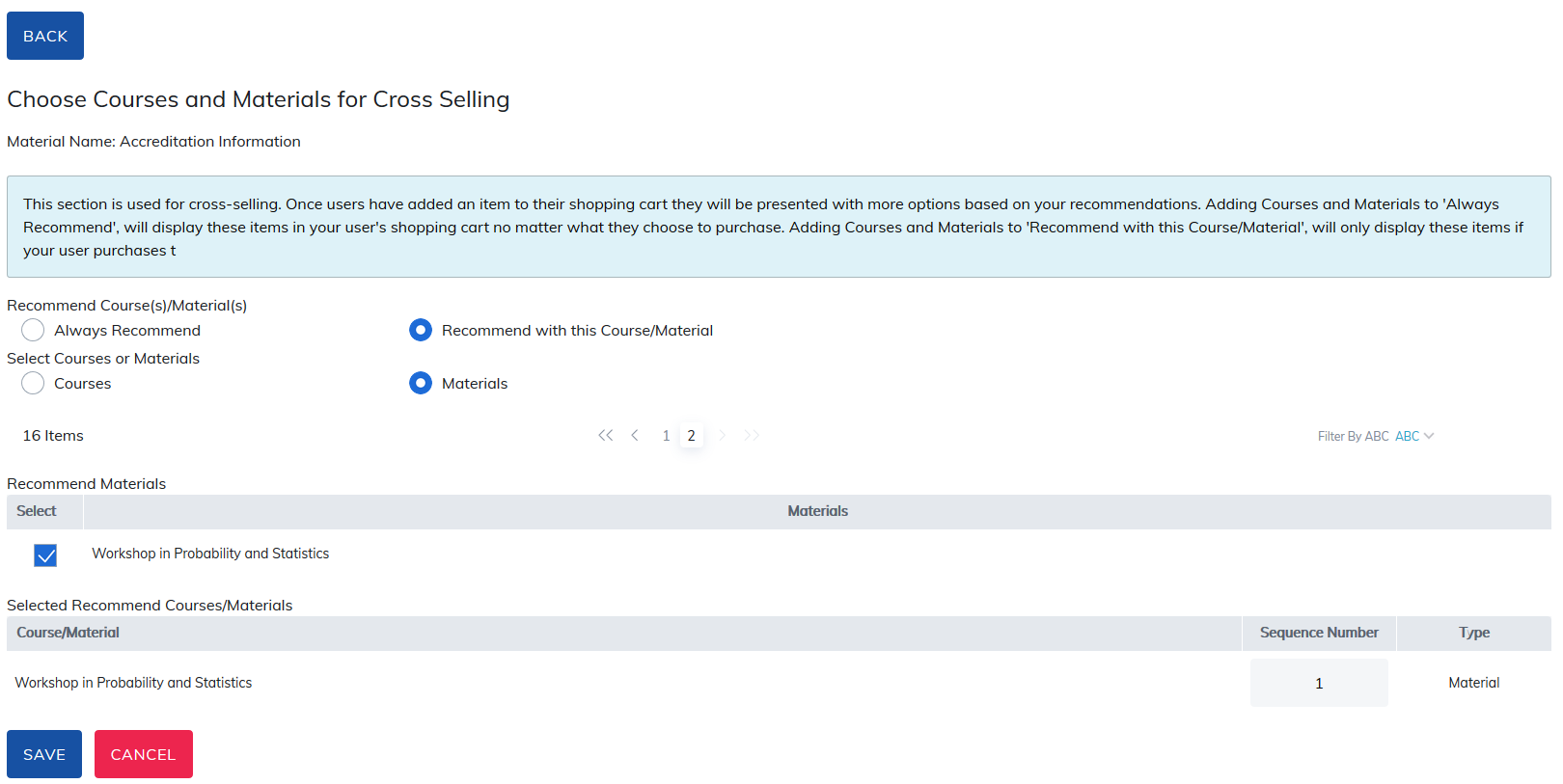
This section is used for cross-selling. Once users have added an item to their shopping cart, they will be presented with more options based on your recommendations.
This feature is available only on eCommerce sites.
- Always Recommend: Courses and materials that are added will display in the user's shopping cart no matter what they choose to purchase.
- Recommend with this Course/Material: Courses and materials that are added will only display when users purchase this material.
- Sequence Number: This feature allows you to choose the order items will appear.
Be sure to Save after making your changes.
Add Required Prerequisites
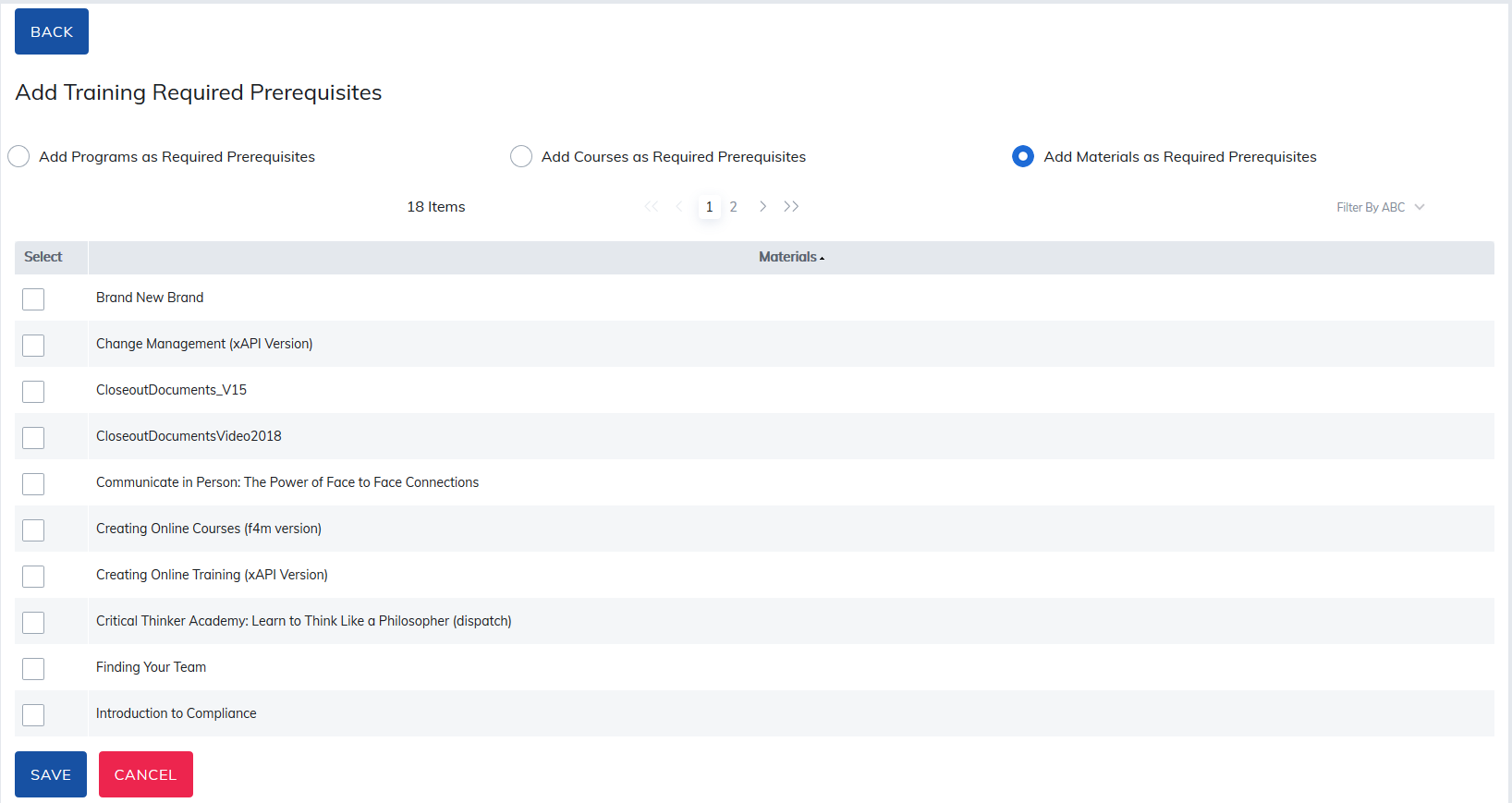
Should a program, course, or material be required to be completed prior to a learner being able to register or start this material, a Required Prequisites may be added.
- Radio buttons allow you to choose between programs, courses, and materials to make required.
- Checking the box to the left of the item name and clicking Save will make this item a Required Prequisite which must be completed before a learner may register for or start this material.
Be sure to Save after making your changes.
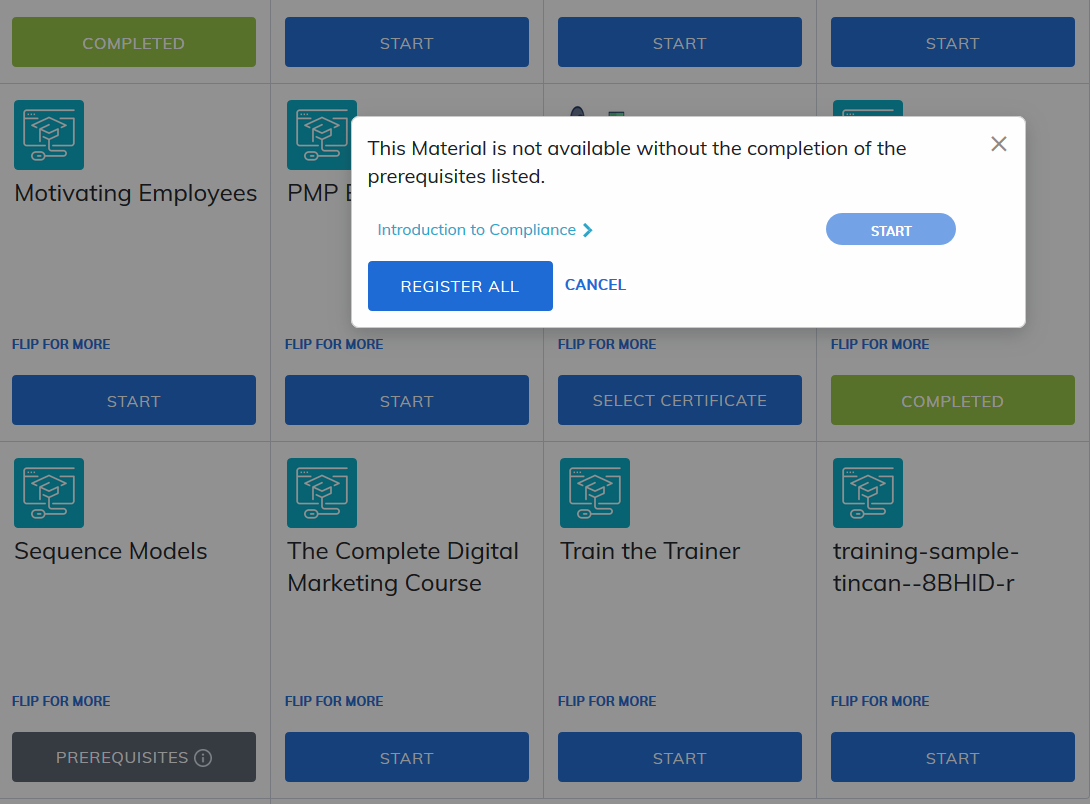
From the catalog tab, learners will see list of prerequisites.
Was this article helpful?
That’s Great!
Thank you for your feedback
Sorry! We couldn't be helpful
Thank you for your feedback
Feedback sent
We appreciate your effort and will try to fix the article