The Manage Coupons screen allows an administrator to create and sell courses or course material at a discount price for any given period of time. Coupons can also be used to assign your users to user groups while allowing them to take advantage of those discounts.
The coupon feature is only available on expanded eCommerce sites.
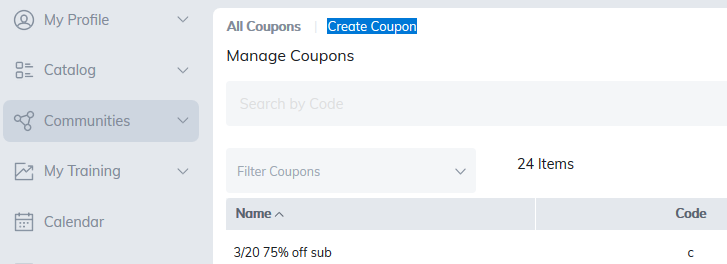
To generate a coupon, scroll to Manage Coupons on the Administrator home page. Click on Manage Coupons, then Create Coupon.
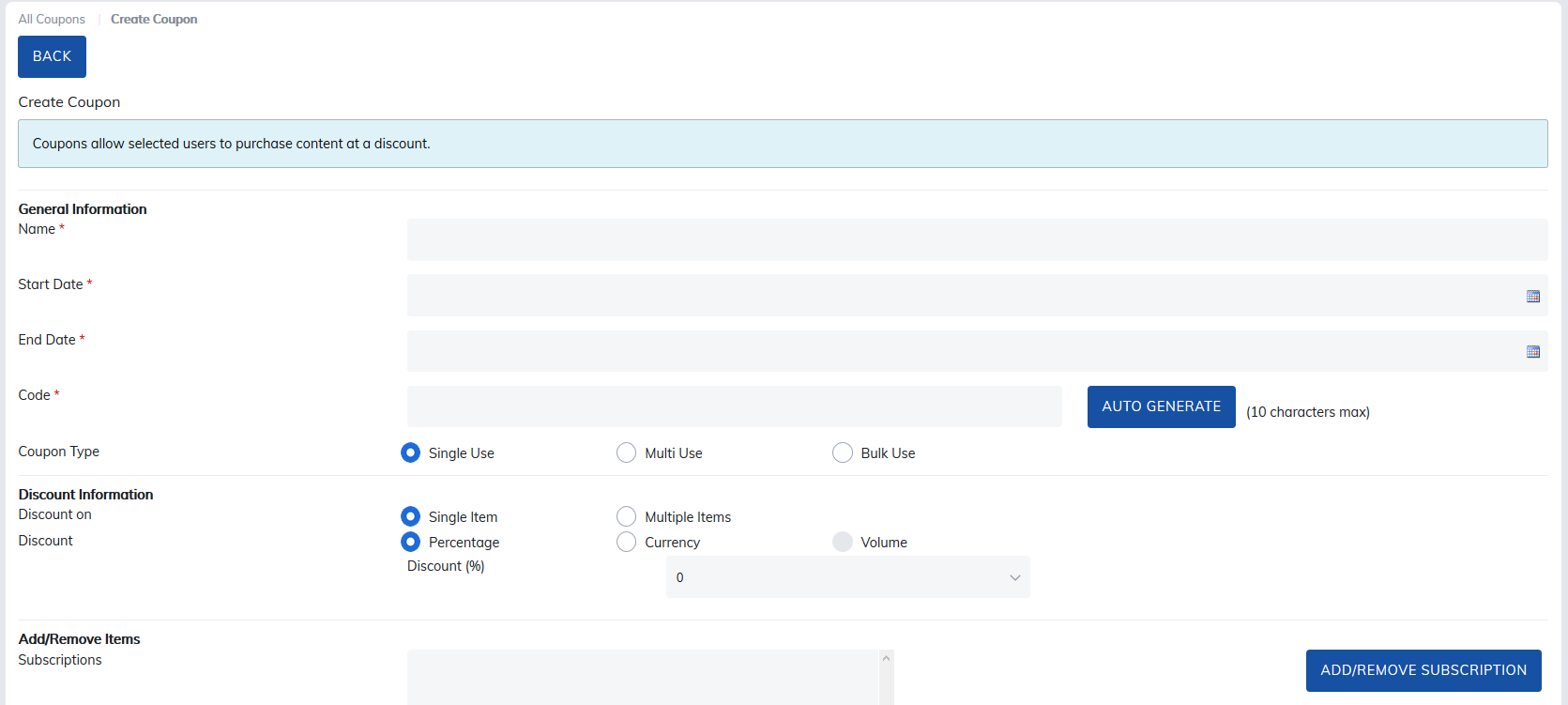
Enter the required fields: Coupon Name, Start Date, End Date, and Code.
Use the Percentage Discount (%) drop-down menu to select a value between 0-100%. You can also click Auto Generate to automatically create a code and populate the form field.
Allocate Codes
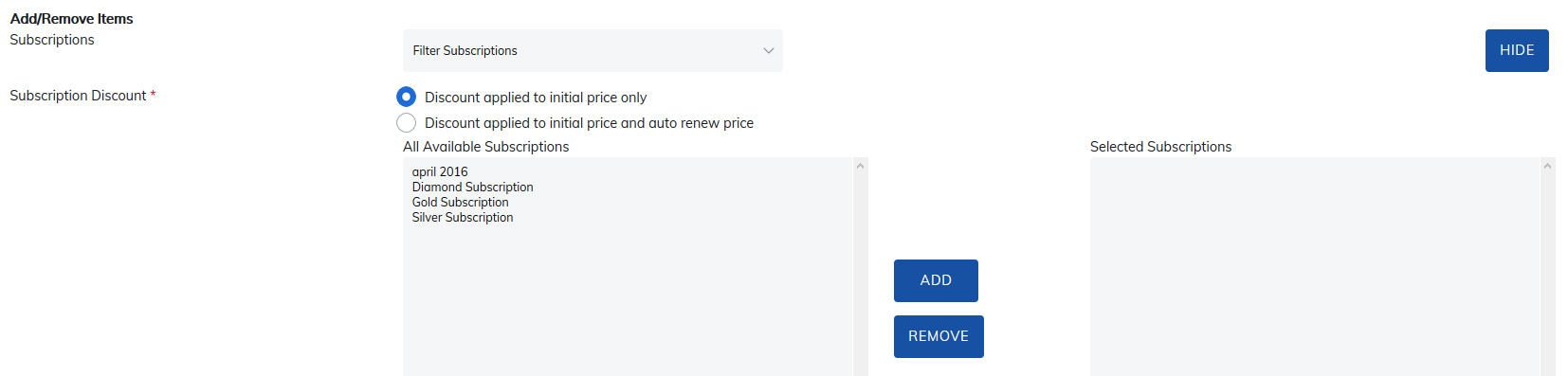
It is possible to allocate codes to individual subscriptions, programs, courses, materials, and user groups.
1. To generate a code, click Add/Remove button on the create coupon screen.

2. Next select which subscriptions, programs, courses, materials, or user groups that you want issued with a coupon discount. Please note that it is possible to select more than one item. Click Save at the bottom of the page to ensure your selections are saved.
3. Your new coupon will display upon exiting on the entry form. Check all the details are as you want them to be, before leaving Manage Coupons. If you need to review the coupon again, click the coupon name to view the coupon's details.
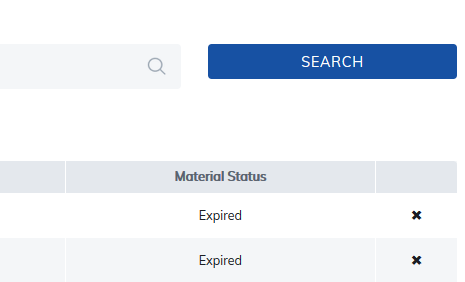
You can also delete coupons from the main overview page by clicking the X on the top right side of the page.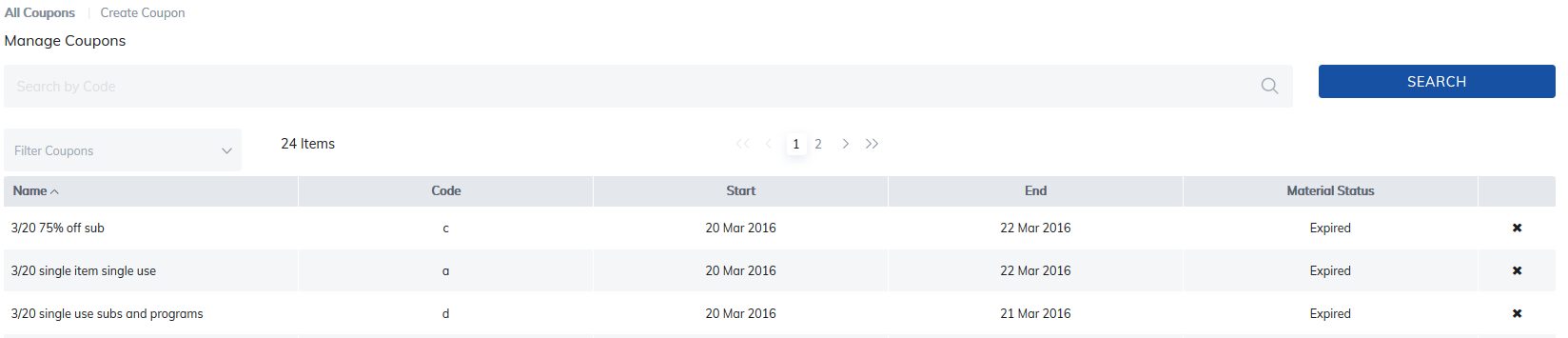
4. Use the search on the top right corner to search for coupons. This can be helpful if you have generated many coupon codes for different products, or many for the same product but as variable times.
In Email Settings there is an email (Items Pending in Cart Notification) you may turn on for learners who have put items in their shopping cart but did not purchase.
Shopping Carts supported by TOPYX include PayPal Pro, PayPal Flow, Authorize.net, 2CO, Ogone, Pay.GOV and CashNet.
Was this article helpful?
That’s Great!
Thank you for your feedback
Sorry! We couldn't be helpful
Thank you for your feedback
Feedback sent
We appreciate your effort and will try to fix the article