The Advanced setting area on your Admin panel allows the administrator to set unique settings for your site and users based on how you wish to use and display your site.
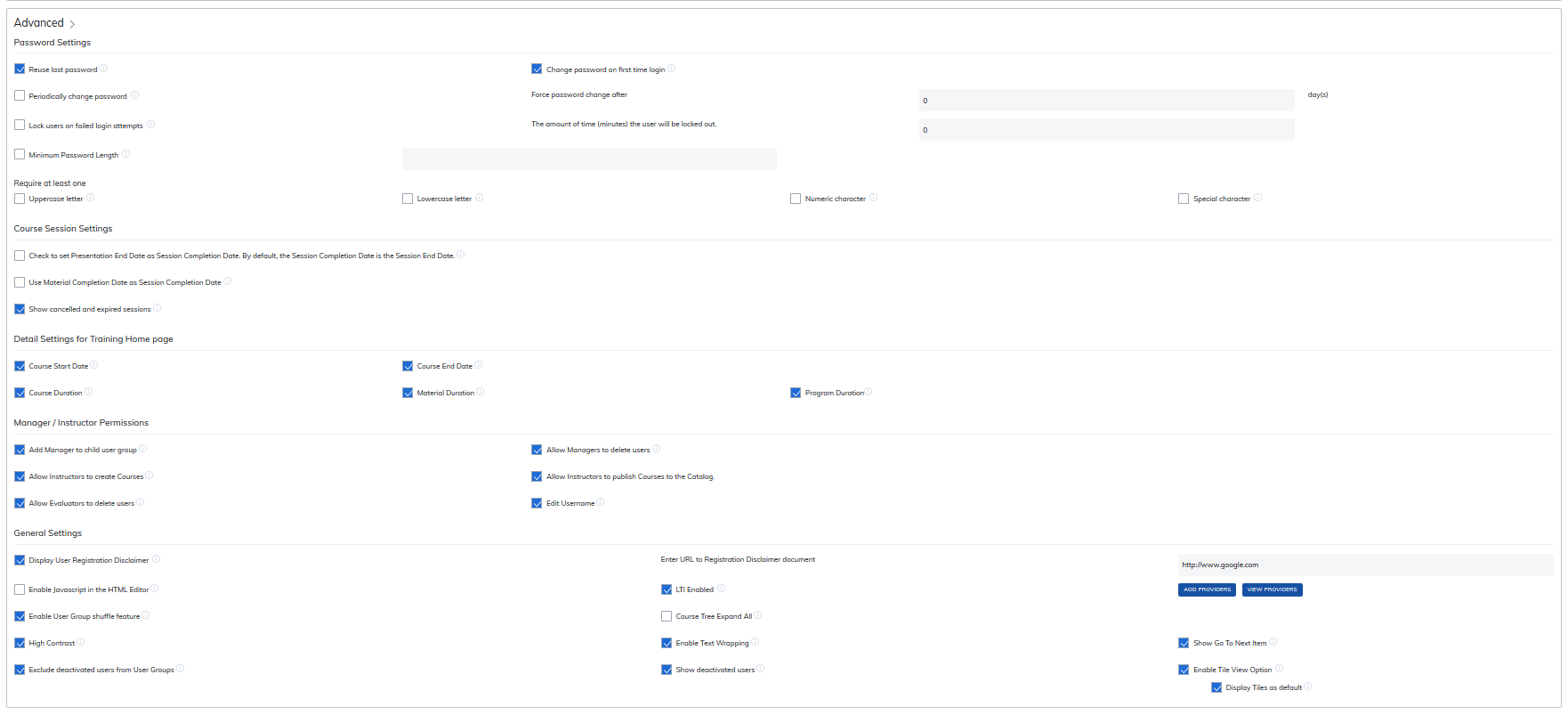
Password Settings
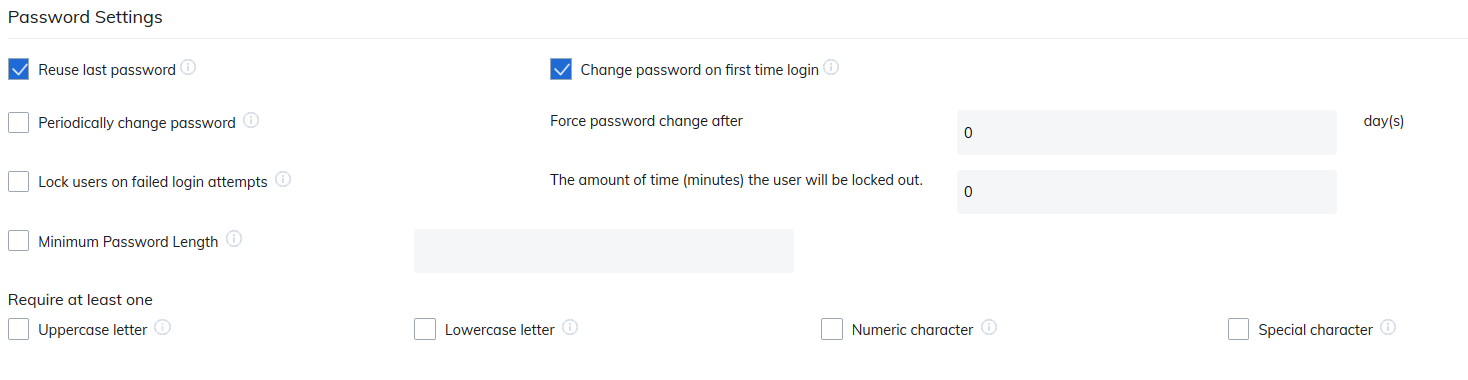
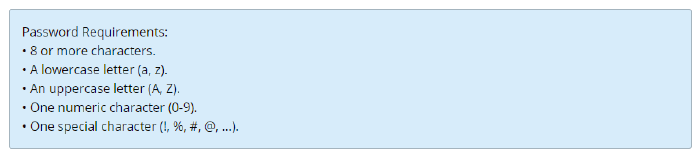
Password settings allows the admin to determine the rules for passwords on your site. Password length restriction is 50 characters and no spaces.
Note: making these changes in site settings will require new users or users changing their passwords to follow this new format moving forward. It will not require existing users to change their passwords.
Course Session Settings
Course session settings allows the admin to determine rules for courses with sessions.

Detail Settings for Training Home page
Detail settings for Training Home Pages: These are details your users can see on the their home page.

Manager / Instructor Permissions
Manager/Instructor permissions allows the admin to determine what permissions will be available for these two roles: managers and instructors.

General Settings
General settings is an area for other helpful site set-up details including many visual options and LTI.
Show Go To Next Item: Automatically moves learners through the course tree. When creating courses with SCOs, xAPIs, or streaming videos, options have been added to allow administrators to choose how learners will progress through the course.
When this setting is enabled it allows when viewing Manage Course Content a new drop down. Administrators and instructors may choose if learners in the course will:
- Return to the course tree upon completing an item
- Allow the learner to choose if they will begin the next item or return to the course tree
- Automatically being the next item after 5 seconds
TOPYX is Learning Tools Interoperability (LTI) compliant and is able to connect with the many compliant educational plug-ins. LTI compliant tools can now be plugged into your site (for example eBooks, web conferencing, etc.) Examples include: HapYak, Zoom, Voice Thread, MS Teams, LinkedIn Learning, etc.

You will need to add a provider domain by clicking on Add Providers. Add the following details for your provider for the LTI tool you are using:
- Provider Domain
- Tool Provider Key
- Tool Provider Secret
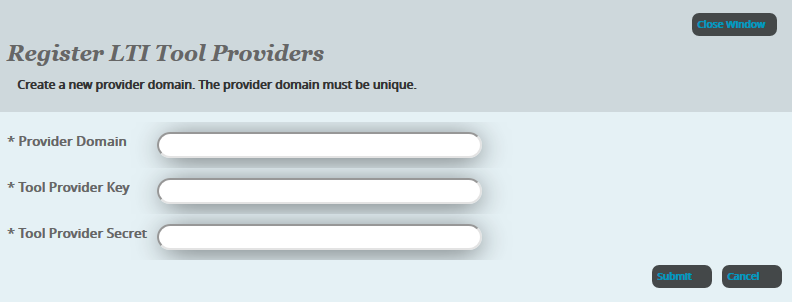
View providers will list all of the LTI options you have added to your site and you may delete them from here as well.
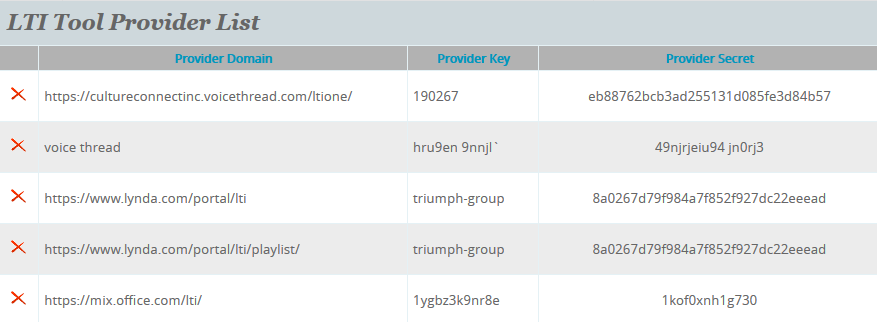
To learn more about the possible integrations please visit the LTI web-catalog at http://developers.imsglobal.org/catalog.html
Was this article helpful?
That’s Great!
Thank you for your feedback
Sorry! We couldn't be helpful
Thank you for your feedback
Feedback sent
We appreciate your effort and will try to fix the article