The Catalog tab controls how learners discover and navigate your content. How you set up your catalog depends on the user experience you want to provide and how you organize your offerings.
Catalog Options
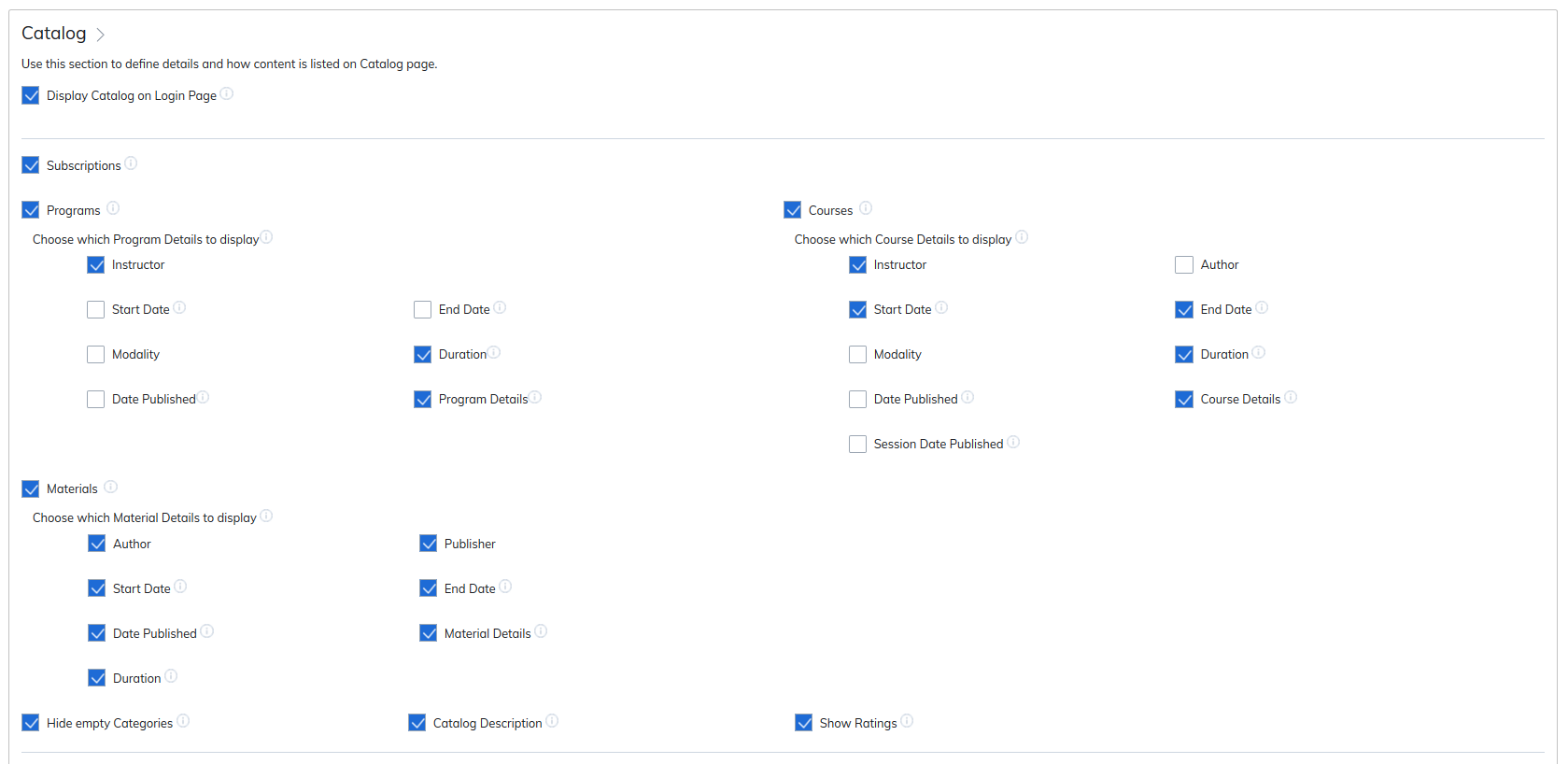
- Display Catalog on Login Page: Decide whether learners can view your catalog before logging in. Enable this option if you want your catalog visible on the login page.
- Content Types Supported
- Subscriptions: (eCommerce sites) Allow users to purchase a subscription to a selection of courses and materials for a set period of time, rather than buying items individually.
- Programs: (TOPYX Expanded and Essentials) A series of courses and materials with required items, prerequisites, and electives. Think of it as a college major.
- Courses: (all versions) A series of activities or materials that may be required or optional. Think of it as a syllabus.
- Materials: (all versions) Individual items such as resources or skill briefs. Think of it as a resource library.
- Display Details in Catalog: For programs, courses, and materials, you can show additional information such as:
- Author
- Dates
- Duration
Global Settings
- Hiding Empty Categories: Option to hide categories that do not yet contain content.
- Catalog Description: Display descriptions added at the subscription, program, course, or material level.
- Show Ratings: Allow learners to rate and leave feedback on content. Ratings are visible to other users in the catalog.
Catalog Viewing and Navigation
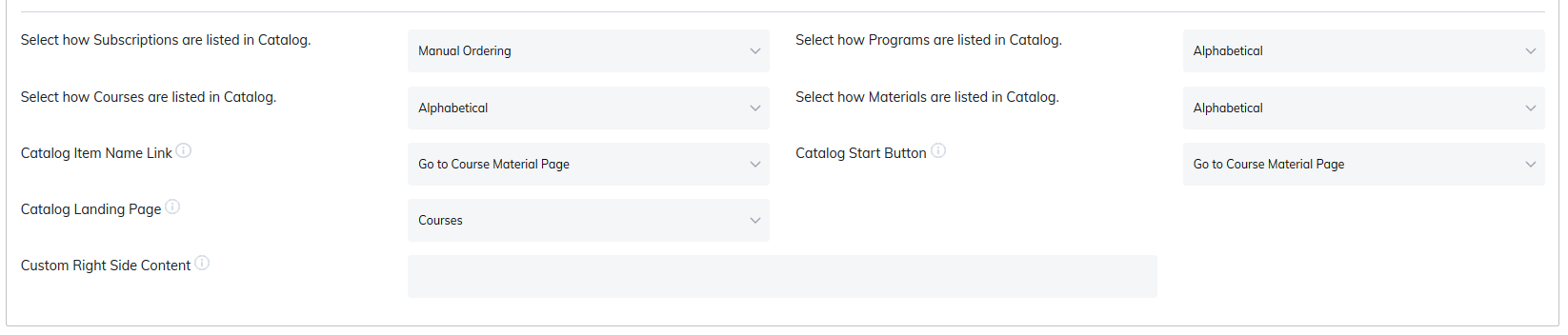
- Control how learners navigate your catalog and view items.
- Add custom right side content: A narrow iFrame to display additional resources, such as a company blog, within the catalog under a category.
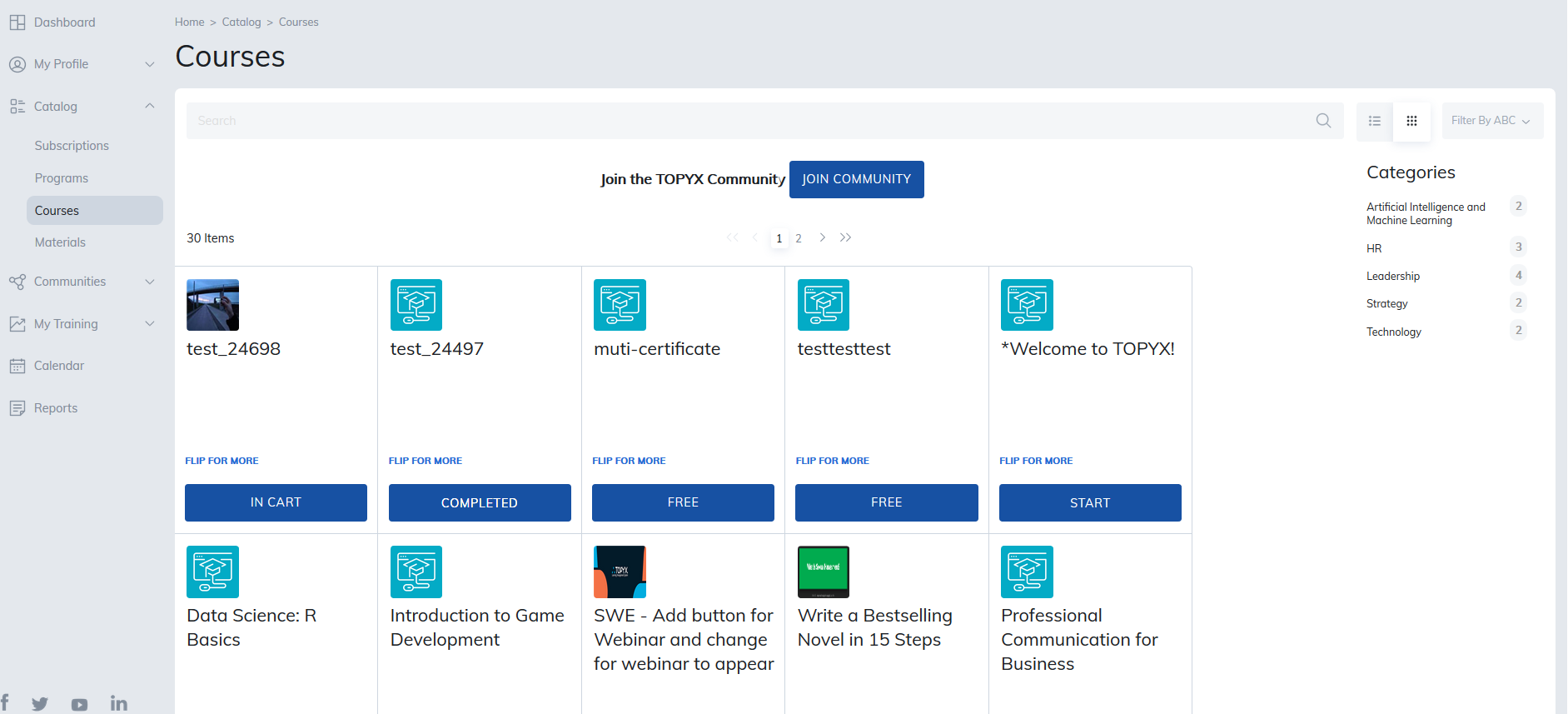
A learner’s catalog view may look something like this:
Was this article helpful?
That’s Great!
Thank you for your feedback
Sorry! We couldn't be helpful
Thank you for your feedback
Feedback sent
We appreciate your effort and will try to fix the article