Admins can view learners’ transcripts from the Administrator home page.
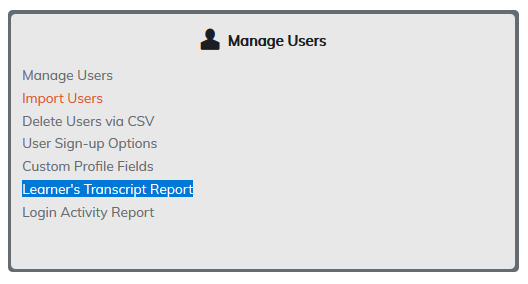
Learners will be listed alphabetically by first name. Search options are available to search for learner by
- First Name
- Last Name
- Username
Click Search to display the results.
Learners may be filtered by user group to display only learners belonging to the selected user group using the Filter by User Group drop down menu.
To view any learner transcript, click their username.
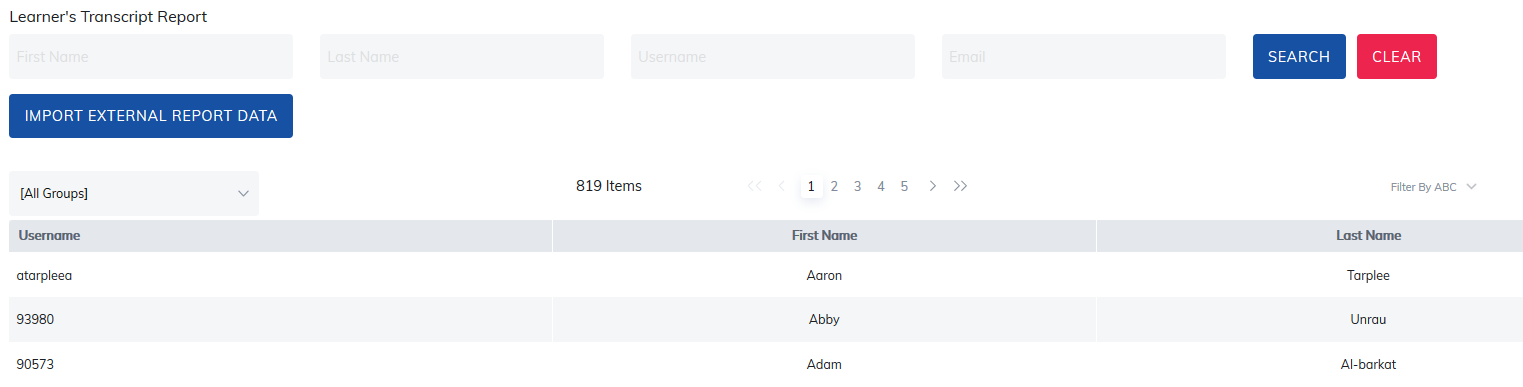
Their transcript will be displayed presenting all completed programs, courses, and materials. Completed expired items will display under My Expired Items, if there are any. Content completed outside of the LMS will appear under My External Report.
Transcripts are also printable by selecting the Printable Version link. It will present the user with the transcript without the navigation bar and in a printer friendly format.
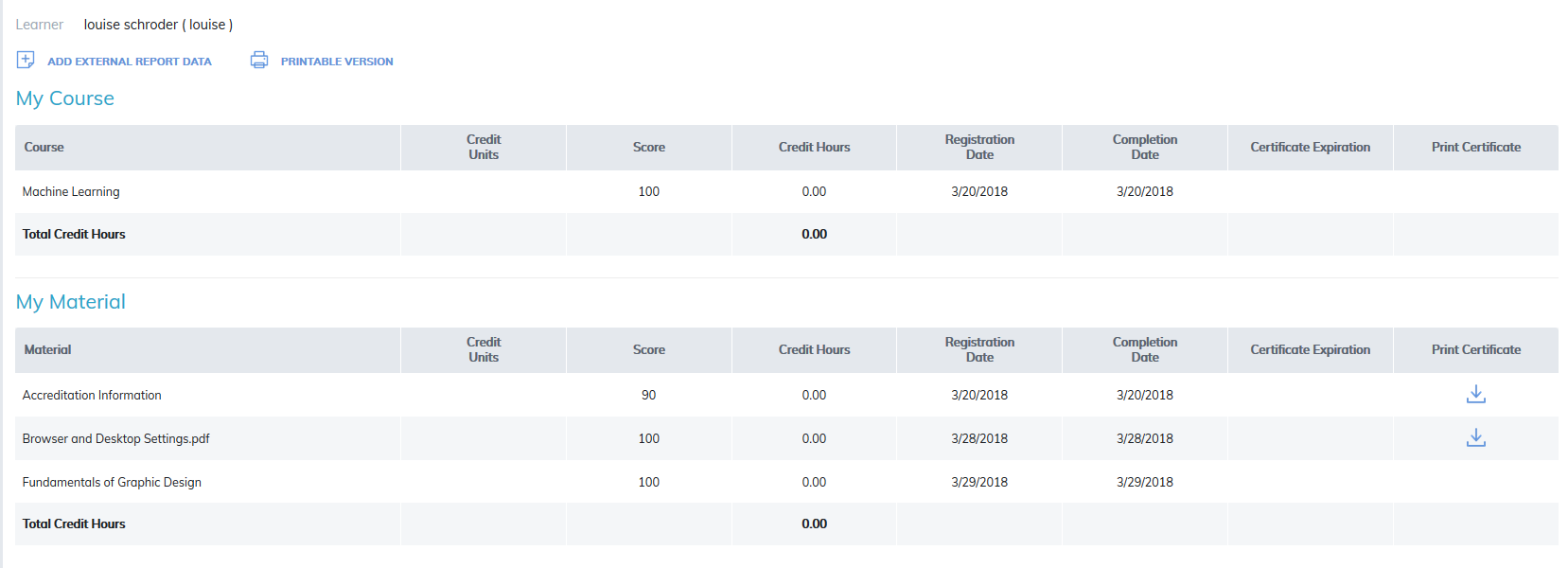
If available, a certificates achieved it may be downloaded for the learner by clicking the Print Certificate icon.

Adding External Data
To add to learner transcripts, completions occurring outside of the training site there are two options available:
1. Add to an individual learner's transcript
As an administrator, while viewing a learner's transcript there is an option to Add External Report Data available on the top left. You may also turn this feature on to allow learners to add their own external report data by going to the Admin Panel > Site Settings > Side Navigation Bar option.
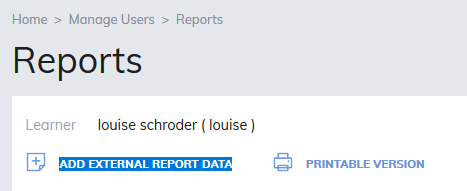
The item completed outside of the training site may be added here. The credit unit details available will be those added in Manage Credit Units which are found in the Edit Basic Detail areas of materials, courses, and programs if using.
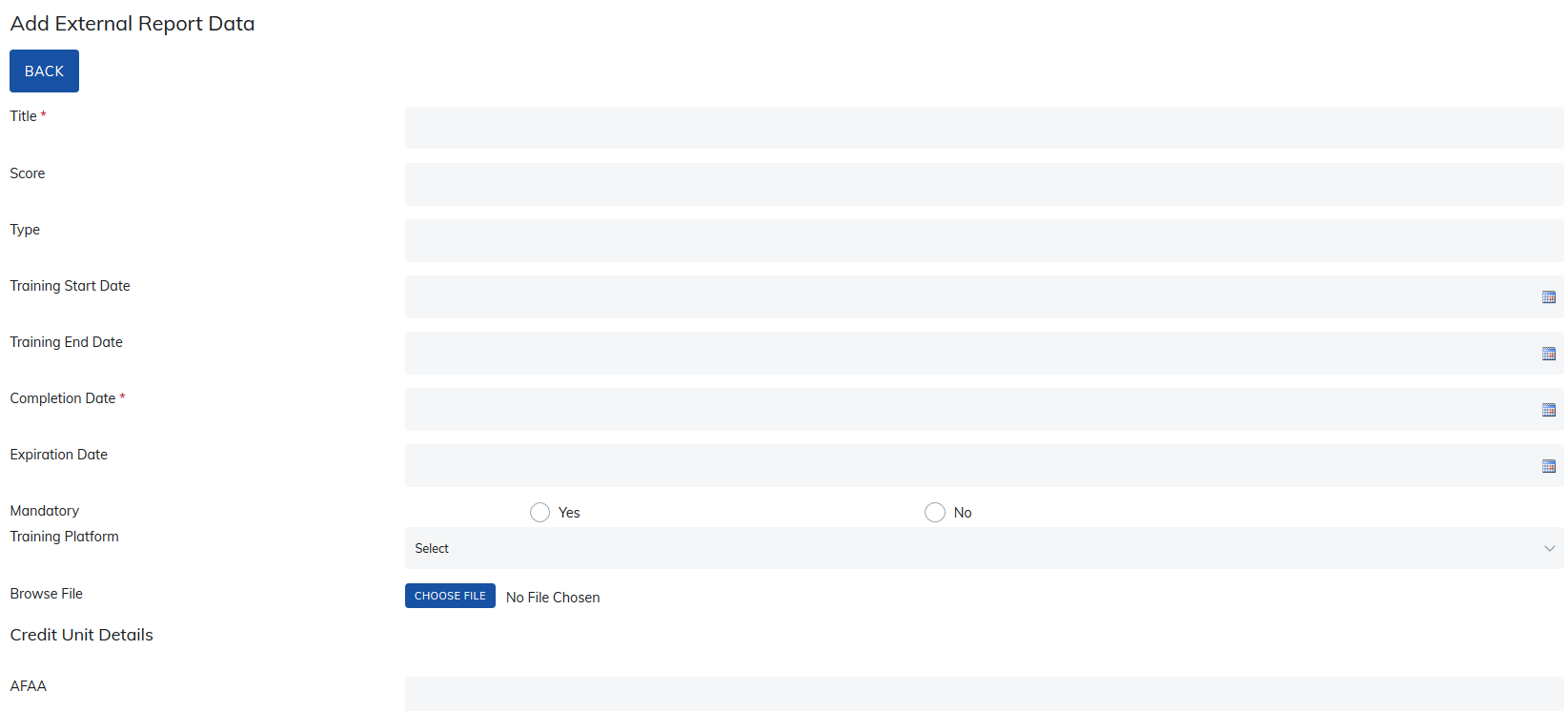
Clicking Save will add this item to the learner's transcript, viewable by the learner, the manager of any user groups they belong to, and all administrators in the site. Administrators will be able to Edit and Delete this item at any time by selecting the edit Pencil or the delete X on the far-left side.

2. Add to multiple Learner Transcripts using a CSV file
A CSV option is available to award credit for completions outside of the site to appear under the My External Report header in learner transcript.
When viewing the list of learners in the Learner's Transcript Report, an option to Import External Report Data is available on the top left.
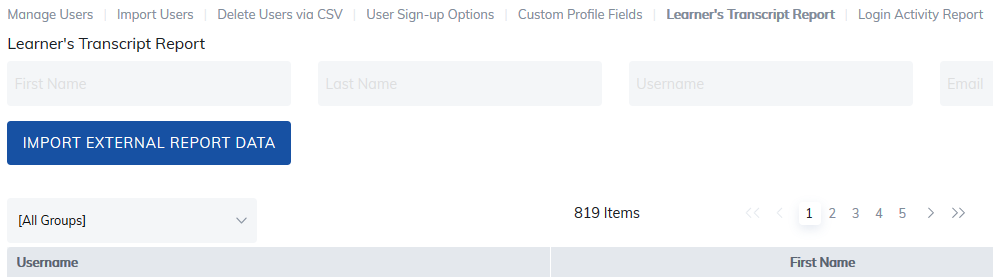
The CSV file may be used to create learners and add to their transcript or to only add data to existing learner's transcripts. To review creating learners by CSV file please review Import Users.
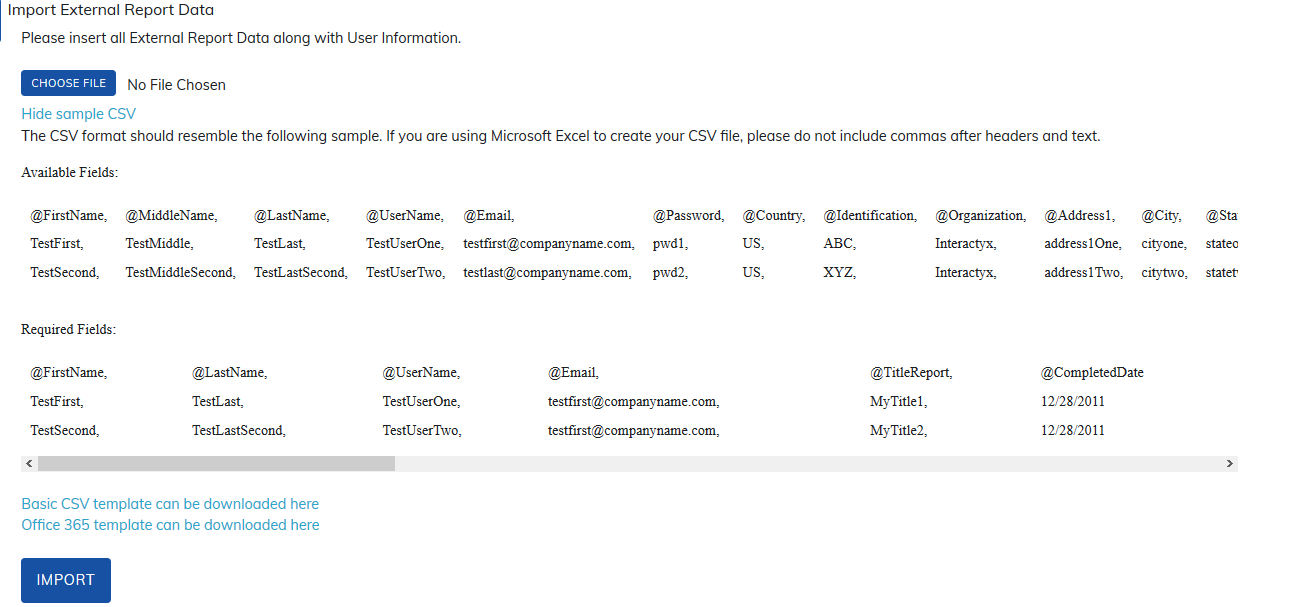
To add external data to existing learners transcripts, the following fields are required in the CSV.
- @FirstName
- @LastName
- @UserName
- @TitleReport (This is the item the Learner completed outside the site)
- @CompletedDate
- @FileName - is an optional field and will add the file name but not the actual files/images
Was this article helpful?
That’s Great!
Thank you for your feedback
Sorry! We couldn't be helpful
Thank you for your feedback
Feedback sent
We appreciate your effort and will try to fix the article