In order to make your material training content available for use in the catalog, courses, programs, or learning paths, it first has to be uploaded to your site. Both administrator and instructor roles have access to this functionality.
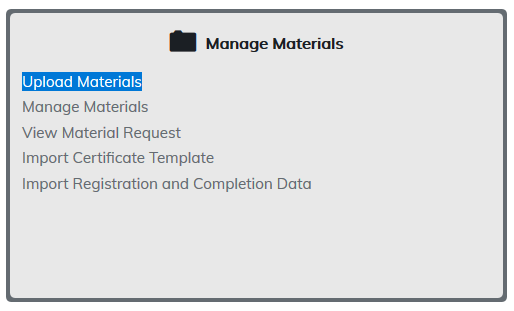
From the Manage Materials section, select the Upload Materials option.
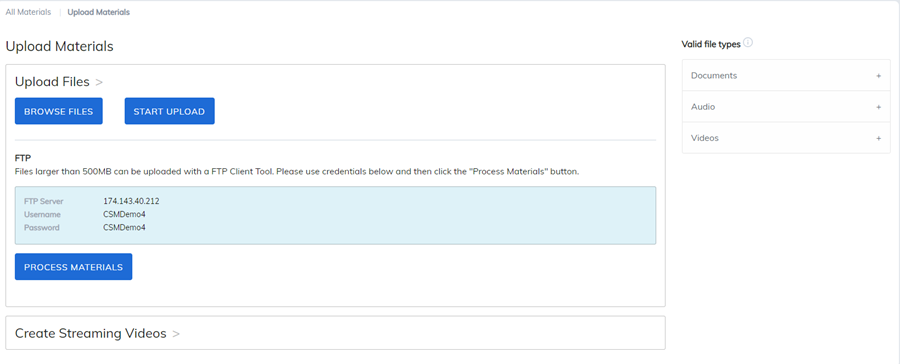
To the right of this section, a list of valid file types can be displayed by selecting the + icon.
TOPYX has a SCORM certified player by the ADL for all versions of SCORM and xAPI.
xAPI Course Player and the TOPYX LRS: Play and track xAPI Courses using the Tin Can/xAPI Player and Learning Record Store (LRS).
Courses created using a course authoring tool and published using the xAPI standard can be added to a site following the same steps used to import and publish SCORM content. The results will populate all relevant TOPYX reports, for example, the material completion report. The results can be extracted using relevant API calls, for example, the title completion report.
To find out more about xAPI please visit:
http://adlnet.gov/adl-research/performance-tracking-analysis/experience-api/
Before uploading any materials, be sure the file names do not contain special characters or spaces.
There are a few ways ways to upload materials:
- Upload the file directly by clicking on Browse Files and selecting the file. This applies to materials under 500MB.
- FTP: For materials larger than 500MB and/or uploading large volume of files.
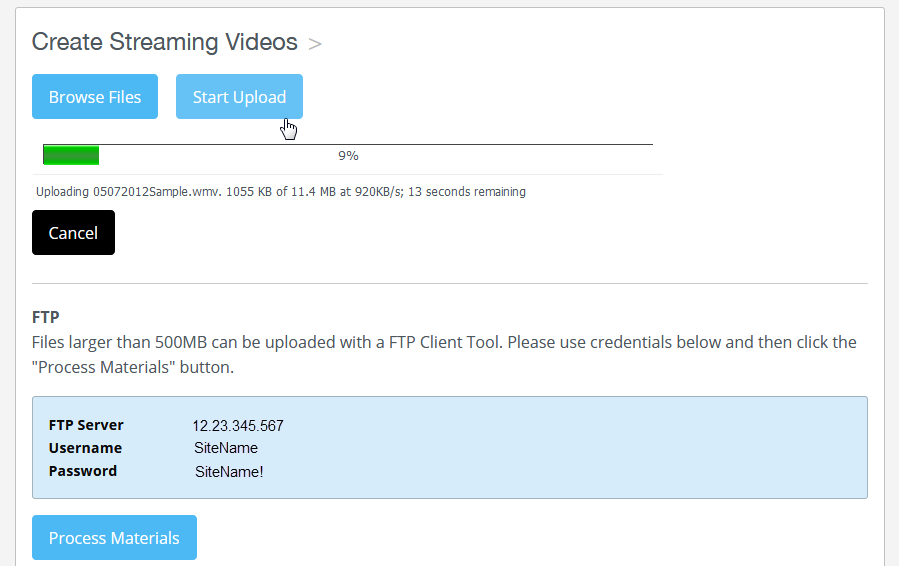
- Create Streaming Videos: Recommended for most video files to be streamed in the browser. Videos must be smaller than 500MB. Use the "Browse File" option if you want learners to download and keep the video.
Upload Files
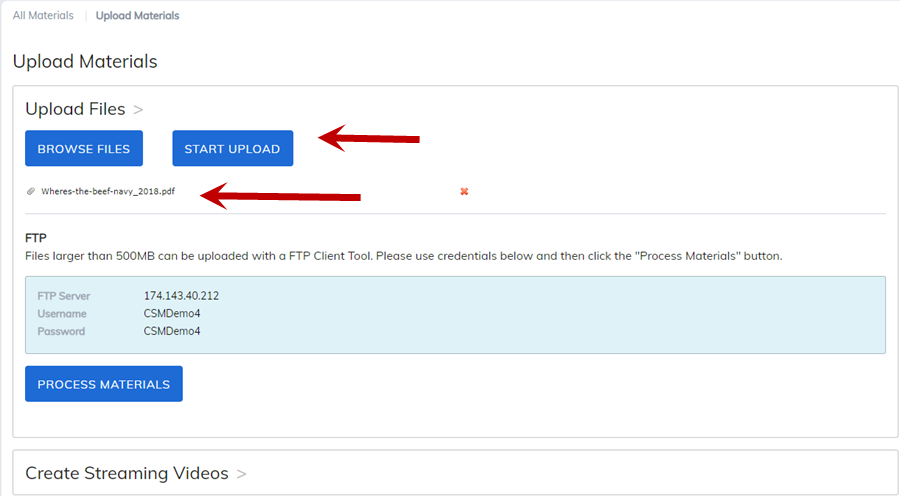
To upload files under 500MB, select the Browse Files button and choose your file.
Check the Overwrite duplicate files box if you see a file listed twice and then select the Start Upload button.
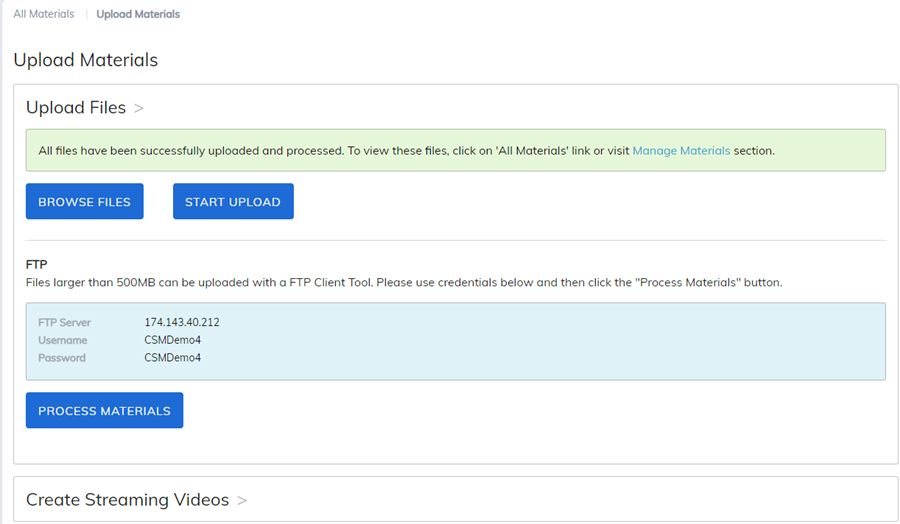
A confirmation message will appear once the materials have been processed.
FTP
Note: Before you can connect to our FTP, you will need to share your public IP address with our team so it can be added to our firewall. To find your public IP address please use the following URL or a similar one. Your IP address may look similar to this IPv4: 72.106.201.59
https://whatismyipaddress.com/
Once added, find your site FTP information located on the Upload Materials page. Enter the Host (FTP Server), Username, and Password credentials in the Filezilla login box to connect to the FTP and then choose your files.
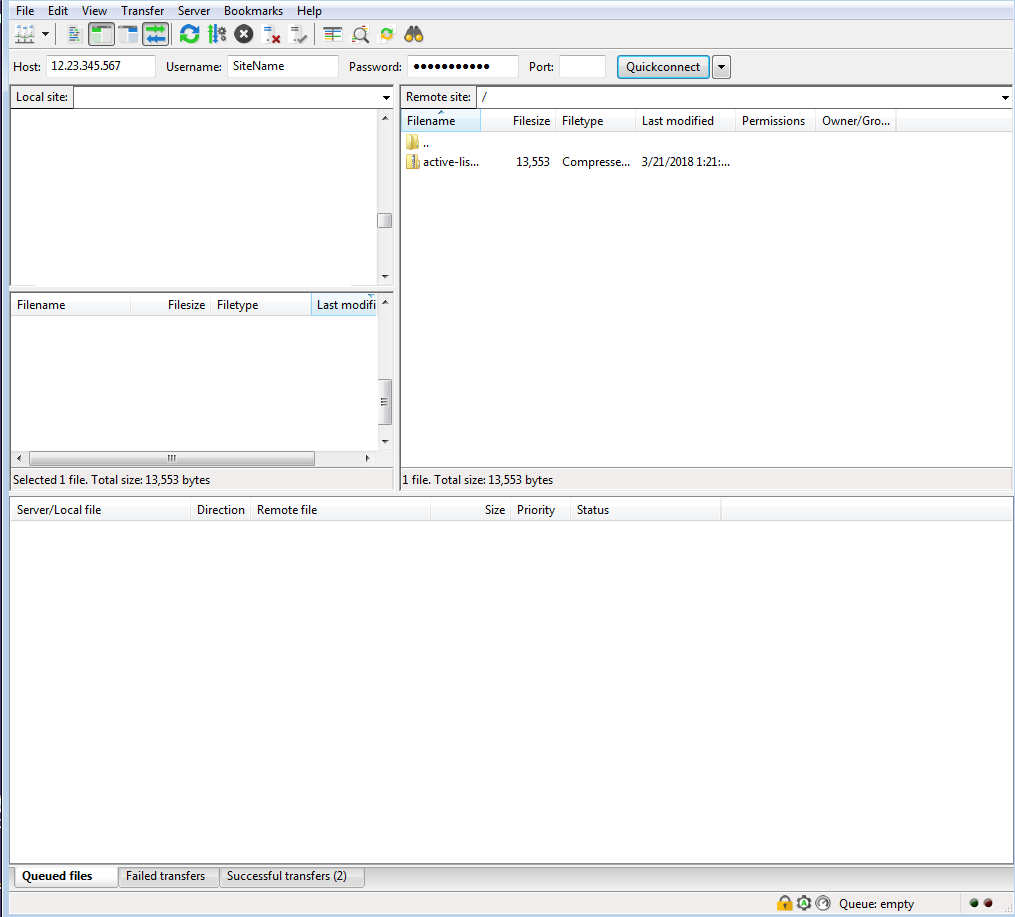
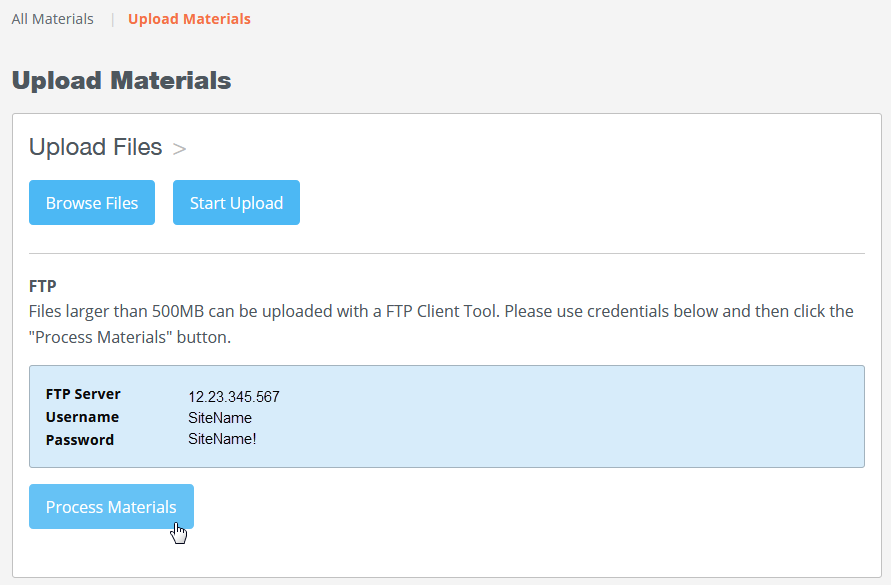
Once the queued files have transferred, return to the Upload Files section in your site and select Process Files button.
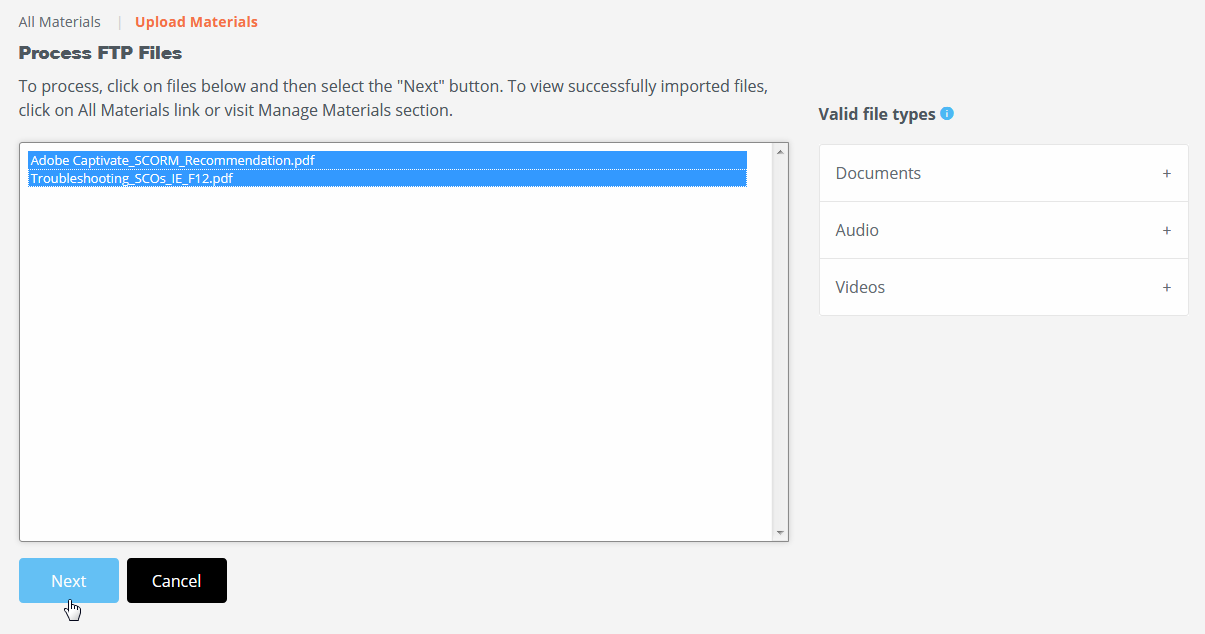
Select the files you wish to process and click on Next button.
To choose multiple files, hold down keyboard 'Ctrl' key and then click on each file.
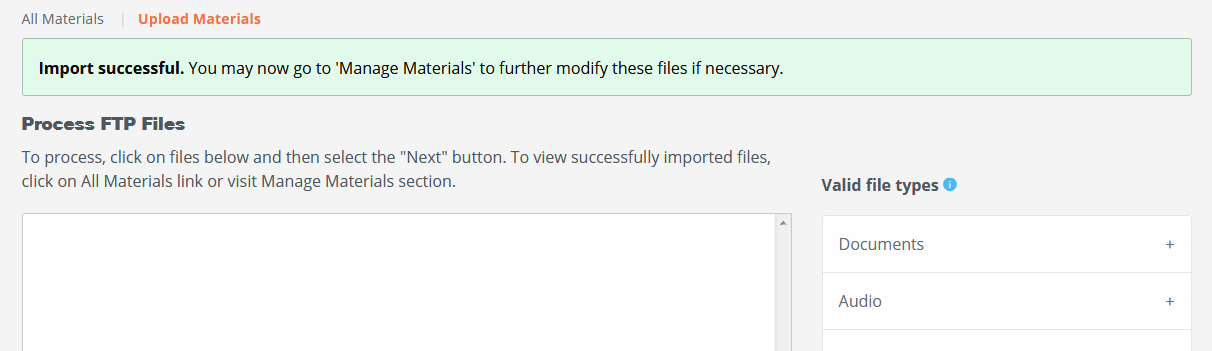
A confirmation message will appear once the files have been processed.
If you do not already have an FTP client tool, you may want to find one that is suitable to your needs.
An example tools that are commonly used are FileZilla and Cyber Duck.
Create Streaming Videos
We also offer an additional feature for processing videos and this is the recommended option for videos.
If you upload and process a video via Browse Files, when the learner launches that video, it will play through their browser and they could download and keep it.
TOPYX will convert your videos using the Create Streaming Videos option using the same steps as defined above. This way, when learners launch the video, it will stream through the player and they will not be able to download it.
TOPYX converts to MP4 or passes through your MP4 if loaded here. Please refer to video file types on the right side of the Upload Material page for file conversion types.
Was this article helpful?
That’s Great!
Thank you for your feedback
Sorry! We couldn't be helpful
Thank you for your feedback
Feedback sent
We appreciate your effort and will try to fix the article