Filtering Your Reports
Most reports include filters that help you narrow results to the specific data you need. Available filters vary by report and are based on the information the report contains.
| Filter | Description |
|---|---|
| Active Status | Shows whether a user is active or deactivated |
| Author | Limits results to content created by a specific author. |
| Category | Displays items within selected categories |
| Certificate Status | Indicates whether the learner has earned a certificate |
| Completion Status | Filters by Registered, In Process, or Completed. |
| Country | Limits results to users in a selected country. |
| Coupon | Filters results associated with a specific coupon. |
| Course | Displays data for a selected course. |
| Searches by user email address. | |
| Expiration Date | Filters records by expiration timeframe. |
| Identification Number | Searches by a user’s ID number. |
| Instructor | Limits results to a specific instructor. |
| Learning Path | Displays data for a selected learning path. |
| Manager | Filters users assigned to a specific manager |
| Material | Limits results to a specific material. |
| Name | Searches by the user's first and last name. |
| Organization | Filters users within a selected organization. |
| Program | Displays data for a selected program. |
| Role | Filters users by assigned role. |
| State | Limits results to a selected state. |
| Subscription | Filters by a specific subscription. |
| Title | Searches by content or user title. |
| User | Searches for a specific learner. |
| User Group | Filters by selected user groups. |
| User Name | Searches by username. |
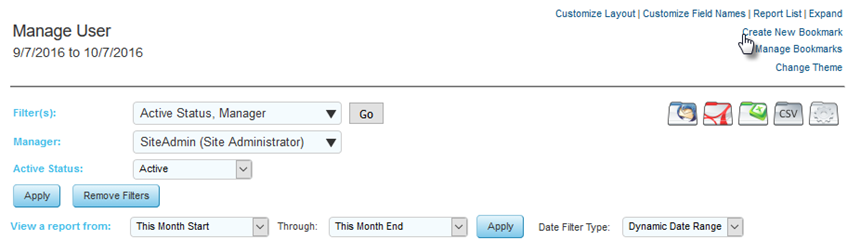
Using check boxes, you can choose to filter by multiple items at the same time. Chose the options to filter by and select Go.
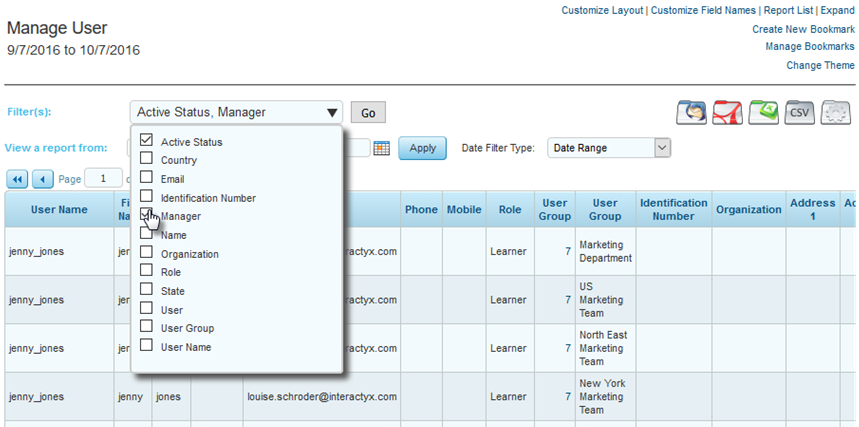
As two filter options were selected two drop down menus appear, select the options you wish to filter and select Apply.
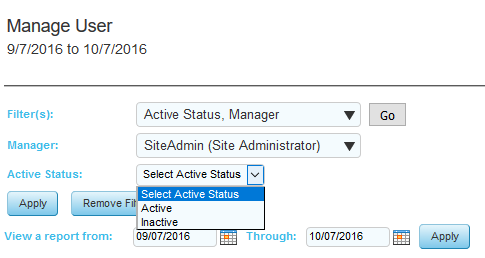
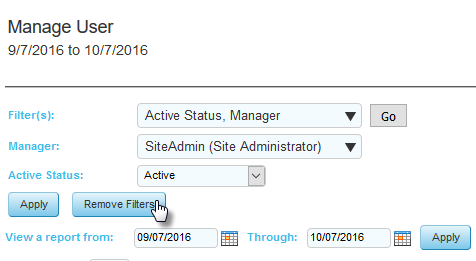
Your report will then filter according to these results. To remove the filters at any time please select Remove Filters.
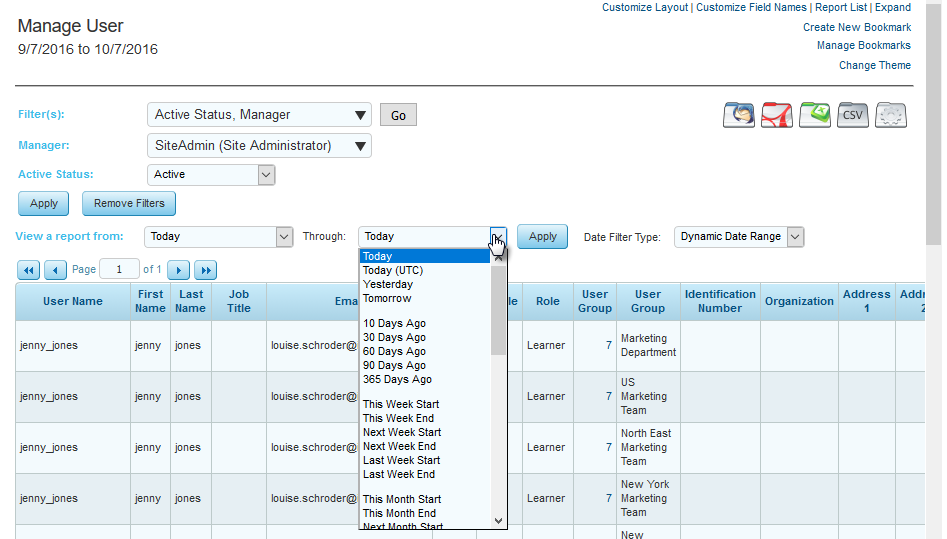
Date filters are available in most reports with the option to filter within specific dates or date ranges.

If you select Dynamic Date Range, you will see the options to view the report from and to change from specific dates to Date Ranges.
Bookmarking Your Reports
If this is a report you plan to use regularly you could bookmark this report, saving all the filters you have added using Create New Bookmark on the right of the page.
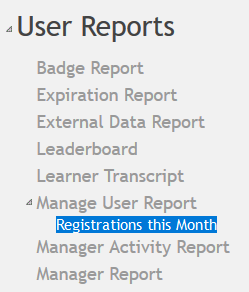
You will be asked to give your new bookmark a name and it then will appear under the original report you created your bookmark from.
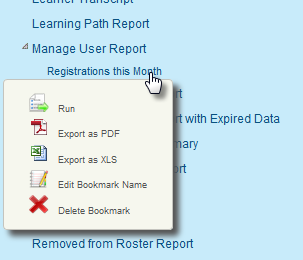
Underneath Create New Bookmark is Manage Bookmarks. Selecting this link will allow you to delete, edit, or run your report at any time.

You may also export it from your site as PDF or Excel using Manage Bookmarks.
If you return to your report list you will see this new bookmark available on this page. Clicking the link will present you with options to run, export, edit, or delete the report.
Exporting your Reports
Icons on the right of reports allow you to export reports. This includes by email, PDF, Excel, and CSV.

Alternatively, you can schedule your export to receive the report automatically at your preferred time, with delivery options that include FTP.
Admins, managers, and instructors may schedule reports based on their views/permissions. If FTP is selected the report will be sent to the FTP site listed in Upload Materials in your site.
We suggest the link option for delivery and schedule a time overnight to run reports when there is less traffic on your network.
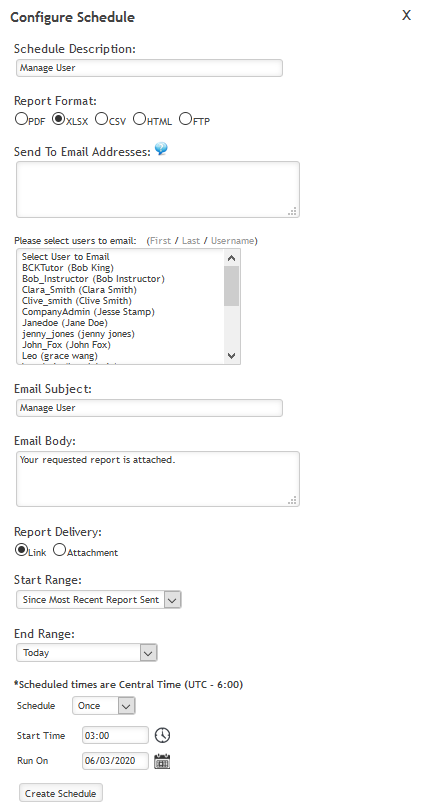
From the reporting panel you can see all scheduled reports on your site.

You can modify the schedule from here, but if you need to modify the report you need to create the report version you want and then schedule this new version of your report.
Was this article helpful?
That’s Great!
Thank you for your feedback
Sorry! We couldn't be helpful
Thank you for your feedback
Feedback sent
We appreciate your effort and will try to fix the article