This section is used to manage learners enrolled in a program. Admins, instructors, and managers can mark attendance, add or remove learners from the roster, and mark completions based on role privileges.
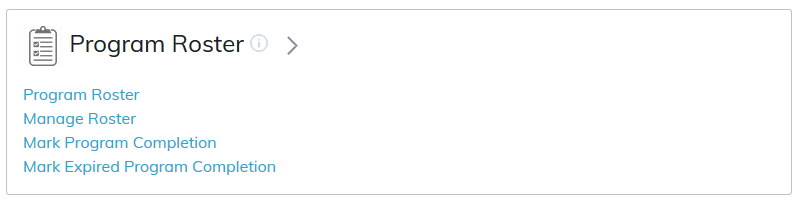
Program Roster
Use the program roster feature to print a list and/or mark attendance for currently enrolled learners.
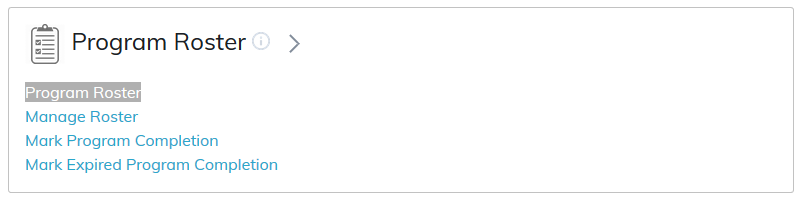
You can print the roster and use it as a sign-in sheet for an event that takes place outside the LMS. After the event is over, refer to the printed roster and mark attendance for those learners.
To print the program roster, simply click the Print button.
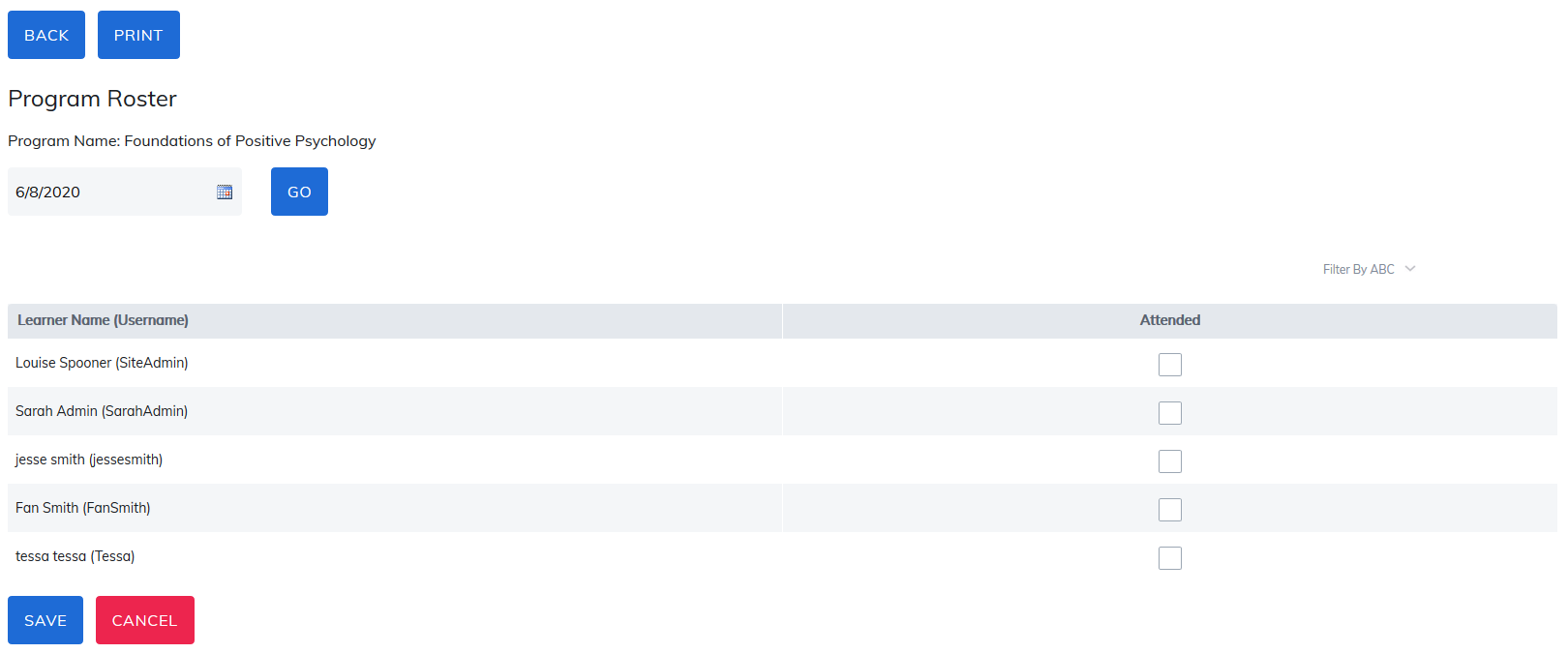
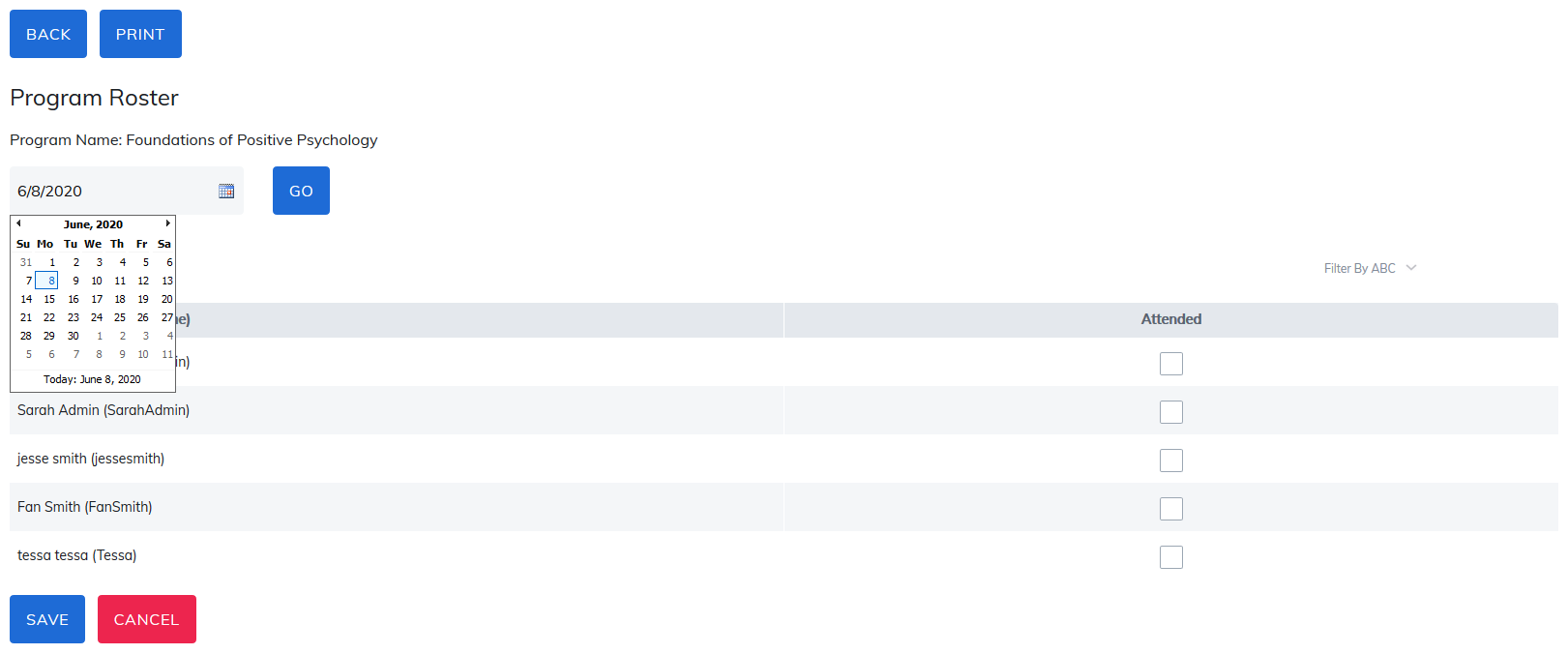
Mark attendance by selecting the calendar icon and, under the attended column, check the box for each user. This attendance information will also appear on the reporting panel in the Attendance Report.
Manage Roster
From the Manage Roster page, administrators, instructors, and managers can add available learners to the program roster or they can remove learners enrolled in this program, from the roster based on their role privileges.
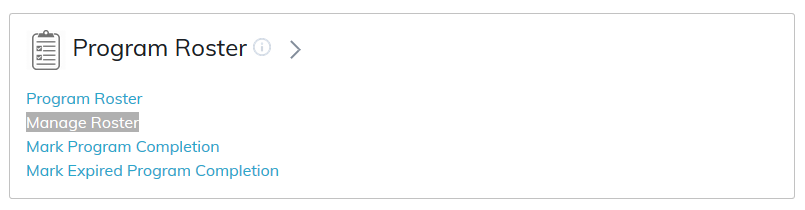
- Search for a specific learner by first name, last name, username and email.
- Sort available and currently enrolled learners by first name, last name or username.
- Filter available and currently enrolled learners by user group.
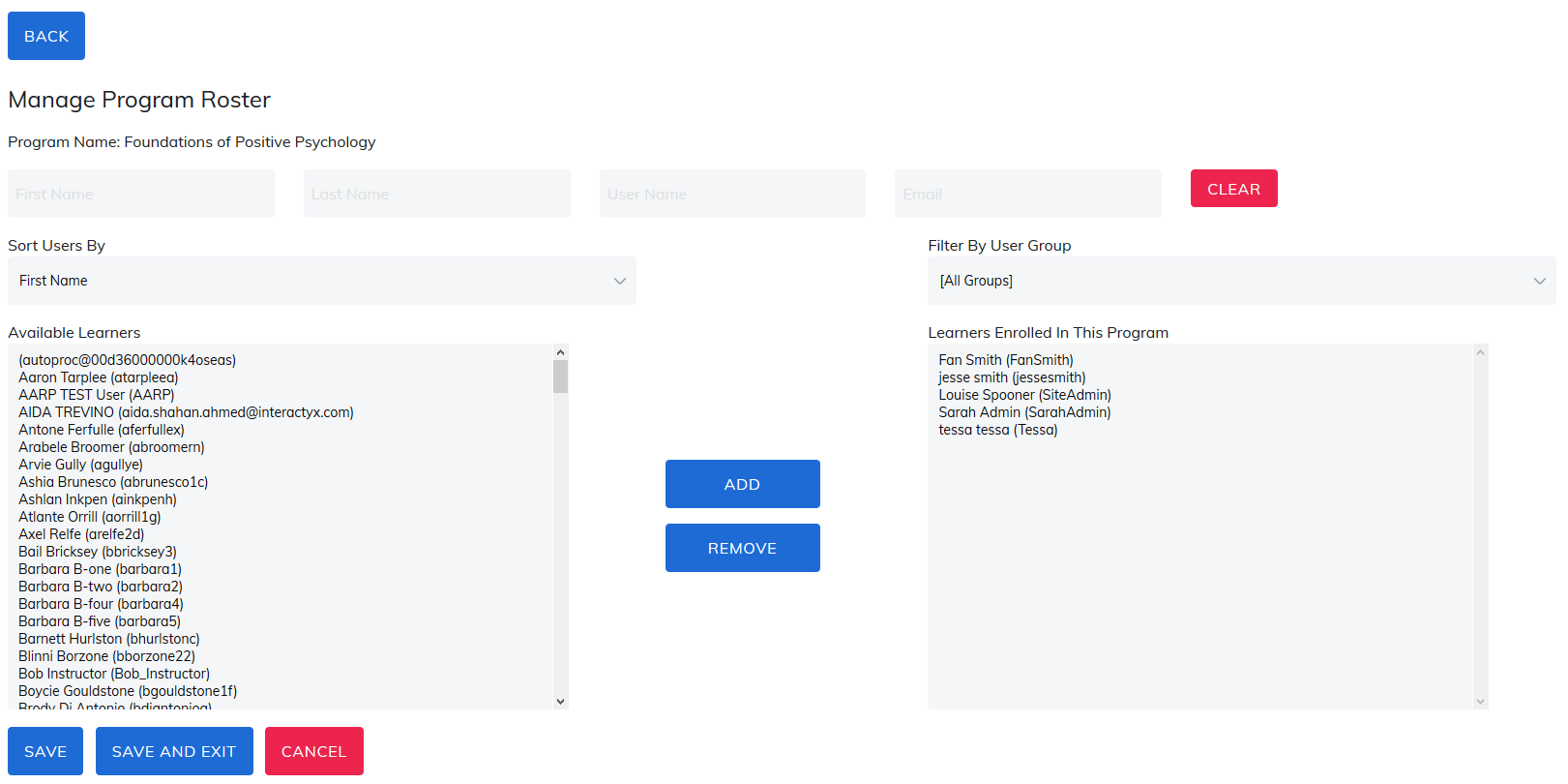
- You can add learners to the course roster by choosing from the list of available learners and then click the Add button.
- To remove learners from the course roster, select users from the Learners Enrolled in this Course section, then click on the Remove button.
Once Learners have been added or removed, click Save and Exit to leave page or click Save to remain on page.
Mark Program Completion
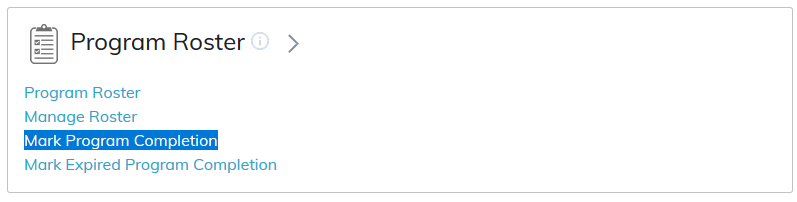
This feature allows admins, instructors, and managers (based on role privileges) to mark program completions for a specific user or all learners.
Search for a specific learner by first name, last name, and username, or filter by user group to modify the list of learners.
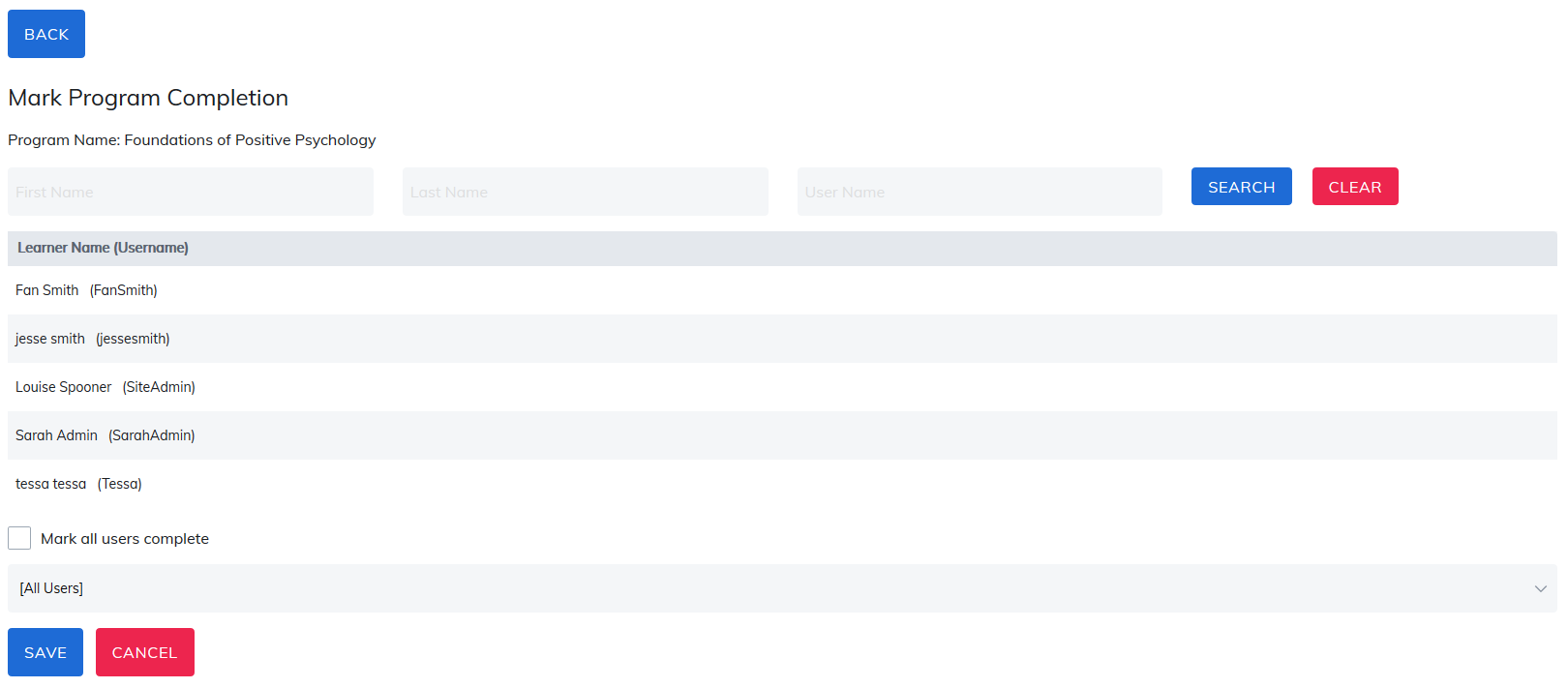
Mark all users complete by checking the box and clicking Save.
Material and course scores will update to 100 with the current date as the completion date.
Note: Existing completions will be overwritten as well.
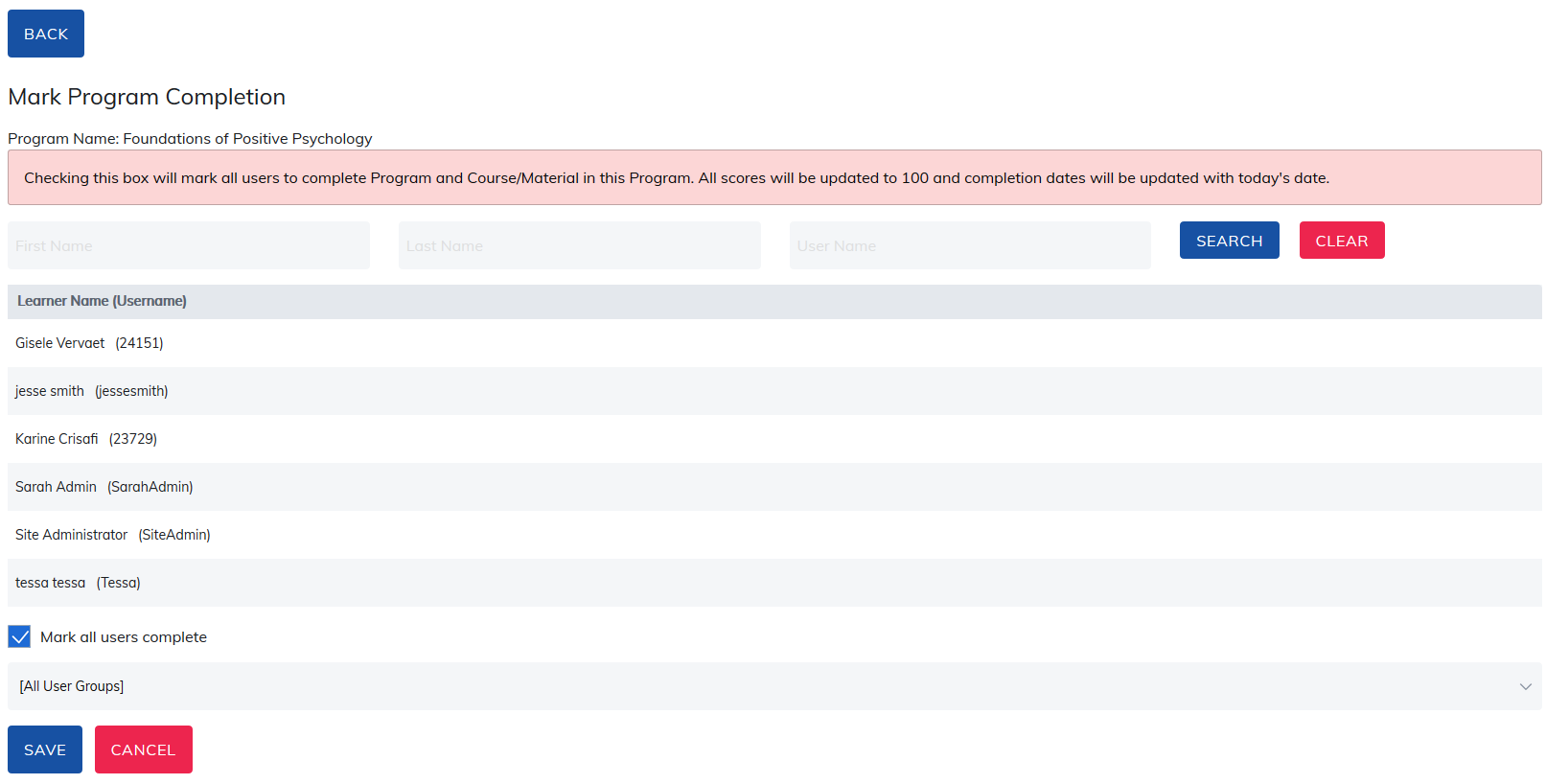
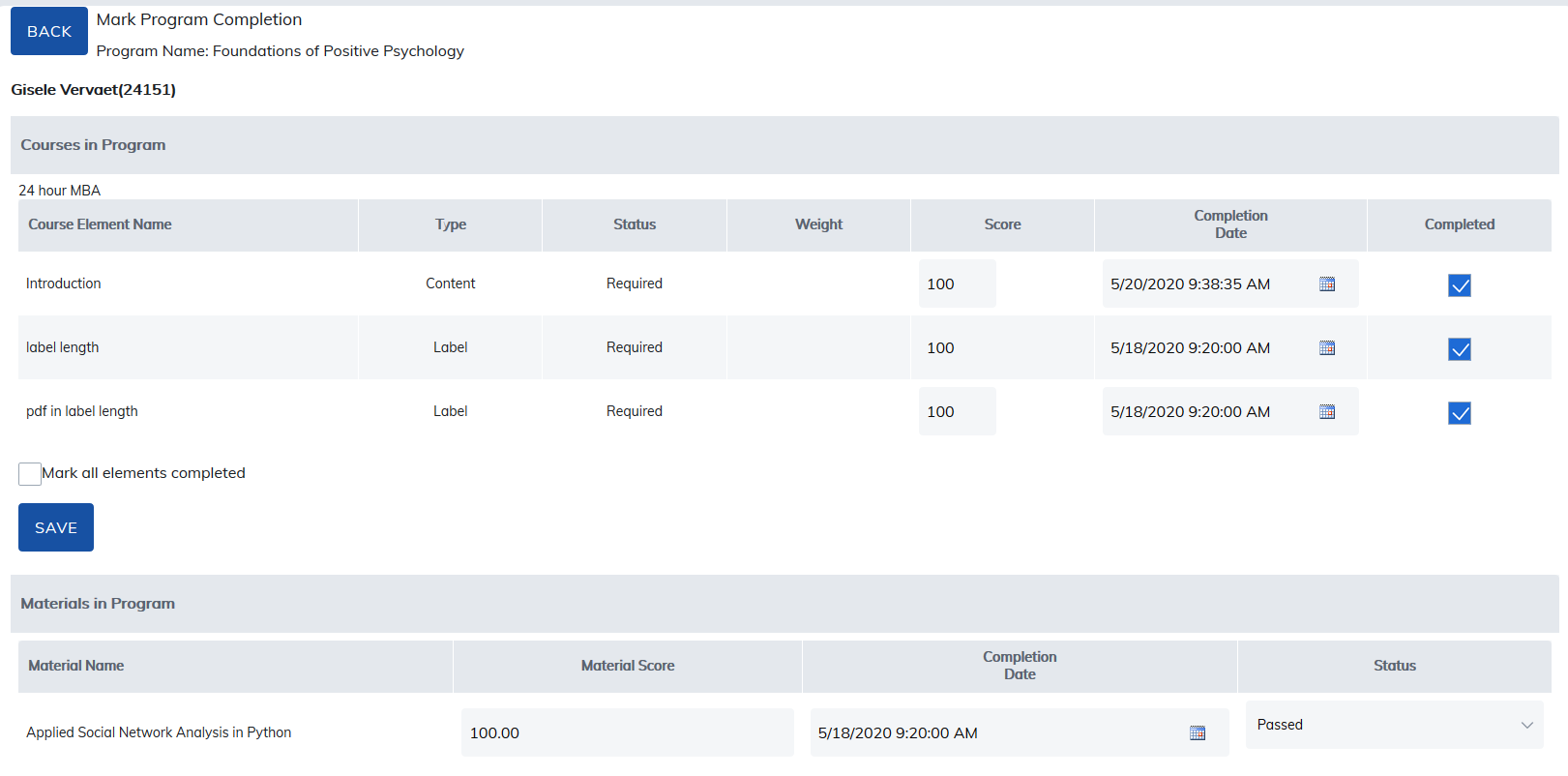
To mark program completion for an individual user, click on the learner's name.

Add the program score, completion date, update the status to passed or failed, and click Save.
There is also an option to remove existing completion history on this page. Check the box for Delete Program History and click Save.
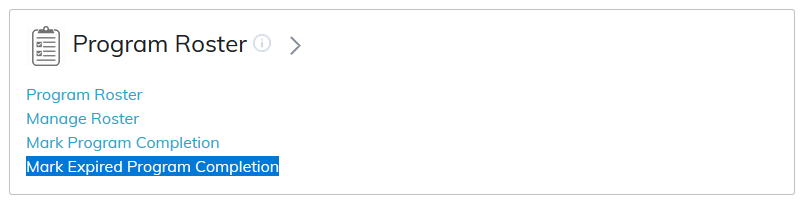
Mark Expired Program Completion
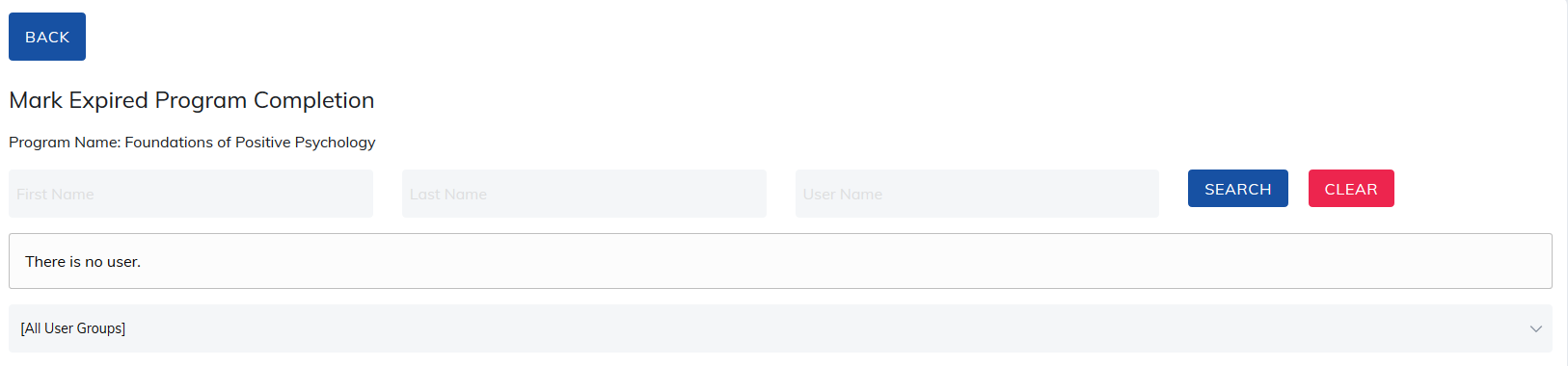
This feature allows admins, instructors, and managers (based on role privileges) to mark expired program completions for specific users who have expired from this program.
Administrators may edit these expired records to mark learners complete or change their scores.
Was this article helpful?
That’s Great!
Thank you for your feedback
Sorry! We couldn't be helpful
Thank you for your feedback
Feedback sent
We appreciate your effort and will try to fix the article