From the Administrator home page, enter Manage Learning Paths section and click on Create Learning Path.

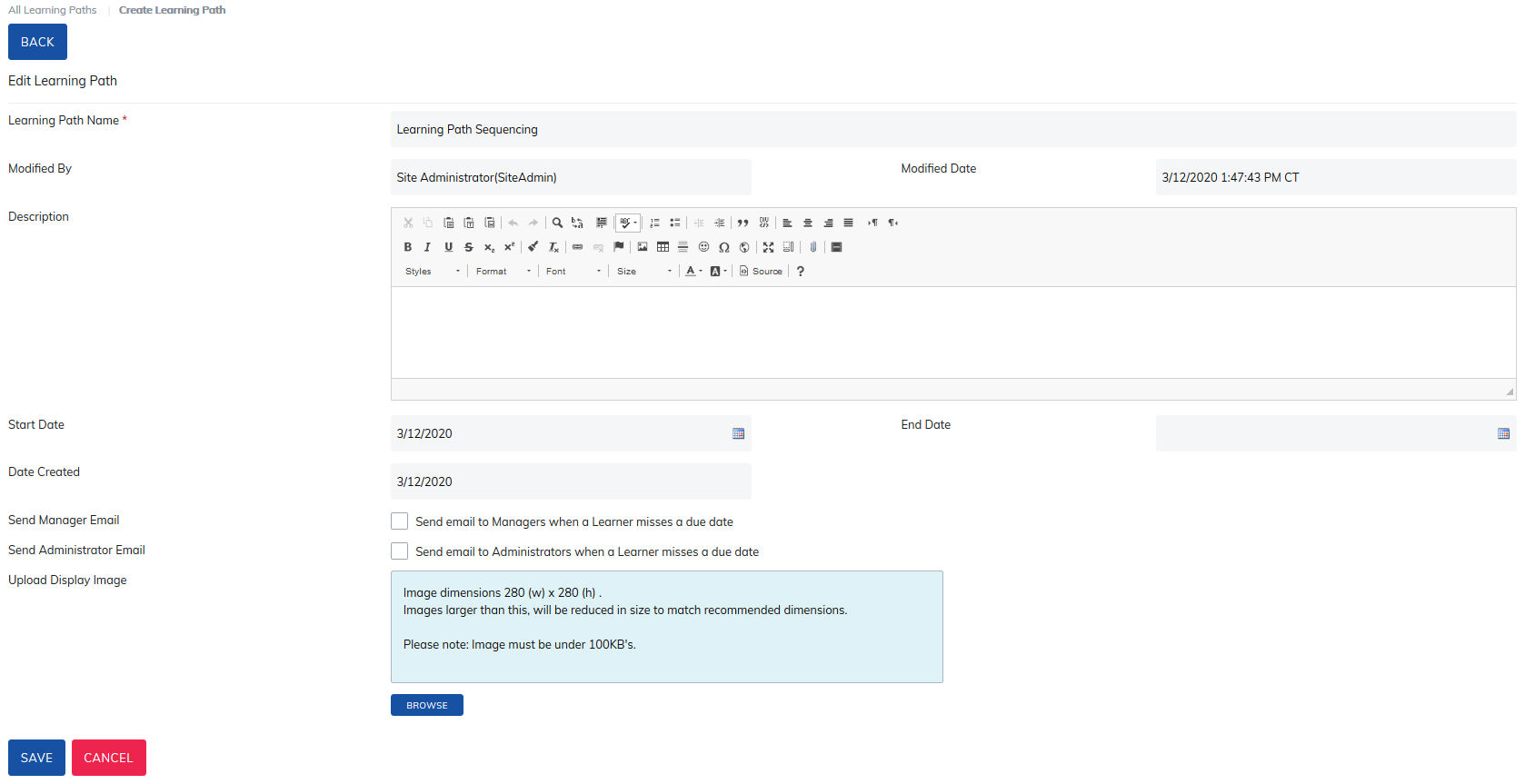
The Create Learning Path link will bring you to Learning Path details page.
- Name: The display name will be seen by learners and displays in your list of learning paths. The character limit is 254.
- Modified By: This field cannot be modified and will populate the name of the user who last modified learning path details.
- Modified Date: This field cannot be modified and will populate the date/time the Learning Path details were last updated.
- Description: Add a summary of the learning path to display on the content page.
- Start Date: This will populate the date Learning Path was created.
- End Date: By adding an end date, learners will no longer have access when the end date is reached.
- Send Manager Email: Check this box and the manager who created the learning path will receive a notification each time a learner misses a due date.
- Send Administrator Email: Check this box and all administrators will receive a notification each time a learner misses a due date.
- Note: The due date is triggered by timeline defined in the No. of Weeks Learners has access section on the Learning Path Content page. In Email Settings, the Missed Due Date notification must be turned on.
- Upload Display Image: Add a display image for your learning path that will appear on the learners My Training tab.
Once all details are added, click Save.
Was this article helpful?
That’s Great!
Thank you for your feedback
Sorry! We couldn't be helpful
Thank you for your feedback
Feedback sent
We appreciate your effort and will try to fix the article