This section allows you to create and manage your User Groups. You can add, edit and delete groups by selecting the appropriate icon in the tree.
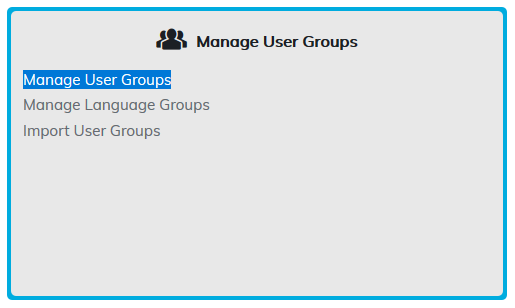
Groups can be auto-generated by integrations or manually created by the group template.
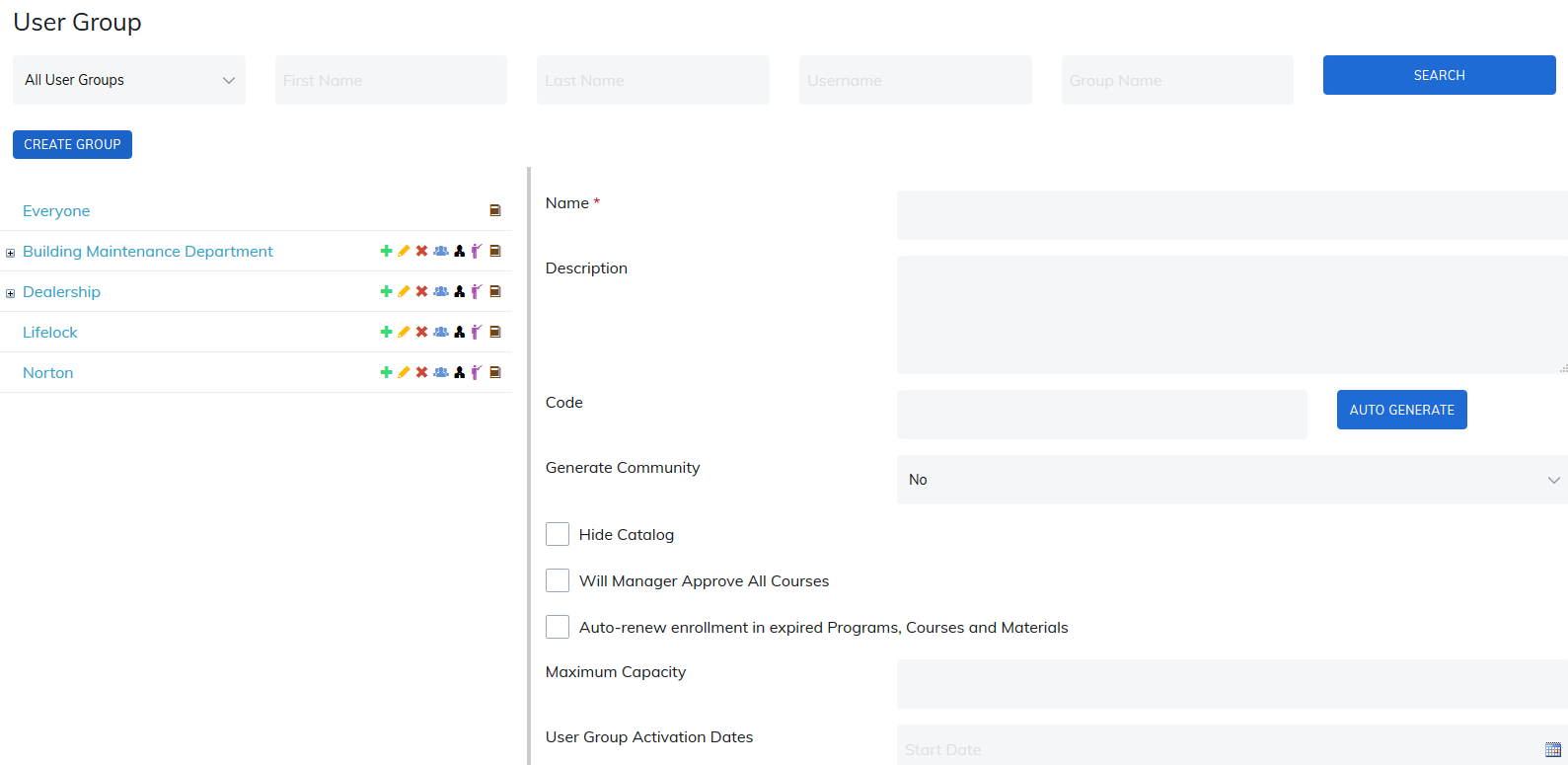
Create User Group
To create a main level user group, click on the Create Group button.
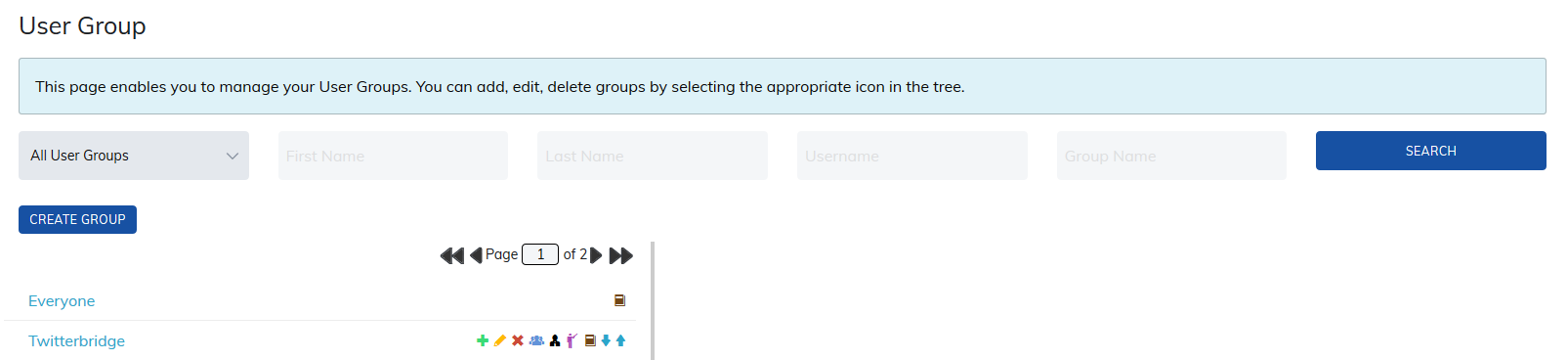
Name: Name of your user group.
Description: Describe the user group. It will display in the user group community.
Code: User group codes work parallel with the code field on the sign up page. When new user enters this code, they will be automatically added to the user group. The character limit for this field is 64 characters.
Generate Community: This option allows you to choose if you'd like to generate a User Group community.
Auto register all users: This option has to be turned on at the super admins level. For this feature to work, the following conditions must be met:
- The group has to have access to the content.
- The content must be published.
- The content cannot require approval by an admin, manager, or instructor.
- The content cannot include sessions or prerequisites.
- This feature is not available on eCommerce sites.
Hide Catalog: Hides the catalog tab from users in this group.
Will Manager Approve All Courses: By checking this box, users in this group are unable to register for any courses on your site without their manager's approval. Not available on eCommerce sites.
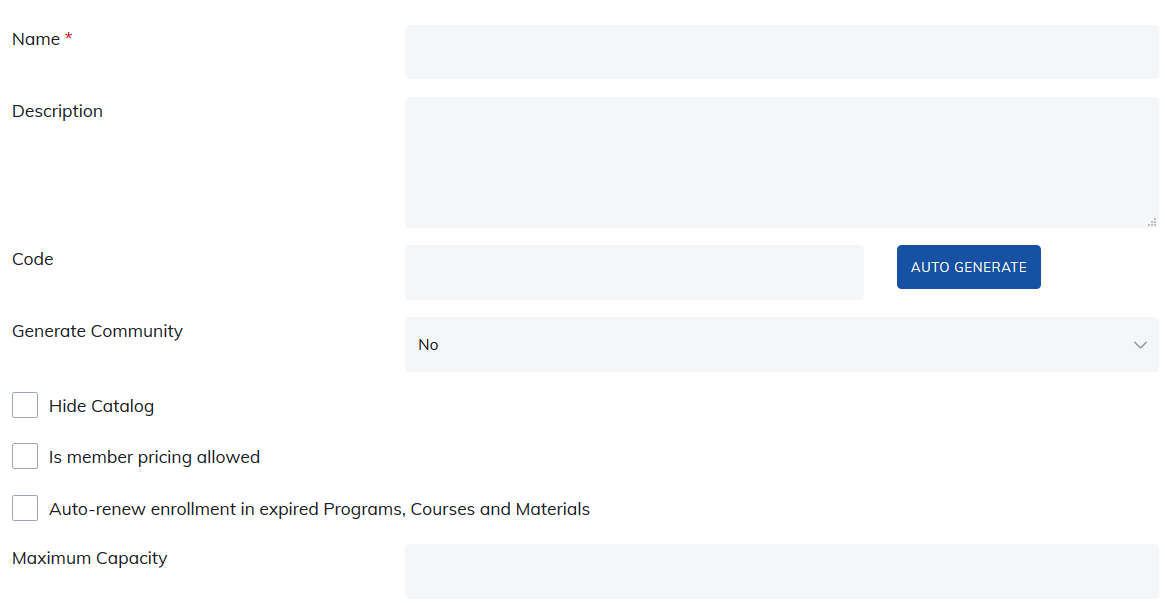
Below is how it will appear for sites that do not have eCommerce enabled.

Is Member Pricing Allowed: Allows learners in the group to receive member pricing of content. Member and non-member pricing is defined on the Edit Basic Information page of a subscription, program, course, or material. This is available on eCommerce sites only.
Auto-renew Enrollment in Expired Programs, Courses, and Materials: For content using a fixed length, learners in this user group will be automatically re-enrolled when the content expires. Learners will not need to manually re-register.
Maximum Capacity: Limits the number of users that can be added to a user group. In Site Settings > Advanced > General Settings, you can choose whether deactivated users are included in this count.
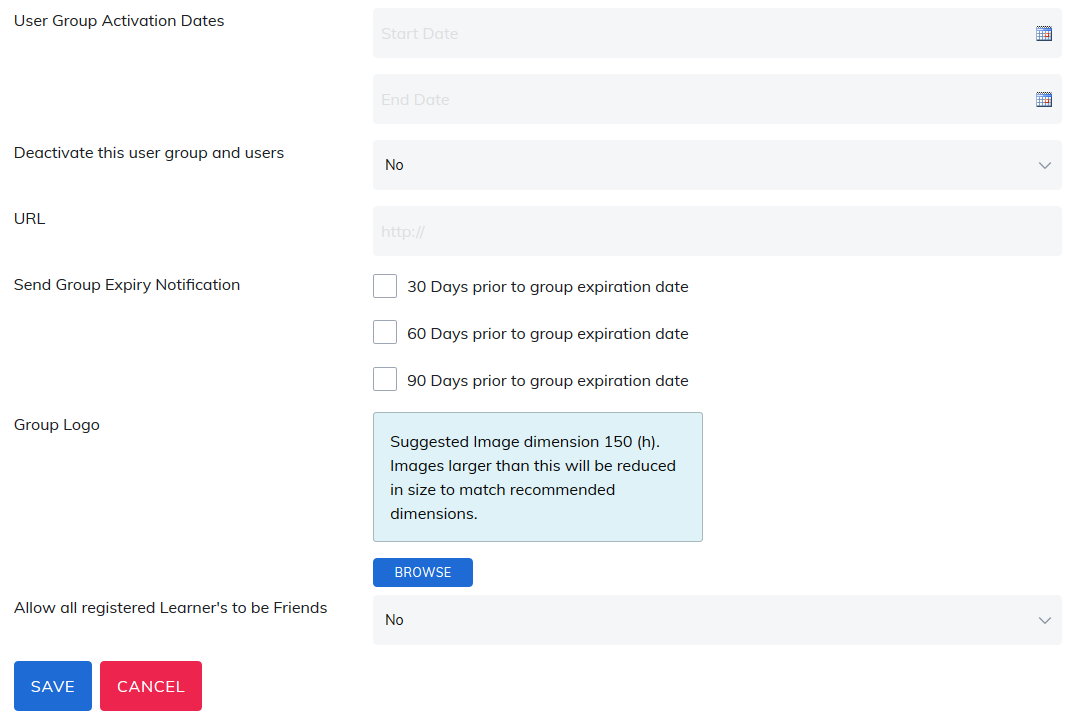
User Group Activation Dates: Users in this group will only view available subjects and take advantage of its benefits (for example, member pricing) throughout the dates specified.
Deactivate this user group and users: You can deactivate a user group and all of its users by changing the drop down to Yes. This will deactivate the user group and all its users. It will also prevent new users from joining this user group. You can re-activate the user group at any time by selecting 'No' in the drop down.
URL: Use this option if you want your group logo to hyperlink to a website associated to the logo.
Send Group Expiry Notifications: Use this setting if you want to notify users in a group via email their access to the group is expiring. You will also need to check in Email Settings the Expiry Notification - User Group Email.
Group Logo: Adding a Group Logo replaces the site’s default logo for users in this group. After uploading a logo, select Preview to see how it will appear. The preview opens in a new tab and displays the logo within the site header and footer.
- Use the All User Groups with Logo filter to quickly identify which groups have logos assigned.
- A logo set at the parent group level automatically applies to all child groups.
- To use unique logos for child groups, do not assign a logo at the parent level.
- If a user belongs to multiple groups with different logos, the site’s default logo will display.
Allow all registered Learner's to be Friends: Select whether to automatically make all existing users in this user group, and any users added in the future, friends with one another on your site. Note: The friends feature must be enabled in Site Settings under the My Profile area to use this option.
User Group Icons and Actions
The Everyone user group is a default group. Only its content can be edited, and all users are automatically included in this group.
Below is a description of each icon (from left to right):
- Green plus icon: Adds a sub user group under the selected parent group.
- Yellow pencil (edit) icon: Edits the user group details.
- Red X icon: Deletes the user group. Deleting a parent group also deletes any subgroups beneath it.
- Blue user icon: Allows an administrator to manually add or remove users from the group.
- Black manager icon: Assigns manager(s) to the user group.
- Purple instructor icon: Adds instructors to the user group. Instructors will only see the categories, programs, courses, and materials available to the Everyone group and to the user groups they belong to.
- Brown resources icon: Associates content (categories, programs, courses, and/or materials) with the user group.
Filter user group list: Administrators can filter the user group list to show active or deactivated user groups.
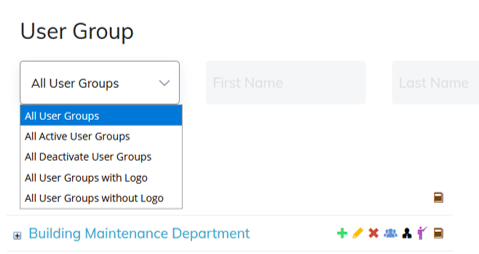
User Group Search: Allows administrator to search for users by first name, last name, and username. Administrators can also search for specific user groups by typing in partial or complete names.

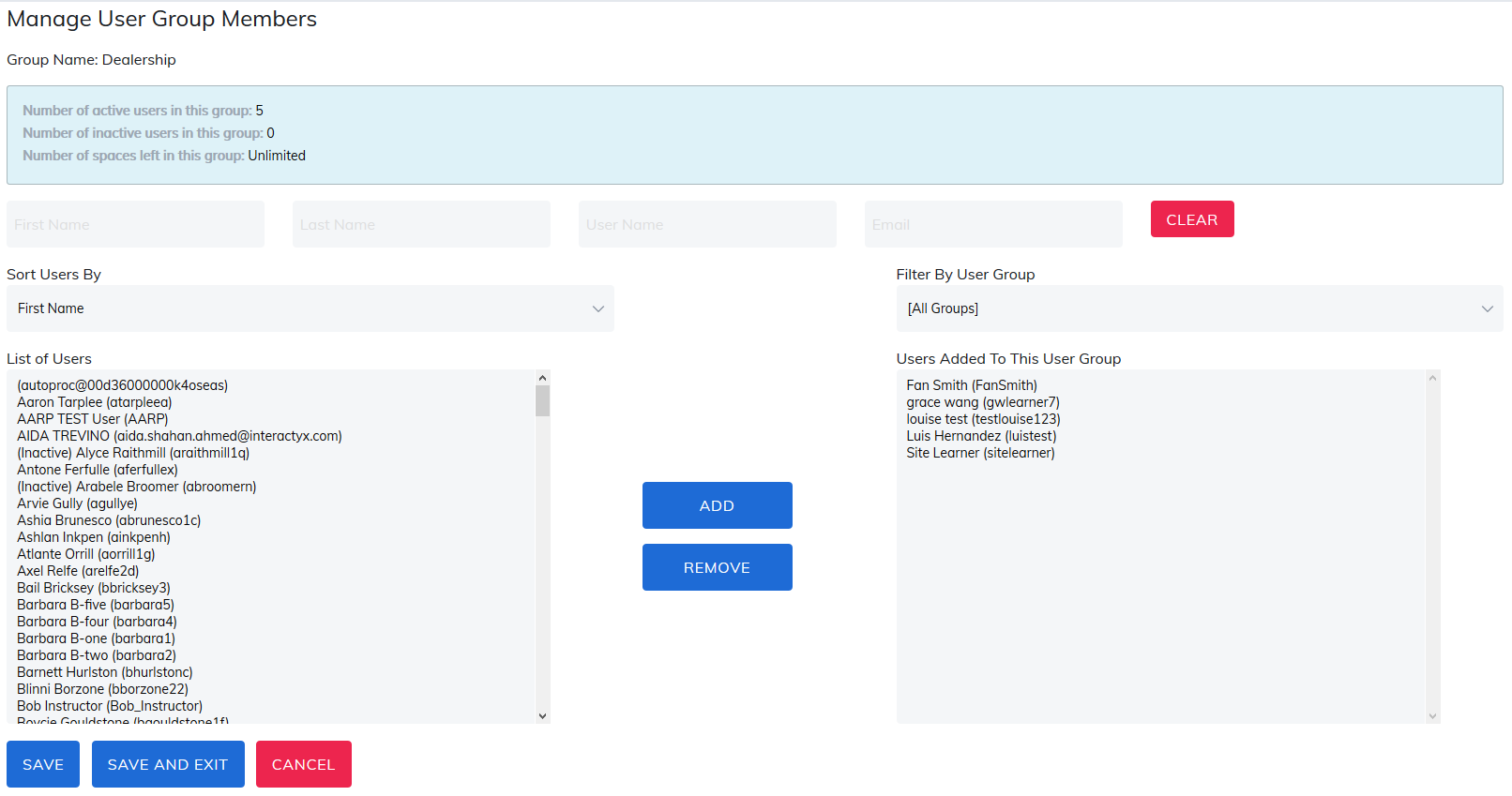
To search for and manage users, managers, or instructors within a user group, select the appropriate icon. The page will display search and filter options, along with Add and Remove buttons.
When finished, click Save, Save and Exit, or Cancel, as appropriate.
User Group Notes
- Removing a learner or manager from a parent user group will remove that user from all associated child groups.
- User group activation and deactivation dates override access to learning paths. When a user group reaches its deactivation date, learners in that group will no longer have access to any associated learning paths, even if the learning path itself has not expired.
- Recommendation: Review user group activation dates to ensure learners retain access to learning paths for as long as needed.
- When a user is removed from a group, they will lose access to content provided through that group. If the learner is in progress, the following rules apply:
- The learner will immediately lose access to content within the learning path.
- The learner will remain registered and may continue working in materials, courses, and programs. An admin or manager may manually remove the learner from the roster if needed.
Was this article helpful?
That’s Great!
Thank you for your feedback
Sorry! We couldn't be helpful
Thank you for your feedback
Feedback sent
We appreciate your effort and will try to fix the article