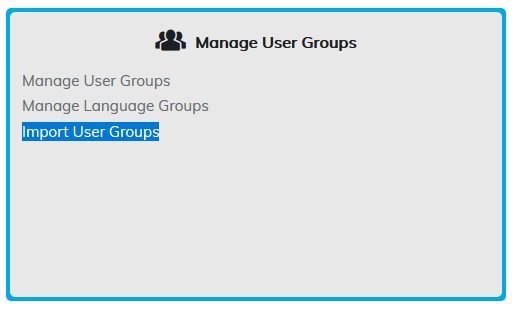
Using a CSV file, you may create or update user groups. To import the CSV, go to the Administrator home page > Manage User Groups > Import User Groups.
All options that are available when you manually create a user group can be used on your CSV import file. Please select Show Sample CSV.
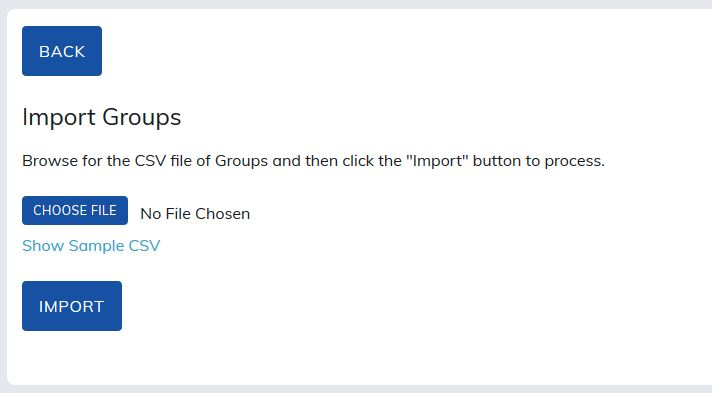
The following fields can be added to the CSV file:
| Column Title | Required or Option | Description |
|---|---|---|
| @Groupname | Required | The name of the group you want to create or move. |
| @Description | Optional | A description of the group. |
| @Code | Optional | A code if you require your users to self-register into this group. |
| @ParentGroupName | Optional | If you want this group to be a child of an existing group, enter the name of the parent group. |
| @AutoRegister | Optional | Automatically registers users in this group to all eligible content. Not recommended for most use cases because it may enroll users more broadly than intended. |
| @HideCatalag | Optional | Controls whether this group can see the catalog.
|
| @ismanagerapproveallcourses | Required | Determines whether a manager must approve all courses visible to this group.
|
| @Startdate | Optional | The date when the user group becomes active. |
| @Enddate | Optional | The date when the user group becomes inactive. |
| @MaximumCapacity | Optional | Sets the maximum number of users allowed in the user group. |
| @IsMemberPriceAllowed | Optional | Enables member pricing for users in this group when applicable. |
| @AutoRenewExpiredCourses | Optional | Automatically re-enrolls users in content after it expires. |
| @AllUsersFriend | Optional | Automatically makes all users in this group friends with one another This requires the Friends feature to be enabled. |
| @AddPrograms | Optional | Assigns programs to the user group. |
| @RemovePrograms | Optional | Removes assigned programs from the user group. |
| @AddCourses | Optional | Assigns courses to the user group. |
| @RemoveCourses | Optional | Removes assigned courses from the user group. |
| @AddCategories | Optional | Assigns categories to the user group. |
| @RemoveCategories | Optional | Removes assigned categories from the user group. |
| @AddMaterials | Optional | Assigns materials to the user group. |
| @RemoveMaterials | Optional | Removes assigned materials from the user group. |
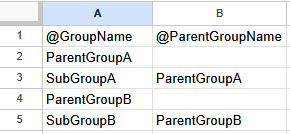
Using a CSV file, you may move existing user groups or create new parent and child groups. To do so, you would need the following fields.
| Column Title | Required or Optional | Description |
|---|---|---|
| @GroupName | Required | The name of the group you would like to move. |
| @ParentGroupName | Required | If you want this group to be a child of an existing group, enter the name of the parent group. |
Was this article helpful?
That’s Great!
Thank you for your feedback
Sorry! We couldn't be helpful
Thank you for your feedback
Feedback sent
We appreciate your effort and will try to fix the article