You may also use Zoom Pro with your TOPYX Elements, Essentials, or Expanded site.
To set up Zoom on your TOPYX site, please follow these directions:
- Go to https://marketplace.zoom.us
- Enter with a valid Zoom Pro administrator account.
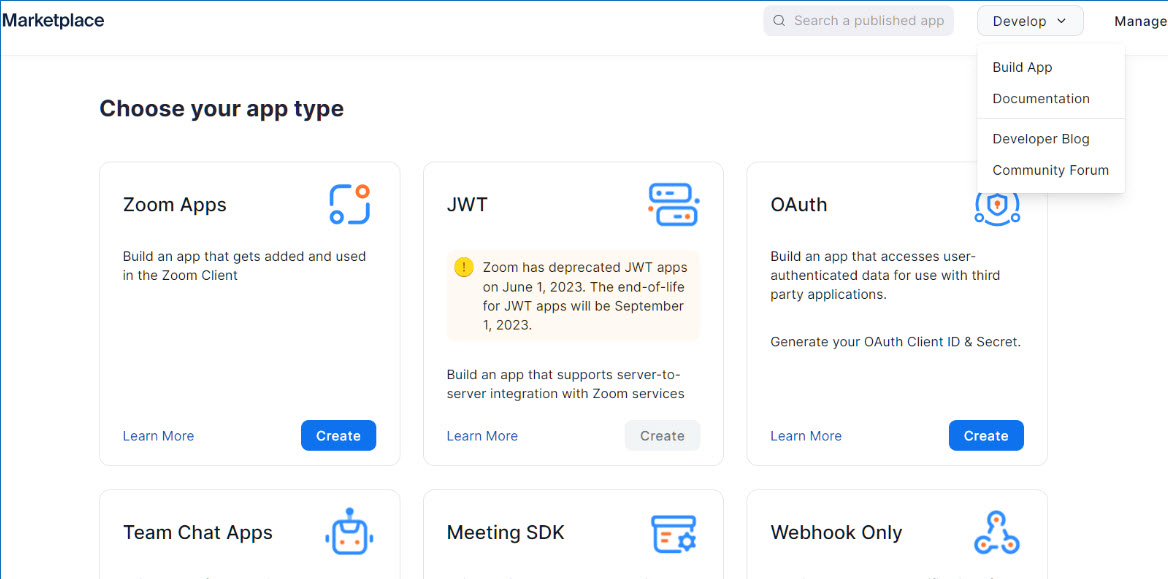
- Click Develop > Build App, or go to this link directly: https://marketplace.zoom.us/user/build
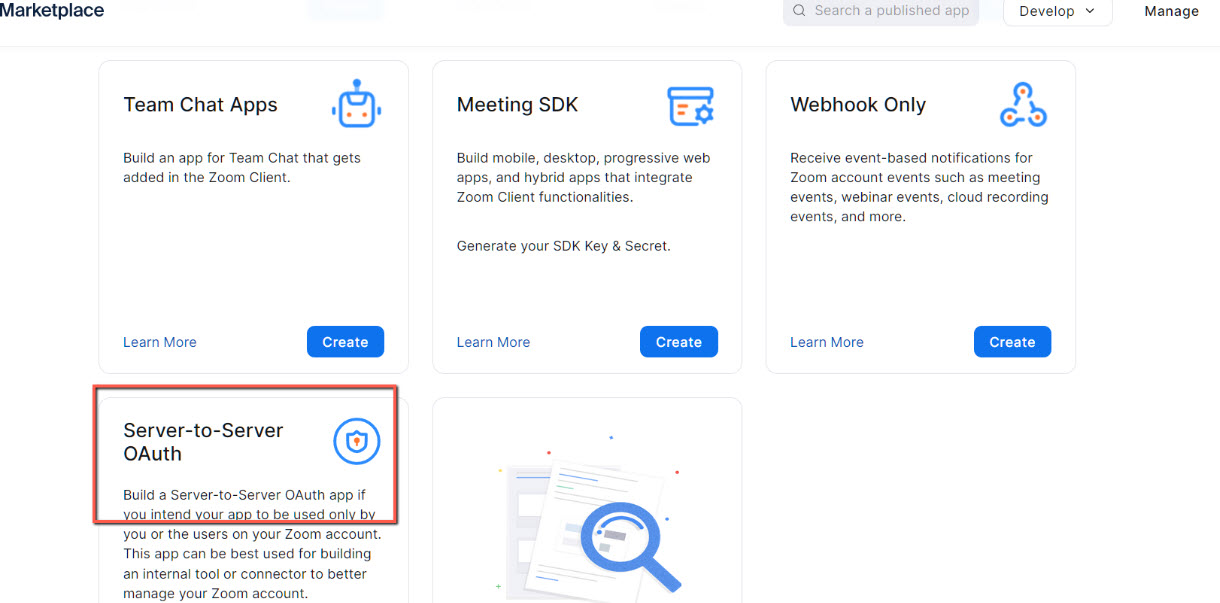
4. Scroll down and look for Server-to-Server OAuth app type
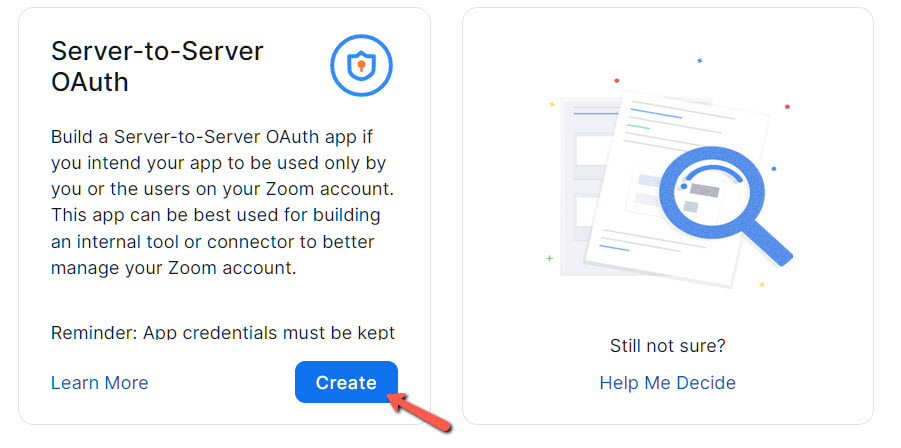
5. Click create button
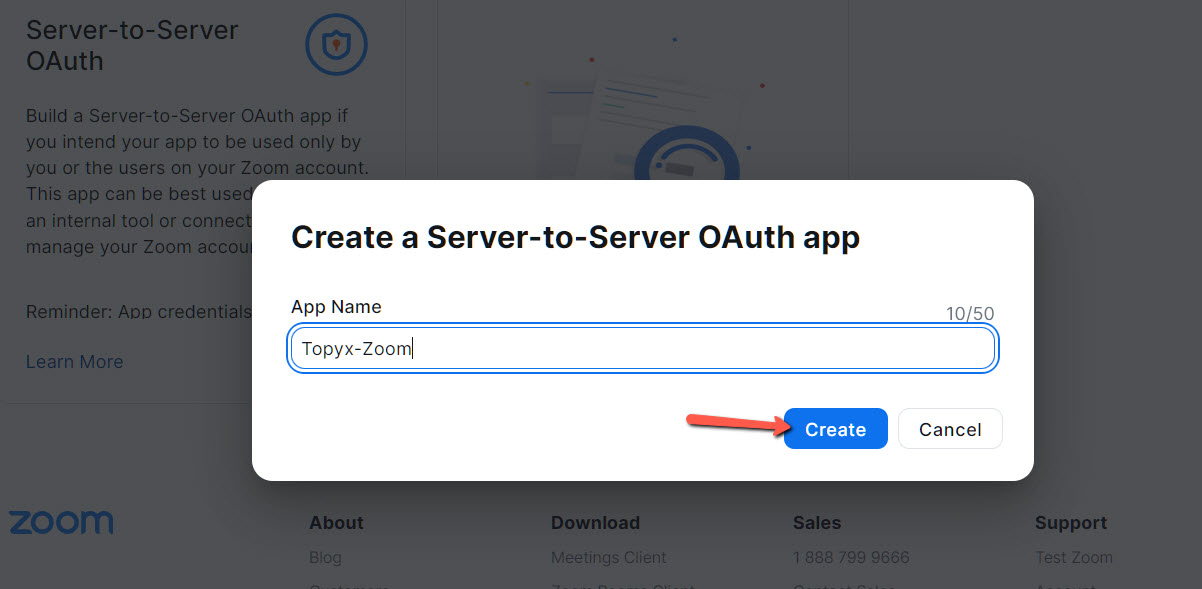
6. Give your app a name.
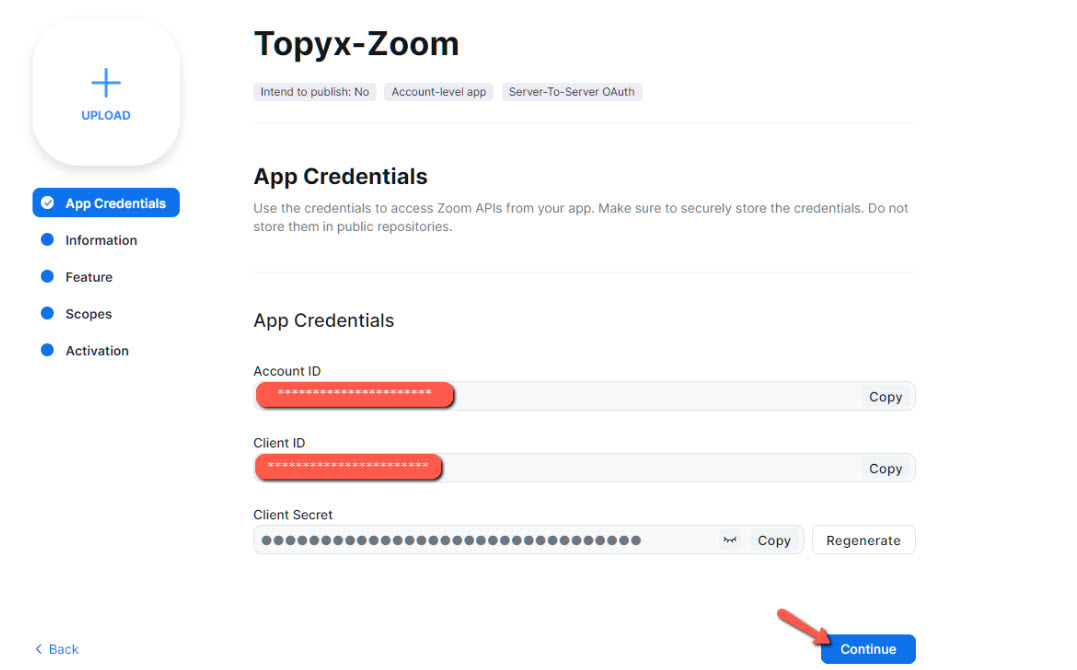
7. At this point, you can store the App Credentials in a secure place. You may also skip and click the Continue button as this credentials will remain stored here for future use.
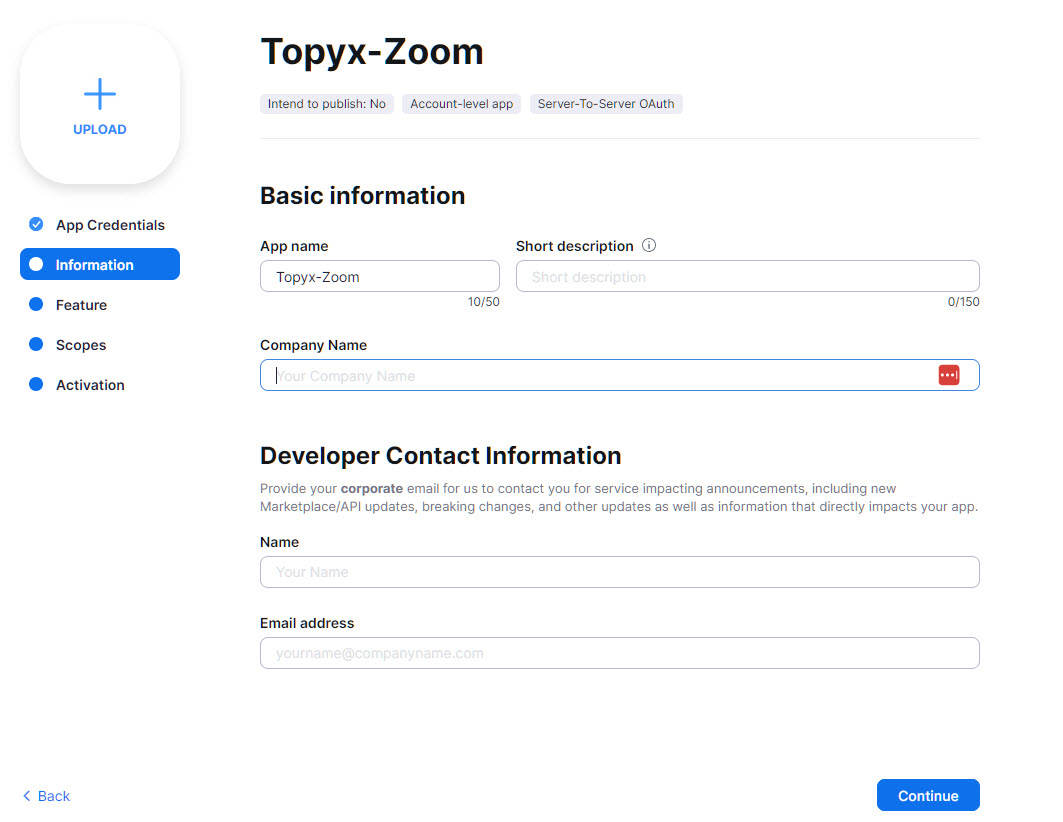
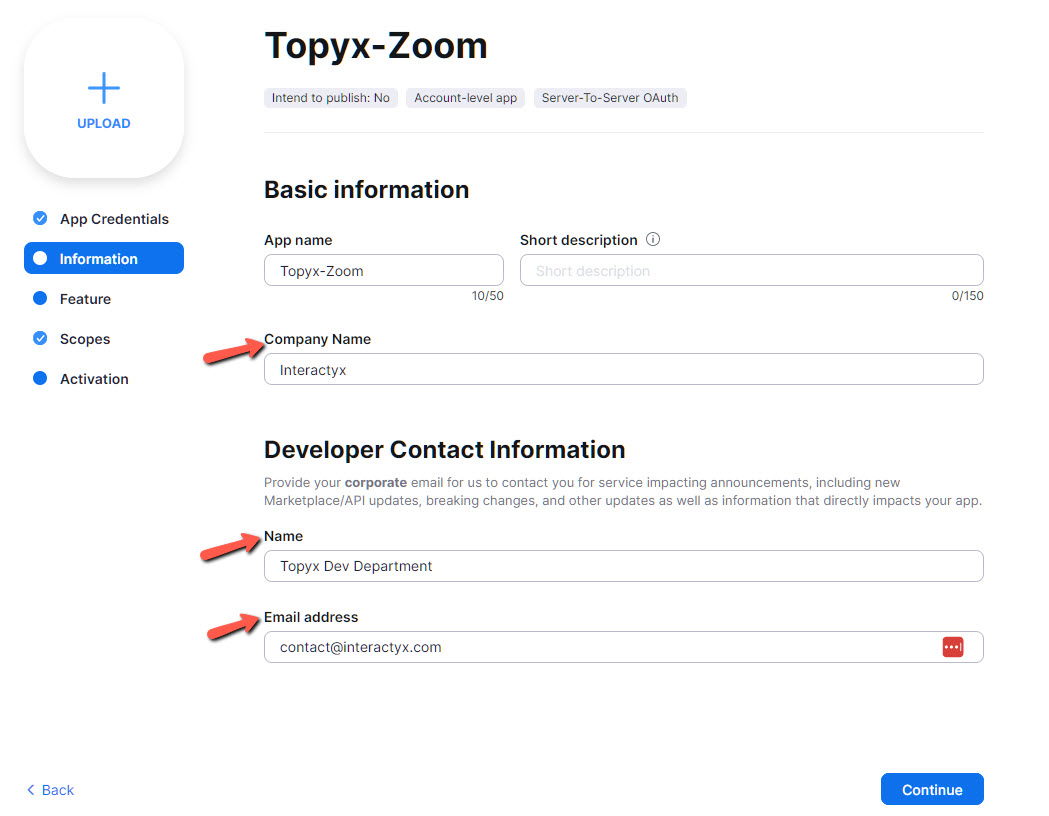
8. Please provide your Company Name. Enter the Name and Email developer contact info. An example could be "MyCompany IT Department", "info@mycompany.com".
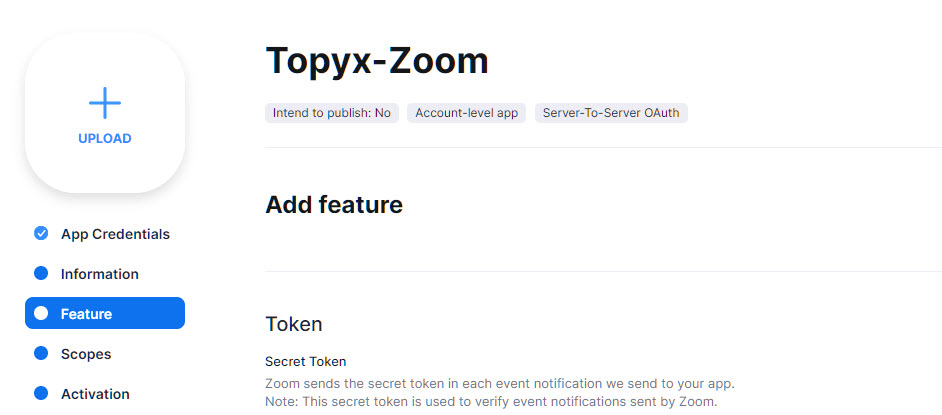
9. The feature tab is not used in Topyx's integration, you may skip this step.
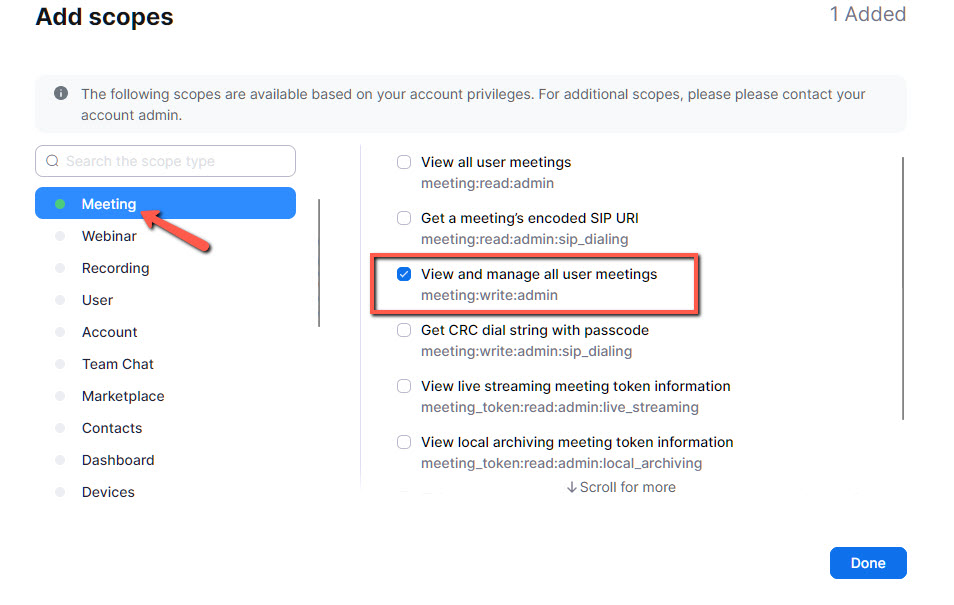
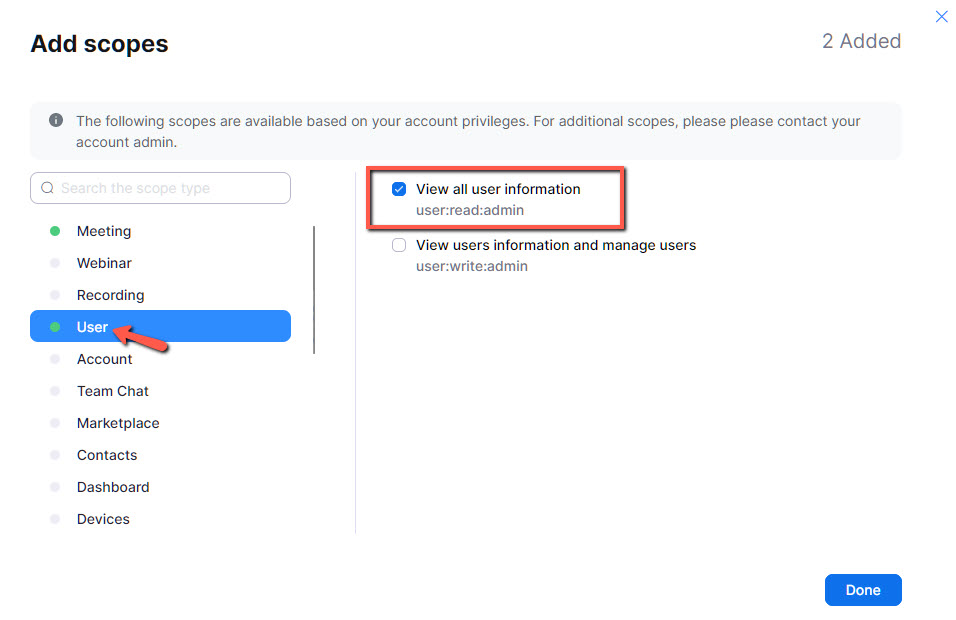
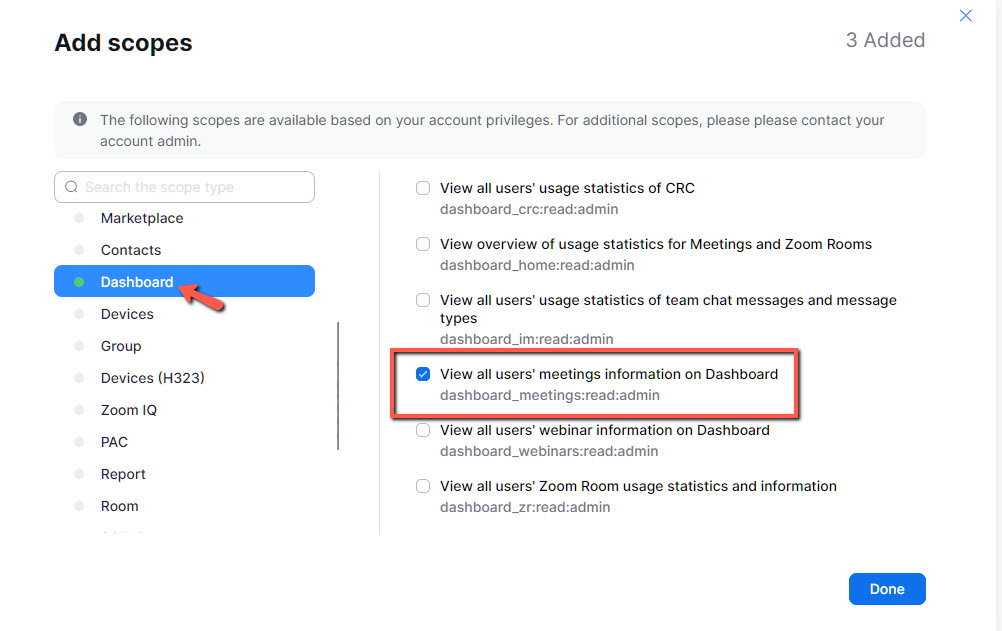
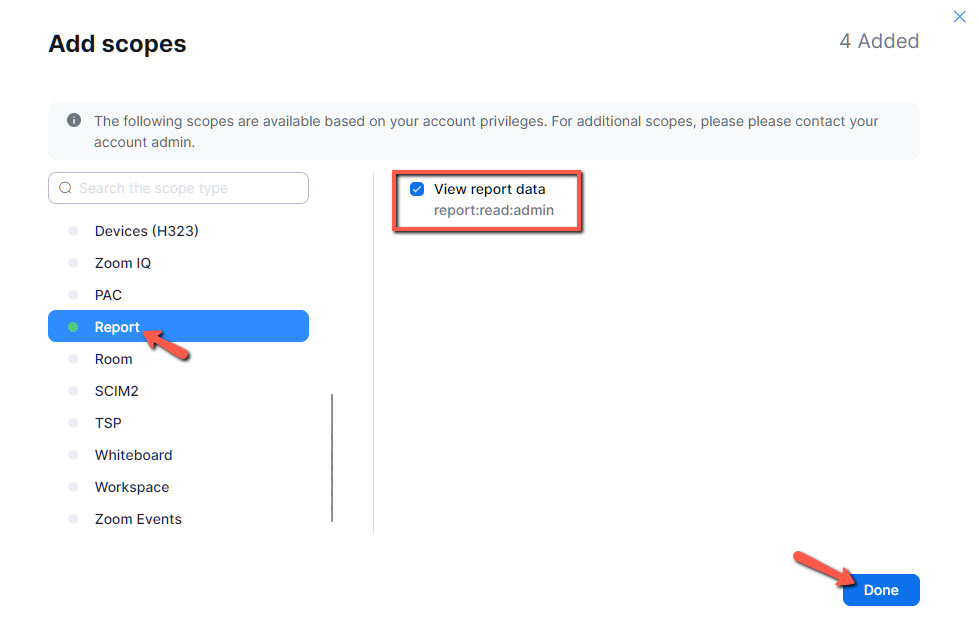
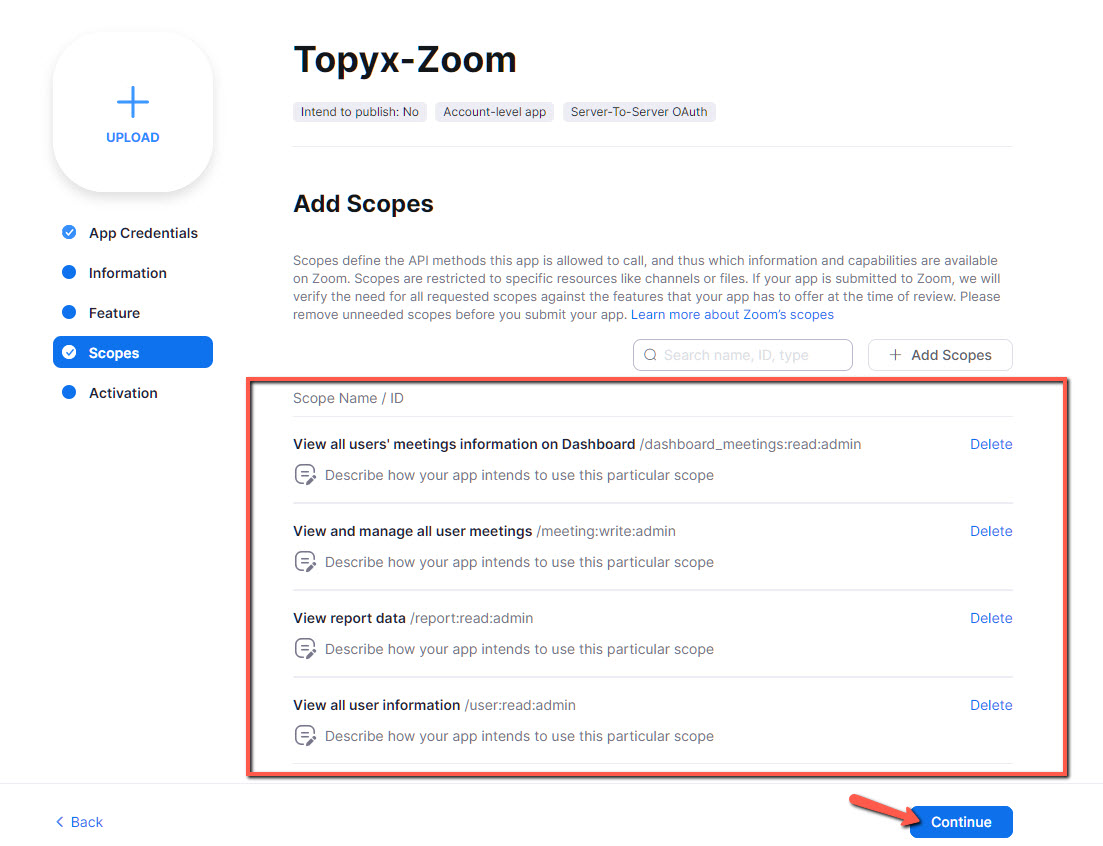
10. In this step we need to add a couple of scopes required by Topyx's App integration.
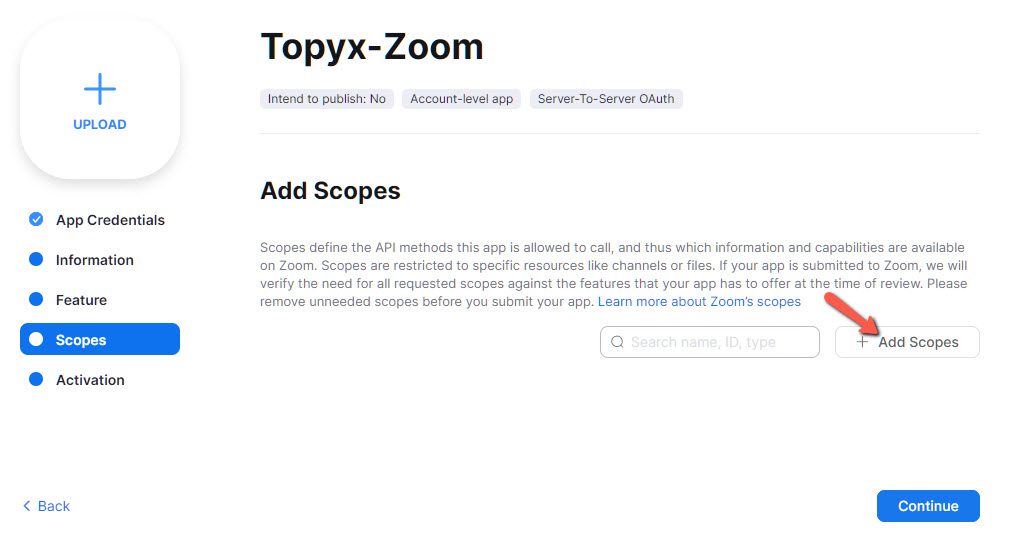
a. Meeting > View and manage all user meetings (meeting:write:admin)
b. User > View all user information (user:read:admin)
c. Dashboard > View all users' meetings information on Dashboard (dashboard_meetings:read:admin)
d. Report > View report data (report:read:admin)
At this point all required scopes have been added, you may click the Done button.
11. Review all required scopes are added to the app and click Continue.
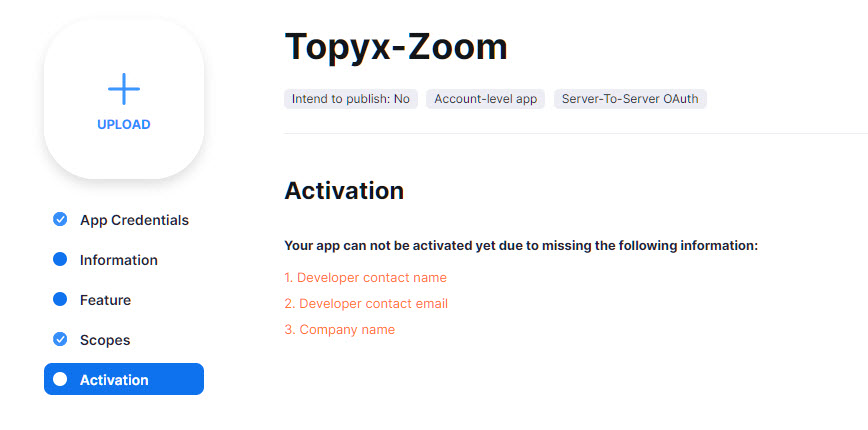
12. If you did not enter the Company name and developer information, you will not be able to activate this app.
12.a. Just fill the required boxes in the information tab.
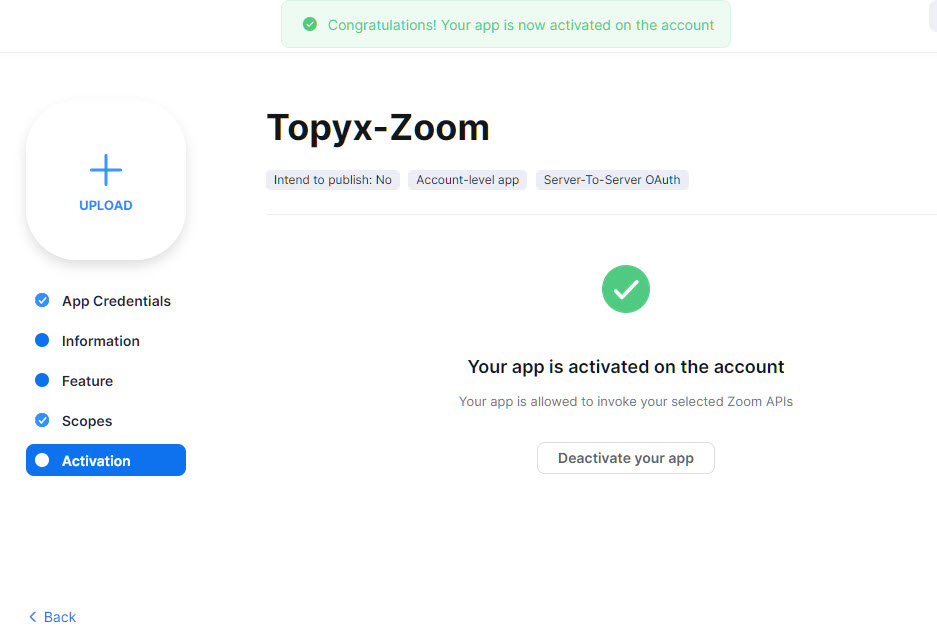
13. After filling out the required info, click the Activate your app button.
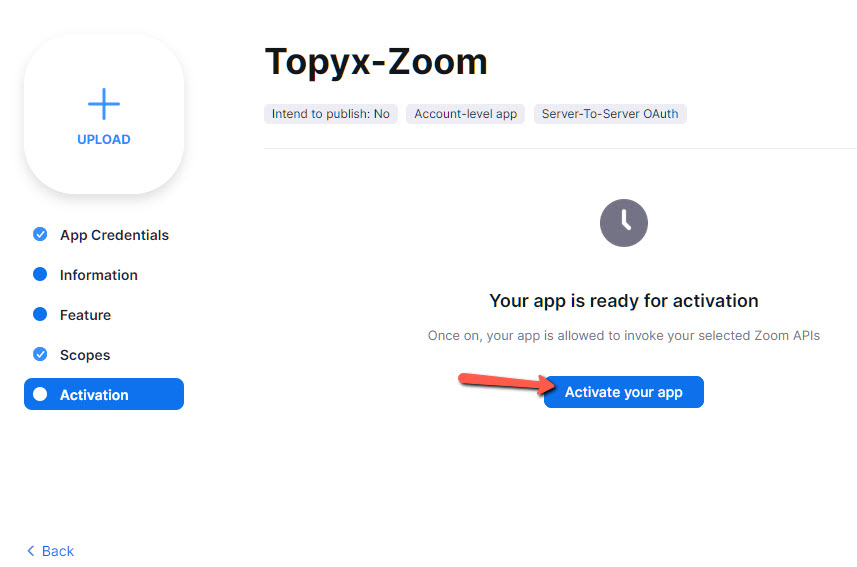
14. Your app should be activated now.
15. Go to your Topyx site and login as an administrator.
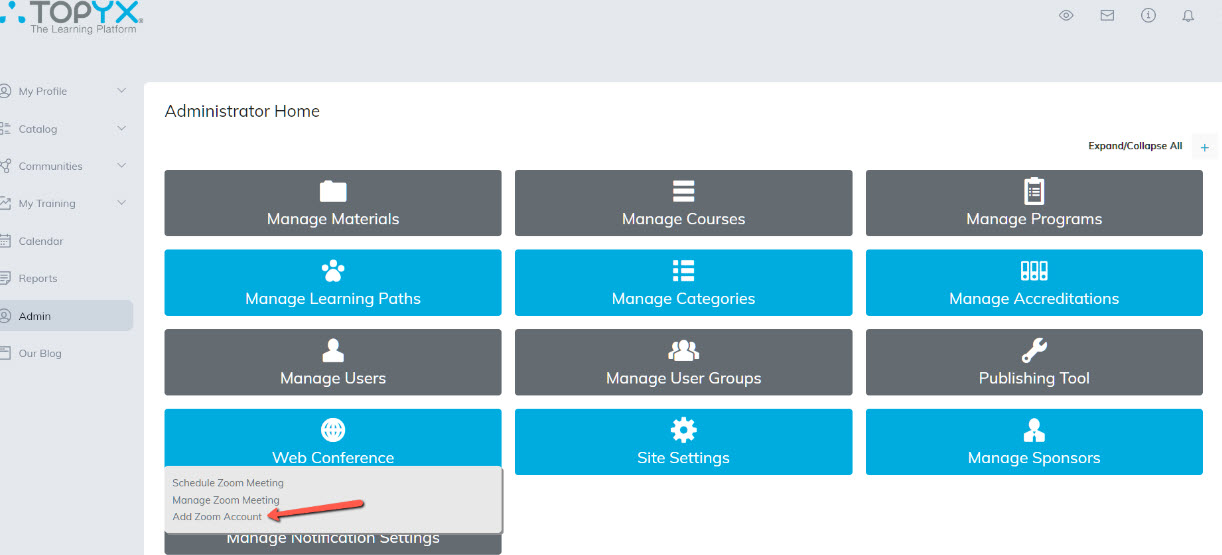
16. Go to Administrator Home > Web Conference > Add Zoom Account
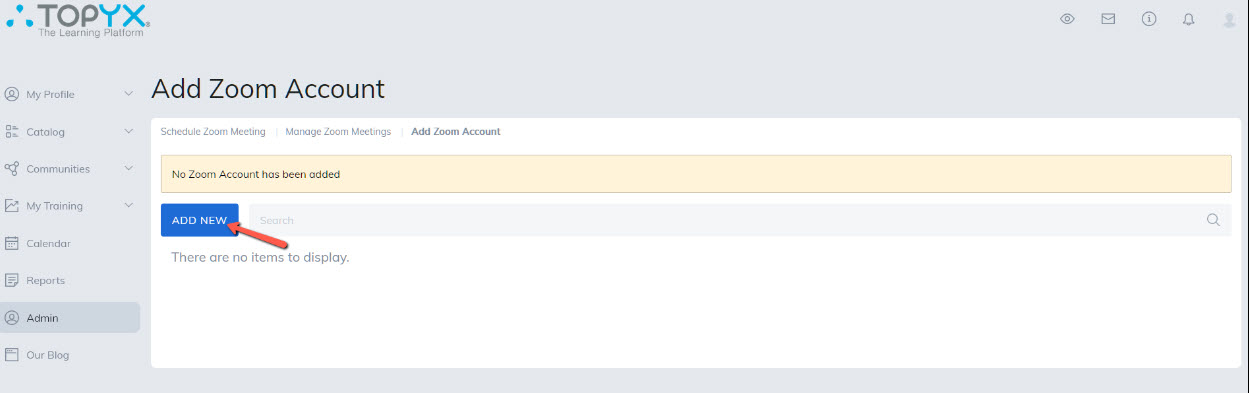
17. Click the Add New button.
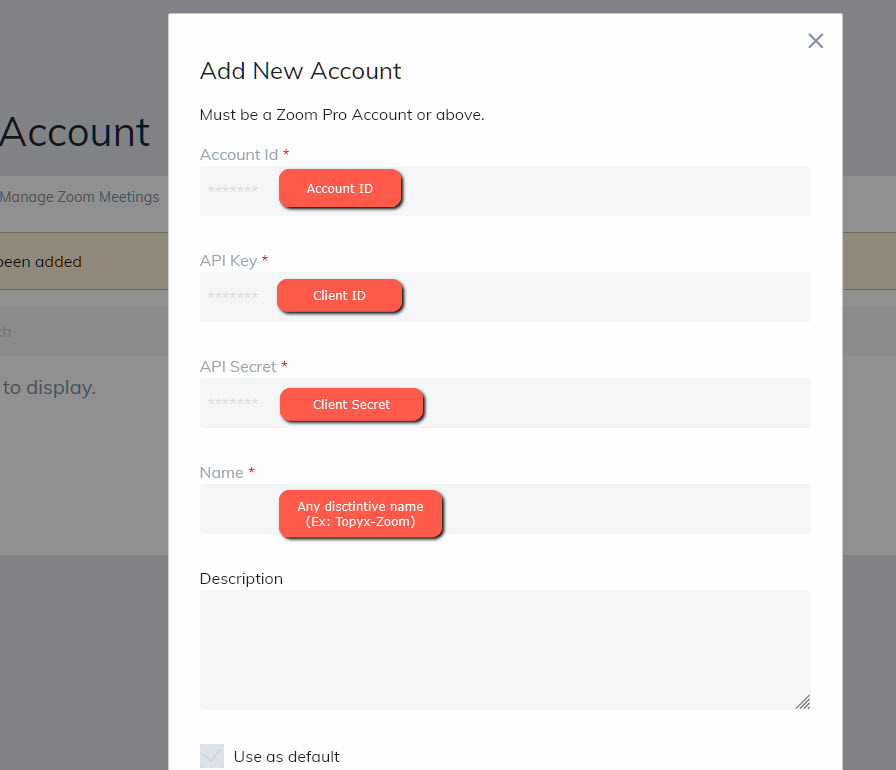
18. Enter the Zoom App credentials and click save.
19. Great! You have now completed all steps to integrate your Zoom Pro Account into TOPYX.
You can now schedule Zoom meetings and invite user groups or learners, and attach them to courses in your TOPYX site.
Was this article helpful?
That’s Great!
Thank you for your feedback
Sorry! We couldn't be helpful
Thank you for your feedback
Feedback sent
We appreciate your effort and will try to fix the article