TABLE OF CONTENTS
- Schedule Webinar
- How to add your webinar as course content
- How users will register for your webinar
- Webinar Attendance
- Manage Webinars
- For sites that use more than one Goto Webinar account
- Create Account
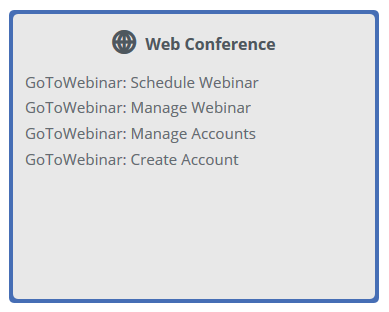
To integrate GoTo Webinar with your site please complete the following:
1. To enable the integration on your site, please notify our team first.
2. Obtain your GoToMeeting or GoToWebinar Client Secret. To obtain the client secret login to your account, navigate to https://developer.logmeininc.com/clients.
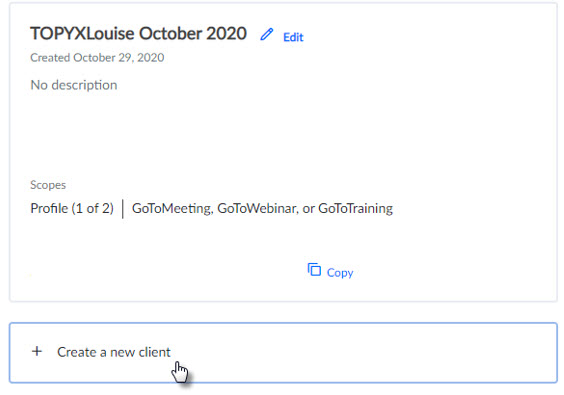
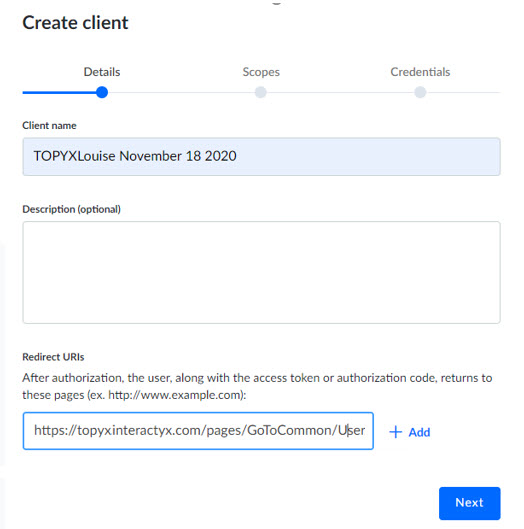
Choose to Create a new client and complete the required fields of Client Name and Redirect URIs. The Redirect UIRIs must follow a very specific format. It must contain the url of your TOPYX site followed by /pages/GoToCommon/UserAuthorized.aspx
https://YOUR_WEBSITE_URL/pages/GoToCommon/UserAuthorized.aspx
An example would be:
https://topyxclient.interactyx.com/pages/GoToCommon/UserAuthorized.aspx
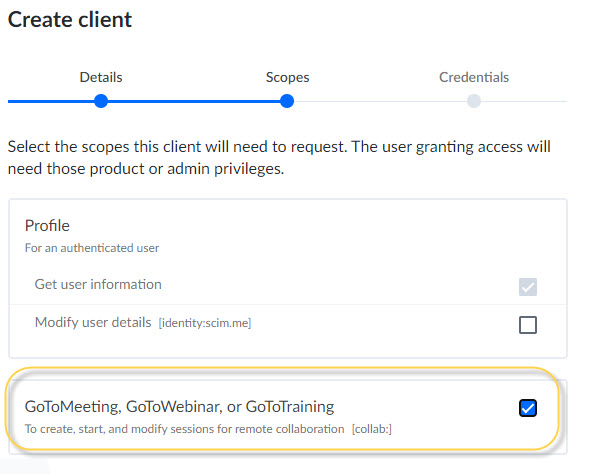
Please select GoToMeeting, GoToWebinar, or GoToTraining under the scope heading.
Saving will create a new client and provide you with the client secret. This needs to be copied and added to TOPYX.
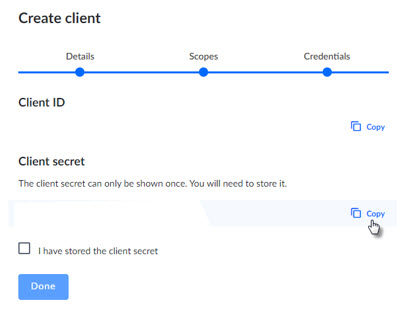
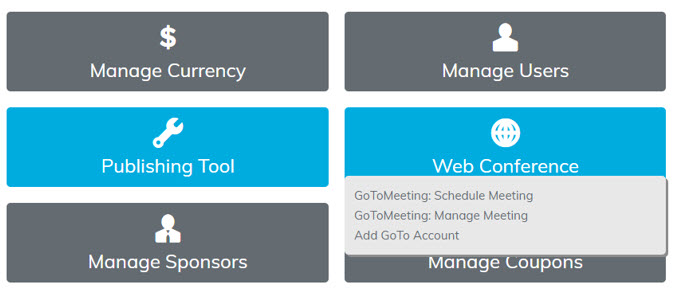
3. To add the Client Secret to TOPYX, login to your site as an administrator and select Web Conferences > Add GoTo Account.
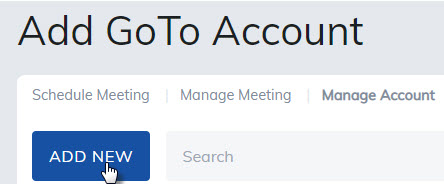
Select Add New.
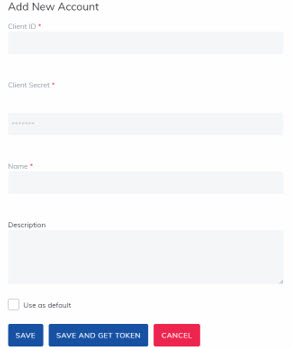
Fill in the required information, including ClientID and Client Secret before selecting Save and Get Token.
Once saved, the administrator will be redirected to GoTo to allow the connection to complete. Please select Allow.
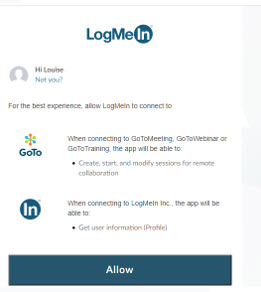
Once complete, the administrator will be returned to TOPYX and the token will be valid for one hour. The administrator may then create a GoToMeeting in TOPYX as before or add previously created GoToWebinars to their TOPYX site.
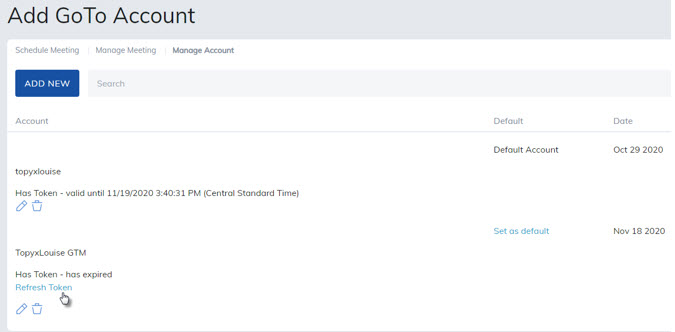
Please Note: This token will expire after 1 hour. A new token must be obtained upon its expiration for additional GoToMeetings/GoToWebinars to be created/displayed in your TOPYX site. To obtain a new token click on Refresh Token.
Schedule Webinar
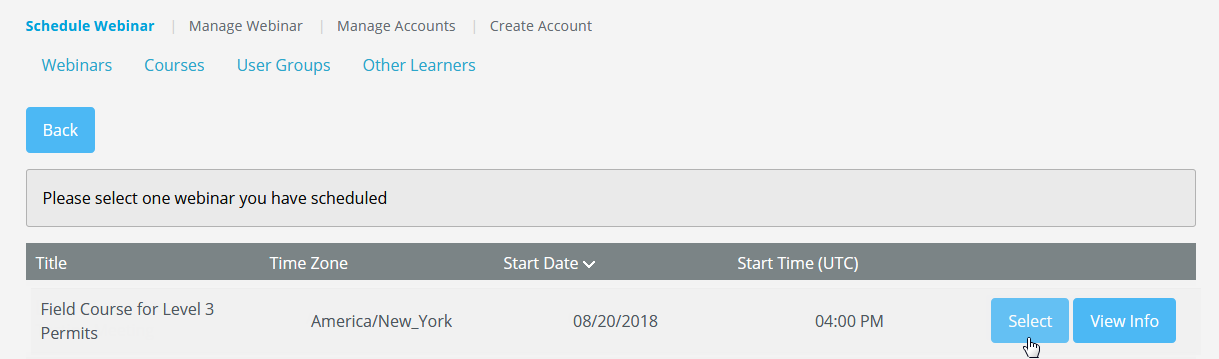
In this section, administrators can view webinar info and associate webinars to courses. To associate a webinar to a course, click on the Select button to the right of webinar name.
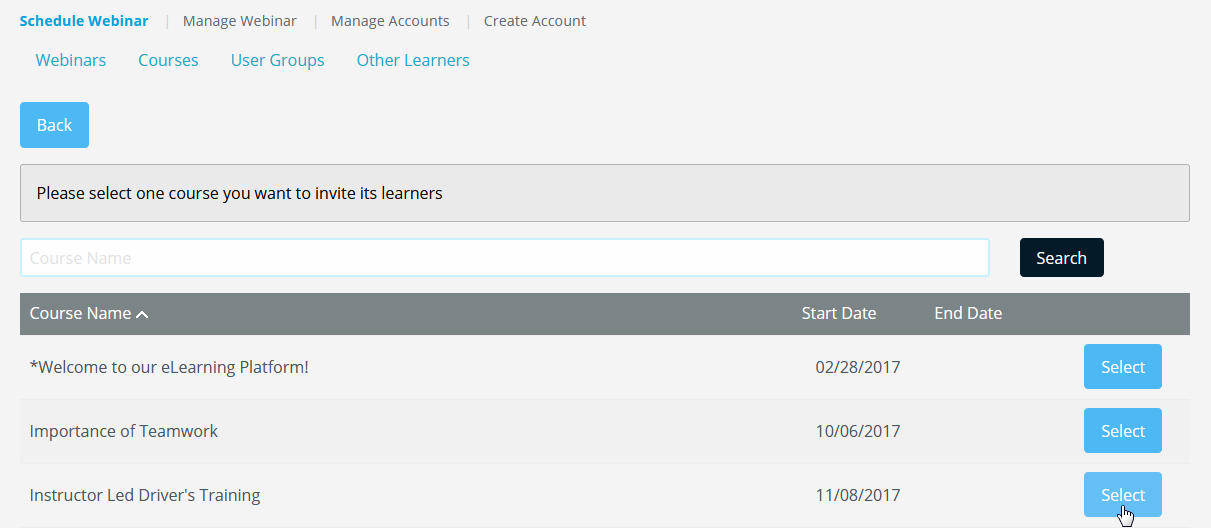
A list of courses will appear. To the right of course name, click on the Select button.
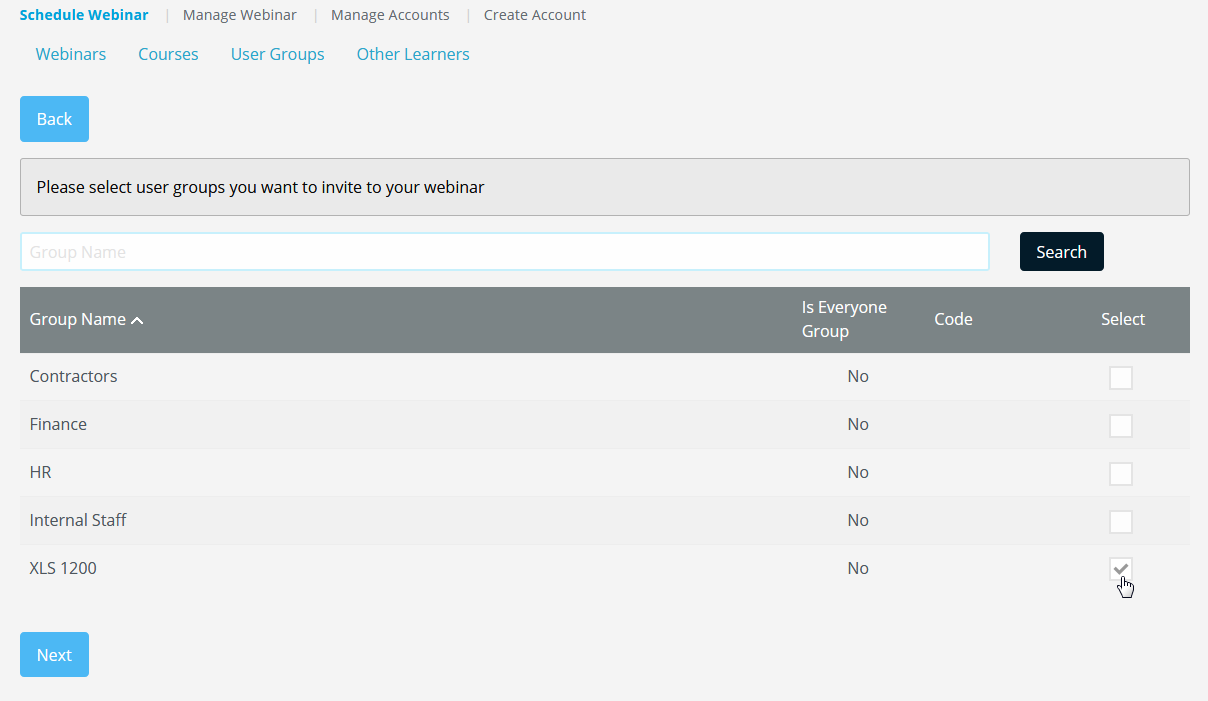
The following are other options to invite User Groups and Other Learners.
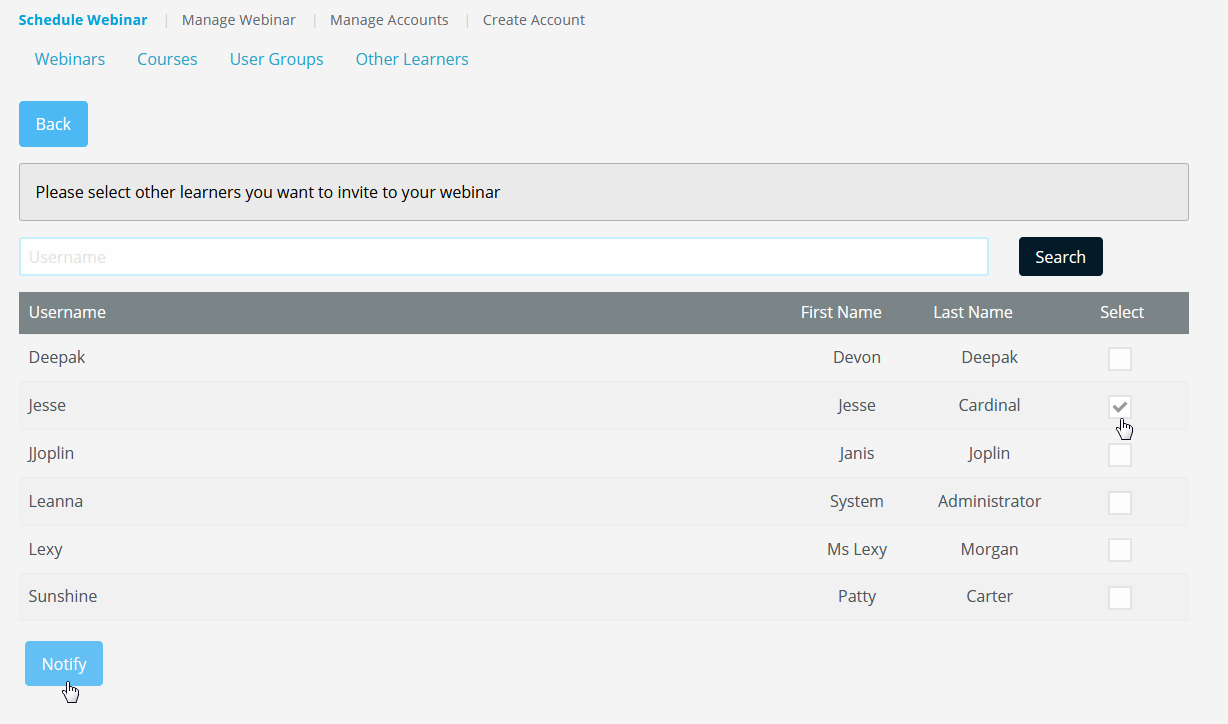
Simply check the box for each, select Next button, and then Notify button.
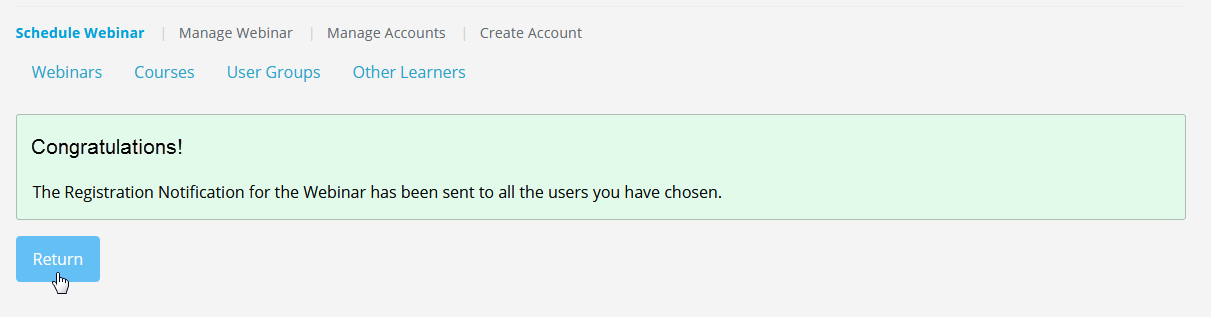
A message will appear confirming a webinar notification was sent.
Note: In order to send webinar notification, the Web Conference Registration Notification must first be turned on in Manage Email Settings.
The Return button will take you back to Schedule Webinar page.
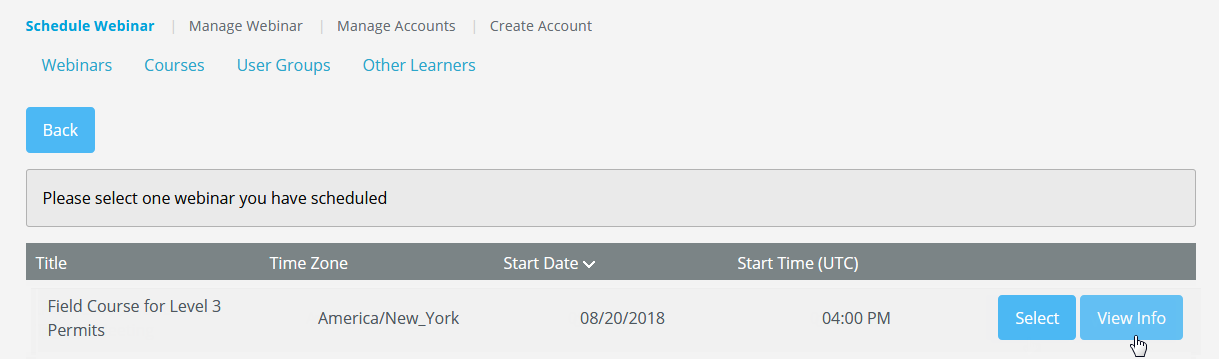
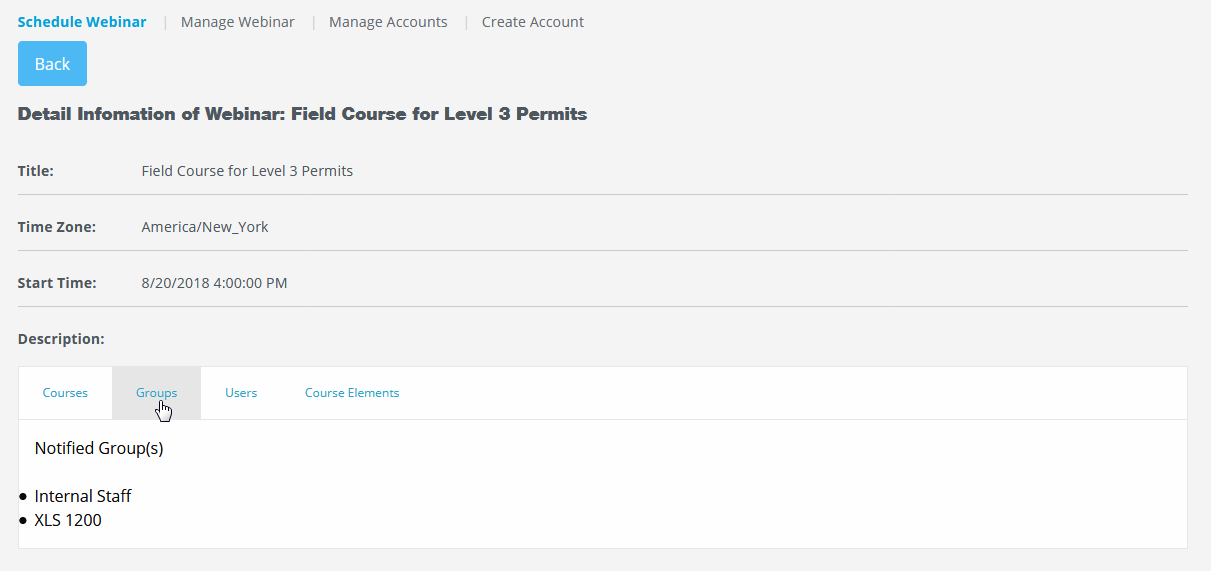
Select the View Info button to review, in summary, the webinar details, courses, user groups, and learners assigned to the webinar.
How to add your webinar as course content
Once the webinar has been assigned to a course, it needs to be added as content. To do this, exit the Web Conference section and visit Manage Courses and open your course.
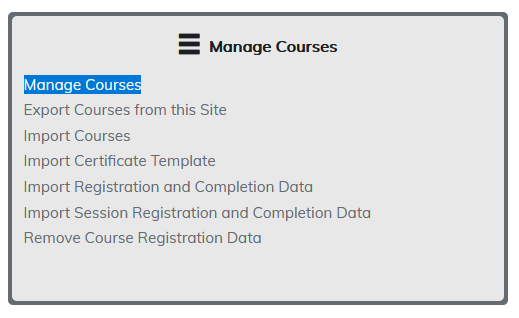
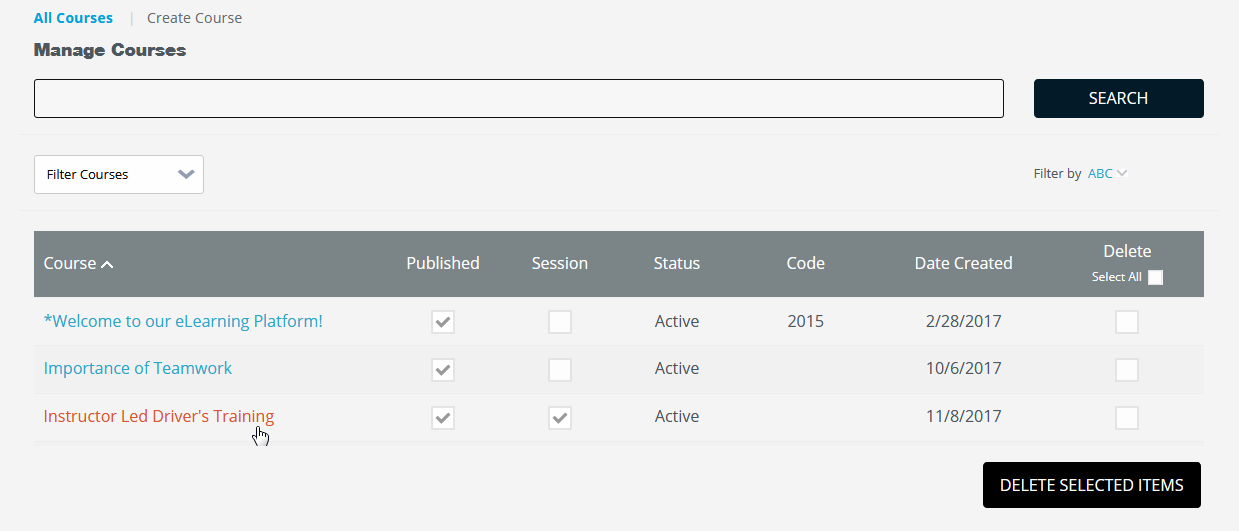
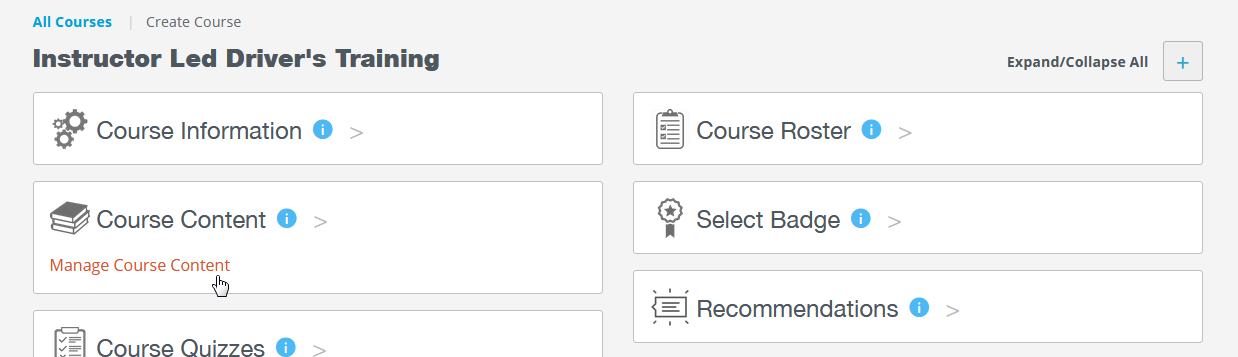
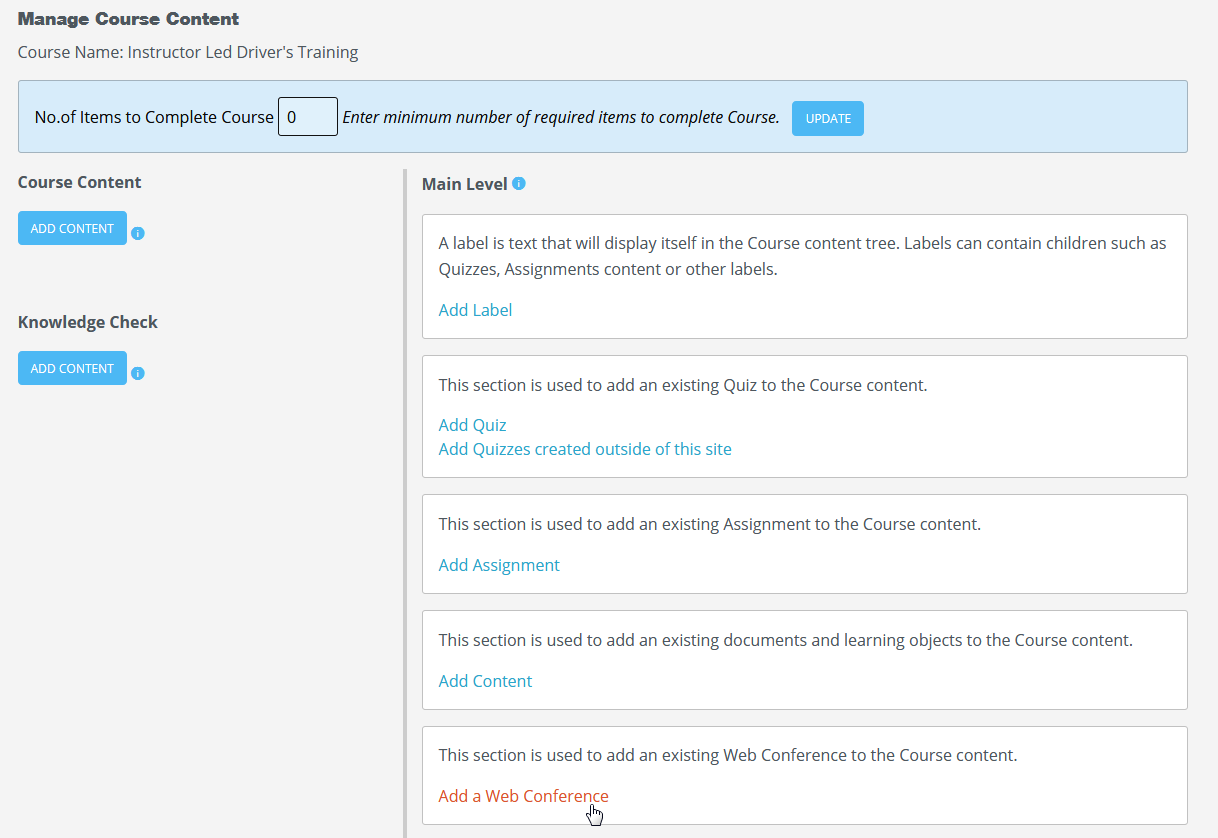
From the Manage Course page, open Manage Course Content and scroll down to Add a Web Conference.
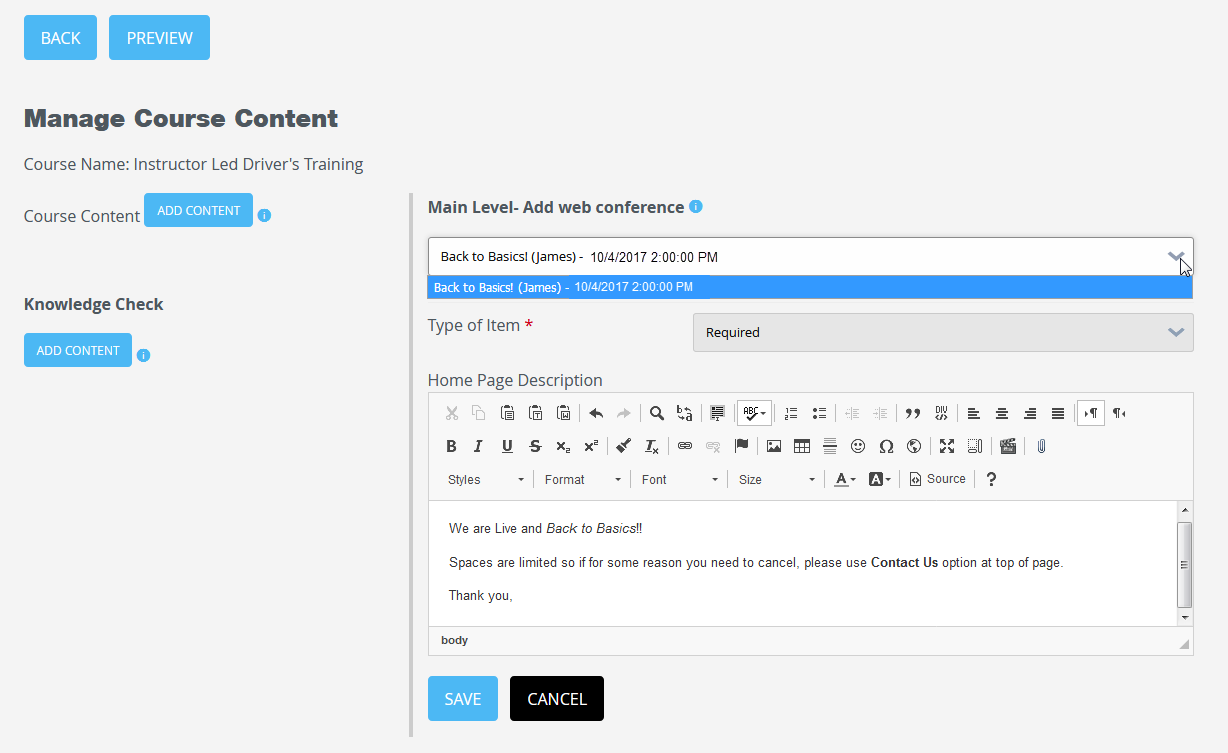
From the dropdown, choose a webinar. You can add a description for users to see, and then click Save.
How users will register for your webinar
Now that the webinar has been added to a course as content, you can publish your course to the catalog so users can register.
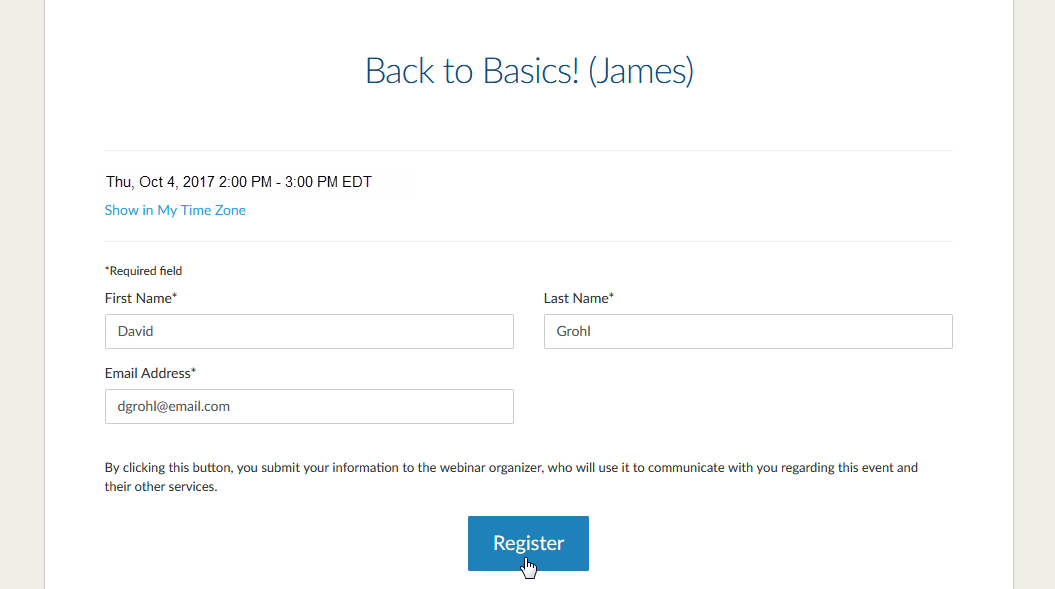
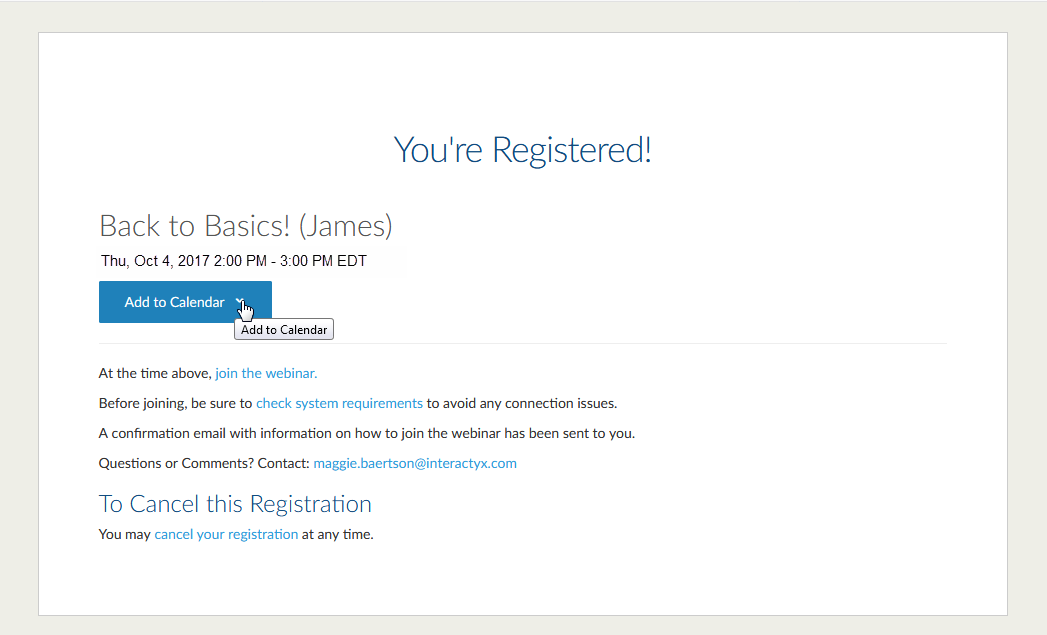
Once registered with the Course, users must visit the Course Material page and select the webinar link. A pop out window will appear allowing user to fill in their registration details.
Note: When users register for a webinar, their email address must be the same as they use in your site.
Webinar Attendance
While attendance is made available in your GoTo Webinar (GTM & WebEX) account, it can also be viewed in your site.
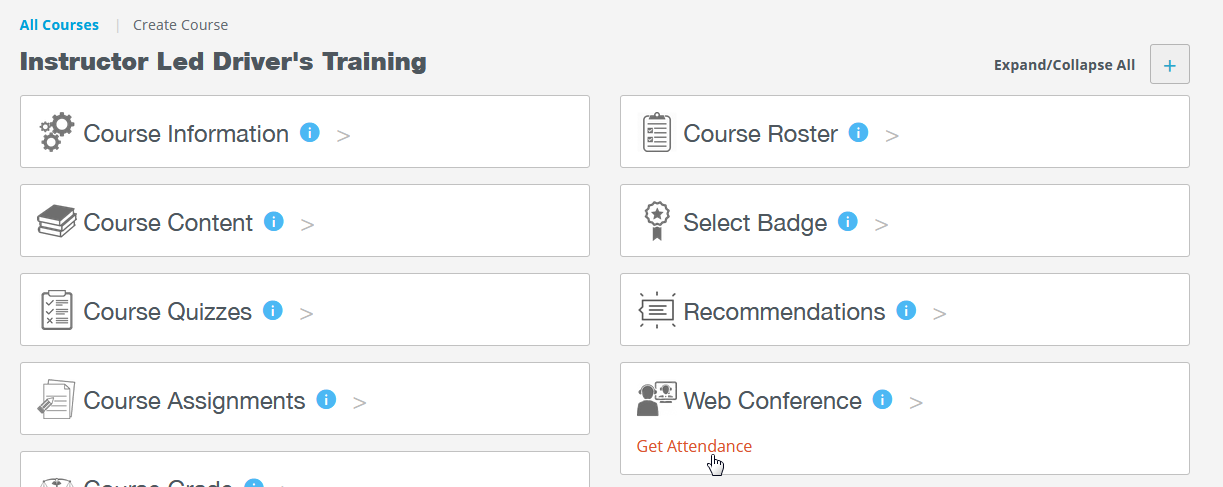
Note: Users must remain in course roster in order to retrieve their attendance. To retrieve attendance, visit the Manage Course Page and under Web Conference section, click Get Attendance.
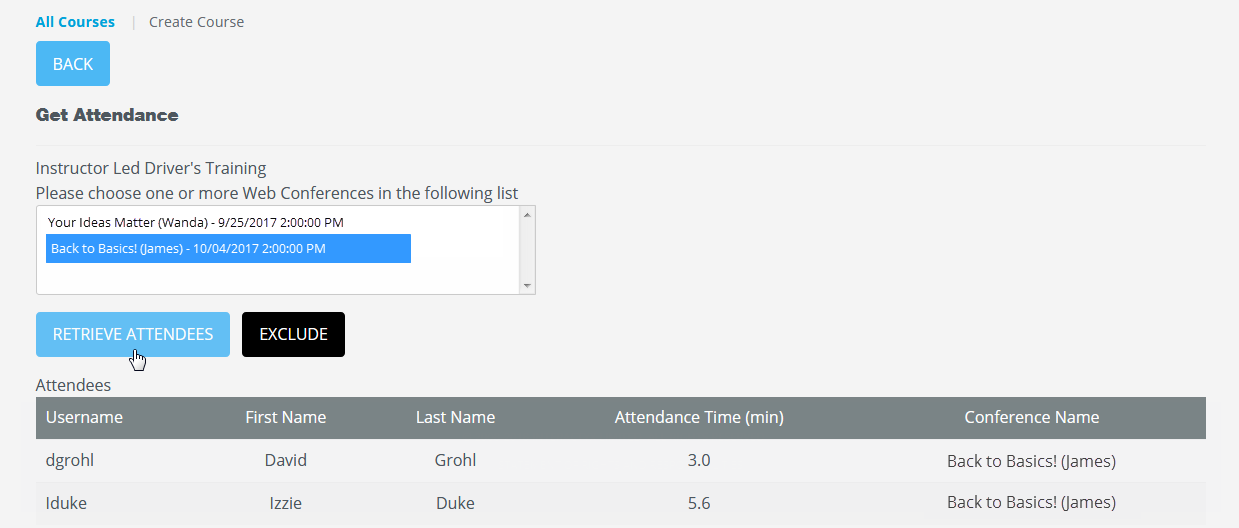
Click on webinar(s) and then click Retrieve Attendees.
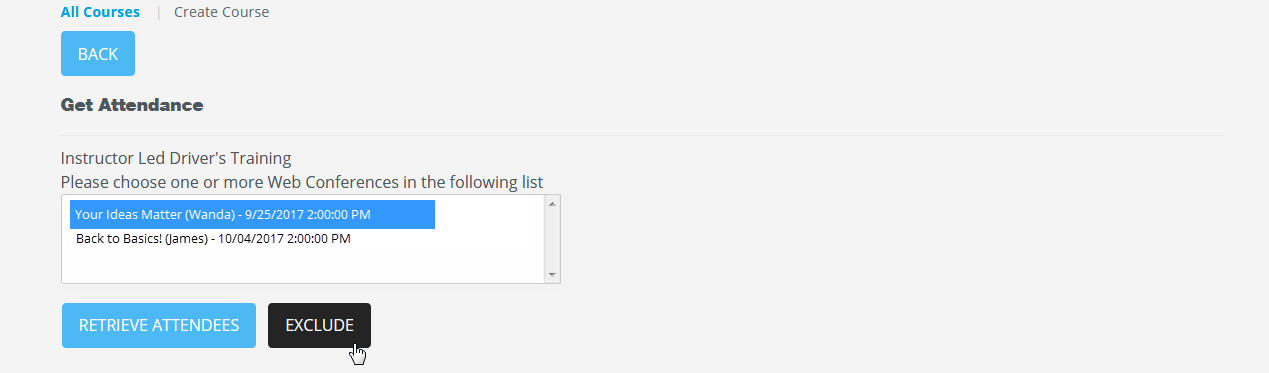
The Exclude option allows admins to remove old or unwanted webinars from list. Select the webinar(s) and then click on the Exclude button.
Manage Webinars
This section offers information on previous webinars and will share webinar details, the number of registrants, and the number of attendees.
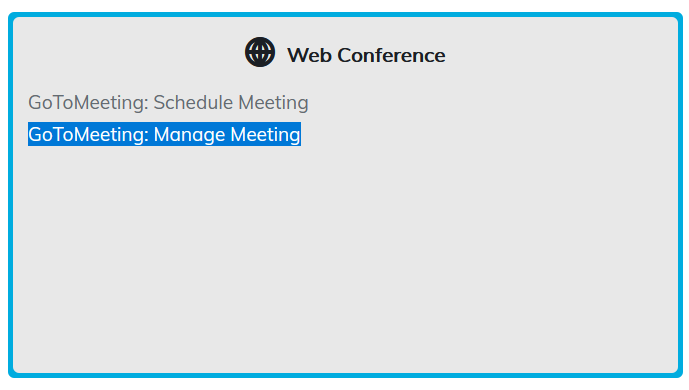
Click on the webinar name to view details.
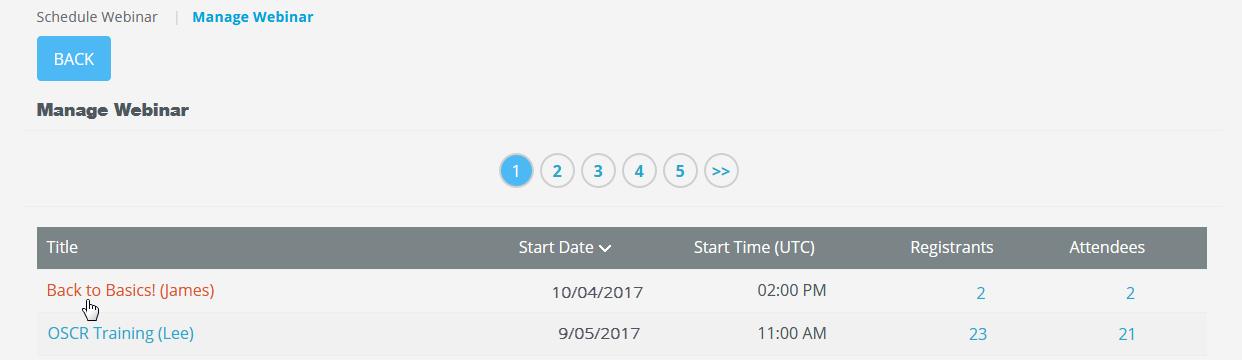
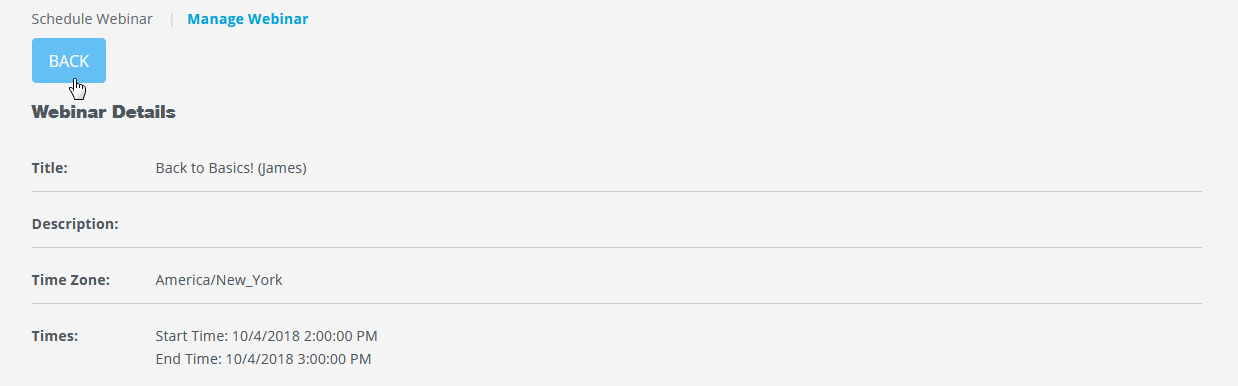
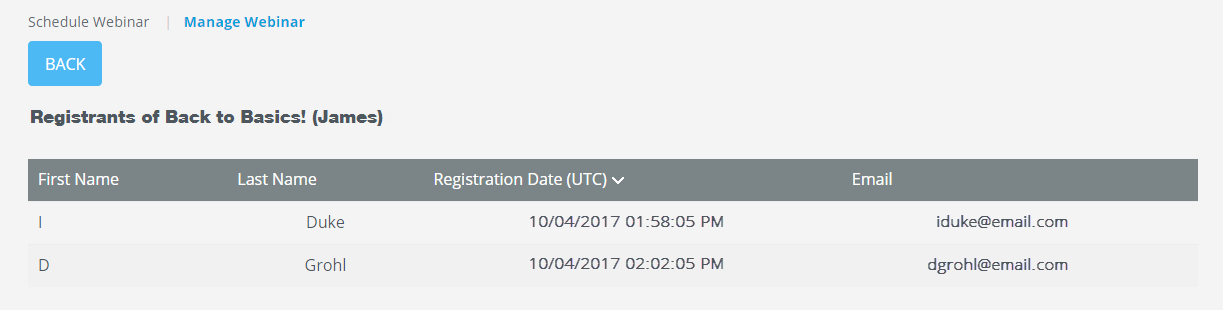
The Registrants column displays the number of users invited.

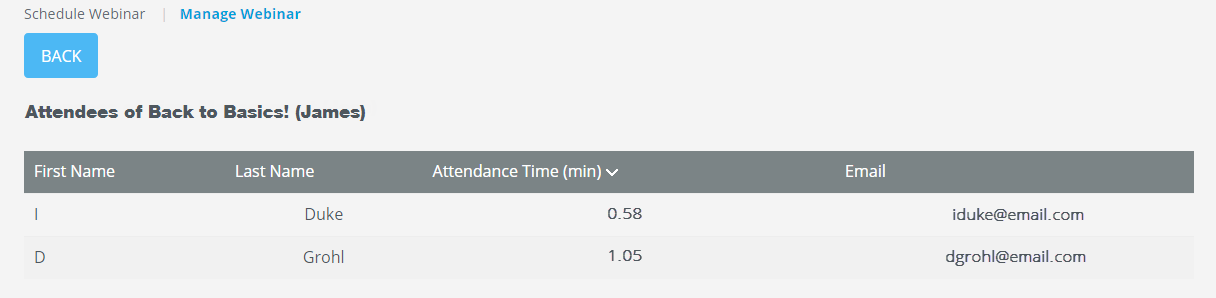
The Attendees column displays the actual users that attended. Once clicked, it will also display the amount of time spent in the webinar.

For sites that use more than one Goto Webinar account
Manage Accounts
This section offers a user list and will display the Webinar Account Name.
- The User List dropdown displays all users in your site that have an administrator, instructor, or manager role.
- The Webinar Account Name section will display individuals that have a Goto Webinar account.
By associating an individual from the user list to webinar account name, it will allow that user to see webinar details created by the webinar account holder.
To do this, choose a user from dropdown list, then select radio button to right of Webinar Account Name and click on the Save button.
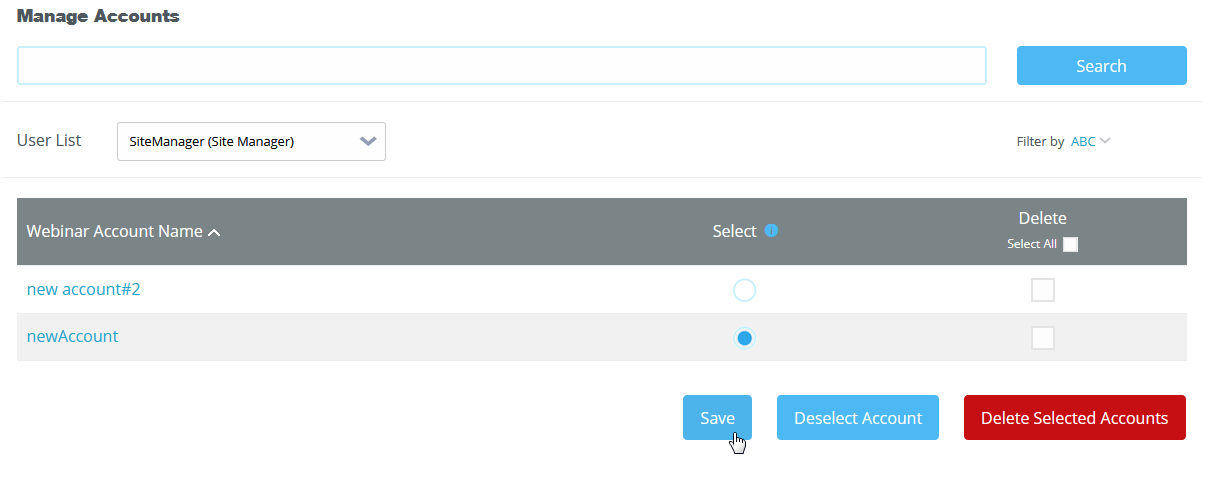
You can also deselect a user from a webinar account by clicking on the Deselect Account button.
To remove webinar account names from your site, under the Delete column, check the box and click the Delete Selected Accounts button.
Create Account
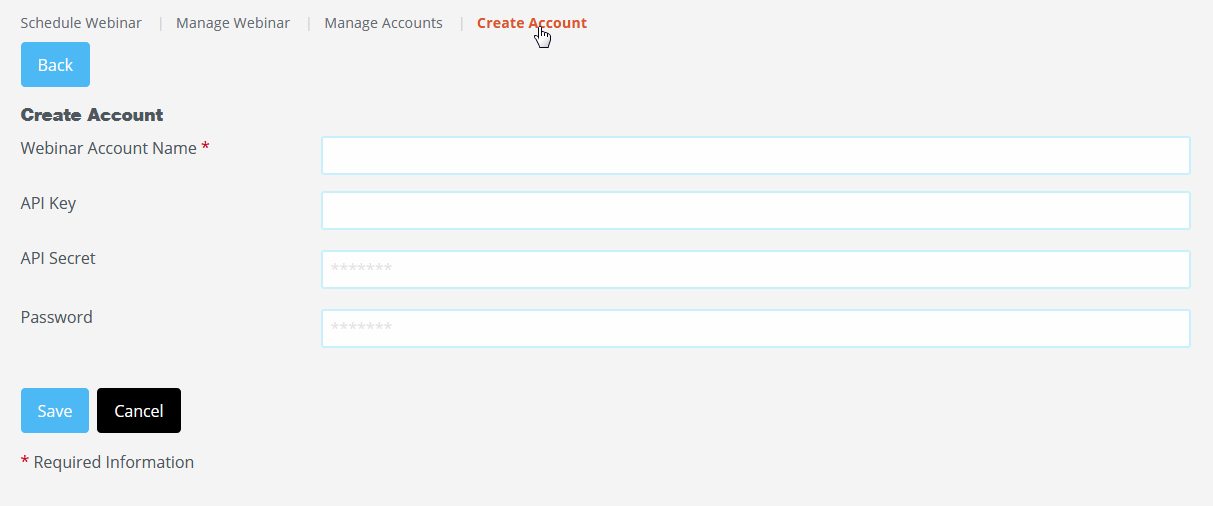
To add Goto Webinar Account holders to your site, select the Create Account option, add webinar account details, then click Save.
The new account will then appear in the Manage Accounts section under Webinar Account Name.
Was this article helpful?
That’s Great!
Thank you for your feedback
Sorry! We couldn't be helpful
Thank you for your feedback
Feedback sent
We appreciate your effort and will try to fix the article