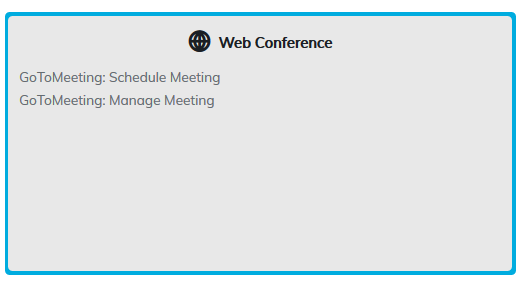
To integrate GoTo Meeting with your site, we will need to complete the following.
1. To enable the integration on your TOPYX site, please contact us first.
2. Obtain your GoToMeeting or GoToWebinar Client Secret. To obtain the client secret, login to your account at https://developer.logmeininc.com/clients.
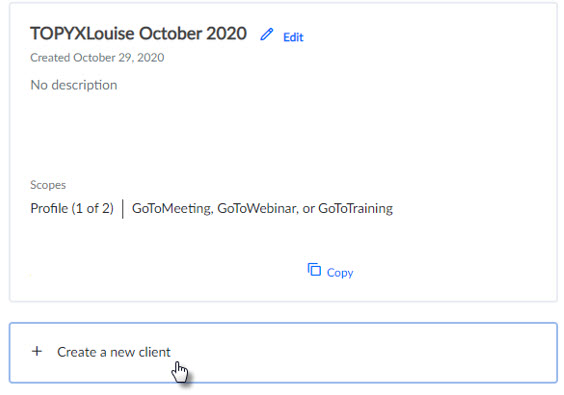
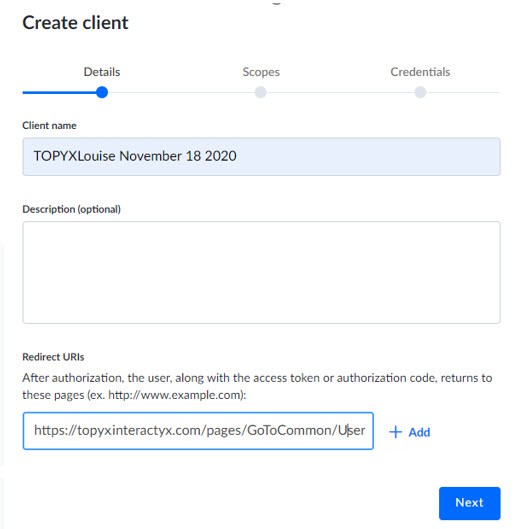
Choose to Create a new client and complete the required fields of Client Name and Redirect URIs. The Redirect UIRIs must follow a specific format. It must contain the URL of your TOPYX site followed by /pages/GoToCommon/UserAuthorized.aspx
https://YOUR_WEBSITE_URL/pages/GoToCommon/UserAuthorized.aspx
An example would be
https://topyxclient.interactyx.com/pages/GoToCommon/UserAuthorized.aspx
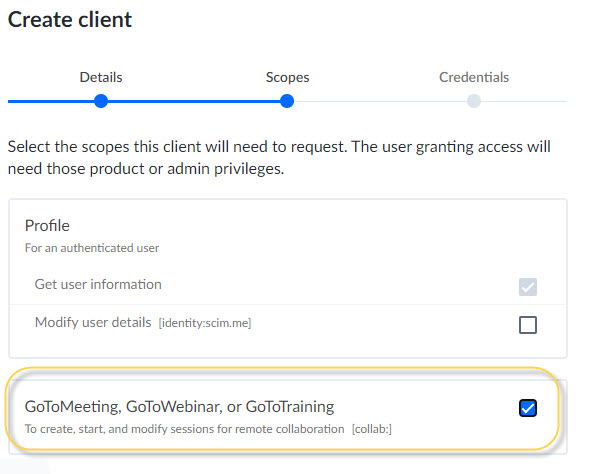
Please select GoToMeeting, GoToWebinar, or GoToTraining under the Scopes heading.
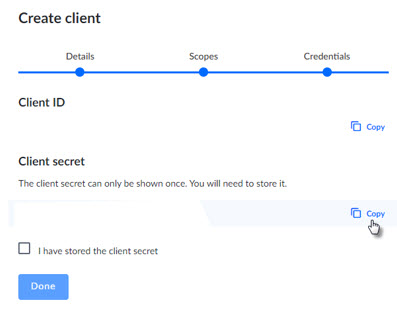
Saving will create a new client and provide you with the Client Secret. This needs to be copied and added to TOPYX.
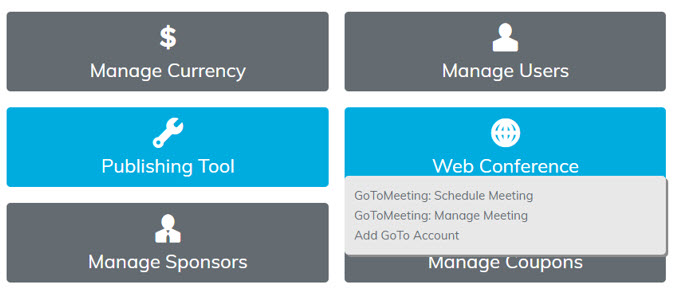
3. To add the Client Secret to TOPYX login to your site as an Administrator and select Web Conferences > Add GoTo Account.
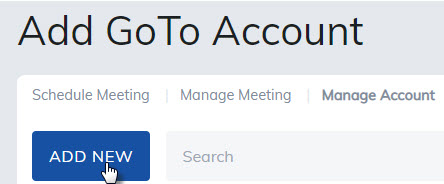
Select Add New.
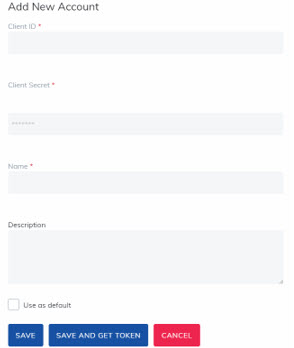
Fill in the required information, including ClientID and Client Secret before choosing Save and Get Token.
Once saved, the administrator will be redirected to GoTo to allow the connection to complete. Please select Allow.
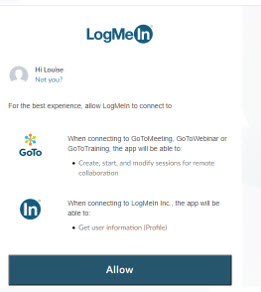
Once complete, the administrator will be returned to TOPYX and the token will be valid for one hour. The administrator may then create a GoToMeeting in TOPYX as before or add previously created GoToWebinars to their TOPYX site.
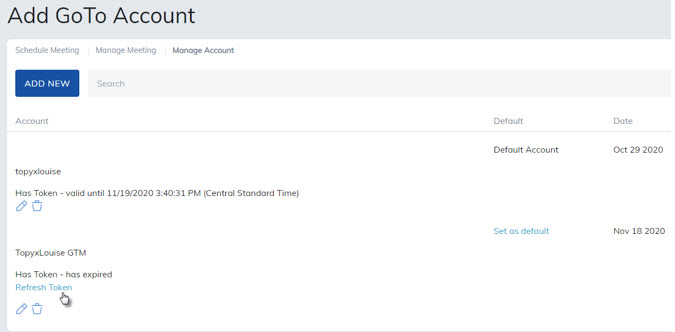
Please Note: This token will expire after 1 hour. A new token must be obtained upon its expiration for additional GoToMeetings/GoToWebinars to be created/displayed in your TOPYX site. To obtain a new token click on Refresh Token.
Was this article helpful?
That’s Great!
Thank you for your feedback
Sorry! We couldn't be helpful
Thank you for your feedback
Feedback sent
We appreciate your effort and will try to fix the article