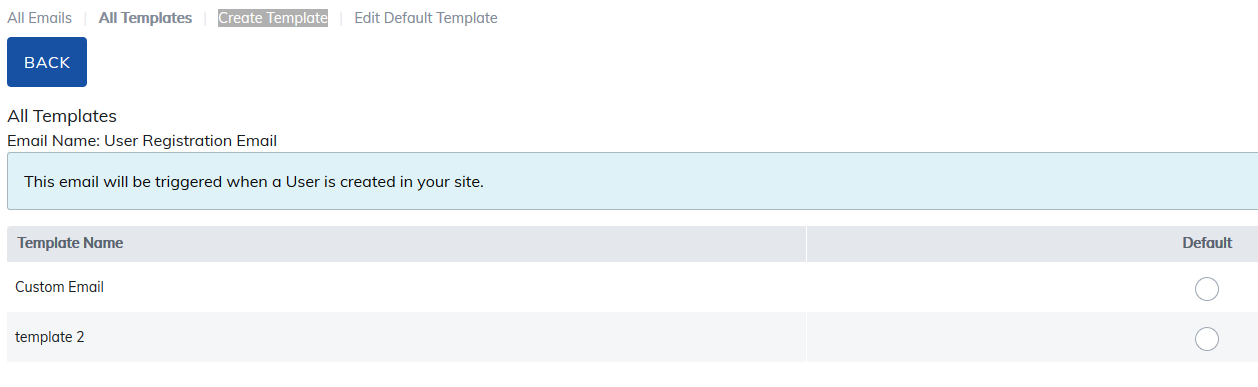
Emails can be customized for individual user groups. To do this, open the email template you wish and then select Create Template.
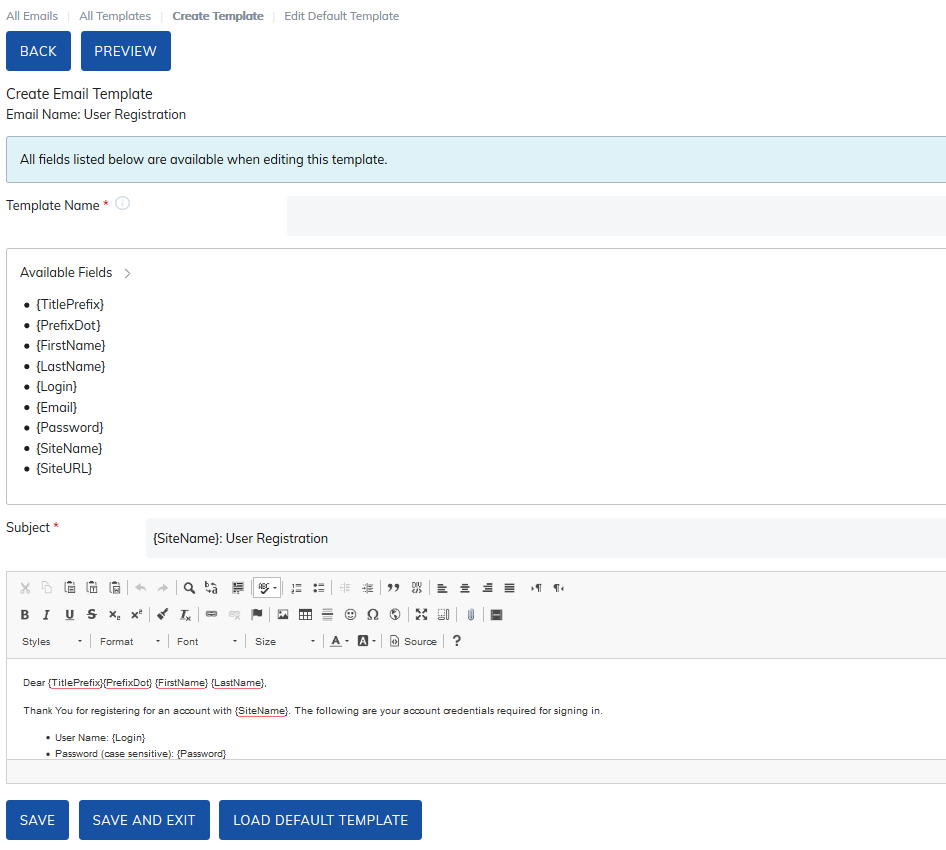
On the next page give the template a name and then create the custom email. There are available fields that can populate data listed above the editor. Copy and paste those fields into the editor where you would like to use them. You may also use the editor to add colors, font changes, images, etc. to your email.
When you are done creating the custom template, click the Save button. You can also Preview your work using the Preview button.
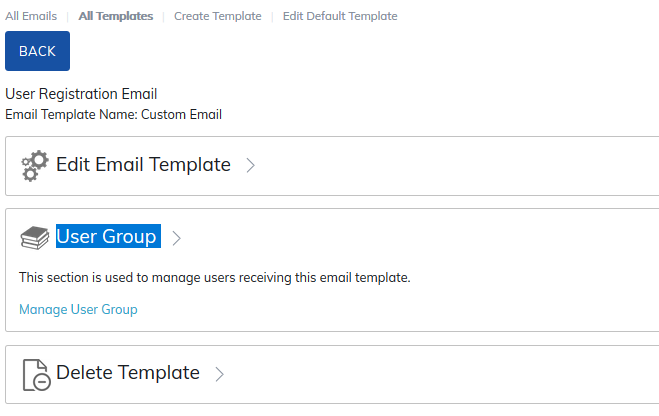
The next page offers you the ability to revise changes using the Edit Email Template link or delete the template using the Delete Template link. Otherwise, click the Manage User Group link to assign the template to a specific group of learners in your site.
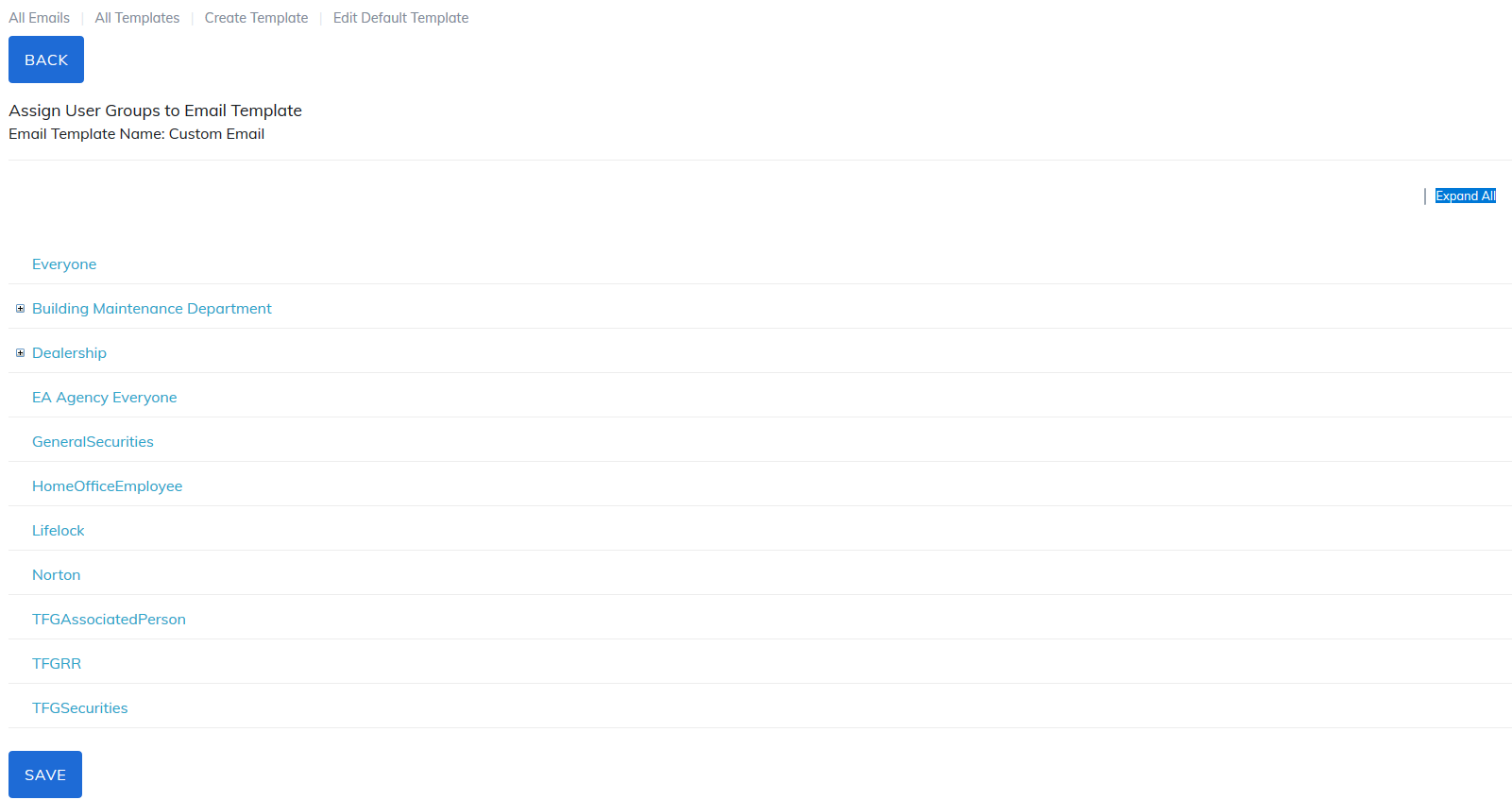
On the next page select the user group you'd like this template to go to and click save.
Note: when selecting a main level user group, all the sub-groups will also be checked. To expanded your user groups, click the Expand All link in the upper right corner and you then can individually select your groups.
You can also edit the default email template, which users will receive if there are no custom emails created. To do this, click the Edit Default Template link, make any changes, then click the Save button at the bottom of the page.
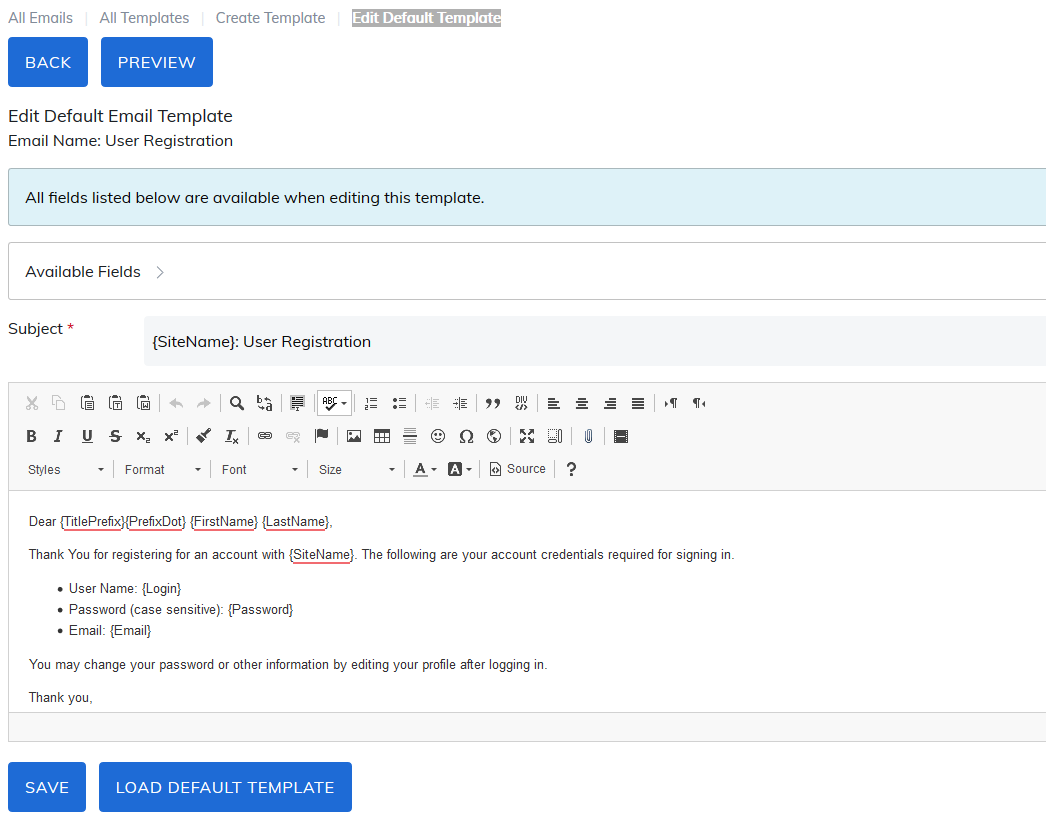
For user registration, changed password and forgot password emails, please note that the system will not send a password but a link for a learner to set their password. The link will be valid for 24 hours once sent and will only be able to be used once. Please click Load Default Template to add the link to emails.
Was this article helpful?
That’s Great!
Thank you for your feedback
Sorry! We couldn't be helpful
Thank you for your feedback
Feedback sent
We appreciate your effort and will try to fix the article